If your Motorola Razr Plus (2024) has gone silent when it should be buzzing, it's a surprisingly common hiccup. The good news is that a quick settings check or a simple restart usually gets the haptic feedback working again in no time.
Restart Your Phone
Before diving into settings, give your Razr a quick reboot. Press and hold the Power button for 10 to 15 seconds until you see the Motorola logo appear and the phone restarts. This clears out any temporary software glitches that might be stopping the vibration motor.
Check Your Sound and Vibration Profile
On the Razr Plus, your current sound profile is key. Swipe down from the top of your screen to open the Quick Settings panel and look for the sound icon. Make sure it's not set to "None" or "Vibrate only," as "Vibrate only" can sometimes behave inconsistently. Tap it to cycle to the "Sound" profile, which should allow vibrations for calls and notifications.
You can also check this in your full settings. Go to Settings > Sound & vibration. Here, verify that the "Vibrate for calls" option is toggled on. If it's already on, try turning it off and back on again.
Adjust Vibration Strength
The Razr Plus lets you control how strong vibrations feel. If the default setting is too subtle, you might not notice it. Head to Settings > Sound & vibration > Vibration & haptics.
On this menu, you'll find sliders for "Vibration strength" and "Touch feedback." Crank the vibration strength up to the maximum to see if that makes a difference. While you're there, ensure "Touch feedback" is enabled so you get a small buzz when you type or interact with certain buttons.
Inspect App-Specific Notification Settings
Sometimes the issue isn't with the phone, but with how a specific app is configured. If you're missing vibrations only from texts, emails, or a particular social media app, you need to check its notification permissions.
Open Settings > Apps, then select "See all [number] apps." Find the app that's not vibrating, tap on it, and then select "Notifications." Make sure notifications are enabled for that app, and look for a "Vibrate" toggle within its notification categories. You may need to tap into a specific notification type, like "Messages," to find and enable it.
Update Your Software
Running outdated software can lead to minor bugs, including haptic issues. Motorola regularly releases updates that include fixes. To check, go to Settings > System > System updates.
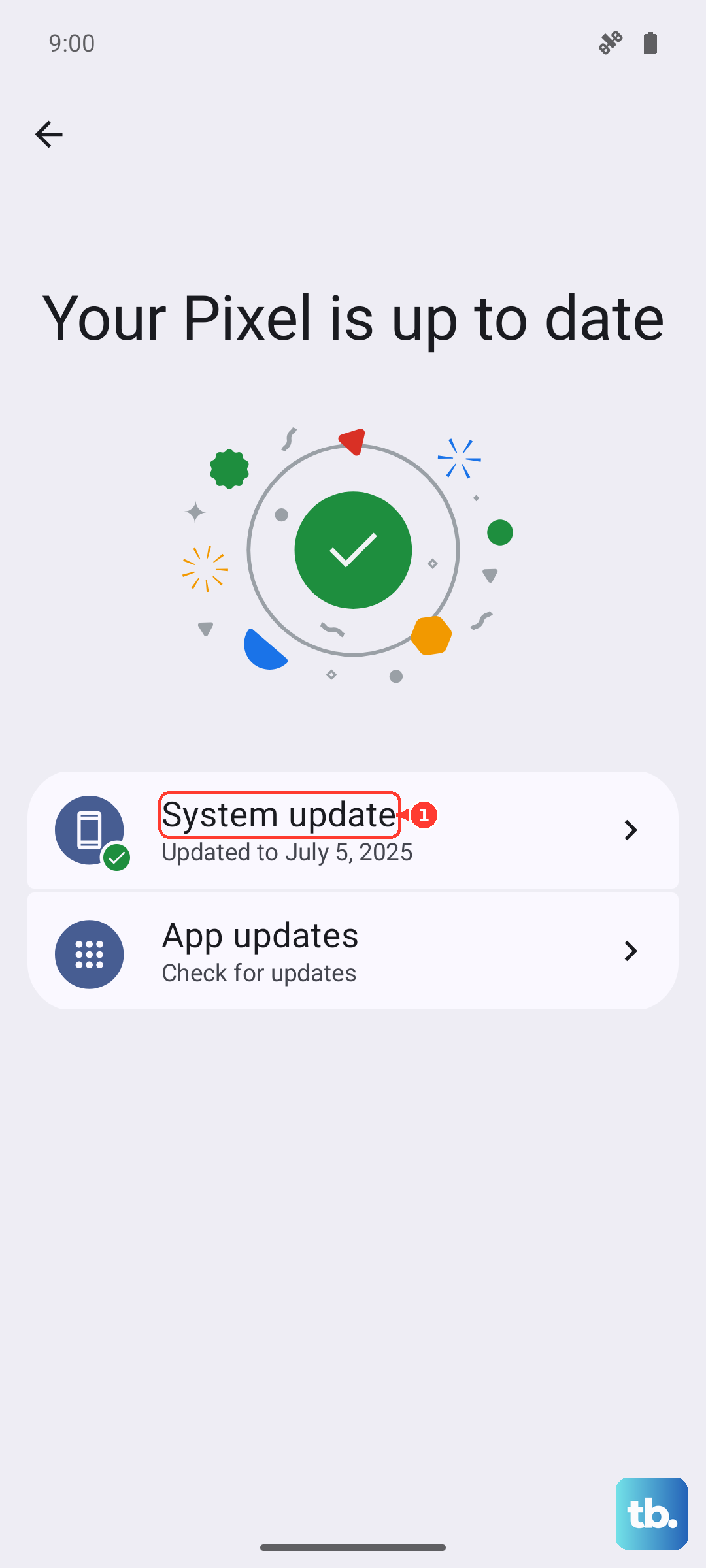
Tap "Check for update" and install any available updates. I'd recommend doing this while your phone is connected to Wi-Fi and has a good charge, preferably over 50%.
Test in Safe Mode
If the problem persists, a third-party app you installed could be interfering. Booting into Safe Mode temporarily disables all downloaded apps, helping you pinpoint the cause.
To enter Safe Mode, press and hold the Power button until the power menu appears. Then, long-press the "Power off" option on your screen. A prompt will ask if you want to reboot to Safe Mode; tap "OK." If vibration works normally in Safe Mode, you'll need to identify the problematic app by uninstalling recent downloads one by one.
To exit Safe Mode, just restart your phone normally.
Reset App Preferences or Network Settings
This is a useful middle step before more drastic measures. Resetting app preferences reverts all your app notification settings, permissions, and default apps back to their original state without deleting any personal data.
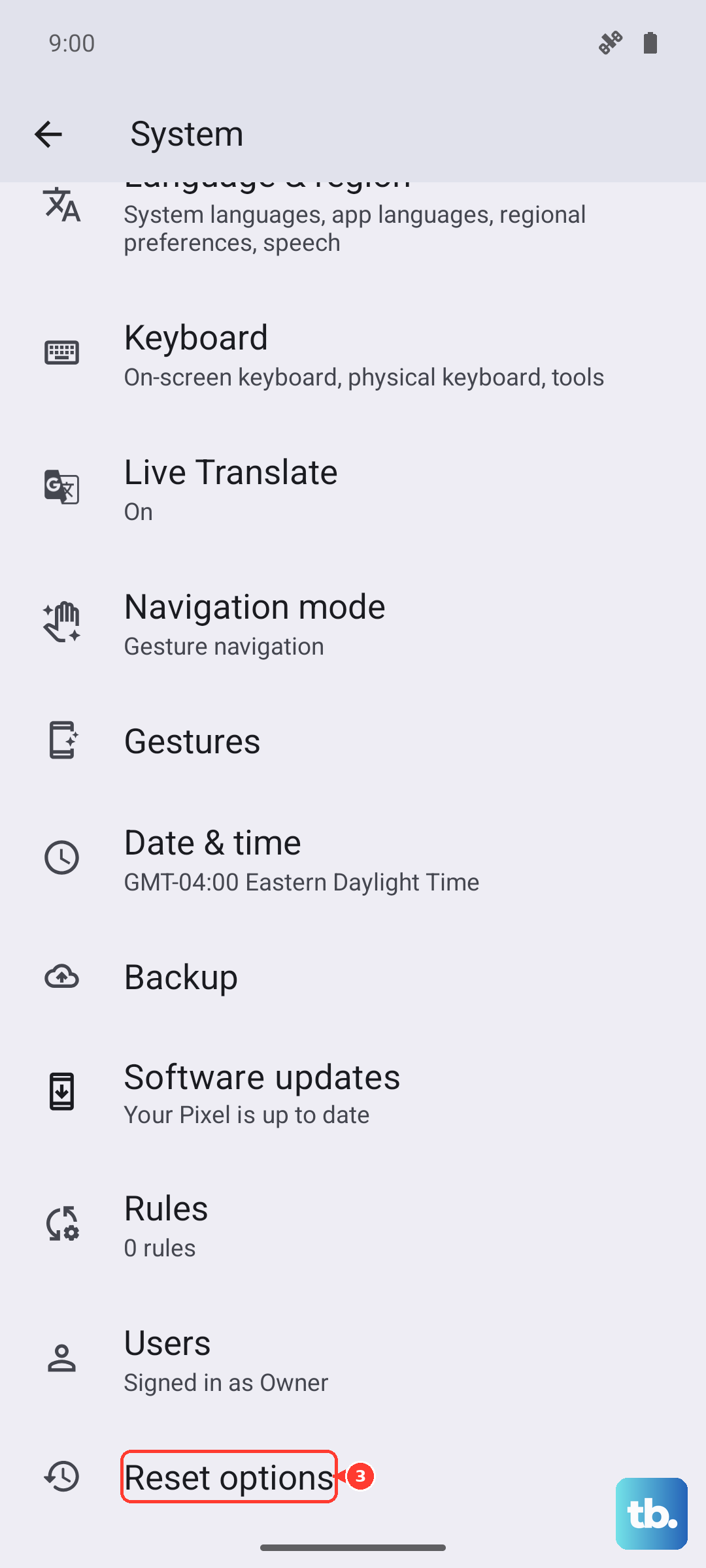
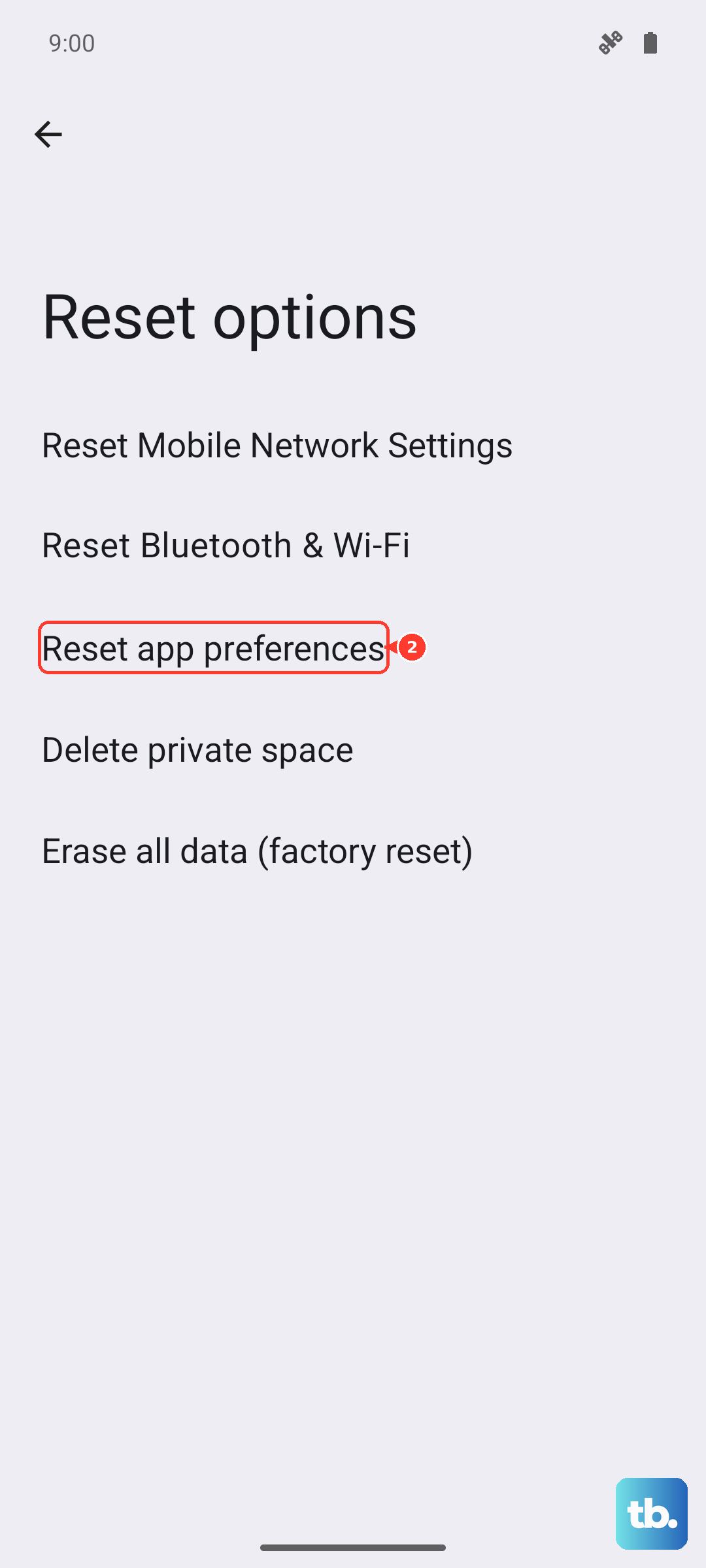
Go to Settings > System > Reset options. Tap "Reset app preferences" and confirm. You'll have to re-allow notifications for your apps afterward, but it can clear up conflicts. If you suspect a deeper system glitch, you could also try "Reset Wi-Fi, mobile & Bluetooth" from the same menu, though this is less common for vibration issues.
Consider a Factory Reset
If you've tried everything and your Razr Plus still won't vibrate, a factory reset is the final software step. This will erase all data from your phone, so it's crucial to back up everything important first.
Once backed up, go to Settings > System > Reset options > Erase all data (factory reset). Follow the prompts to complete the reset. If the vibration motor still doesn't work after setting up the phone as new, the issue is likely hardware-related.