When the sound cuts out on your Motorola Razr Plus, it can feel like you're holding a fancy, silent brick. The good news is that most audio problems, from muffled calls to completely silent media, are caused by simple software settings or temporary glitches that you can fix yourself. I'd start with the volume buttons, as that's the most common culprit.
To separate hardware from software, open a quick sound test and play the channel tones. What you hear, or do not hear, tells you which fixes below matter most.
Check Your Volume and Sound Mode
First, press the volume up button on the side of your Razr Plus. Do this while you're trying to play a video or a song, not just from the home screen. Sometimes the media volume gets turned down separately from the ringtone volume.
Next, swipe down from the top of your screen to open the Quick Settings panel. Look for the sound mode icon, it might say "Vibrate" or show a bell with a line through it. Tap it to switch back to "Sound" mode. If your phone is folded, you can check this on the cover screen by swiping down on it as well.
Disconnect Bluetooth and Accessories
Your Razr Plus might be trying to send audio to a device that isn't there anymore. Open the Settings app and tap Connected devices > Connection preferences > Bluetooth. Turn Bluetooth off completely for a moment to see if your phone's speakers kick back in.
Also, take a look at any physical accessories. A thick case can sometimes muffle the bottom-firing speaker. If you have headphones plugged into the USB-C port or connected wirelessly, disconnect them to make sure audio routes back to the phone itself.
Clean the Speaker Grill
The main speaker on the Razr Plus is on the bottom edge. Lint from your pocket or dust can easily get packed in there over time. Grab a soft-bristled toothbrush or a clean, dry makeup brush and gently sweep across the speaker grill.
You can also use a can of compressed air, but hold it upright and use very short bursts from a few inches away. Never poke anything sharp like a pin or paperclip into the holes, as you'll likely damage the speaker behind the grill.
Review App-Specific Sound Settings
Android lets you control sounds for individual apps. If only one app is silent (like your phone app or YouTube), its own settings might be muted. Open Settings and go to Apps. Find the app that's having issues and tap on it.
Look for a section called "Notifications." Tap into it and make sure the notification category for sounds isn't set to "Silent." Some apps also have sound toggles within their own in-app settings menus, so that's worth a quick check too.
Check Do Not Disturb and Accessibility
It's easy to turn on Do Not Disturb and forget about it. Swipe down twice from the top of your screen to see the full Quick Settings tray. If you see a circle with a line through it labeled "Do Not Disturb," tap it to turn it off.
Another spot to check is in Settings > Accessibility. Scroll down and look for "Hearing enhancements." Tap it and make sure any option like "Mute all sounds" is switched off. These accessibility features are powerful but can sometimes be activated by accident.
Force Restart Your Razr Plus
A simple reboot clears out temporary software bugs that can affect audio. For the Razr Plus, press and hold the Power button for about 10 to 15 seconds. Keep holding it until you see the Motorola logo appear on the screen, then let go.
Your phone will restart normally. This process doesn't delete any of your data or files. It's just a deeper refresh than a standard restart and often fixes weird glitches, including sound problems.
Clear the Cache for Specific Apps
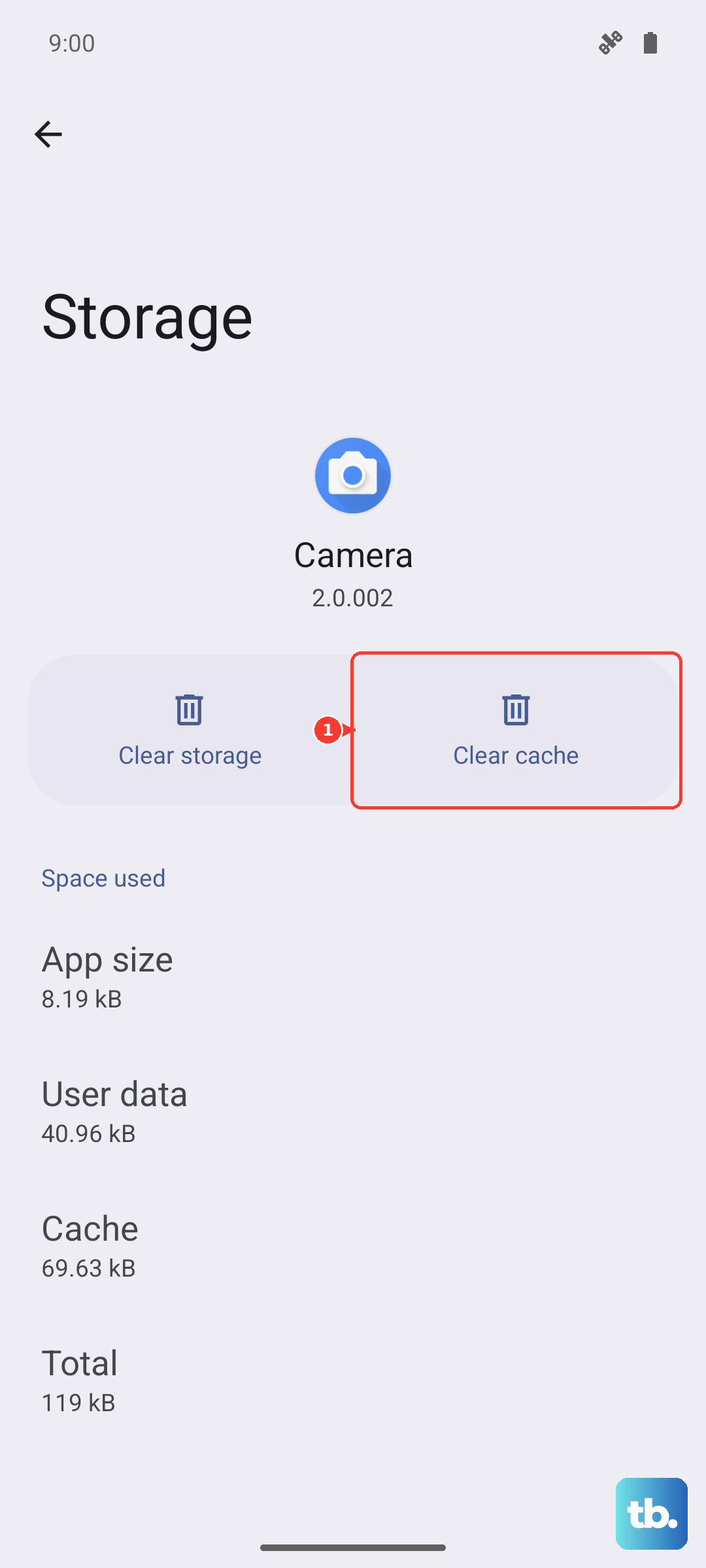
If one app is consistently having sound issues, its stored data might be corrupted. Go to Settings > Apps and select the problematic app. Tap on Storage & cache.
You'll see an option to "Clear cache." Tap that. This deletes temporary files the app uses and can resolve playback errors without touching your login info or saved data within the app. It's a good middle step before more drastic measures.
Update Your Phone's Software
Motorola releases updates that fix known bugs, including audio-related ones. Make sure your Razr Plus is connected to Wi-Fi, then open Settings and tap System > System updates.
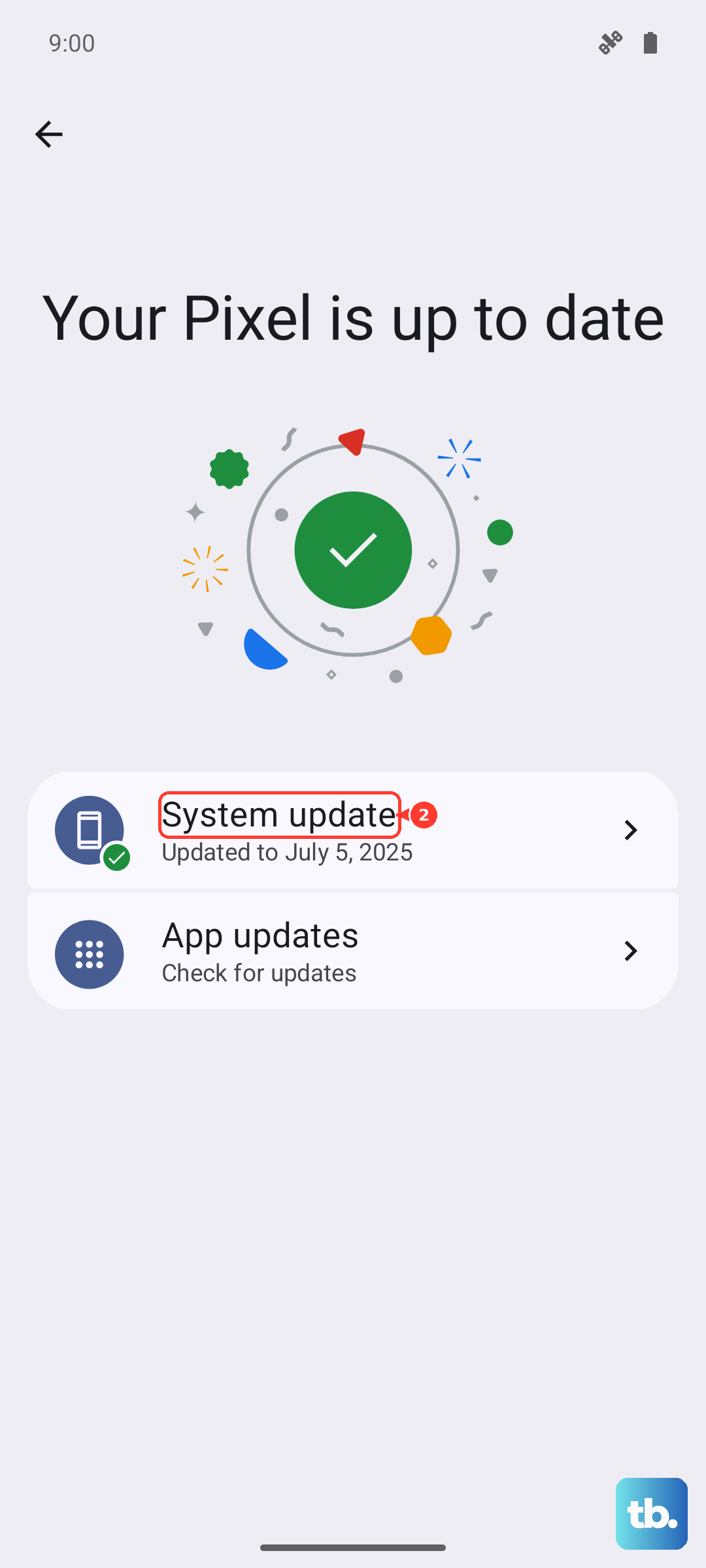
Tap "Check for update." If an update is available, follow the prompts to download and install it. It's a good idea to plug your phone in during this process. After the update installs and your phone restarts, test your sound again.
Reset All App Preferences (Not Your Data)
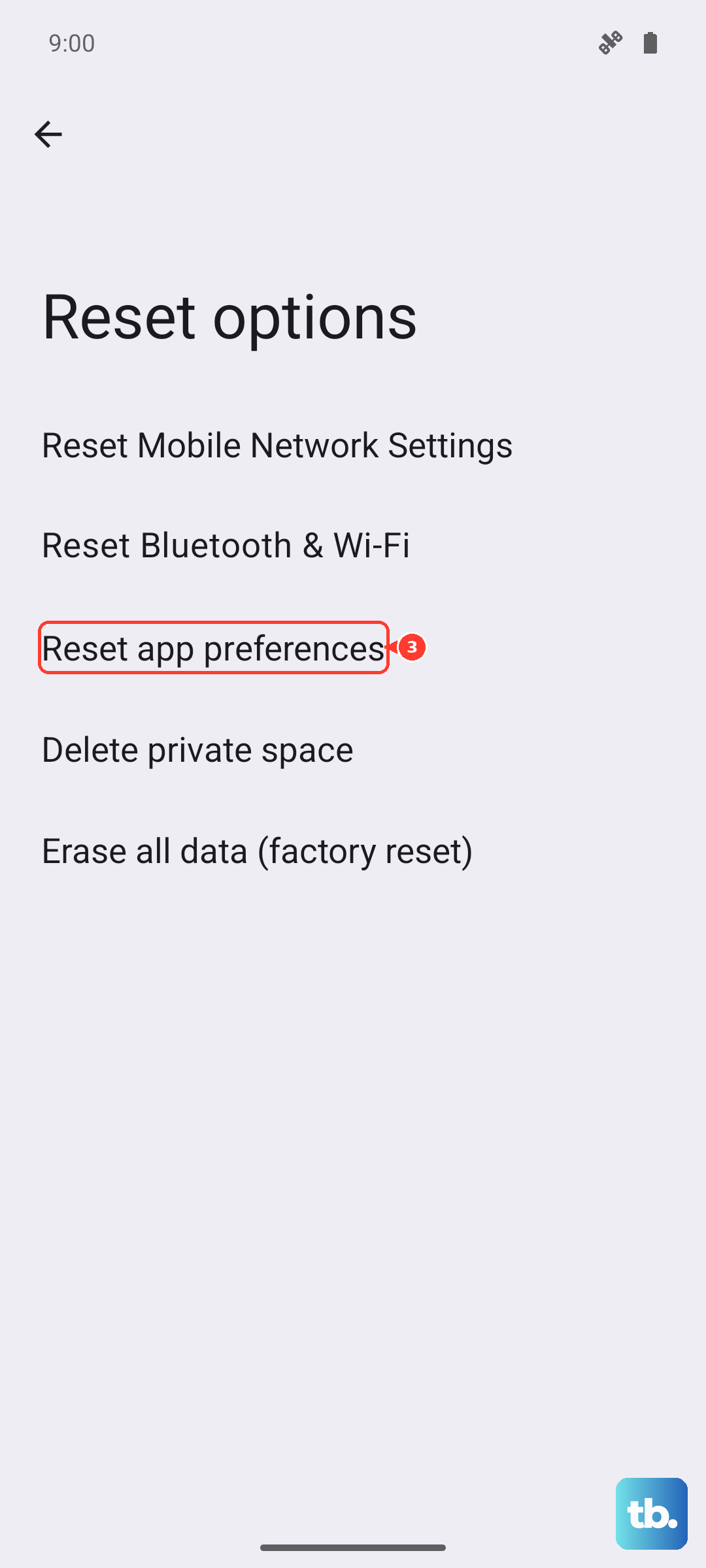
This is a useful reset that doesn't erase your photos, messages, or accounts. It just reverts all your app permissions, notifications, and default app settings back to their original state. It can fix conflicts that cause sound to fail.
Go to Settings > System > Reset options. Tap on "Reset app preferences." Confirm your choice. You'll need to re-grant permissions like microphone access to apps when you use them next, but it often clears up persistent system issues.