
Seeing "No Service" on your Motorola Razr Plus (2024) is a real headache, especially when you need to make a call or check a map. This error means your phone can't find or connect to your carrier's cellular network. The good news is that it's usually a temporary glitch you can fix yourself in a few minutes.
I'd start with the simplest fix first, which often does the trick. Give your Razr Plus a quick restart by pressing and holding the power button for about 10 to 15 seconds. Wait until you see the Motorola logo appear and the phone boots back up. This clears out any minor software bugs that might be blocking the cellular radio.
Check Your Basic Connection Settings
It sounds obvious, but it's worth a quick look. Swipe down from the top of your cover screen or main display to open the Quick Settings panel. Make sure the airplane icon for Airplane Mode isn't highlighted. If it is, tap it to turn it off.
While you're there, also check that mobile data is enabled. You can usually find a "Mobile Data" or "Cellular Data" tile in that same panel. Tapping it off and then back on can sometimes kickstart a stalled connection.
Reinsert Your SIM Card
A loose or dusty SIM card is a common culprit for the "No Service" message. You'll need the SIM ejector tool that came in the box (a small paperclip works in a pinch). Find the SIM tray on the bottom edge of your Razr Plus.
Gently push the tool into the small hole to pop the tray out. Carefully remove the SIM card, give the gold contacts a light wipe with a soft, dry cloth, and then reseat it firmly in the tray. Slide the tray back into the phone until it clicks. Give the phone a moment to re-register on the network.
Manually Select Your Network Operator
Sometimes your phone gets stuck trying to connect to a weak or incorrect tower. You can force it to search for your proper carrier again. Open the Settings app and tap on "Network & internet."
Then, go to "Mobile network" and tap on "Advanced." Look for an option called "Choose network" or "Network operators." Your phone will search for a minute. When the list appears, select your specific carrier's name instead of "Choose automatically."
Reset Your Network Settings
If the problem started after a software update or a new app installation, your network configuration files might be corrupted. Resetting them is a safe next step. This will erase saved Wi-Fi passwords and Bluetooth pairings, but it won't touch your photos, messages, or apps.
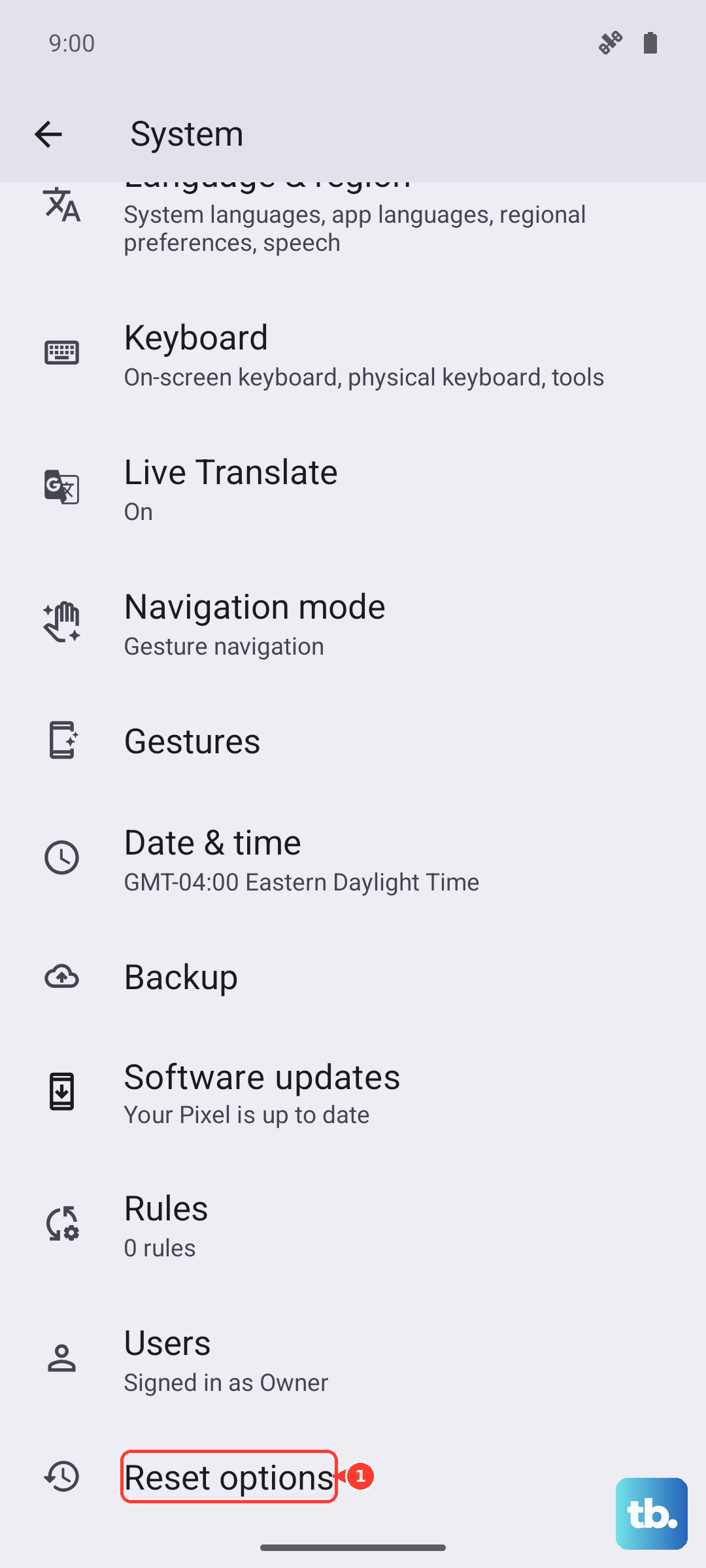
Go to Settings > System > Reset options. Tap on "Reset Wi-Fi, mobile & Bluetooth." Confirm your choice and enter your PIN if prompted. After the phone reboots, you'll need to reconnect to Wi-Fi and re-pair Bluetooth devices, but your cellular connection should be reinitialized.
Verify Your APN Settings
The Access Point Name (APN) is like a gateway address that tells your phone how to connect to your carrier's data network. If these settings are wrong, you'll often see "No Service" or have data but no calling. The path is Settings > Network & internet > Mobile network > Access Point Names.
You should see a list with at least one APN for your carrier. If the list is empty or you're unsure, the best move is to contact your carrier's support. They can give you the exact settings to enter or often send a configuration text message that sets it up automatically.
Use the Phone Information Menu
Android has a hidden diagnostic menu that lets you check the radio status. Open your phone dialer and type *#*#4636#*#* exactly. This should open a "Testing" menu. Tap on "Phone information."
Look for a "Turn off radio" button or a "Radio power" toggle. If the radio is on, try turning it off, waiting a few seconds, and turning it back on. You can also check the "Set preferred network type" dropdown menu here. For the Razr Plus, selecting "NR/LTE/WCDMA/GSM" or a similar "Global" option is usually correct.
Check for a Software Update
Motorola periodically releases updates that fix bugs, including ones related to network connectivity. It's a good idea to make sure you're running the latest version of Android 14 available for your device.
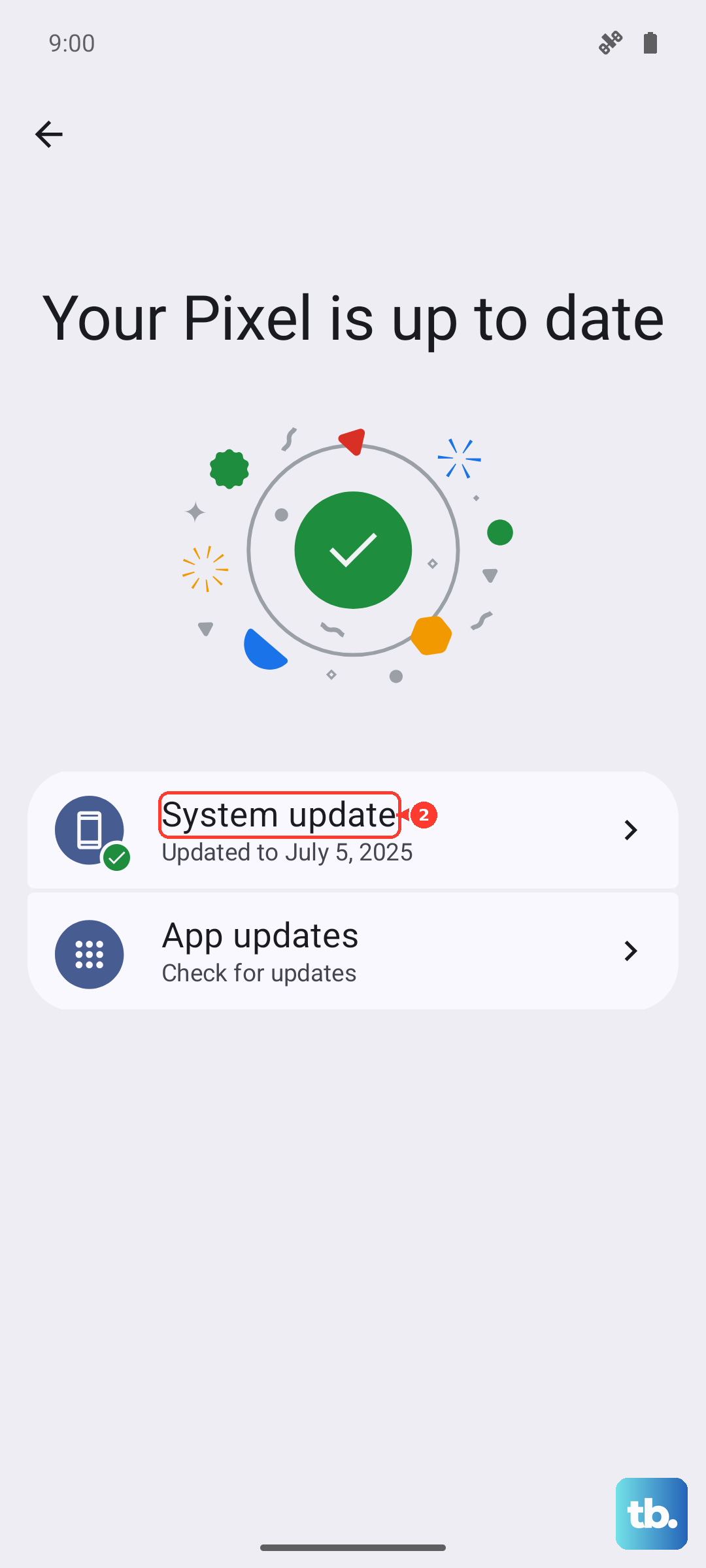
Go to Settings > System > System updates. Tap "Check for update." If an update is available, connect to Wi-Fi and let it download and install. Your phone will restart during this process. An update can resolve known radio firmware issues that might be causing your service problem.
Consider Your SIM Card and Account Status
If you've tried everything on the phone itself, the issue might be with the SIM or your account. The easiest test is to take your SIM card and put it into another unlocked phone. If that phone also shows "No Service," you know the problem is with the SIM or your carrier service.
Give your carrier's customer service a call at that point. They can check for outages in your area, verify that your account is in good standing, and see if your line is properly provisioned for service. They might also recommend getting a new SIM card, as older cards can sometimes fail to work with newer network technologies.
Inspect for Physical or Folding-Related Issues
Since the Razr Plus is a foldable, it's worth considering the unique hardware. While rare, a faulty antenna connection related to the hinge mechanism could theoretically affect signal. Make a few test calls with the phone both fully open and fully closed to see if the service status changes.
Also, ensure you haven't applied any metal-based skins or cases that are known to block signal. If you suspect a hardware fault and your phone is still under warranty, contacting Motorola support would be the appropriate next step to explore a repair or replacement.