
If your Motorola Razr Plus (2024) is refusing to send pictures, videos, or group texts, it's a frustrating roadblock on an otherwise slick device. The issue usually comes down to a setting that's out of place or a temporary glitch in the messaging service. Let's walk through the most effective fixes to get your multimedia messages flowing again.
Start With a Quick Restart
Before diving into settings, give your phone a fresh start. Press and hold the Power button for about 10 to 15 seconds until you feel a vibration and see the Motorola logo. This force restart can clear out any minor software hiccups that might be blocking MMS.
Confirm Your Mobile Data is Active
Unlike standard texts, MMS requires a mobile data connection to send. Swipe down from the top of your cover or main screen to open the Quick Settings panel and make sure the mobile data icon is turned on. If you have a strong Wi-Fi connection but a weak cellular signal, try temporarily disabling Wi-Fi to force the message to send over your carrier's network.
You can also check your data settings directly. Go to Settings > Network & internet > Mobile network and ensure the "Mobile data" toggle is switched on.
Verify Your MMS App Settings
The default Google Messages app on your Razr Plus has a few key settings for multimedia. Open the Messages app, tap your profile picture in the top right, and go to Messages settings > Advanced.
Here, make sure "Auto-download MMS" is enabled. If you're in an area with spotty service, you might also want to turn on "Auto-download MMS when roaming," but be mindful of potential charges.
Check and Update APN Settings
Incorrect Access Point Name (APN) settings are a classic culprit. These tell your phone exactly how to connect to your carrier's multimedia service. To check them, head to Settings > Network & internet > Mobile network > Advanced > Access Point Names.
You should see a list of APNs, with one selected (usually your carrier's name). If the list is empty or looks wrong, you'll need to enter the correct details. The fastest way to get these is to contact your carrier's support or search their website for "APN settings." Manually entering the correct MMSC (Multimedia Messaging Service Center) address here often solves the problem immediately.
Clear the Messaging App's Cache
Temporary files stored by the Messages app can sometimes become corrupted. Clearing this cache is a safe first step that won't delete your conversations. Go to Settings > Apps > See all apps.
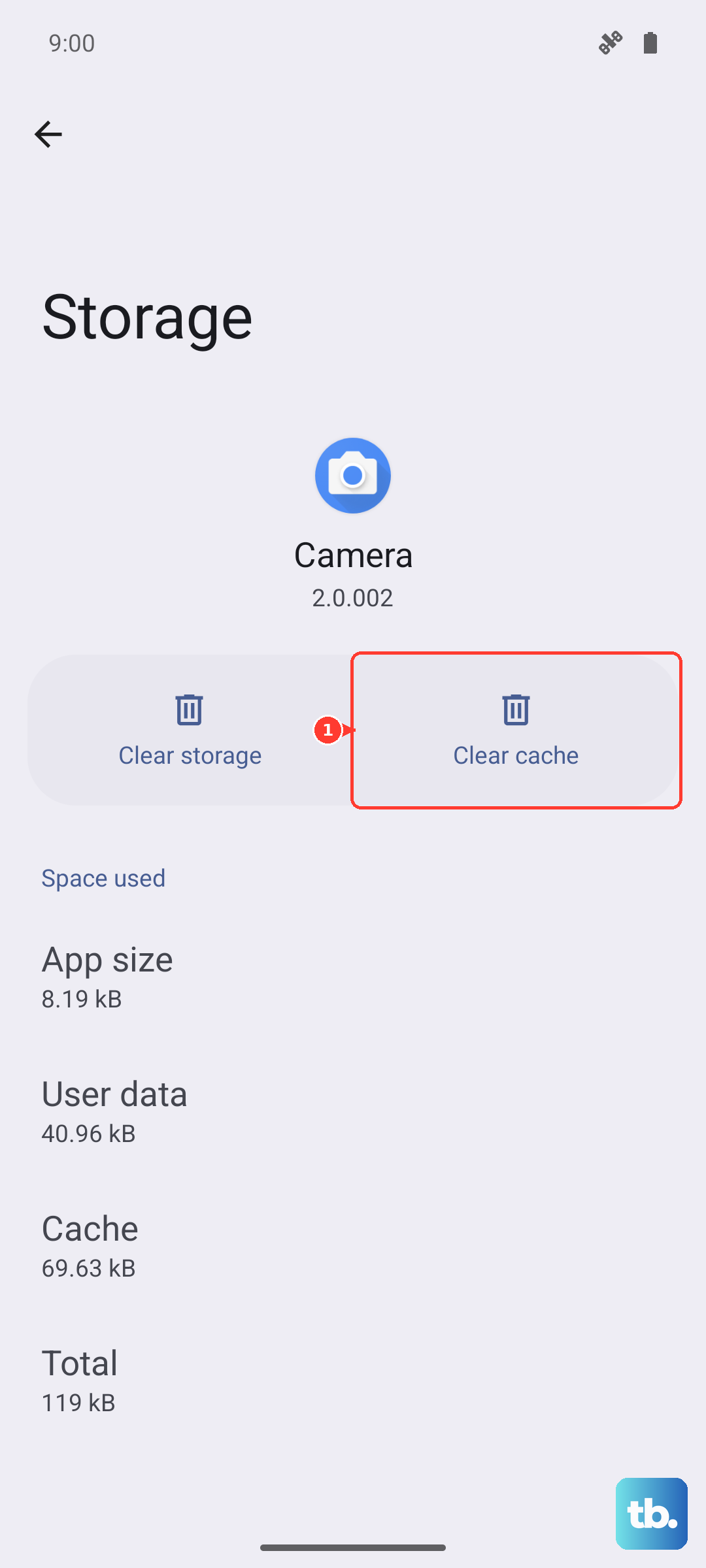
Find and tap on "Messages." Then, select Storage & cache and tap "Clear cache." If the issue persists, you can try "Clear storage" or "Clear data," but be warned this will erase your entire message history within the app, so only do this if you're okay with that loss or have a backup.
Look for a Software Update
Motorola periodically releases updates that can fix bugs affecting connectivity and messaging. Keeping your Razr Plus on Android 14 up to date is important. Check by going to Settings > System > System updates.
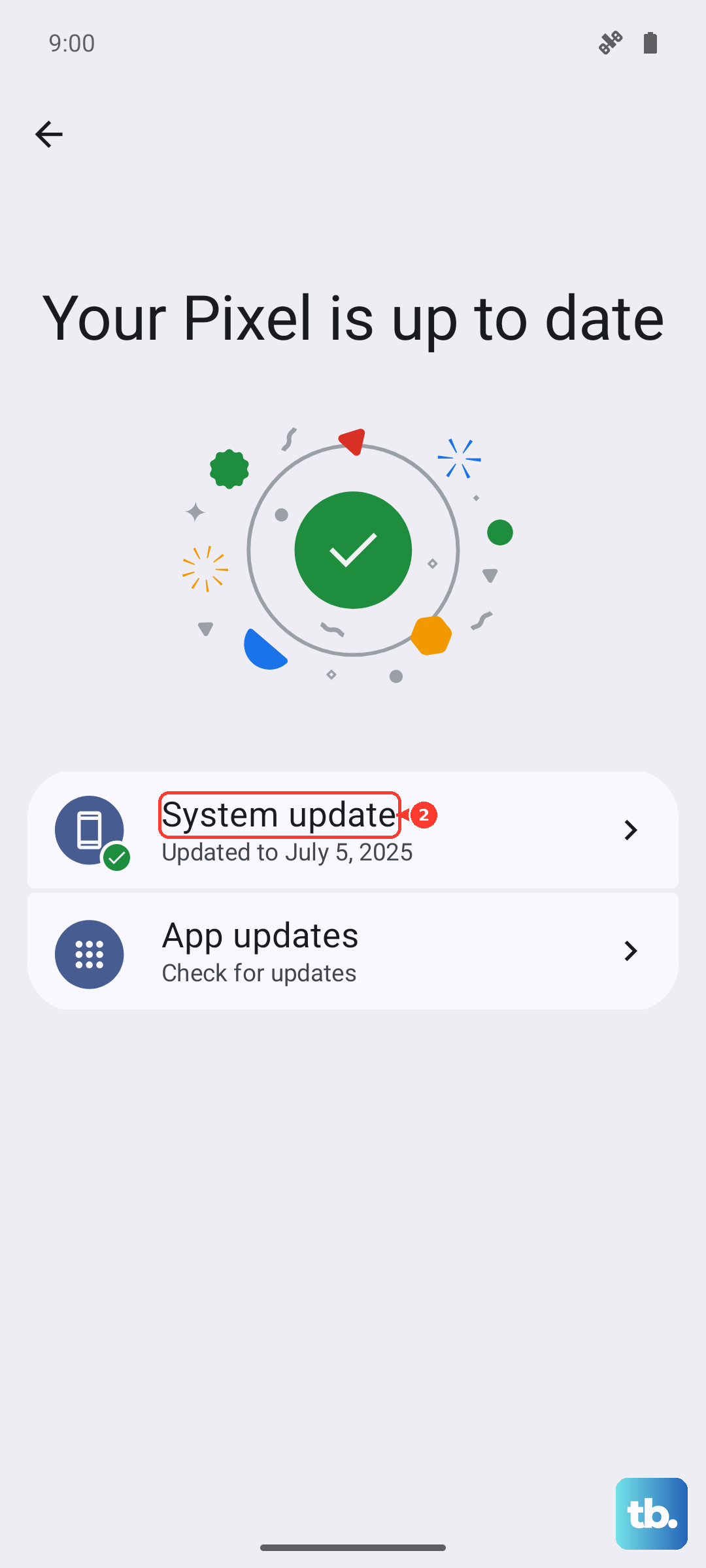
Tap "Check for update." If one is available, install it and restart your phone. I've seen updates resolve quirky MMS issues that settings changes couldn't touch.
Reset Your Network Settings
This is a more comprehensive step that resets all network-related configurations back to factory defaults. It will erase saved Wi-Fi networks, Bluetooth pairings, and your cellular network settings (including APNs).
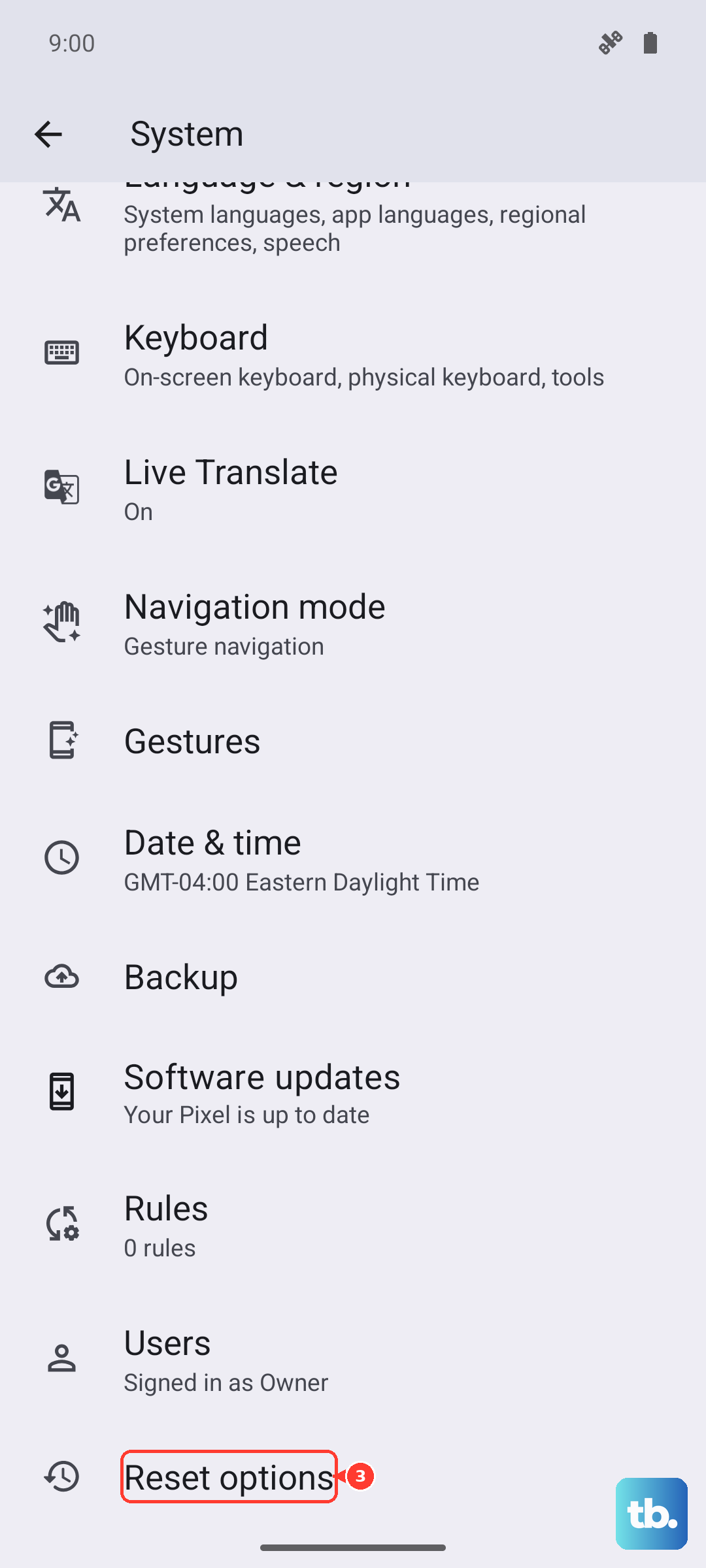
To do this, navigate to Settings > System > Reset options. Tap on "Reset Wi-Fi, mobile & Bluetooth" and confirm. After the phone reboots, you'll need to reconnect to Wi-Fi and re-pair Bluetooth devices, but your APN should be automatically restored by your carrier.
Ensure You Have Enough Storage
Your Razr Plus needs a bit of free space to process and send multimedia messages. If your internal storage is critically low, it can fail silently. Open Settings > Storage to see how much space is free.
Try to keep at least a few hundred megabytes available. You can quickly free up space by clearing old downloads or offloading some photos to Google Photos or another cloud service.
Try an Alternative Messaging App
If the problem seems isolated to Google Messages, installing a different app can be a good diagnostic step. Apps like Textra or even your carrier's own messaging app (if they have one) use slightly different methods to send MMS.
Download one, set it as your default app temporarily, and see if the message goes through. If it does, the issue is likely with the configuration of your primary app, and you may want to stick with the alternative or reinstall Google Messages from the Play Store.