You flip open your Motorola Razr+ (2024), switch on the hotspot expecting your laptop or tablet to jump online, and nothing happens. Maybe the toggle refuses to stay on, maybe your other device sees the network but can't connect, or maybe it connects yet no web pages ever load. The good news is that this exact model officially supports a Wi-Fi hotspot, plus Bluetooth and USB tethering, so the hardware is almost certainly fine. Most failures come down to a plan that doesn't allow data sharing, a mismatched setting, or a connectivity bug, and the fixes below walk through them from the simplest and safest to the last-resort reset.
Make sure your plan is allowed to share data
Before you touch a single setting on the phone, confirm that tethering is actually part of your service. Motorola is explicit about this requirement for the Razr+ (2024): "Your cellular plan must support data sharing. If you don't know, contact your carrier." This is one of the most common reasons a hotspot disappoints.
The tricky part is that the toggle may switch on and your laptop may even join the network, yet no internet ever passes through to the connected device. If the data-sharing entitlement isn't included or activated on your account, the phone is doing everything right and the block is on the carrier's side. Check this first so you don't waste time changing settings that were never the problem.
Switch the hotspot on through the correct menu
It is easy to toggle the wrong thing in a hurry, so use the exact path Motorola documents for this model.
- 1.Open Settings.
- 2.Go to Network & Internet.
- 3.Tap Hotspot & tethering.
- 4.Turn on Use Wi-Fi hotspot.
One important note from Motorola: running a hotspot burns through the battery quickly, and the company recommends plugging the phone in to charge while it is broadcasting. If your hotspot keeps cutting out, a draining battery may be part of the story, so keep the Razr+ on a charger during longer sessions.
Re-check the network name and password your device is using
A device that won't connect is often chasing the wrong name or typing an outdated password. In the hotspot settings, tap Hotspot name to confirm exactly what your laptop, tablet, or console should be looking for in its Wi-Fi list. Then tap Hotspot password to view the current password or change it to something you'll type correctly.
A recently changed or mistyped password is one of the most frequent causes of a refused connection. Re-enter it carefully on the other device, paying attention to capital letters and any easy-to-confuse characters.
Change the broadcast band between 5GHz and 2.4GHz
The Razr+ (2024) lets you pick which band the hotspot broadcasts on, and the right choice depends on the device you're connecting. Motorola's guidance is direct: "For less interference, change the broadcast channel/band to 5GHz. For a stronger signal, change it to 2GHz."
If an older laptop, game console, or smart device can't even see your hotspot in its network list, the band is often the culprit. Switch to the 2GHz (2.4GHz) band, which offers the widest compatibility and the longest range. Save the 5GHz band for newer devices in the same room where interference, not reach, is the issue.
Pick a security type your other device can join
Security settings can quietly lock out older equipment. Motorola explains the options this way: "WPA3 is the most secure choice. Choose WPA2/WPA3 for newer devices (made after July 2020)."
The catch is that devices made before July 2020 may fail to authenticate against a WPA3-only network, repeatedly asking for the password or timing out. If a particular gadget keeps failing to join, open the hotspot security setting and choose the WPA2/WPA3 option instead. That broader setting keeps newer devices protected while letting older ones connect.
Trim or clear the list of connected devices
A hotspot that worked fine yesterday can start refusing connections once too many clients pile on. In the hotspot settings, tap Wi-Fi hotspot, then Manage devices, and review the Device limit. Lowering that limit or disconnecting devices you're no longer using can free up a slot for the one you actually need.
If you've been seeing random drops or a device that simply won't get a connection, an over-full client list is a realistic cause. Clearing out idle connections often restores a stable link right away.
Fall back to USB or Bluetooth tethering
The Razr+ (2024) offers two more ways to share data on the same Hotspot & tethering screen, and they double as a useful diagnostic. Bluetooth tethering connects a nearby device wirelessly without using the Wi-Fi hotspot at all, while USB tethering shares your data over a cable to a connected computer.
If Wi-Fi hotspot refuses to cooperate but USB or Bluetooth tethering passes internet just fine, you've learned that the issue is specific to Wi-Fi rather than your data plan. If none of the three methods get a connected device online, that points back toward the carrier-plan or data side covered in the first fix.
Force a reboot when the hotspot is frozen
Sometimes the feature just locks up, and a forced restart clears it. The procedure for the Razr+ (2024) is longer than on many phones, so follow it exactly.
- 1.Hold down the Power button for about 30 seconds.
- 2.If it doesn't respond, charge the phone for at least 5 minutes.
- 3.While still connected to the charger, hold the Power button for 30 seconds again.
Hold for the full 30 seconds rather than a quick few. A reboot reloads the modem and network services, which often revives a hotspot that had stopped responding entirely.
Install any pending software updates
Connectivity and modem bugs that break tethering are exactly the kind of thing system updates fix. To check, go to Settings, tap System updates, then Check for updates, and follow the onscreen instructions.
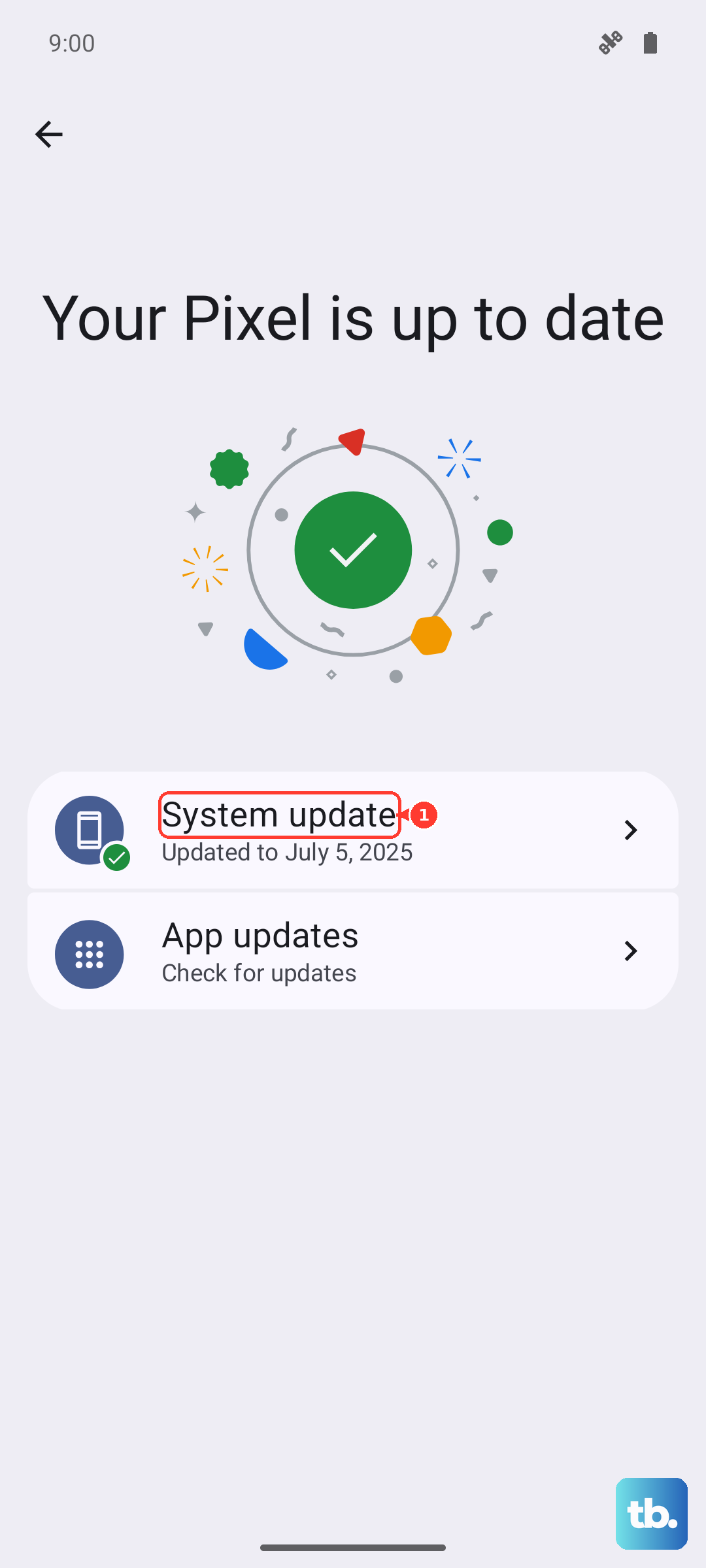
Motorola recommends downloading updates over Wi-Fi rather than mobile data, and points out that you can't downgrade once an update is installed. Apply any available update, then test the hotspot again, since a single patch can resolve a tethering fault that no setting change could.
Reset the phone, then escalate to your carrier or Motorola
If nothing above works, a factory reset is the final phone-side step, but treat it carefully because it is destructive. Motorola warns that this "erases all data and restores it to out-of-the-box condition," so back up everything first: photos and videos to Google Photos, files to Drive, and your contacts and calendar synced to your account. You'll also need your Google account credentials to sign back in afterward.
- 1.Open Settings.
- 2.Tap System.
- 3.Touch (Advanced).
- 4.Tap Reset options.
- 5.Tap Erase all data (factory reset).
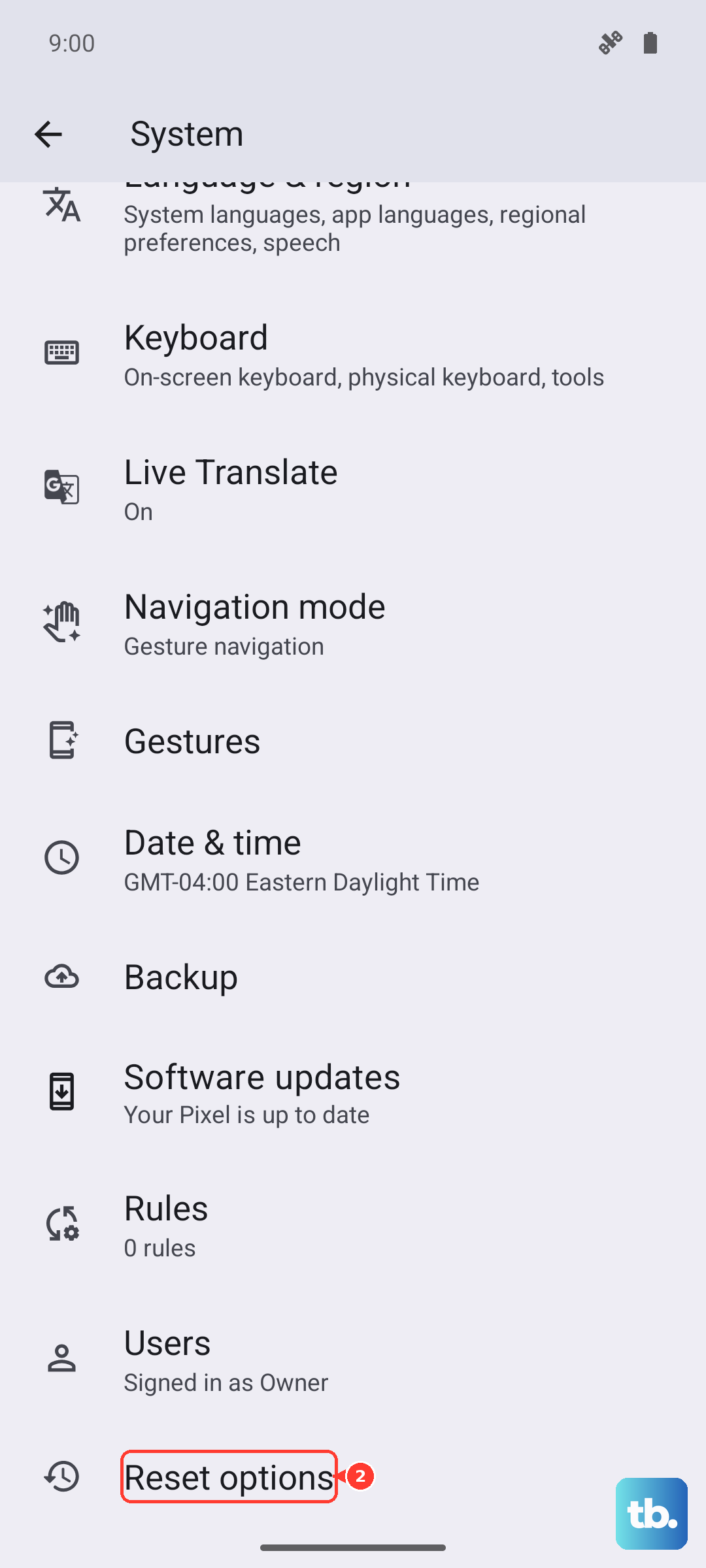
If Settings is unreachable, Motorola documents an external recovery-mode reset: charge to at least 30 percent, power the phone off, then press and hold Volume Down + Power until it turns on. Use Volume Down to highlight Recovery mode and press Power to select it, then scroll to Wipe data/factory reset, choose Factory data reset, and finish with Reboot system now.
If the hotspot still fails after a reset, the problem is almost certainly carrier provisioning or entitlement rather than the phone. Contact your carrier to confirm tethering is enabled on your account, or reach Motorola support for hardware help.
Frequently Asked Questions
Does the Motorola Razr+ (2024) have a built-in hotspot?
Yes. Motorola's official specifications list a Wi-Fi hotspot under connectivity, and the model also supports Bluetooth tethering and USB tethering. You turn the Wi-Fi version on under Settings > Network & Internet > Hotspot & tethering by enabling Use Wi-Fi hotspot.
Why does my hotspot turn on but connected devices have no internet?
This usually means your cellular plan doesn't allow data sharing. Motorola states the hotspot requires carrier support for tethering, so the toggle can switch on and a device can join while no internet actually passes through. Contact your carrier to confirm tethering is included and activated.
An older laptop can't see or join my Razr+ hotspot. What should I change?
Switch the broadcast band to 2GHz (2.4GHz) for the widest compatibility, and set the security type to the WPA2/WPA3 option instead of WPA3 only. Devices made before July 2020 often fail to join a WPA3-only network, and older devices may not detect a 5GHz-only broadcast.
How do I force restart the Razr+ (2024) if the hotspot freezes?
Hold down the Power button for about 30 seconds. If the phone doesn't respond, charge it for at least 5 minutes, then while it's still on the charger hold the Power button for 30 seconds again. This model uses roughly 30 seconds, not a short 10 to 15 second press.
Will updating or resetting the phone fix tethering problems?
An update can, since system and security patches sometimes repair connectivity and modem bugs that break tethering; check under Settings > System updates > Check for updates. A factory reset is a last resort that erases all data, so back up first, and if the hotspot still fails afterward the cause is most likely carrier provisioning rather than the phone.