
When your Motorola Razr Plus (2024) can't find its location, it's more than just an inconvenience. You might miss a turn or be late for a meeting because your maps app is stuck. I've found that on the Razr Plus, GPS problems are almost always a quick software fix, not a broken antenna.
Let's start with the simplest solutions that often get your location working again in under a minute.
Refresh Your GPS Connection
The fastest way to kickstart a stalled GPS is to toggle it off and on. Swipe down twice from the top of your main screen to open the full Quick Settings panel. Look for the Location icon, which looks like a teardrop-shaped pin.
Tap it once to turn location services off. Wait about ten seconds, then tap it again to turn it back on. This forces the phone's GPS radio to reinitialize and can clear up a temporary glitch immediately.
Perform a Force Restart
If toggling GPS didn't help, a force restart is your next best move. This clears out any stuck processes in the phone's memory. For the Razr Plus, press and hold the side Power button for 10 to 15 seconds.
Keep holding it until you see the Motorola logo appear on the screen, then release. The phone will reboot. This is different from a normal restart and often resolves deeper software hiccups that affect sensors like the GPS.
Check Your Location Mode and Permissions
Android 14 on the Razr Plus offers a few location modes. For the best GPS accuracy, especially for turn-by-turn navigation, you need to be in the right one. Open your Settings app and tap on "Location."
First, make sure the main switch at the top is on. Then, tap on "Location services" or "Mode." Select "High accuracy." This mode uses GPS satellites, Wi-Fi, and mobile networks together to pin down your location as fast and precisely as possible.
While you're in Settings, also check app permissions. Go to Settings > Apps > [Your Maps App] > Permissions. Make sure "Location" is set to "Allow all the time" or "Allow only while using the app," depending on your preference for that specific application.
Disable Battery Optimization for Maps
The Razr Plus has aggressive battery optimization to make the most of its compact battery. Sometimes, this can limit background location access for navigation apps. To fix this, go to Settings > Apps > [Google Maps or Waze] > Battery.
You'll see an option called "Battery optimization." Tap it, find your maps app in the list, and select "Don't optimize." This tells the phone to leave the app alone and lets it access GPS freely, even when running in the background during a drive.
Update Your Apps and Software
An outdated version of Google Maps, Waze, or even the Android system software can have bugs that break GPS functionality. Open the Google Play Store, tap your profile icon, and go to "Manage apps & device."
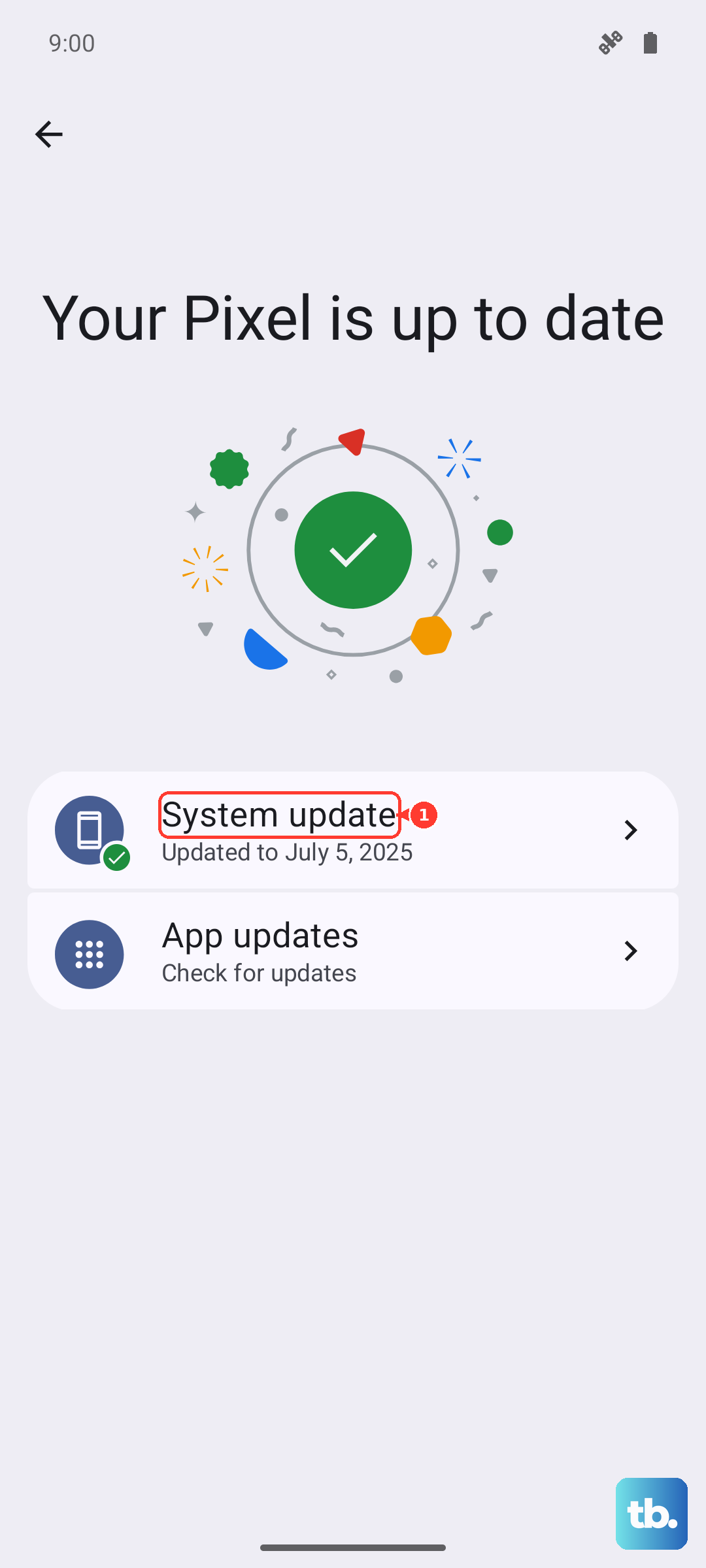
Tap "Update all" to get the latest versions of everything. Next, check for a system update by going to Settings > System updates and tapping Check for updates (on a Pixel, go to Settings > System > Software update). If an update is available, install it. Motorola often includes fixes for sensor performance in these patches.
Clear the Cache for Your Maps App
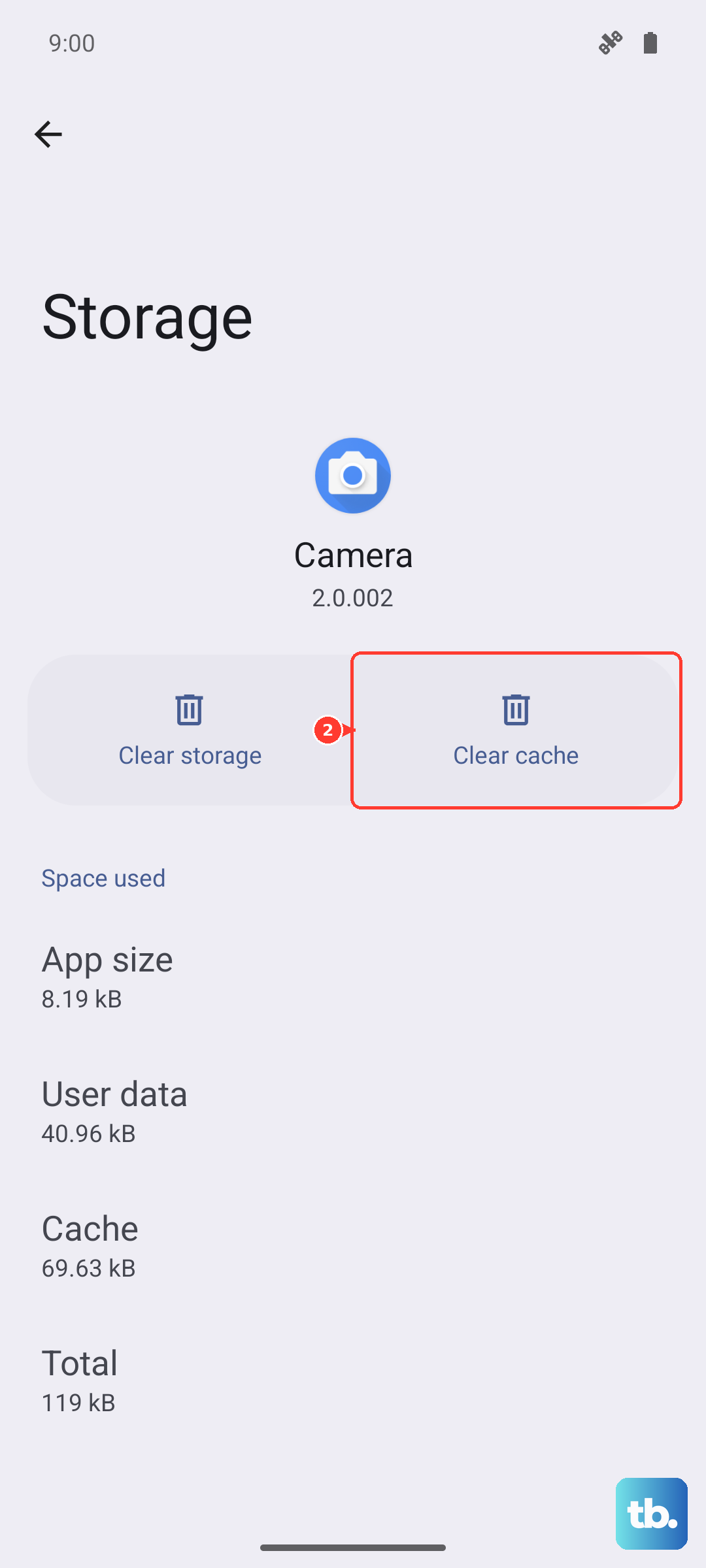
Corrupted temporary data, or cache, can cause an app to malfunction. You can clear this without losing your saved places or search history. Head to Settings > Apps > Google Maps (or your preferred navigation app).
Tap on "Storage & cache." Then, tap the "Clear cache" button. This deletes the temporary junk files. If the GPS is still acting up, you can try "Clear storage" or "Clear data," but be aware this will reset the app to its default state and you'll need to log back in.
Toggle Airplane Mode Briefly
This old trick resets all the phone's wireless radios at once, including the one for GPS. Swipe down for Quick Settings and tap the Airplane Mode icon. Wait for about 15 seconds while all connections turn off.
Then, tap the icon again to disable Airplane Mode. Your phone will reconnect to cellular, Wi-Fi, and Bluetooth. This fresh connection sequence can sometimes resolve conflicts that were preventing the GPS from getting a clean signal.
Check for Physical and Environmental Issues
The Razr Plus's unique folding design means the GPS antenna is placed strategically within the body. A very thick case, especially a metal one, can potentially interfere with the signal. Try removing the case temporarily to see if accuracy improves.
GPS signals also need a relatively clear path to the sky. They struggle indoors, in dense urban areas with tall buildings, or under heavy tree cover. If your location is jumping around, try moving to a more open area to help the phone get a solid lock.
Boot Into Safe Mode
Safe mode temporarily disables all third-party apps you've downloaded. If your GPS works perfectly in Safe Mode, you know a recently installed app is causing the problem. To enter Safe Mode on the Razr Plus, press and hold the Power button until the power menu appears.
Then, tap and hold the "Power off" option on your screen. A prompt will appear asking if you want to reboot to Safe Mode. Tap "OK." Your phone will restart, and you'll see "Safe mode" in the bottom corner. Test your maps app here.
To exit, just do a normal restart by holding the Power button and tapping "Restart."
Reset Your Network and Location Settings
This is a stronger step that won't delete your personal files like photos, but it will reset all network-related settings to default. Go to Settings > System > Reset options. Tap on "Reset Wi-Fi, mobile & Bluetooth."
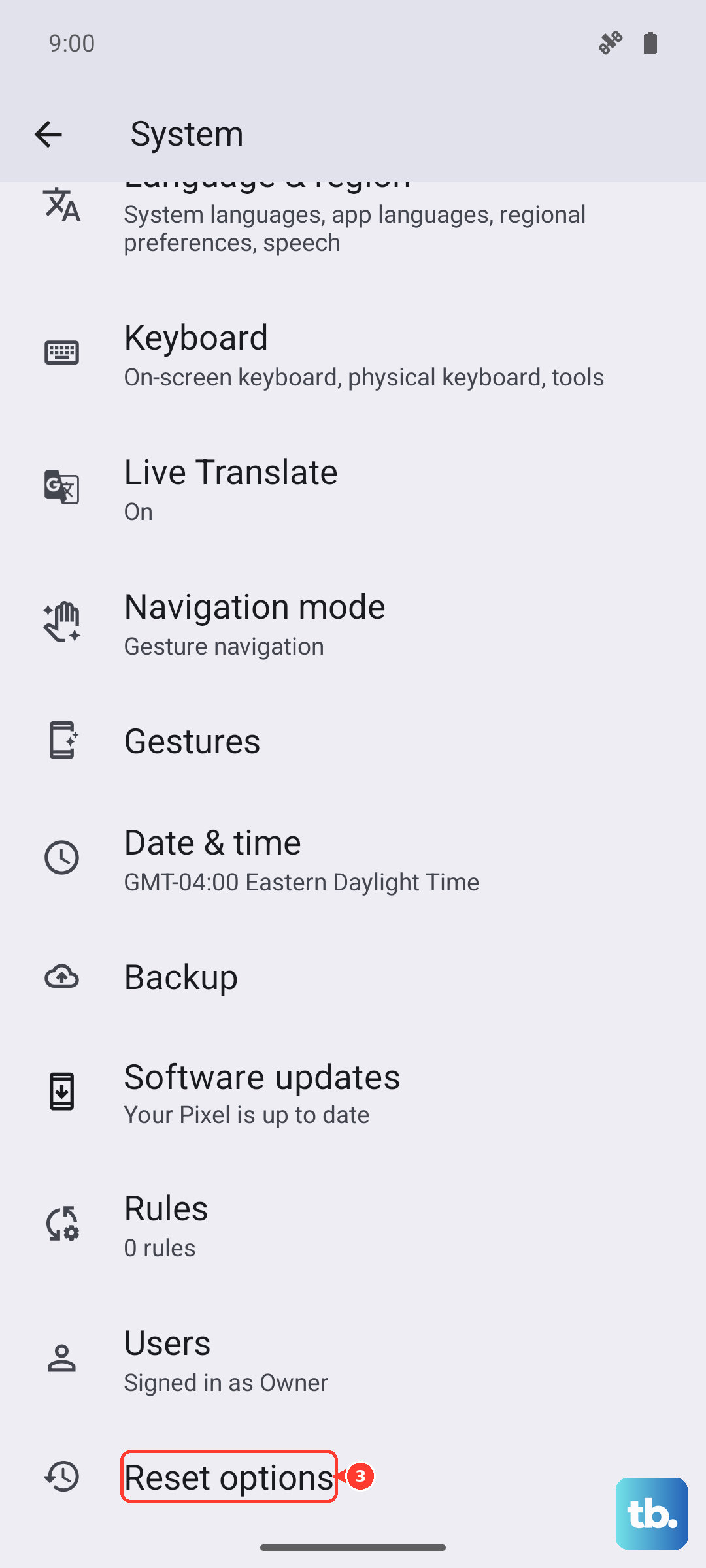
You'll also see an option for "Reset location & personal safety." Tapping this will clear all your location preferences and permissions, so you'll need to grant apps access again. This can be a very effective way to wipe out any deep-seated configuration errors causing the GPS to fail.
If you've tried all these steps and your Razr Plus still cannot see any satellites, you can use a free app like GPS Test from the Play Store. Open it and go to the satellite view. If it shows zero satellites in view even outdoors with a clear sky, there's a small chance of a hardware fault.
Before considering that, I'd recommend one last software refresh. Back up your data and perform a factory reset through Settings > System > Reset options > Erase all data (factory reset). This returns the phone to its out-of-box state and eliminates any software issue.