Is your Motorola Razr Plus (2024) stuck in one orientation, refusing to flip when you open or tilt it? That's a common hiccup with the auto-rotate feature on this foldable. The issue can be anything from a quick settings toggle to a deeper software glitch.
Here are the most effective ways to get your screen rotating properly again, starting with the simplest fix you should try right now.
Toggle the Quick Settings Rotation Lock
The most likely culprit is that rotation lock got turned on by accident. This can happen easily when you're handling the phone, especially with the folding action. When it's locked, you'll see a portrait or landscape icon with a little padlock in your notification shade.
To fix it, swipe down from the top of your screen to open the Quick Settings panel. Look for the auto-rotate icon, it usually looks like a phone with arrows circling it. Tap it once to toggle it on or off. When it's active and unlocked, the icon should be highlighted or a different color.
Restart Your Razr Plus
If the quick toggle doesn't work, give your phone a fresh start. A simple restart clears out temporary system glitches that can confuse the sensors. Just press and hold the power button until the power menu pops up on your cover screen or main display, then tap "Restart."
Wait for the phone to fully reboot. This takes about 30 seconds and doesn't affect any of your data or settings. I've found this resolves the issue more often than you'd think, especially if the problem just started out of the blue.
Check for App-Specific Rotation Settings
Not every app supports both portrait and landscape modes. If auto-rotate works perfectly in your camera app but not in Chrome, the app itself might be the issue. Some apps have their own internal settings that override the system.
Open a few different apps to test. Try the gallery, YouTube, and your camera. If rotation fails in just one app, check that app's settings for a display or rotation option. You might also consider if the problem began right after you installed a new app, as some can interfere with system functions.
Update Your Phone's Software
Since the Razr Plus runs Android 14, bugs in the system software can sometimes cause sensor issues like this. Motorola regularly releases updates that include fixes for these kinds of problems.
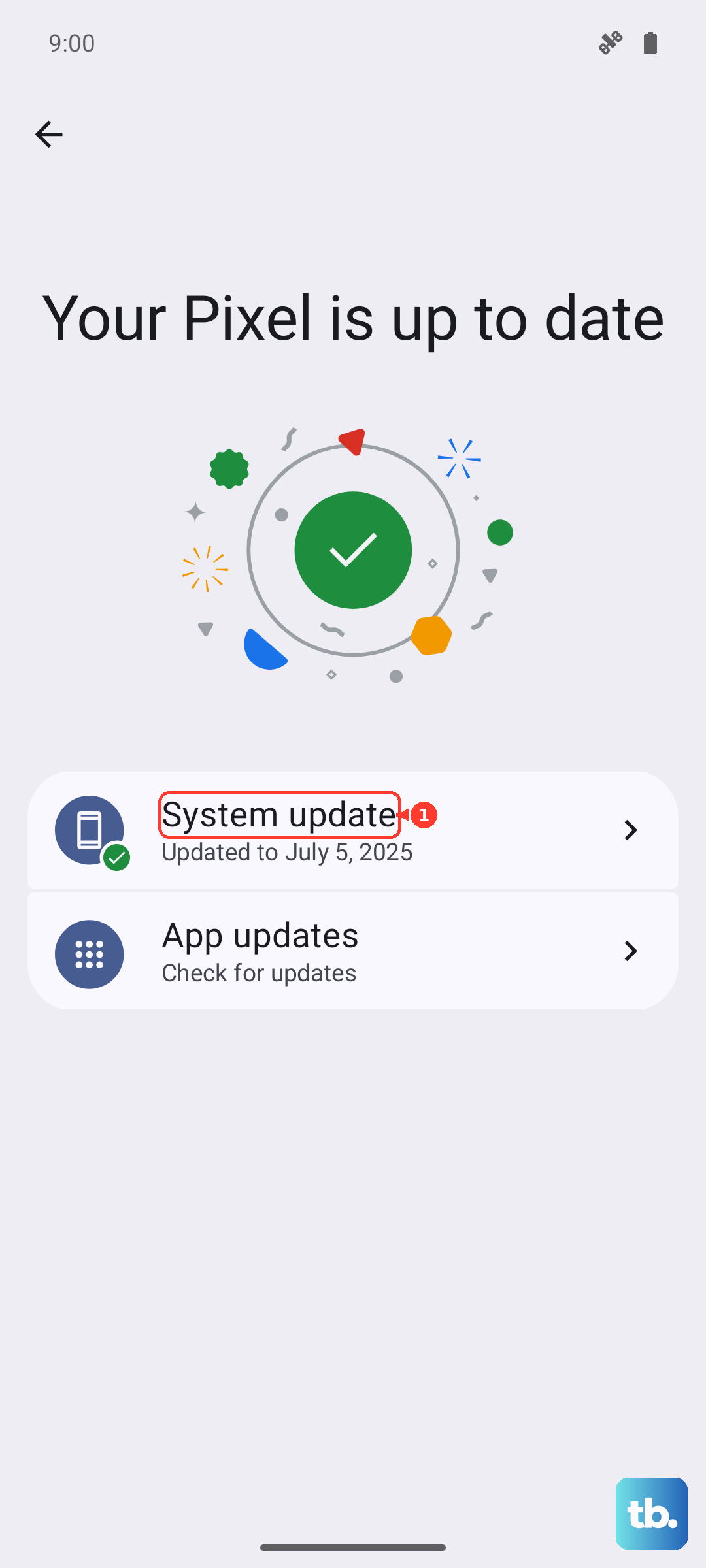
Go to Settings > System > System updates. Tap "Check for update" and install anything that's available. Make sure your phone is connected to Wi-Fi and has at least a 50% charge before you start the update process.
Calibrate Your Motion Sensors
Your phone uses an accelerometer and gyroscope to know which way it's tilted. If these get out of whack, rotation can stop working. You can recalibrate them using a hidden testing menu.
Open your Phone app and dial *#*#2486#*#*. This should open the "CQA" test menu. Look for an option related to "Sensor" or "Accelerometer." Follow any on-screen instructions to calibrate the device, which usually involves placing it on a flat surface and following prompts.
Perform a Force Restart
For a deeper reset than a standard restart, try a force restart. This is different and can clear more stubborn temporary caches. Press and hold the power button for 10 to 15 seconds until the screen goes black and the Motorola logo reappears.
Release the button and let the phone boot up normally. This won't delete any personal files, but it gives the system a cleaner slate to start from. It's a good step before considering more invasive troubleshooting.
Boot Into Safe Mode
If a recent app is causing the conflict, booting into Safe Mode can help you find it. Safe Mode temporarily disables all third-party apps. If auto-rotate works perfectly in Safe Mode, you know a downloaded app is the problem.
To enter Safe Mode, open the power menu by pressing the Power and Volume up buttons together (on Samsung phones, the Side and Volume down buttons) or by tapping the power icon in the quick settings panel, then touch and hold Power off and tap Safe Mode or OK. Then, press and hold the "Power off" option on your screen. A prompt will ask if you want to reboot to Safe Mode; tap "OK." Once in Safe Mode, test your rotation. To exit, just restart your phone normally.
Consider a Factory Reset (Last Resort)
If nothing else has worked, a factory reset will return your phone to its original out-of-the-box software state. This will erase all your personal data, apps, and settings, so this is an absolute last resort.
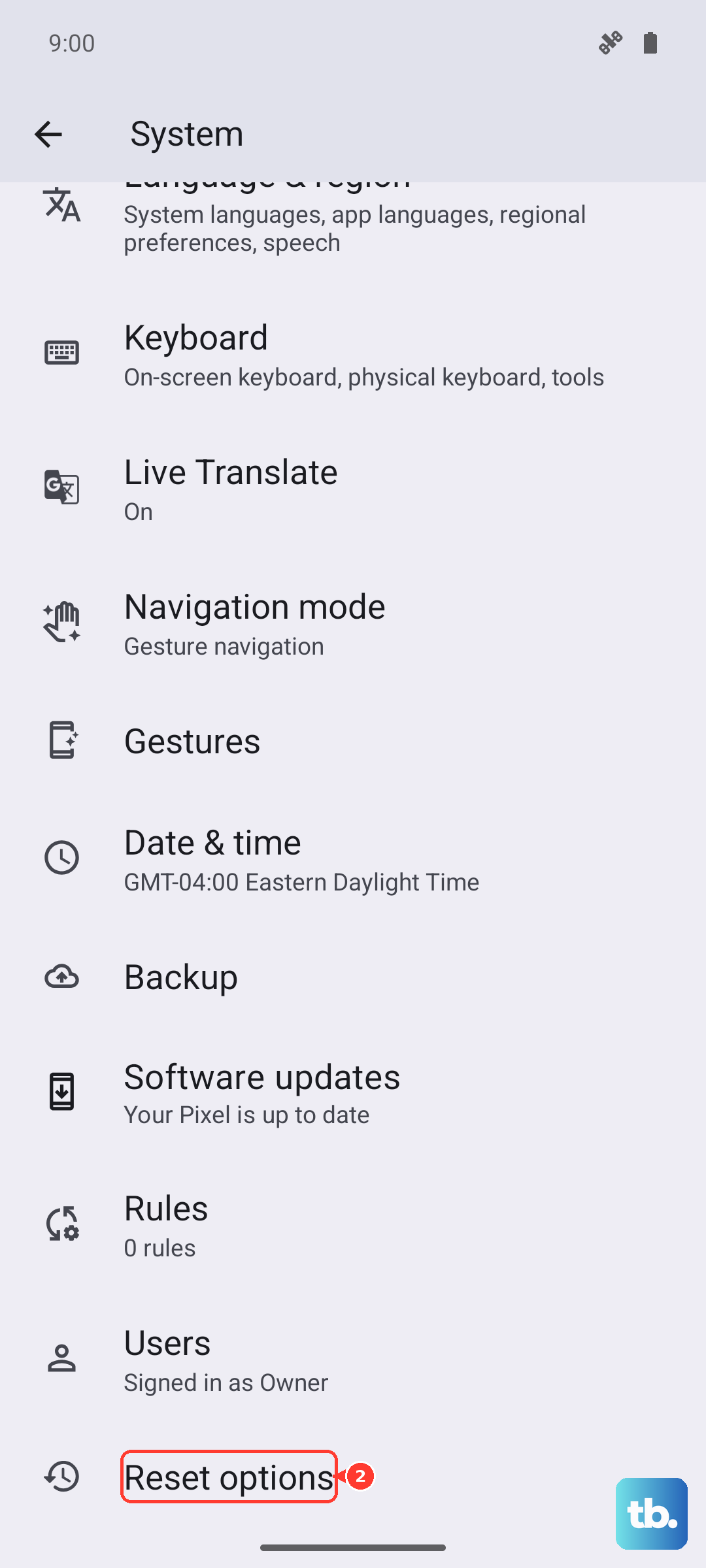
Back up everything important first. Go to Settings > System > Reset options. Select "Erase all data (factory reset)" and follow the confirmation steps. After the reset is complete, set up the phone as new and test the auto-rotate feature before restoring your backup, to see if the problem is truly gone.