
When your Motorola Razr Plus (2024) starts having apps crash or freeze, it can really interrupt your day. The good news is you can usually fix it yourself. Let's start with the quickest solution, which often does the trick.
If a single app is misbehaving, head to your phone's settings. Go to Settings > Apps > See all apps, then find the problematic app in the list. Tap on it and select Force stop. Wait a moment, then open the app again. This gives it a clean restart and clears any temporary hiccup.
Restart Your Razr Plus
If force stopping doesn't help, or if multiple apps are crashing, a full restart is your next best step. For the Razr Plus, you can do this by pressing and holding the Power button for about 10 to 15 seconds until you feel a vibration and see the Motorola logo appear.
This simple reboot clears out your phone's working memory (RAM) and stops any background processes that might be interfering with your apps. It's a fix I'd try right after force stopping an app.
Check for App and System Updates
Outdated software is a common culprit for crashes. Developers are constantly pushing updates to fix bugs and ensure compatibility, especially with newer devices like the Razr Plus running Android 14.
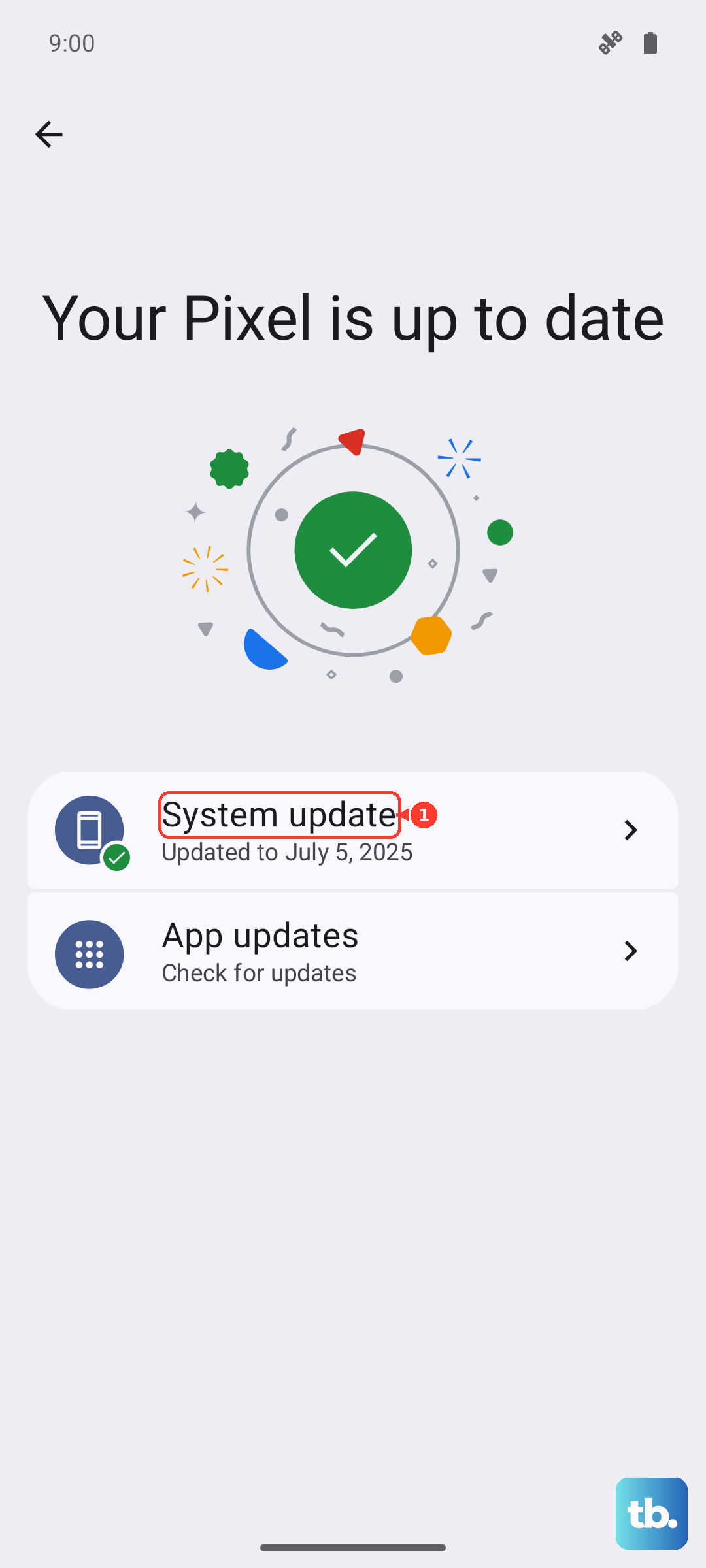
First, update your apps. Open the Google Play Store, tap your profile icon, and go to Manage apps & device. Under "Updates available," you can update everything at once. Next, check for a system update by going to Settings > System > System update. Installing these can resolve conflicts causing the instability.
Clear an App's Cache and Data
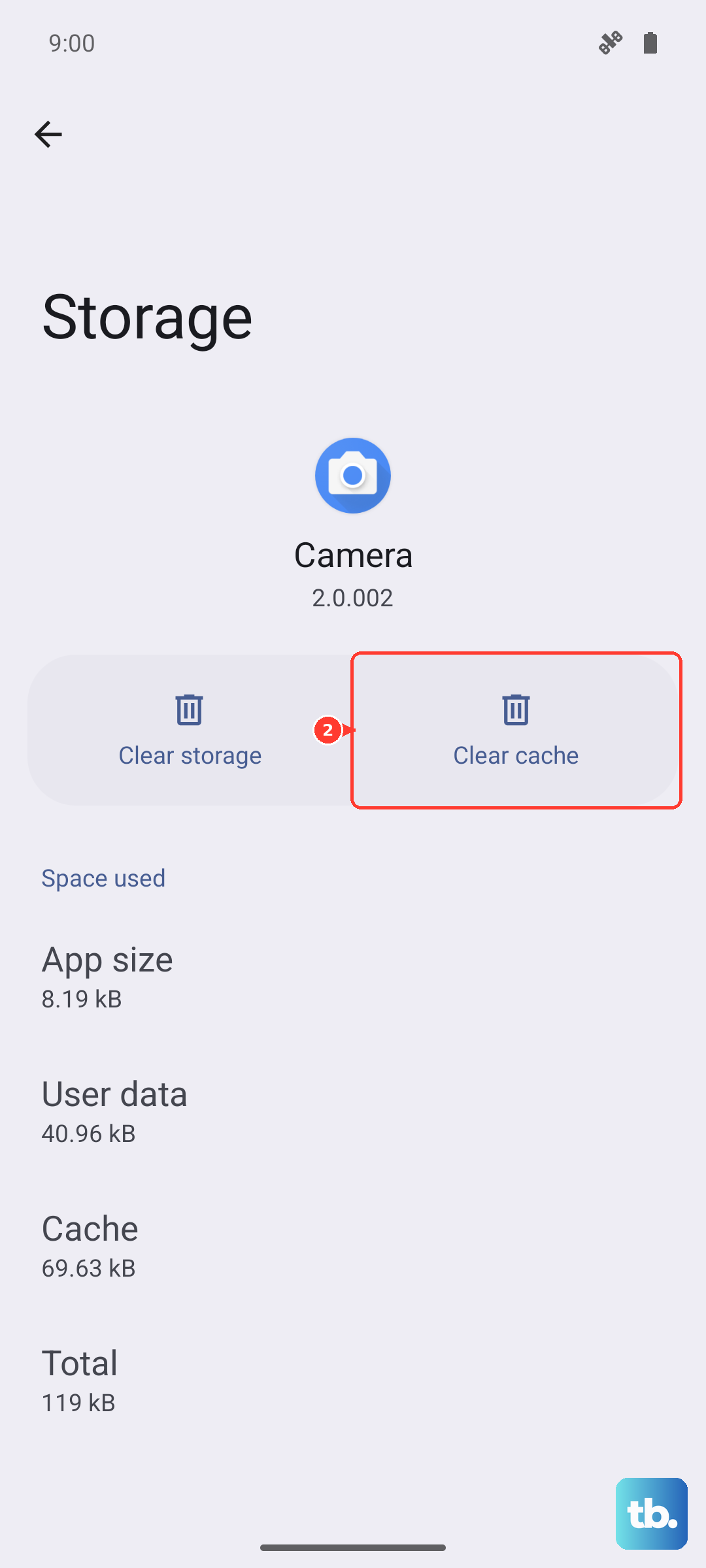
Over time, an app's cache, the temporary files it stores, can become corrupted. Clearing it is safe and won't delete your login info or saved data. For a more thorough reset, you can clear the app data, but be aware this will sign you out and restore the app to its default settings.
To do this, go to Settings > Apps > See all apps. Select the crashing app, then tap Storage & cache. Tap Clear cache first and test the app. If it still crashes, come back and tap Clear storage or Clear data.
Free Up Storage Space on Your Device
Android needs free space to operate smoothly. If your internal storage is nearly full, apps can struggle to function and may crash. The Razr Plus, with its powerful camera, can fill up fast with photos and videos.
Check your storage in Settings > Storage. If you're below 10% free space, it's time to clean up. You can offload photos to Google Photos, delete old downloads, and uninstall apps you no longer use. This gives your system the breathing room it needs.
Reinstall the Problematic App
When one specific app keeps failing, a fresh install can work wonders. Uninstalling removes all its files and settings, and reinstalling grabs a clean copy from the Play Store.
Just press and hold the app's icon on your home screen or app drawer and tap Uninstall. Then, head back to the Google Play Store to download it again. This is particularly effective for apps that started crashing after a recent update.
Review Your Cover Screen Activity
The Razr Plus's unique cover screen is a great feature, but running intensive apps on it can sometimes lead to overheating, which may cause instability. If you notice apps crashing more often when using the phone closed, it's worth checking what's running on the external display.
Close any apps you have open on the cover screen before folding the phone. You can manage this by swiping on the cover screen to see your recent apps and swiping them away to close. Reducing the load here can help keep your phone's temperature, and performance, in check.
Boot Into Safe Mode
If apps are crashing constantly and you can't pinpoint why, booting into Safe Mode can tell you if a third-party app is to blame. Safe Mode temporarily disables all apps you've downloaded.
To enter Safe Mode on the Razr Plus, press and hold the Power button until the power off menu appears. Then, press and hold the "Power off" option on your screen. A prompt will ask if you want to reboot to Safe Mode; tap "OK." If the crashes stop in Safe Mode, a recently installed app is likely the cause. You'll need to uninstall apps one by one to find the offender.
Perform a Factory Reset
This is your last resort, but if all else fails, a factory reset will wipe the phone back to its original out-of-the-box state. This will erase all your data, so you must back up everything important first using Google's backup service or by manually transferring files to a computer.
To reset, go to Settings > System > Reset options. Select Erase all data (factory reset) and follow the prompts. After the reset, you can restore your backup and reinstall your apps, which often resolves deep-seated software glitches.