You set your Moto G Stylus 5G (2025) down on a wireless pad, expected the familiar charging chime, and got nothing: no animation, no battery bump, maybe just a phone that stays stubbornly at the same percentage. Because Motorola does not include a wireless charger in the box, "wireless charging not working" on this phone is very often an accessory or alignment problem rather than a broken phone, and most cases clear up in a couple of minutes. The good news is that your model genuinely supports it, so there is a real feature here to get going again.
The Moto G Stylus 5G (2025) ships on Android 15 with a 5000 mAh battery, 68W TurboPower wired charging, and 15W Qi wireless charging, so the hardware is on your side. The fixes below run from the quickest, safest checks to the official reset and support paths, so work through them in order and stop as soon as the battery starts climbing on the pad.
Start with the charger, not the phone
Motorola is specific about what this phone needs. You must "charge your phone wirelessly using a Qi-certified wireless charger (sold separately)." A pad that is not Qi-certified, a no-name accessory, or simply not owning a wireless charger yet are all common reasons "wireless charging" appears to do nothing at all.
Confirm three things before you blame the phone. First, the pad is genuinely Qi-certified. Second, the pad has its own adequate power adapter, since the small bricks that ship with some accessories may not deliver enough power. Third, that adapter is plugged into a working wall outlet, not a low-power USB hub. If any of those are missing, the phone never gets a signal to charge.
Get the phone seated over the coil
Wireless charging only works when the phone's charging coil sits directly over the pad's coil, so a phone that is even slightly off-center will sit there doing nothing. Motorola's guidance is to "align the wireless charging area of your phone with the wireless charger, or place your phone in the location recommended by the charger manufacturer."
Re-center the phone, screen up and back-center down on the pad, then wait a few seconds for the charging indicator to appear before you give up. A couple of practical notes. Wireless charging is normally slower than wired, and the phone may run warmer while it tops up. Both are expected and are not signs of a fault.
Take the case and anything metal off the back
What is between the phone and the pad matters more than people expect. Motorola states: "If you use a phone case, you may need to remove it during wireless charging. Thick cases, metal-backed cases, or those with kickstands or magnets often interfere with wireless charging."
Remove the case entirely and try the bare phone on the pad. Also peel off anything stuck to the back, such as a metal pop-socket or ring grip, a magnetic mount plate, or a stick-on card holder, since any of those can block the coil even with a thin case. If charging starts once the back is clear, the case or accessory was the culprit and you may need a thinner, wireless-friendly one.
Work out whether only wireless is failing
Before going further, find out whether this is a wireless-only problem or a general charging fault, because the fix is very different. Plug the phone in with the USB-C cable and a proper TurboPower adapter and watch what happens.
- 1.Remove any case on the device, as Motorola notes it "may impede the charger/port connection."
- 2.Make sure the cable "fits snugly in both the device and charger" at both ends.
- 3.Allow roughly 15 to 20 minutes on the supplied charger to reach a minimal level before judging the result.
- 4.Avoid charging from a computer USB port, which charges much slower and can look like a failure.
If wired charging works normally but the pad still does not, the issue is isolated to wireless and the software steps below are worth doing. If wired charging also fails, you are dealing with a general charging problem rather than the wireless coil, and you can skip ahead toward the reset and support steps.
Force a reboot to clear a stuck charging service
A frozen background charging service can stop the phone from ever detecting the pad, and a forced restart clears it without touching your data. Motorola's instruction is to "press and hold the Power key for 10 to 20 seconds" to force a reboot, and it confirms that "Data on your phone will not be deleted."
One condition matters here. The phone should be "charged to a minimum of 5%" first. If the battery is fully drained, let it charge for about 15 minutes before you attempt the force restart, then place it back on the pad once it has rebooted.
Bring the software up to date
Motorola delivers Android security and OS updates that include fixes and improvements, and an outdated build can be behind a charging glitch. Installing the latest version is a safe, non-destructive step that often resolves quirky behavior.
- 1.Connect to Wi-Fi so the download does not stall.
- 2.Open Settings > System updates > Check for updates.
- 3.If an update is available, follow the onscreen instructions to install it.
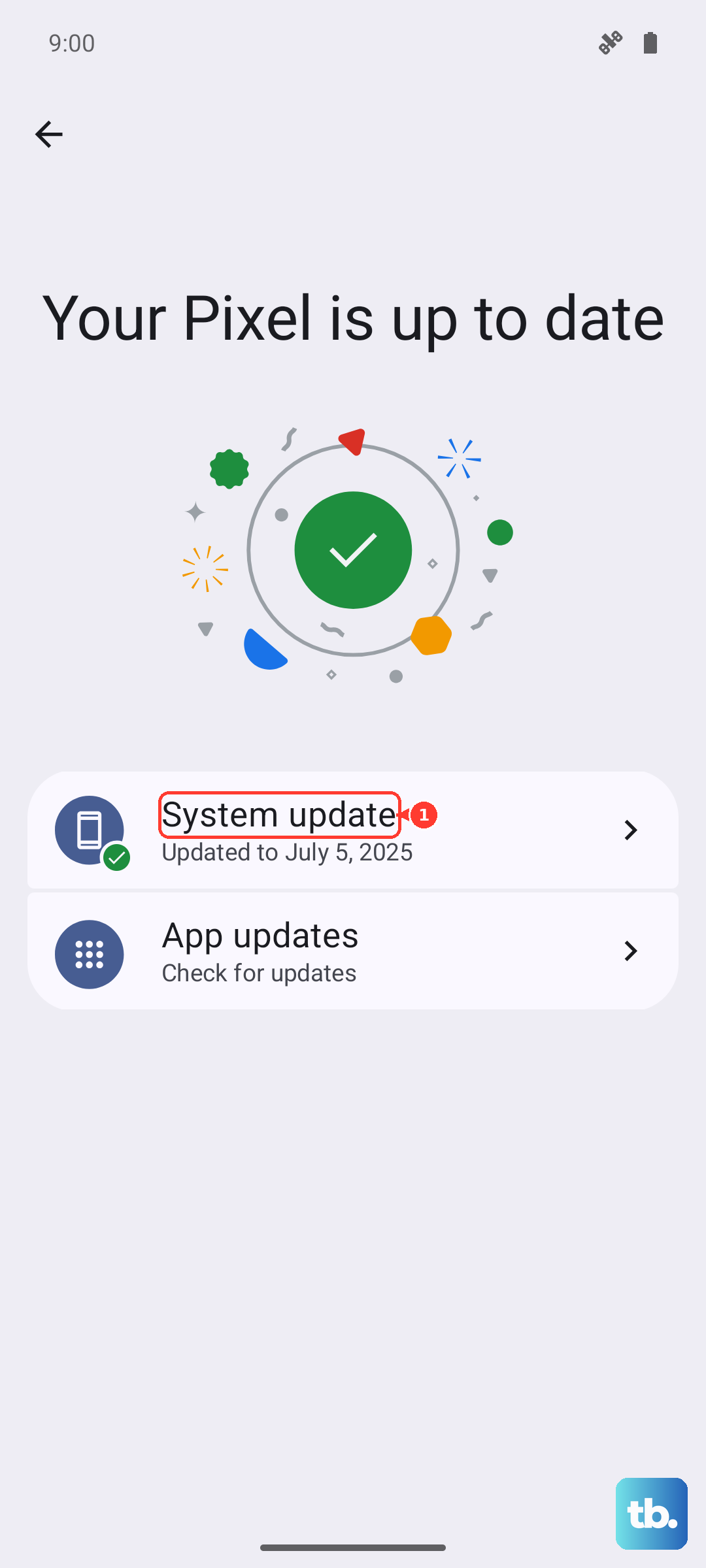
Let the phone finish the update and restart fully, then test the pad again. It is worth doing this even if you think you are current, since the check confirms it either way.
Back up, then factory reset as the last software step
If wireless charging still fails after everything above, a factory reset is the final software move before treating this as hardware. This step erases everything, so back up your data first.
The reset permanently removes your Google account, media, system and app settings and data (including text messages), and downloaded apps. Once you have a backup you trust, follow Motorola's path.
- 1.Go to Settings > System.
- 2.Touch (Advanced) > Reset options > Erase all data (factory reset).
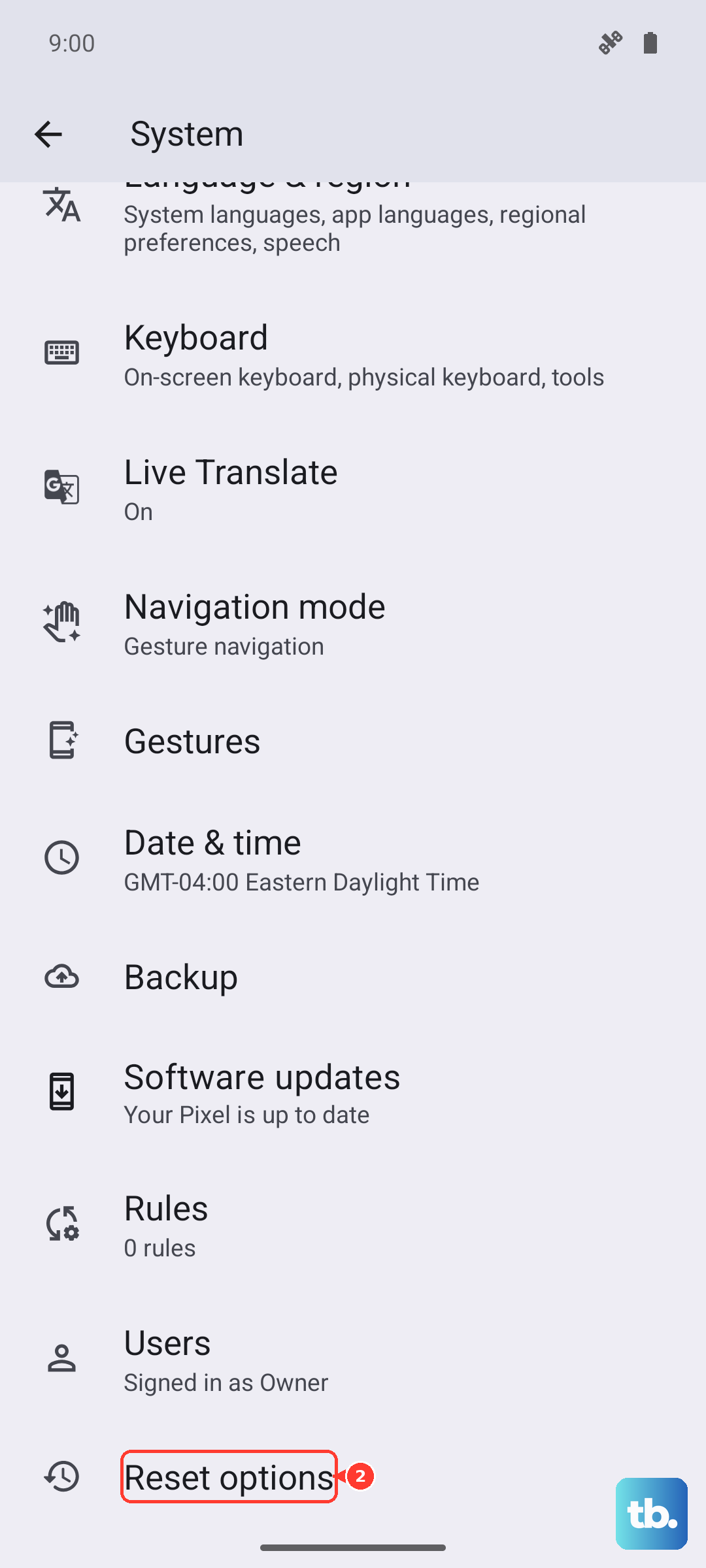
If you cannot reach Settings at all, Motorola provides a hardware Recovery mode route. Turn off the phone, then press and hold the Volume Down button and the Power button at the same time until the phone turns on; press Volume Down until you see Recovery mode; press Power to enter Recovery mode; scroll to Wipe data/factory reset and select it with Power. Remember this carries the same data-loss warning, so only use it after backing up.
When it is time to let Motorola handle it
If charging still does not work after the accessory, alignment, and software checks above, Motorola treats it as a hardware issue rather than something you can fix at home. At that point the official guidance is to contact Motorola support or "visit the nearest authorized service centre" so the phone can be inspected and, where applicable, repaired under warranty.
Before you reach out, it helps to have the results of your earlier testing ready: whether wired charging works, whether a bare phone on a known-good Qi pad changes anything, and whether the problem started after an update or a drop. That gives support a clear picture and speeds up the diagnosis.
Frequently Asked Questions
Does the Moto G Stylus 5G (2025) actually support wireless charging?
Yes. Motorola's official specifications list 15W wireless charging for this model, alongside 68W TurboPower wired charging and a 5000 mAh battery. You just need a Qi-certified wireless charger, which is sold separately and is not included in the box.
Why is wireless charging slower and warmer than the cable?
That is normal behavior. Wireless charging is generally slower than the 68W wired connection, and the phone can run a little warmer while it tops up, so a slower fill and some warmth on the pad are expected rather than signs of a fault.
Will my case stop wireless charging from working?
It can. Motorola advises that you may need to remove the case during wireless charging, and that thick cases, metal-backed cases, or cases with kickstands or magnets often interfere. Remove the case and any metal accessory and try the bare phone on the pad.
Does a force restart erase my data?
No. Motorola confirms that pressing and holding the Power key for 10 to 20 seconds to force a reboot will not delete data on your phone. Just make sure the battery is at least 5% first, charging for about 15 minutes if it is fully drained.
What should I do if both wireless and wired charging fail?
That points to a general charging problem rather than the wireless coil alone. Try a software update and, after backing up, a factory reset; if charging still fails, Motorola directs you to contact support or visit the nearest authorized service centre.