That "Storage full" or "Storage space running out" notification on your Motorola moto g stylus (2025) tends to show up at the worst moment, right as you try to shoot a video, install an update, or save a photo. The good news is that your phone shipped with 256GB of internal storage plus the Android 15 storage tools to manage it, and it accepts a microSD card if you genuinely need more room. Before you start deleting things at random, work through the fixes below in order, starting with the safest, so you only reach the drastic steps if nothing simpler clears the warning.
See what is filling your 256GB first
Deleting blindly wastes your time, so begin by checking exactly where your space went.
Go to Settings > Storage to see how much space is used and which categories (apps, photos and videos, audio, downloads, system) are taking it up.
This is the official starting point for managing storage on the moto g stylus (2025), and it tells you whether the culprit is a single bloated app, your camera roll, or downloaded files.
Keep this screen in mind, because several of the fixes below begin from Settings > Storage.
Restart the phone before you delete anything
A simple restart clears temporary system files and can resolve a storage warning that was triggered by a stuck background process rather than a truly full drive.
If your moto g stylus (2025) is sluggish or frozen and you cannot reach the storage menu, force a restart instead.
Press and hold the Power key for 10 to 20 seconds until the phone restarts.
Then let it power back on, then reopen Settings > Storage to see if the warning has cleared.
Motorola confirms that with this force restart "Data on your phone will not be deleted."
It also advises that you "Ensure that your device is charged to a minimum of 5%" before you try it.
Let the Files app find space-wasters for you
Your phone has a built-in cleanup tool that scans for items you almost certainly do not need.
Open the Files app, touch the menu, then tap Clean.
The app gives you suggestions for categories of items to check and free up space, so you can review and clear them quickly without hunting through folders manually.
This is the fastest one-tap way to reclaim space, which is why it sits near the top of the list.
Clear cached files app by app
Apps build up cached files over time, and those temporary files can quietly eat into your 256GB.
Clearing a cache is safe because it removes only temporary files and does not delete your accounts or your saved app data.
Go to Settings > Storage and tap the app's name.
Next, tap Storage & cache > Clear cache.
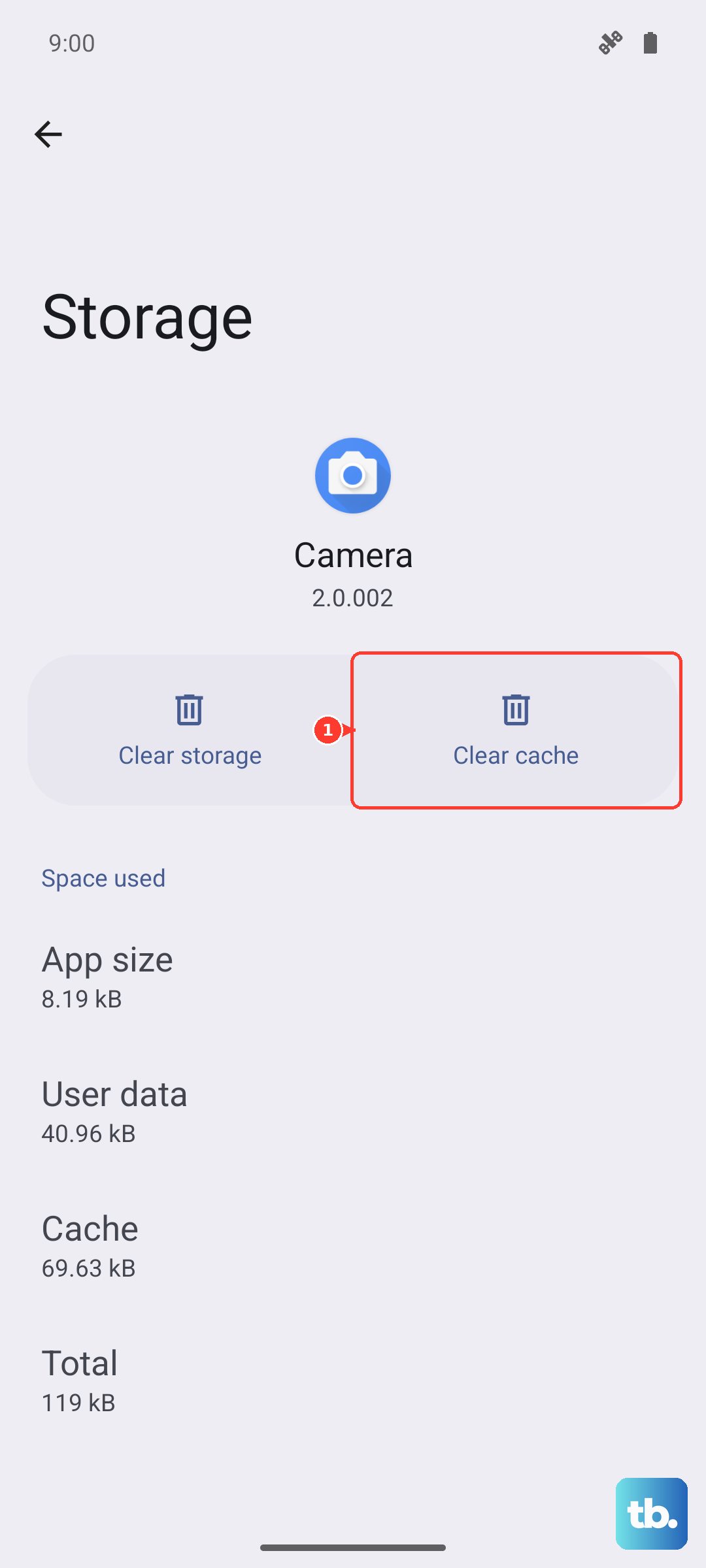
Start with the apps that show the largest size on the storage screen, since those usually have the biggest caches to clear.
Remove apps you no longer open
Unused apps take up space twice over, both for the app itself and for the data it stores.
Removing them is one of the quickest ways to recover a meaningful chunk of room.
From Settings > Storage, tap an app's name.
After that, tap Uninstall.
Removing an app frees both the app and its data, so prioritize the large ones you have not opened in months.
If you later miss one, you can always reinstall it from the Play Store.
Let the phone auto-remove backed-up photos and videos
Photos and videos are the most common reason internal storage fills up.
Your moto g stylus (2025) can automatically clear out copies that are already safely backed up to the cloud, so you keep the originals online while freeing space on the phone.
- 1.Go to Settings > Storage.
- 2.Tap Storage manager and turn it on.
- 3.Tap Remove photos & videos and select a duration.
Once it is on, the phone automatically removes copies of photos and videos from internal storage after 30, 60, or 90 days, depending on the duration you chose, as long as they have been backed up.
This is a set-and-forget option that keeps storage from creeping back up later.
Add a microSD card up to 1TB
Unlike many current phones, this model supports expandable storage, which is a real advantage when you regularly shoot photos and video.
Motorola's spec sheet confirms the moto g stylus (2025) accepts a microSD card up to 1TB.
Adding a card lets you offload photos, video, and files to it instead of deleting them, which is the cleanest long-term fix if you simply have more media than the internal drive can hold.
This is the option to reach for when you do not want to part with any of your content.
Install the latest software update
Software updates can include storage and performance optimizations, so it is worth checking whether one is waiting.
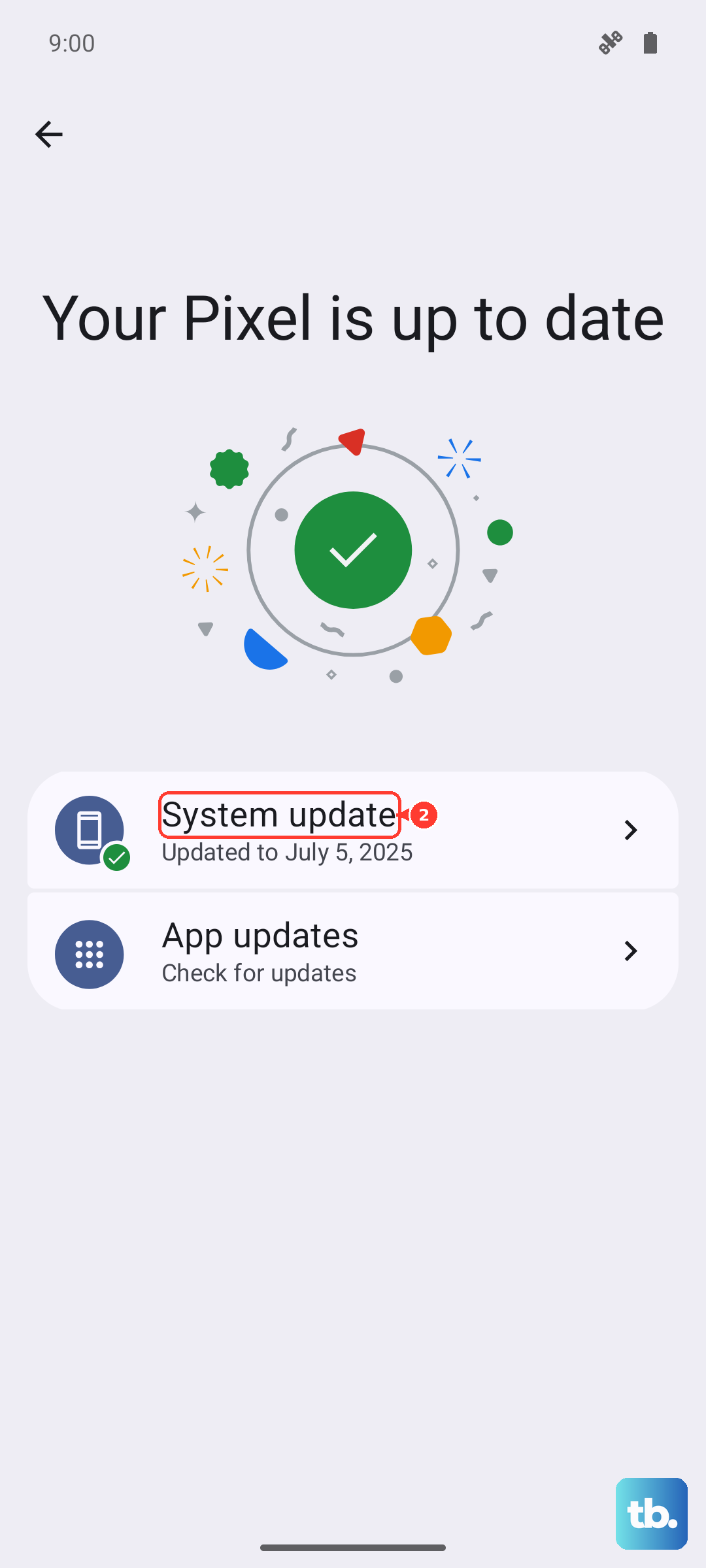
Go to Settings > System updates > Check for updates and follow the on-screen steps to download and install anything available.
Motorola recommends downloading updates over a Wi-Fi connection to avoid data charges.
Make sure you have a little free space and battery before you begin, since an update needs room to install.
Wipe a single app's stored data when one app is the problem
If the storage screen shows one app still hogging space even after you cleared its cache, you can clear its data as a more aggressive step.
This is more drastic than clearing the cache because it deletes everything saved inside that app, so you may need to sign back in or set it up again afterward.
Go to Settings > Storage and tap the app's name.
Now tap Storage & cache > Clear storage.
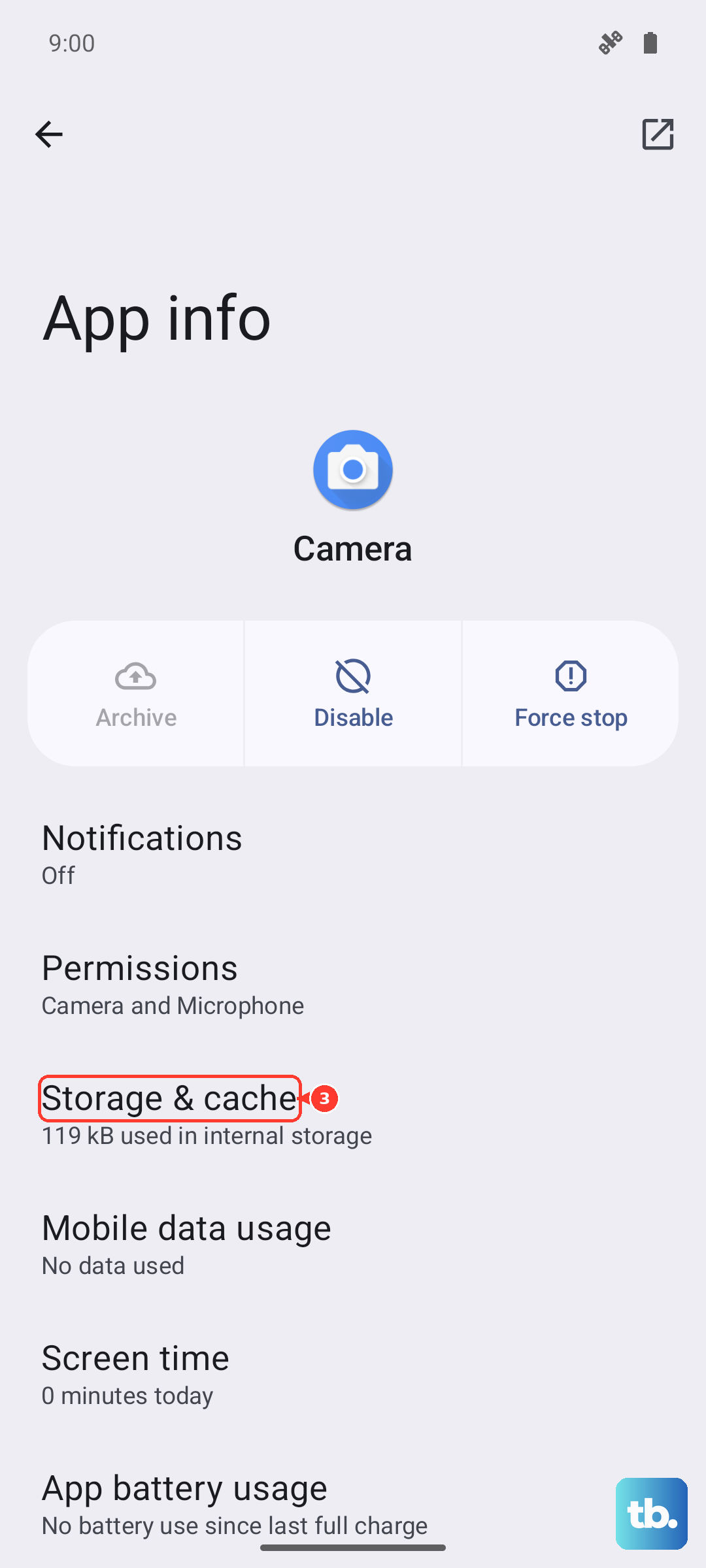
Motorola warns, "Be careful, there's no way to undo this."
Use this only on an app whose data you are comfortable losing, and never as a blanket cleanup across every app.
Factory reset as the last resort
If the storage problems persist after everything above, a factory reset returns the phone to its original state.
This erases everything on the phone, so back up your photos, contacts, and files first.
When you are ready, go to Settings > System, then tap Reset options > Erase all data (factory reset).
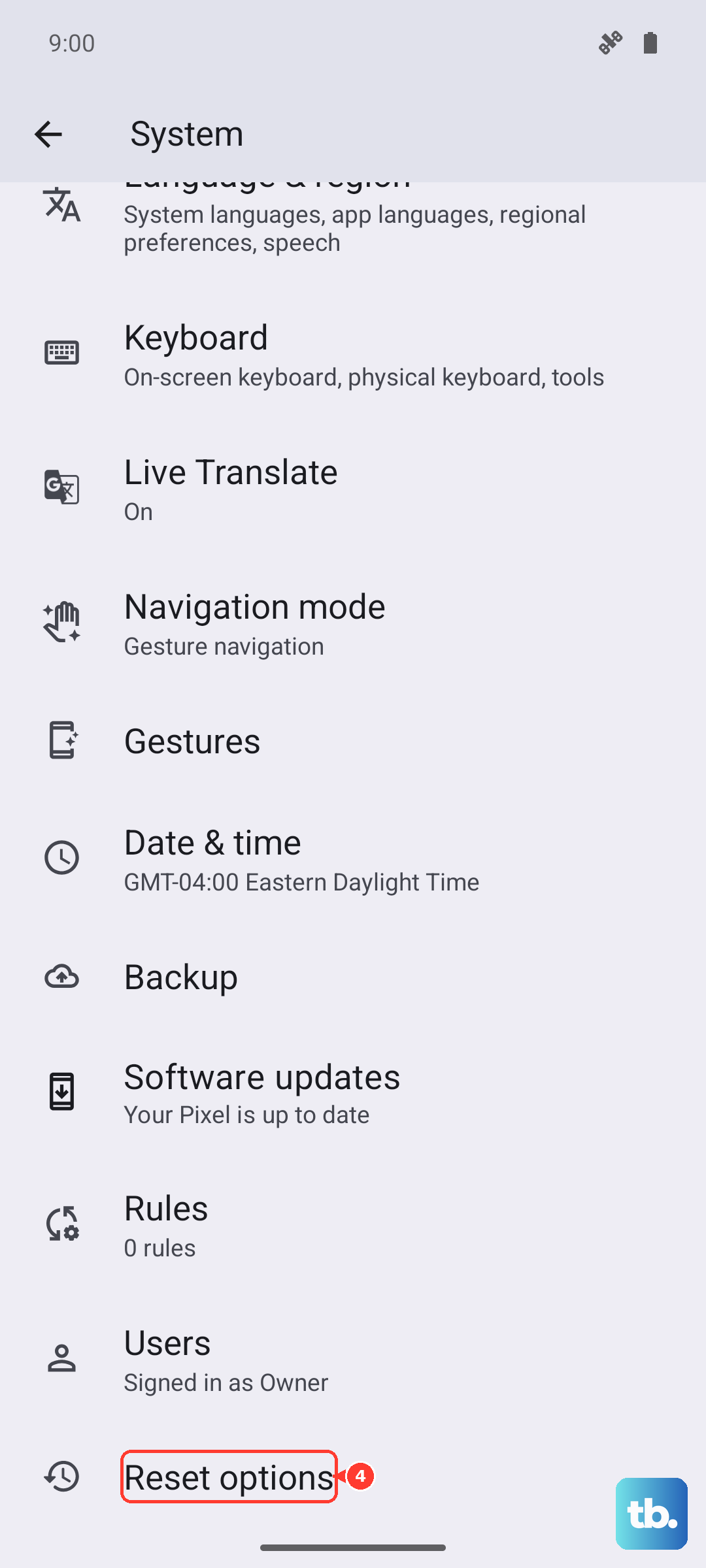
If you cannot reach Settings, you can reset from recovery instead.
Charge your battery to 30% or more, turn off the phone, then press and hold the Volume Down button and the Power button at the same time until the phone turns on.
Use the Volume buttons to scroll to "Wipe data/factory reset," press Power to select it, then select "Factory data reset."
One more thing if you are giving the phone away: disable Factory Reset Protection by removing the screen lock and removing your Google accounts from the phone before you reset.
That prevents the next owner from being locked out.
Frequently Asked Questions
Does the moto g stylus (2025) support a microSD card?
Yes. Motorola's spec sheet confirms this model supports expandable storage with a microSD card up to 1TB, so you can offload photos, video, and files to a card instead of deleting them.
Will clearing an app's cache delete my data or sign me out?
No. Clearing the cache through Settings > Storage > (app) > Storage & cache > Clear cache removes only temporary files. It does not delete your accounts or your saved app data.
What is the difference between Clear cache and Clear storage?
Clear cache only removes temporary files and is safe to use. Clear storage is more aggressive and deletes all data saved inside that app, and Motorola warns, "Be careful, there's no way to undo this," so use it only when you are willing to lose that app's data.
How do I stop my photos from filling up storage again?
Turn on Storage manager in Settings > Storage, tap Remove photos & videos, and select 30, 60, or 90 days. The phone will then automatically remove backed-up copies of photos and videos from internal storage after that period.
Does a factory reset erase everything on the phone?
Yes. A factory reset via Settings > System > Reset options > Erase all data (factory reset) erases everything, so back up your data first. If you are giving the phone away, also remove your screen lock and Google accounts to disable Factory Reset Protection.