
Hold down the power button for 10 seconds or more until you feel a vibration and see the screen go black. This force restart is the single most effective fix for a frozen Moto G Stylus 5G screen. I'd start with this one every time, as it clears out any temporary software glitch without affecting your data.
Start with a free touch screen test to confirm where the screen actually responds. Knowing whether the fault is one region or the whole panel changes which steps below matter.
It works especially well if the screen stopped responding after an app update or a minor system hiccup. Once you release the button, the phone should power back on normally.
Remove Any Screen Protector or Case
Take a close look at your screen protector. If it's a cheap, thick, or poorly installed film or glass, it can interfere with the touch sensitivity. Peel it off completely and test the screen with your finger.
Also, remove any bulky case, particularly ones with built-in screen covers or that wrap tightly over the edges. The 2025 model's display is sensitive, and pressure from a case can sometimes register as a false touch or block input altogether.
Clean the Screen Thoroughly
Oils, lotion, or dirt on your fingers can create a film that the screen can't sense through. Wipe the display down with a soft, slightly damp microfiber cloth. Make sure to dry it completely afterward.
Pay special attention to the edges and the area around the front-facing camera. Avoid using any harsh chemicals like window cleaner, as they can damage the oleophobic coating on the Gorilla Glass 3.
Check for Stylus Interference
This phone has a unique quirk. Make sure the stylus is fully seated in its silo on the bottom edge. If it's even slightly ejected, the phone's digitizer can get confused between pen and finger input.
Try removing the stylus entirely and see if touch responds with just your finger. Also, store the stylus in its silo when not in use, as that's how it maintains its charge for precise note-taking in the Moto Note app.
Boot Into Safe Mode
If the screen works after a restart but then freezes again, a third-party app is likely the culprit. To check, press and hold the power button until the power off menu appears.
Then, tap and hold the "Power off" option on your screen. You'll get a prompt to reboot into Safe Mode. Tap "OK." If the touchscreen works perfectly in Safe Mode, you'll need to uninstall recently downloaded apps one by one to find the offender.
Check for Software Updates
Motorola frequently releases updates that fix bugs, including touchscreen issues. Go to Settings > System > System updates to check manually.
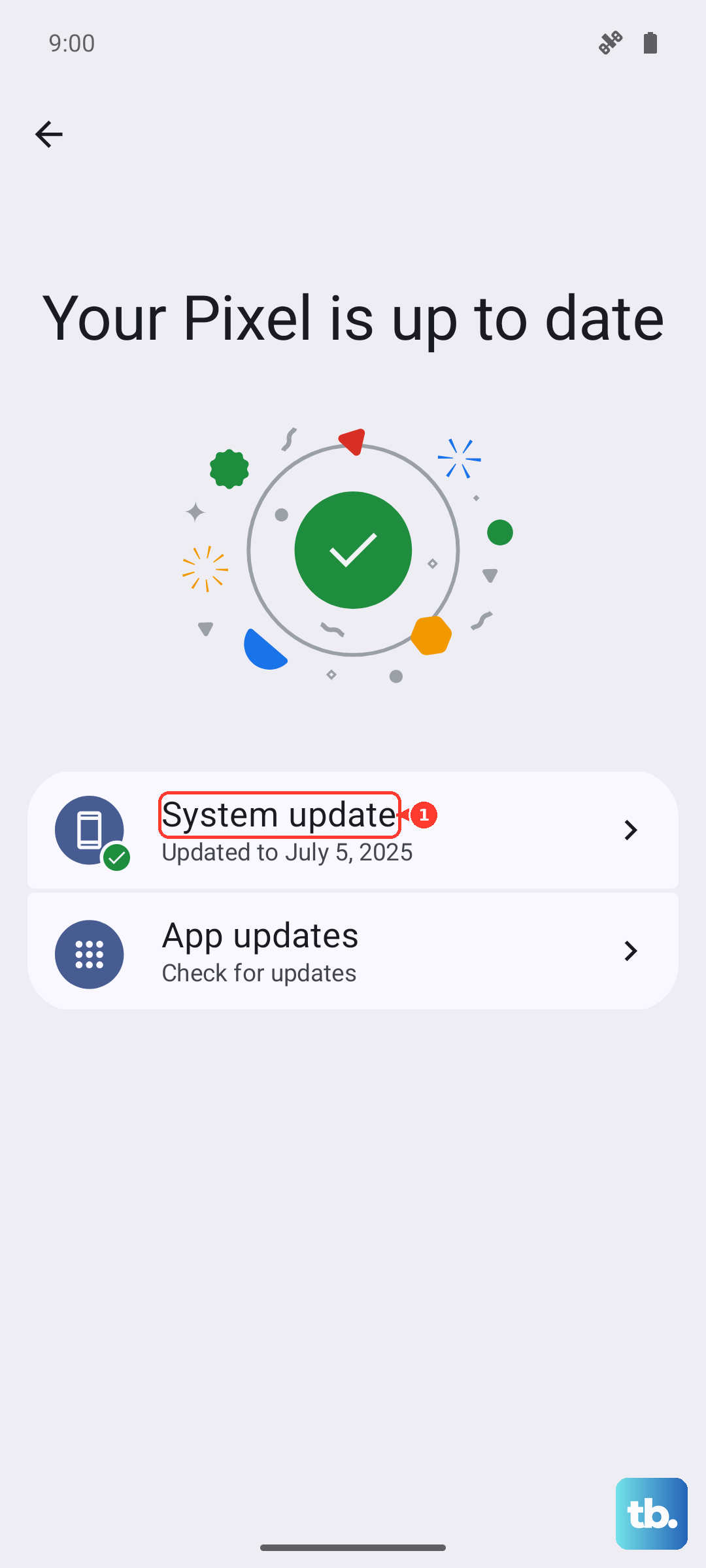
If an update is available, connect to Wi-Fi and plug in your 68W TurboPower charger. This ensures the update installs smoothly and quickly, taking your phone from 0 to 100% in about 41 minutes if needed.
Calibrate the Touchscreen
While Android doesn't have a built-in calibration menu for this, you can use a hidden diagnostic tool. Open your phone dialer and enter *#*#2486#*#* to access the "CQATest" menu.
Navigate to "Touchscreen" tests (you may need to use the volume buttons if touch isn't working). Running these tests can sometimes reset the touchscreen driver. Be careful not to change any other settings in this engineering menu.
Perform a Factory Reset
This erases everything on your phone, so it's a last resort. First, ensure you've backed up your data. If the screen is completely dead, you can initiate this using the hardware buttons.
Power the phone off completely. Then, press and hold the Volume Down button and the Power button together. When the Motorola logo appears, release the Power button but keep holding Volume Down until you see the recovery menu.
Use the volume buttons to highlight "Wipe data/factory reset" and press the power button to select it. Confirm your choice. This will remove any deep-seated software corruption causing the touch failure.