A wavering, pulsing, or strobing screen on your Moto G Stylus 5G (2025) is the kind of thing you cannot un-see once you notice it, and it tends to jump out most in a dark room where the 6.7-inch pOLED panel dims down and the picture seems to shimmer. Because this is an OLED display with an adaptive refresh rate that climbs up to 120Hz, a little flicker can come from the way the panel is driven rather than from a failing part, which means there is a real chance you can settle it yourself.
The good news is that Motorola built a dedicated setting into this exact phone for that situation, and there is a clear order of things to try before you ever think about a repair. Work through the fixes below from the top, since the early ones are the safest and take seconds, and leave the data-erasing steps for the very end.
If the fault comes and goes, an online monitor test helps you reproduce it on demand with solid colors and gradient patterns.
Start With a Forced Restart to Clear a Temporary Glitch
If the screen is flickering or has frozen outright, the fastest safe move is a forced reboot, which clears the kind of temporary software hiccup that can make the display misbehave. This does not delete any data on the phone, so there is no risk to your photos, apps, or settings.
Before you start, make sure the battery is charged to at least 5 percent so the phone can complete the restart.
Press and hold the Power key for 10 to 20 seconds.
Keep holding until the phone performs a force reboot and powers back on.
Let it return to the home screen, then watch whether the flicker is gone.
If a brief glitch was the cause, this single step often clears it. If the flicker comes straight back, move on to the display settings made for this phone.
Switch On the Flicker Prevention Setting Built for This Phone
The Moto G Stylus 5G (2025) ships with a setting aimed squarely at this complaint. Motorola describes it plainly, saying "If you're using your phone in dark environments and the screen flicker is irritating your eyes, you can use Flicker prevention." If your trouble is worst at night or in a dim room, this is the most targeted fix on the list.
Open Settings.
Tap Display.
Turn Flicker prevention on.
Give it a few minutes of normal use, ideally in the same low-light setting where the flicker bothered you, and see whether the shimmer eases. You can toggle it off later if you prefer, but most people who notice flicker in the dark will want to leave it on.
Rework Brightness So a Dim Panel Stops Shimmering
On an OLED screen, very low brightness can make flicker more noticeable, so how you handle brightness matters. Start by opening quick settings and sliding the brightness control to find a level that looks steady to your eyes.
You can also let the phone manage brightness for you based on the light around you. Go to Settings > Display and turn Adaptive brightness on or off to compare which behaves better for you.
If the lowest setting on the slider is still too bright for a dark room, Motorola lets you make the screen extra dim, which gives you a comfortable level without forcing the panel into the brightness range where flicker often stands out. Test a few combinations of these brightness options together with Flicker prevention to find the steadiest result.
Change How the 120Hz Panel Refreshes
This display uses adaptive refresh that can run up to 120Hz, and how the panel is driven can be tied to flicker that seems linked to motion or scrolling. Trying a different refresh rate is a quick, non-destructive test.
Open Settings.
Tap Display.
Tap Display refresh rate.
Select a rate and use the phone for a while to compare.
If the flicker eases at one setting and worsens at another, you have learned something useful about the cause, and you can leave the panel on whichever rate looks steadiest to you.
Turn On Dark Theme to Calm a Bright Interface
Large bright areas of the interface can make flicker harder to ignore, especially against a dark surrounding. Switching to a darker interface is an official display option worth testing.
Open Settings.
Tap Display.
Turn Dark theme on.
Dark theme changes how much of the panel is lit at any moment, so pairing it with Flicker prevention and a comfortable brightness level often gives the calmest result in low light. If you prefer the lighter look during the day, you can turn it back off at any time.
Install the Latest Software Update to Patch Display Bugs
Motorola delivers Android security and operating system updates that can resolve display glitches no setting will fix on its own. Since this phone runs Android 15, it is worth confirming you are on the newest build before going any further.
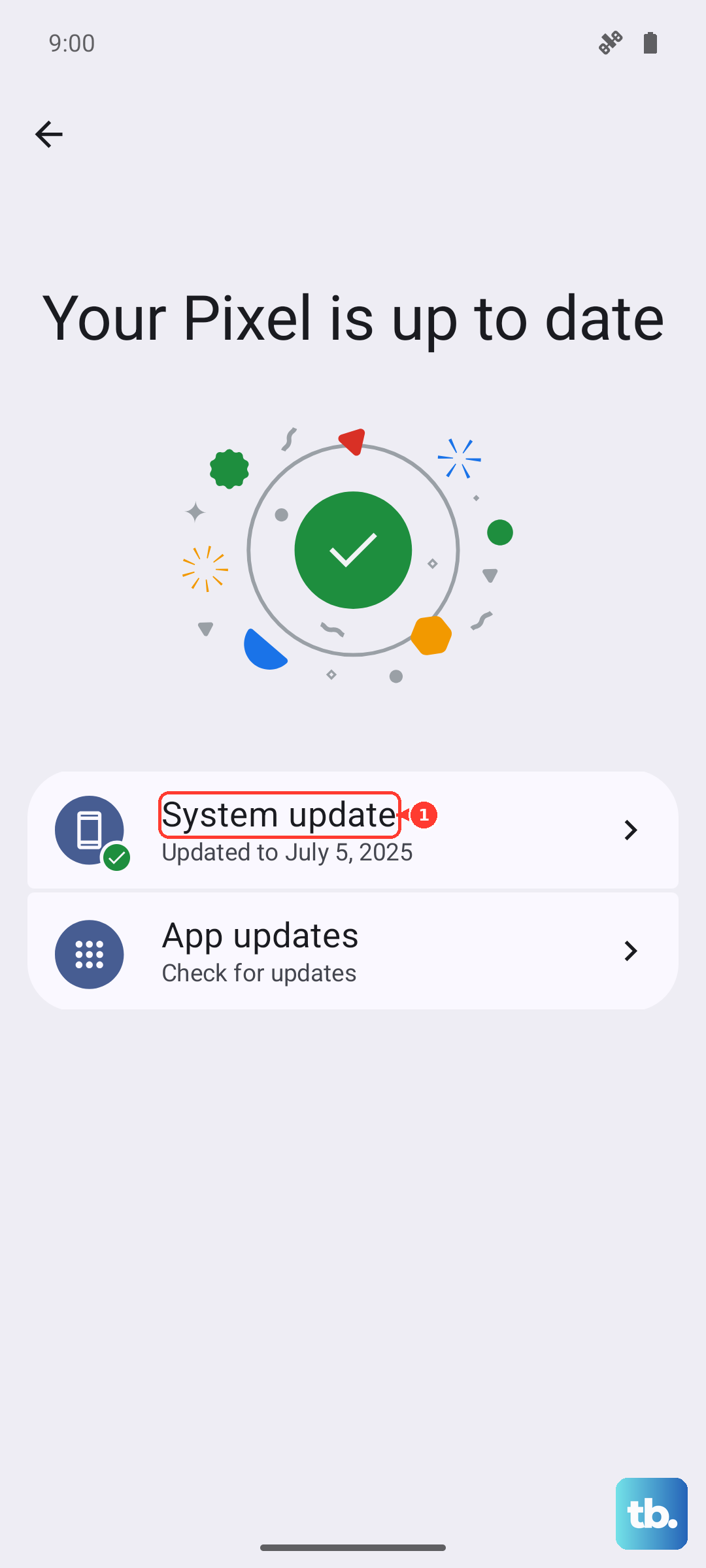
Open Settings.
Tap System updates.
Tap Check for updates.
If an update is available, follow the on-screen instructions to install it, ideally while connected to Wi-Fi.
Let the phone finish the update and restart, then check the screen again. A known display bug that is fixed in software will simply stop happening once the patched build is installed.
Use Safe Mode to Catch a Misbehaving App
Sometimes a downloaded app is what makes the screen act up, often one that draws an overlay or adjusts brightness. Safe mode starts the phone with downloaded apps disabled, so it is the cleanest way to find out whether one of your apps is to blame.
Press and hold the Power and Volume up buttons at the same time.
Touch and hold Power off.
Touch OK to restart in safe mode.
You will see "Safe mode" at the bottom of the screen, and your downloaded apps and widgets will be disabled while you are in it.
Watch the display in this state.
If the flicker stops, a downloaded app is the likely cause, so restart to leave safe mode and then uninstall recently added apps one at a time, restarting after each, until the flicker goes for good.
To exit safe mode at any point, simply restart the phone.
Erase Everything as a Final Software Reset
If nothing above helps and you suspect a deeper software fault, a factory reset is the last on-device step. Be careful here, because Motorola warns that "Resetting your phone erases all data and restores it to out-of-the-box condition." Back up your photos, files, and accounts first, and if you are planning to pass the phone on, disable Factory Reset Protection by removing your screen lock and Google accounts beforehand.
When the phone is still working normally, reset it from Settings.
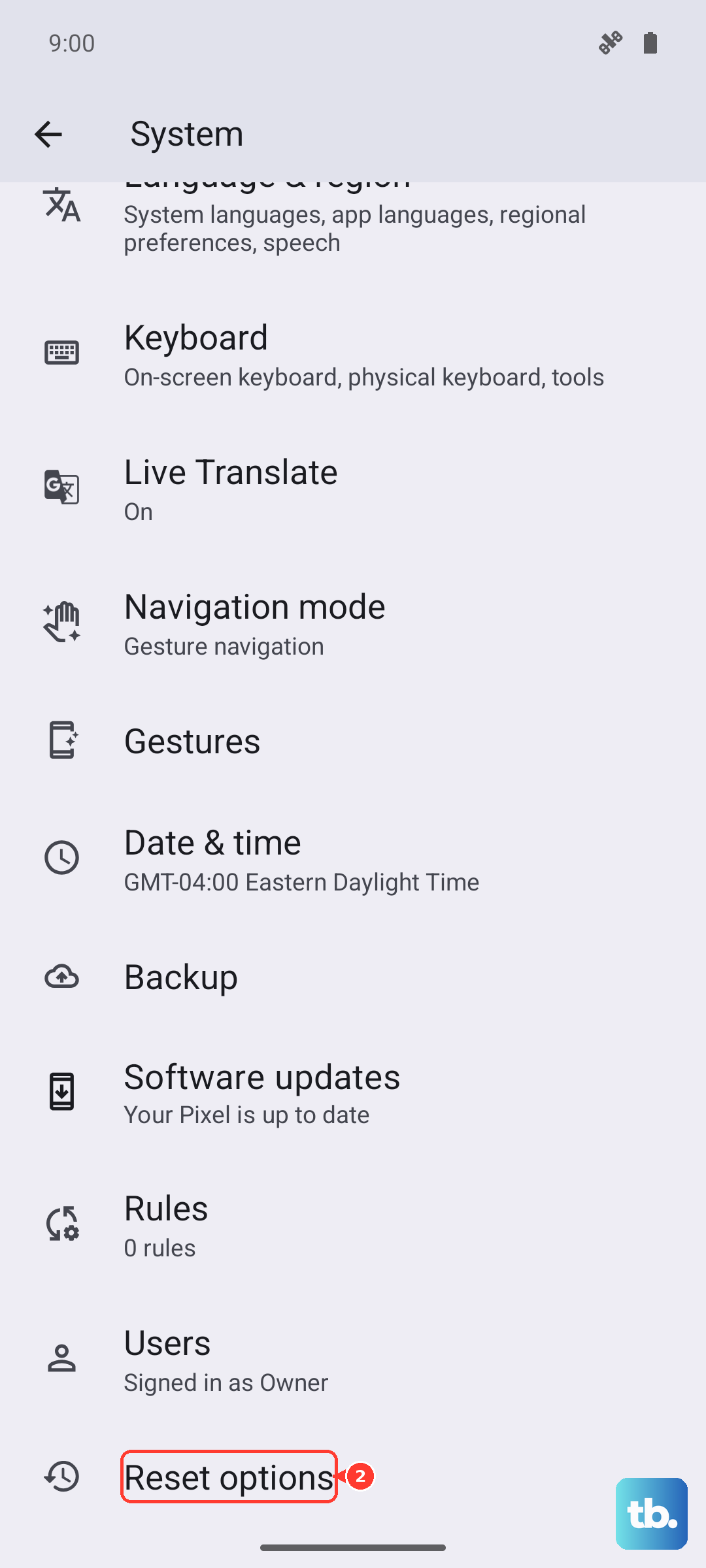
Open Settings.
Tap System.
Tap Reset options.
Tap Erase all data (factory reset) and confirm.
If the phone is unresponsive and you cannot reach Settings, you can reset from Recovery mode instead.
- 1.Charge the battery to 30 percent or more.
- 2.Turn off the phone.
- 3.Press and hold Volume Down and Power at the same time until the phone turns on.
- 4.Press Volume Down until you see Recovery mode.
- 5.Press Power to select it, then follow the prompts to erase the device.
Set the phone up fresh afterward and watch the display before reloading all of your apps. If the flicker is gone on a clean system, it was software, and if it returns immediately, the cause is almost certainly hardware.
When Flicker Means a Trip to Motorola Repair
Flicker that survives every step above points to a hardware issue, and that is the moment to stop troubleshooting and get the phone serviced. If the shimmer continues after a clean factory reset, or it shows up alongside other display problems such as lines or odd colors, or the glass is visibly cracked, a panel or connector fault is the likely cause and that needs professional repair. Contact Motorola support to arrange service rather than living with a screen that strobes, since this kind of fault tends to get worse over time.
Frequently Asked Questions
Why does my Moto G Stylus 5G (2025) flicker more in the dark?
It is an OLED (pOLED) display, and low brightness can make flicker more noticeable on this type of panel. Motorola built the Flicker prevention setting for exactly this, describing it for when you use the phone in dark environments and the flicker is irritating your eyes. Turn it on under Settings > Display.
Will a factory reset delete my photos and apps?
Yes. Motorola warns that resetting the phone erases all data and restores it to out-of-the-box condition, so back up everything first. If you are giving the phone away, also disable Factory Reset Protection by removing your screen lock and Google accounts before you reset.
Can changing the refresh rate help with flicker?
It is worth testing. The panel runs adaptive refresh up to 120Hz, and you can choose a rate under Settings > Display > Display refresh rate, then compare which setting looks steadiest during normal use.
When should I send the phone to Motorola for repair?
Send it in when flicker persists after all the troubleshooting steps, when it comes with other display problems like lines or odd colors, or when the glass is visibly damaged. Contact Motorola support to arrange service.