
Missing calls on your Motorola Moto G Stylus 5G (2025) can be a real headache, especially when you're expecting something important. The phone shows a missed call notification, but you never heard a sound. This usually comes down to a setting that got changed or a minor software hiccup. Let's get your ringer working again.
Check Your Phone's Sound Mode First
Android 15 on your Moto G Stylus uses a system sound slider that's easy to accidentally adjust. When you press the volume buttons on the side, look at the on-screen pop-up. Make sure the slider is set to "Ring" or "Ring & vibrate," not "Vibrate" or "Silent."
You can also check this in your quick settings panel. Swipe down from the top of the screen twice to see all the tiles. Look for a tile labeled "Sound" or one with a bell icon. If it shows a vibration or mute symbol, tap it to switch back to ring mode.
Disable Do Not Disturb and Focus Modes
Do Not Disturb is a common culprit. When it's on, calls from anyone not in your favorites list might be silenced. To check, go to Settings > Sound & vibration > Do Not Disturb.
Make sure the main toggle at the top is off. Also, look at any schedules that might be set to turn on automatically, like during your bedtime. You can temporarily turn off all rules by tapping "Turn off now" if it's active.
Adjust Your Ringtone and Volume
Sometimes the issue is with the specific ringtone file itself. Try switching to a different one. Go to Settings > Sound & vibration > Phone ringtone. Pick a new default tone and test it with a call from another phone.
While you're there, check the volume level. In the Sound settings, you'll see a "Volumes" option. Tap it and make sure the "Call ringtone" slider is turned up. I've seen this reset to a low level after some app updates.
Review Your App Notifications and Permissions
The Phone app needs proper notification permissions to ring. Go to Settings > Apps > See all apps. Find and tap on "Phone," then select "Notifications."
Ensure "Incoming calls" notifications are enabled and set to "Make sound and pop on screen." Also, check that no "Silent" or "Minimized" notification categories are active for calls.
Disconnect Bluetooth Accessories
If your phone is connected to a Bluetooth headset, speaker, or even a smartwatch, the call audio might be routing there instead of your phone's speaker. The quickest fix is to turn Bluetooth off temporarily.
Swipe down your quick settings panel and tap the Bluetooth icon to turn it gray. You can also go to Settings > Connected devices > Connection preferences > Bluetooth and toggle it off. Test a call to see if the ringer returns.
Check for Blocked Numbers and Call Settings
Open your Phone app and tap the three-dot menu in the top right. Go to Settings > Blocked numbers. If the number you're missing calls from is on this list, you won't hear it ring.
Also, look at other call settings. In the Phone app settings, check for options like "Call forwarding" to ensure calls aren't being sent to another number, and "Filter spam calls" which might be silencing calls it incorrectly flags.
Perform a Force Restart
A simple software glitch can often be cleared with a restart. For the Moto G Stylus 5G (2025), press and hold the Power button for about 10 seconds until you feel a vibration and see the Motorola logo appear. This force restarts the phone without deleting any data.
It's a good first step if you've checked the obvious settings and things still aren't working. This can clear out any temporary conflicts, especially if the problem started after installing a new app.
Update Your Phone's Software
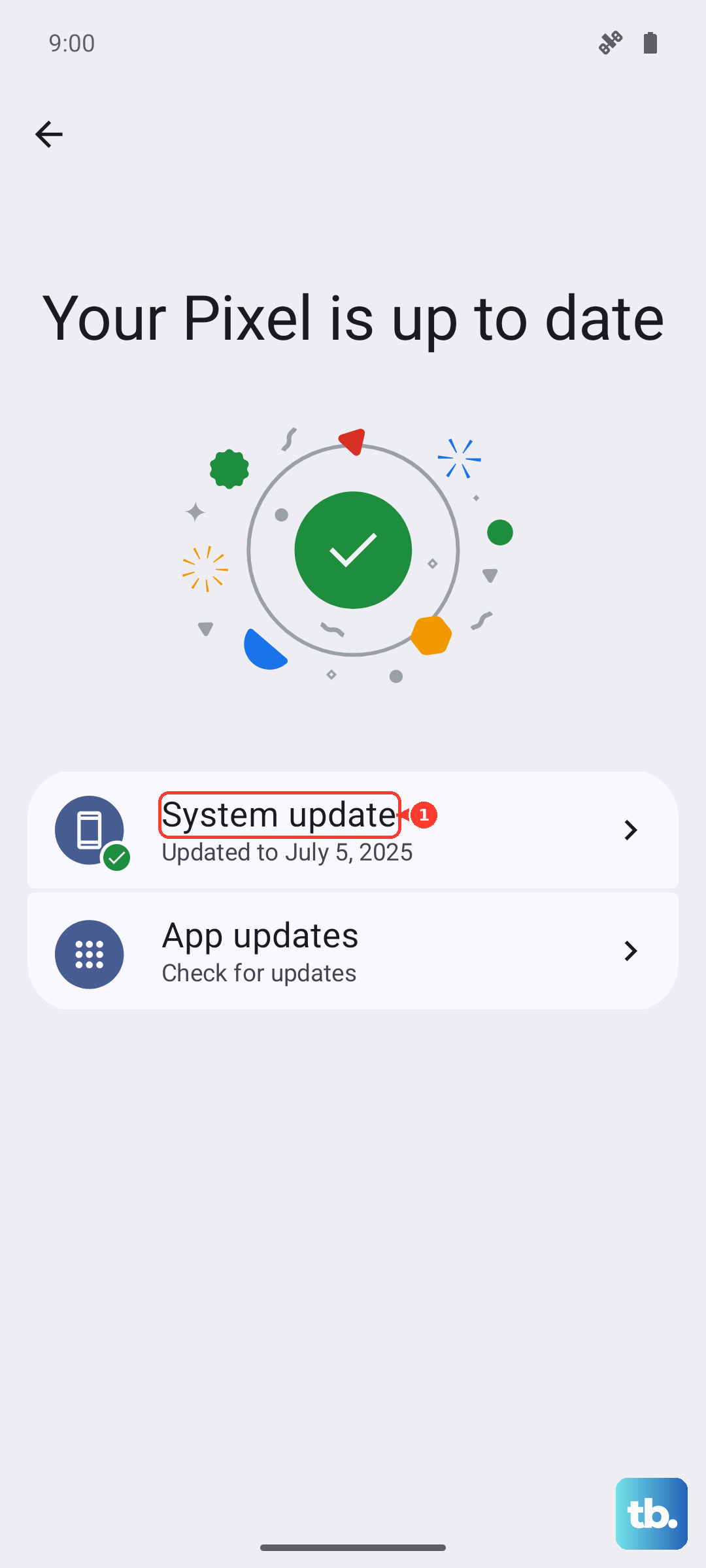
Motorola regularly releases updates that fix bugs, including ones that might affect call audio. Make sure you're on the latest version of Android 15 available for your device.
Connect to Wi-Fi, then go to Settings > System > System updates. Tap "Check for update." If one is available, download and install it. It's a good idea to use your 68W TurboPower charger during this process to keep the battery topped up.
Reset App Preferences or Network Settings
If the issue is isolated to calling apps like WhatsApp or Messenger, try resetting app preferences. This won't delete your app data. Go to Settings > Apps > Reset app preferences and confirm. This resets notification and permission defaults for all apps.
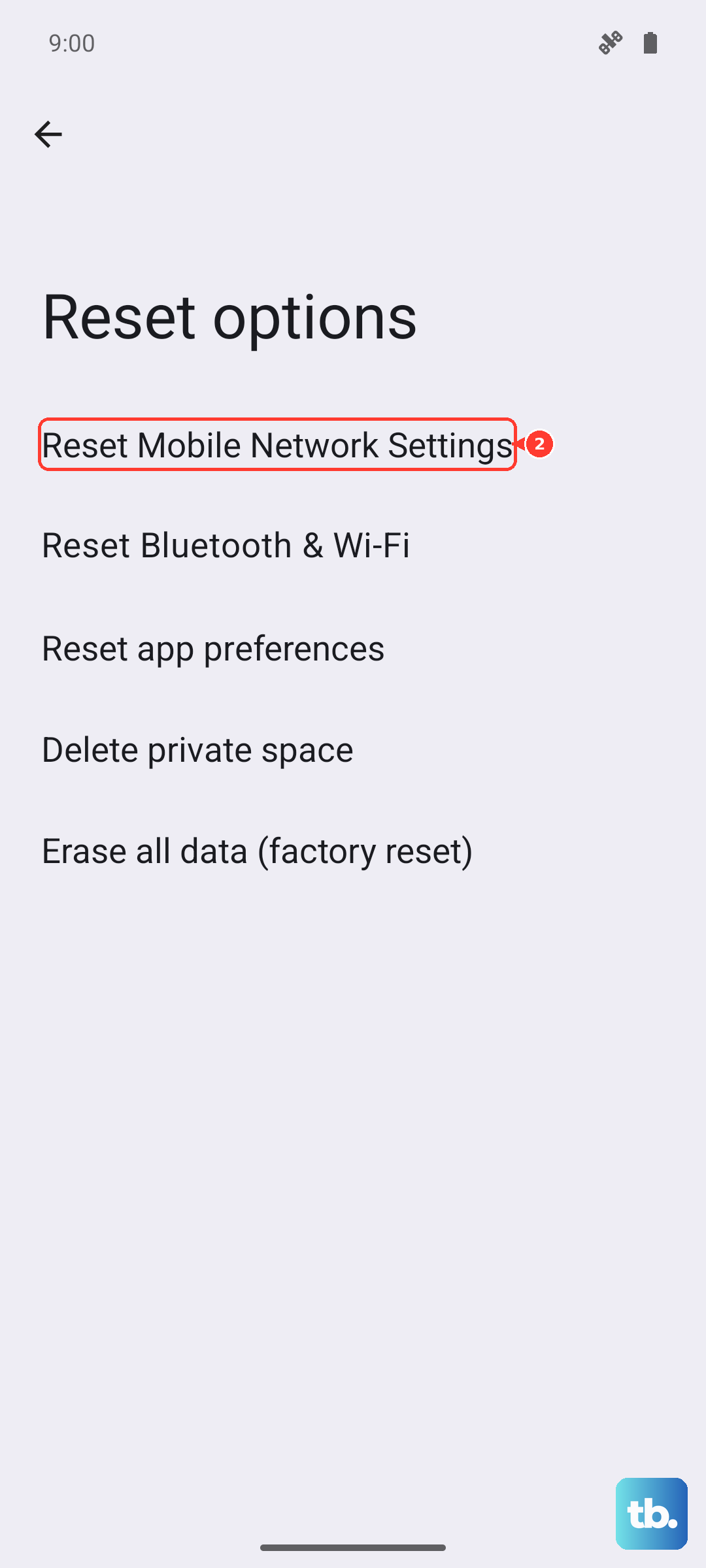
For general calling issues, especially over cellular, resetting network settings can help. Go to Settings > System > Reset options > Reset mobile network settings, then Reset Bluetooth & Wi-Fi. You'll need to re-enter Wi-Fi passwords and re-pair Bluetooth devices afterward.
Check for Physical or Stylus-Related Issues
This is specific to the Stylus model. While rare, ensure the stylus is fully seated in its silo. A stylus that isn't making proper contact or is partially ejected could theoretically interfere with some sensors, though this is uncommon.
Also, inspect the speaker grille at the top of the phone. The Moto G Stylus 5G has its earpiece speaker double as part of the main speaker system. Gently brush it with a soft, dry toothbrush to clear any lint or dust that could be muffling sound.