You raise the Moto G Stylus 5G (2025) to grab a quick shot and the viewfinder stays black, the preview freezes mid-frame, or an error message pushes you out of the app before you can tap the shutter. It is a frustrating fault on a phone built around capturing the moment, but the camera system on this model is fully functional, and Motorola publishes model-specific guidance for exactly this kind of problem. Most camera failures here come from a temporary software glitch, a stuck app, or a permission conflict rather than broken hardware.
Start with a free webcam test to rule out a hardware fault. If a live preview appears there but not in your app, the camera is fine and the app is the problem.
The fixes below are ordered from the safest and quickest to the most involved, so work through them in sequence and stop as soon as the camera behaves again. Recheck the camera after each step, turning the phone off and back on as your checkpoint, so you know the moment it starts working. Only the final step risks your data, and it comes with the full backup and reset procedure.
Clear a temporary glitch with a restart
A simple power cycle is the first step, and it resolves a surprising share of camera faults. Restarting clears the temporary state that can leave the preview black, frozen, or stuck on an error, and it puts none of your saved photos at risk.
Turn the phone fully off.
Wait a few seconds, then turn it back on and open the Camera app to check.
Use this off-and-on cycle as your checkpoint after every later fix as well, so you can confirm the moment the camera recovers.
Force a reboot if the phone or camera is frozen
If the screen is unresponsive and a normal restart will not go through, use the model-specific force restart instead.
Press and hold the Power key for 10 to 20 seconds.
Release when the phone reboots, then open the Camera app to test it.
This does not delete any data on the phone. Motorola does note one condition, which is to make sure the device is charged to at least 5% before you try it.
Check which apps can reach the camera
A camera error often appears when another app is holding onto the camera or has been granted access it should not have. Reviewing permissions takes a moment and frequently frees the camera back up for the built-in app.
Go to Settings > Security & privacy > Permission manager > Camera.
Look through the apps listed there, and remove camera access for anything that looks suspicious or that you no longer use.
Then reopen the Camera app and see whether the error has cleared.
Clear the Camera app's cache, then its data
Corrupted temporary files inside the Camera app are a common cause of crashes, freezes, and on-screen errors. Clearing them resets the app's working files without touching photos that are already saved to your gallery.
Open the Camera app's info screen, then tap Storage & cache > Clear cache to remove temporary files.
If the problem continues, return to Storage & cache > Clear storage to clear the app's data and reset it more thoroughly.
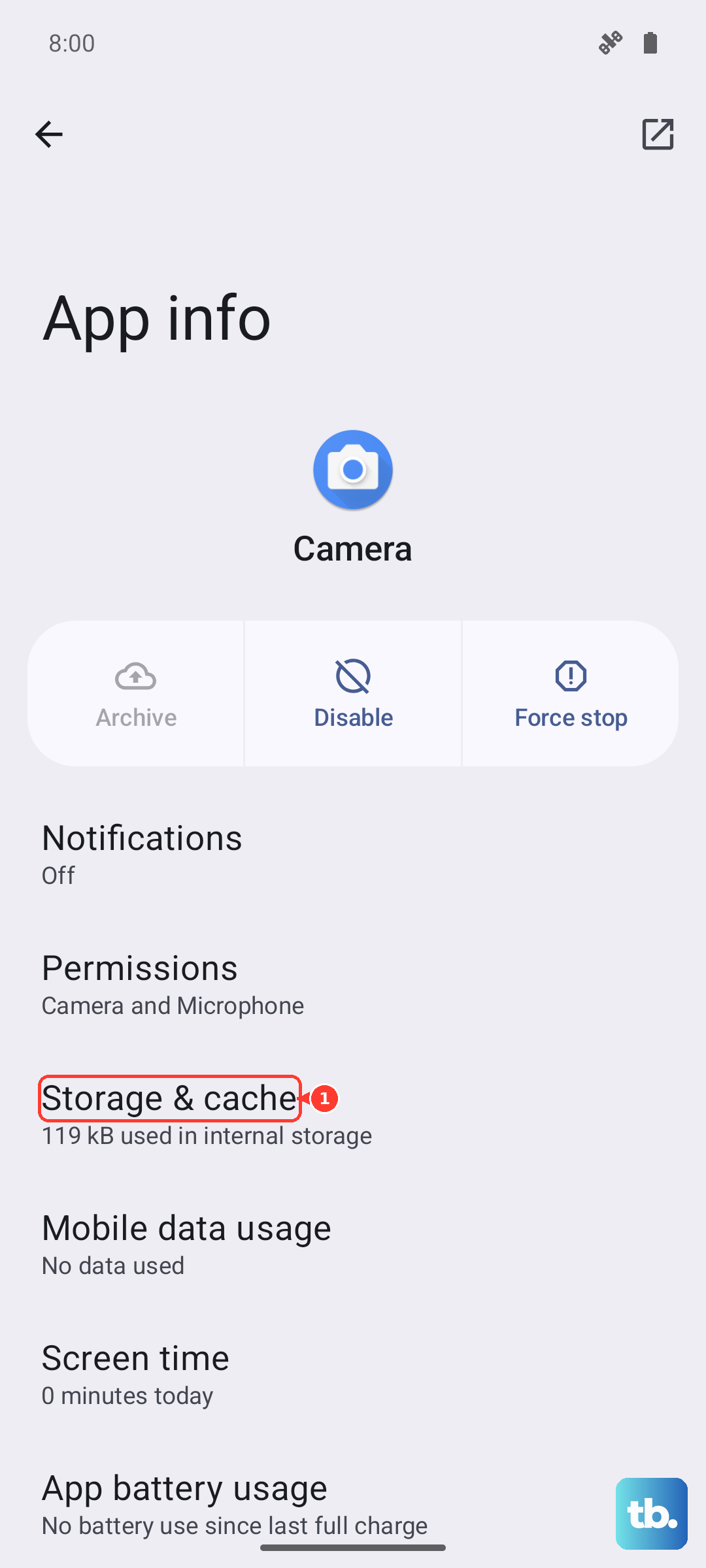
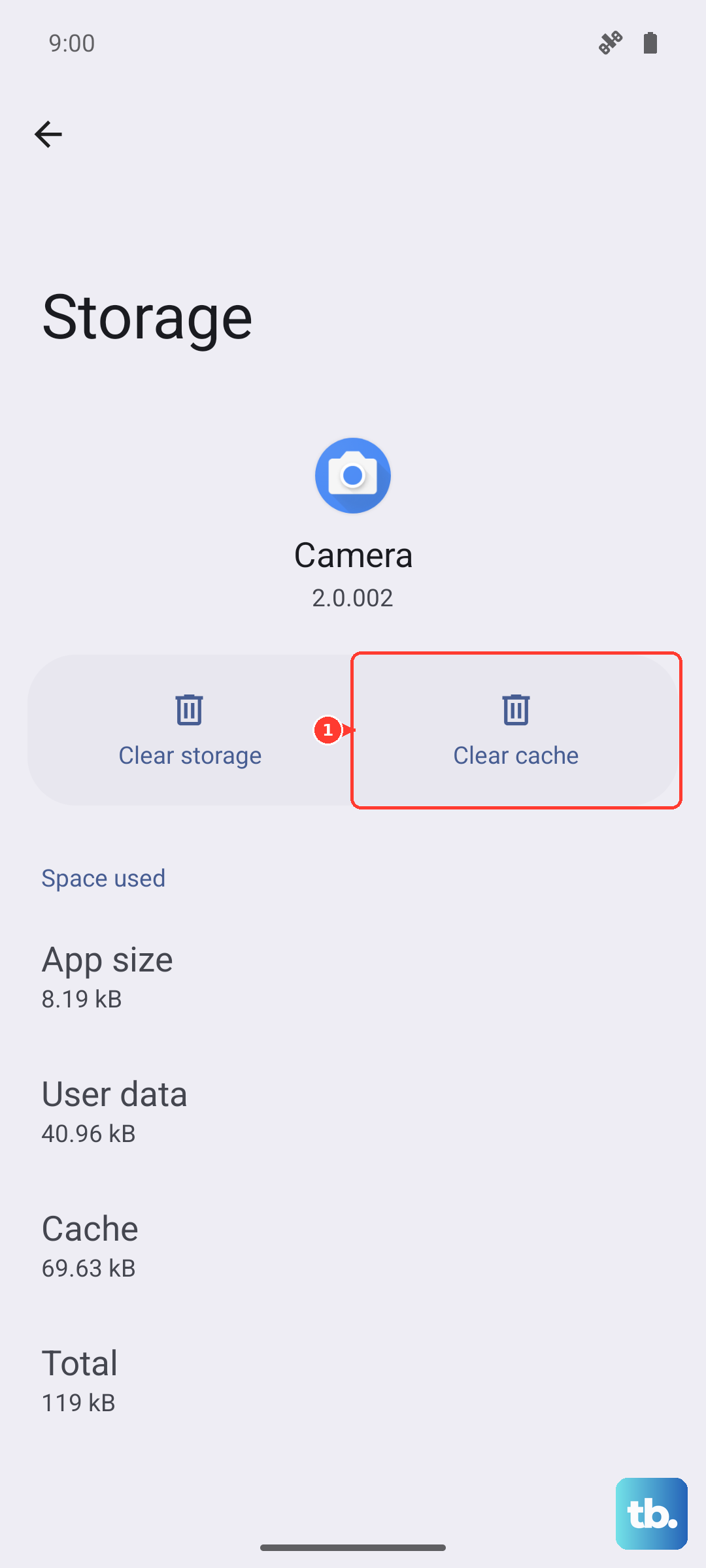
Start with Clear cache, since it is the gentler option, and only move to Clear storage if the camera is still misbehaving. Neither action removes pictures you have already captured.
Update the Camera app through the Play Store
An outdated camera app can crash or throw errors that a newer build has already fixed. Because this is a standalone Android 15 phone with no separate companion app, the Camera app and its updates flow through the Google Play Store.
Open the Play Store app and look for the camera app.
If you see an Update next to its name, touch Update to install the latest version.
If you do not see an Update option, you already have the newest version and can move on to the next step.
Rule out a downloaded app with Safe mode
Safe mode starts the phone with only its original software loaded, which is the cleanest way to tell whether something you installed is interfering with the camera. If the camera works in Safe mode, a downloaded app is the culprit.
Boot the phone into Safe mode and wait for "Safe mode" to appear at the bottom of the screen, then open the camera to test it.
If the camera behaves normally, restart the phone to exit Safe mode and uninstall recently added apps one at a time, testing the camera after each removal until the trouble is gone.
If the error appears even in Safe mode, the problem is not a downloaded app, so continue to the steps below.
Switch lenses if only one camera or zoom level fails
This model has more than one rear lens, and Motorola documents how to switch between them inside the Camera app. That matters when the trouble is isolated rather than total, for example one zoom level that opens black while the rest of the app works fine.
Open the Camera app and switch lenses to see whether a specific camera, rather than the whole app, is affected.
If one particular lens or zoom step is the only thing failing, that narrows the issue down and tells you the rest of the camera system is healthy.
Install the latest system update
Motorola pushes Google security patches and operating system updates that can fix camera bugs at the system level, beyond what the app itself controls. Keeping the phone current is one of the most effective long-term fixes.
Go to Settings > System updates > Check for updates.
If an upgrade is available, follow the onscreen instructions to install it.
Use Wi-Fi to download the update so it completes reliably, and keep the phone charged through the process.
Once it finishes and the phone restarts, open the Camera app again to confirm the fix.
Reset the phone as a last resort, then contact Motorola
If none of the steps above have restored the camera, a factory reset returns the software to its original out-of-box condition and clears any deep-seated fault. This step erases everything on the phone, so back up first.
Before you reset, save your photos to Google Photos or Google One, make sure your contacts and calendar are synced, and confirm you know your Google account details and your screen lock.
Skipping the backup means losing whatever is not already synced.
To reset from inside the phone, go to Settings > System and tap Reset options > Erase all data (factory reset).
This erases all data and restores the phone to out-of-box condition.
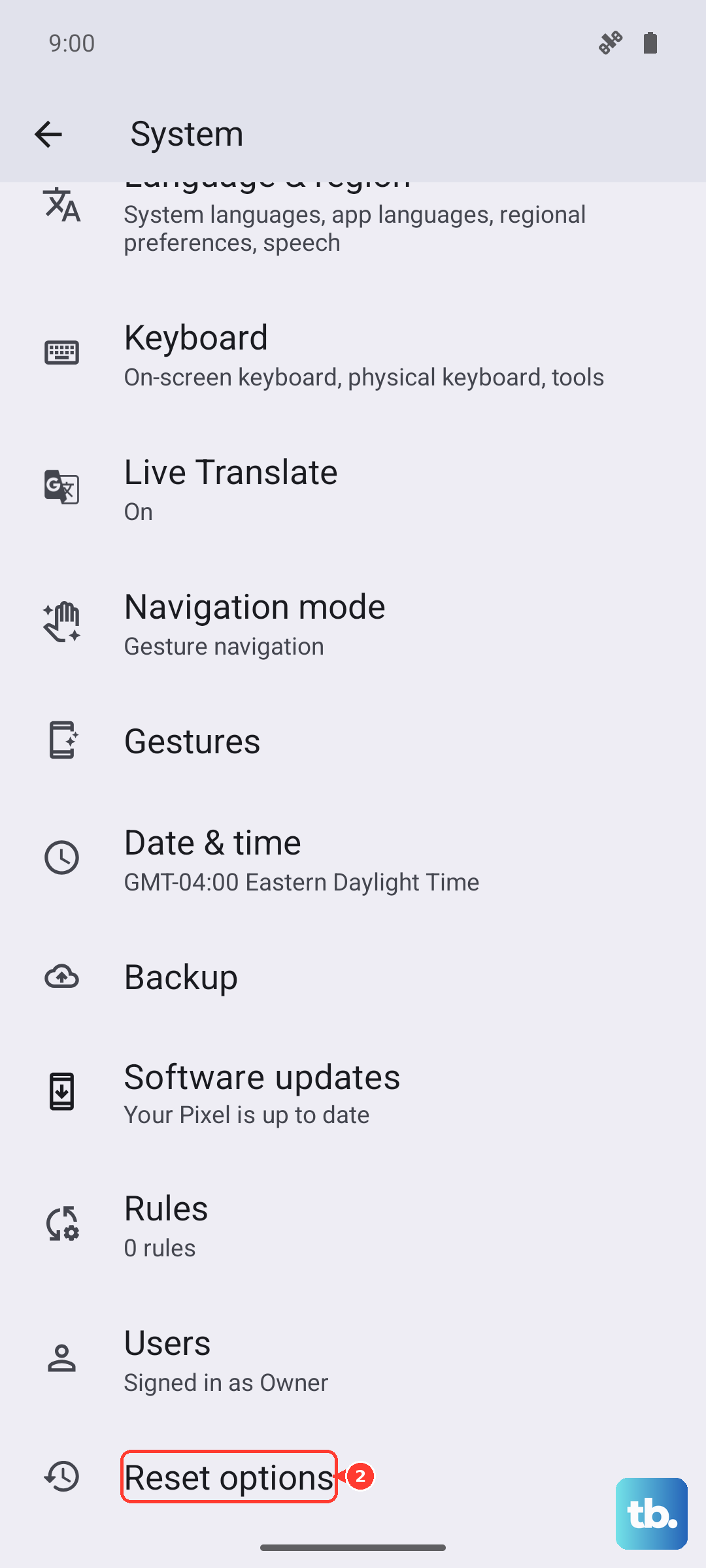
If you cannot open Settings, use the external recovery-mode reset instead. The battery must be at 25% or more.
- 1.Power the phone off.
- 2.Press and hold Volume Down + Power until the device turns on.
- 3.Press Volume Down to highlight "Recovery mode," then press Power to select it.
- 4.Scroll to "wipe data/factory reset" and select it with the Power button.
If the camera error is still there after a full reset, it points to a hardware fault that software cannot fix. Contact Motorola Support to arrange a repair for a suspected camera problem.
Frequently Asked Questions
Will clearing the Camera app's cache or data delete my photos?
No. Clearing cache removes temporary files, and clearing storage resets the app's data, but neither one touches photos that are already saved to your gallery. Start with Storage & cache > Clear cache, and only use Clear storage if the camera still misbehaves.
How do I force restart the Moto G Stylus 5G (2025) when the camera is frozen?
Press and hold the Power key for 10 to 20 seconds until the phone reboots. This does not delete any data on the phone, but make sure the device is charged to at least 5% before you try it.
How can I tell whether an app I installed is breaking the camera?
Boot into Safe mode, which loads only the original software, then open the camera. If the camera works in Safe mode, a downloaded app is the cause, so restart the phone to exit and uninstall recent apps one at a time until the camera is fixed.
What does a factory reset do, and what should I do first?
A factory reset erases all data and restores the phone to out-of-box condition, so back up your photos to Google Photos or Google One, sync your contacts and calendar, and confirm your Google account and screen lock first. You can reset from Settings > System > Reset options > Erase all data (factory reset), or use the external recovery-mode reset if Settings will not open.
The camera still fails after a factory reset. What now?
If the error remains after a full reset, the issue points to a hardware fault rather than a software one. Contact Motorola Support to start a repair for a suspected camera problem.