A screen that pulses, strobes, or flutters on your Motorola Moto G Power (2025) is hard to ignore, especially on a 6.8-inch panel you stare at all day. The flicker might show up only at low brightness, only when the room light changes, or seemingly at random while you scroll. The good news is that most flickering on this phone traces back to a software setting or a temporary glitch you can correct yourself, and only a stubborn minority points to an actual hardware fault.
Start with a free monitor test to check the panel with fullscreen test patterns. What you see there tells you whether to blame the display, the cable, or the source.
Work through the fixes below in order. They are arranged from the quickest and safest to the most involved, so you can stop as soon as the flicker disappears and avoid touching anything you do not need to.
What kind of screen you are actually working with
Before you start chasing toggles, it helps to know what the Moto G Power (2025) does and does not offer. Motorola lists the panel as an LCD with a 120 Hz refresh rate, so this is not an OLED or AMOLED display. That matters because AMOLED-specific flicker remedies, such as a dedicated PWM, DC dimming, or "anti-flicker" switch, do not exist on this model, and Motorola does not expose any "flicker reduction" toggle in its software.
What you do get, all under Settings > Display, is Adaptive brightness, a manual brightness slider, a Display refresh rate control, Dark theme, Night Light, and Screen timeout. Those are the real levers for this phone, and the steps below use them. If you have seen advice mentioning Reduce Transparency, Reduce Motion, or Reduce White Point, ignore it; those are iPhone settings and they are not present on this Android device.
Force a clean reboot before anything else
A forced restart clears the temporary software state that causes a surprising amount of flickering, and it does not delete any of your data. This is the single fastest thing to try, so start here even if the screen looks like it is failing.
Press and hold the Power key for 10 to 20 seconds to force the device to reboot.
Let the phone power down and start up on its own, then check whether the flicker returns.
Motorola confirms that with this method "Data on your phone will not be deleted." The company also warns that you should not try to remove or replace the battery to force a restart.
Stop the brightness from chasing the room
A lot of perceived flicker is really the auto-brightness sensor hunting up and down as the light around you shifts. Locking the screen to a fixed level removes that variable instantly. As Motorola puts it, "Your phone automatically adjusts your screen to the light around you, with Adaptive brightness."
Open Settings > Display.
Turn off Adaptive brightness so the screen no longer adjusts on its own.
Open quick settings and use the brightness slider to set a steady level.
Leave it on that fixed level for a while and watch the screen. If the pulsing stops once the phone is no longer adjusting brightness automatically, the sensor behavior was the cause.
Switch the display refresh rate
The Moto G Power (2025) lets you choose the rate at which the screen redraws, and changing it can resolve flicker tied to high-refresh behavior. This is worth trying both ways to see which is stable for you.
Open Settings > Display > Display refresh rate.
Select a different rate than the one currently set, then use the phone normally to compare.
Keep in mind that Battery Saver overrides this control. As Motorola notes, "when Battery Saver is on, the refresh rate is set to 60Hz," so switching Battery Saver on or off also changes the effective refresh rate.
Flip the Dark theme to test the panel
Switching the system theme changes how the display is driven across light and dark content, which can help you isolate whether the flicker follows bright backgrounds. It is a quick, reversible test.
Open Settings > Display.
Turn Dark theme on if it is off, or off if it is on, and watch the screen for a few minutes.
If you want the theme to change automatically, it can be scheduled with "Turns on at custom time" or "Turns on from sunset to sunrise." Note which theme is steadier so you know whether brightness or content was triggering the effect.
Turn off or retune Night Light
Night Light applies an amber color shift on a schedule, and the moment it fades in or out can look like color pulsing or flicker rather than a true display fault. Turning it off, or adjusting it, rules this out.
Open Settings > Display > Night Light.
Turn it off, or change its schedule using "Turns on at custom time" or "Turns on from sunset to sunrise."
To fine tune the warmth instead of disabling it, "open quick settings, touch & hold, then use the slider to change the intensity of the amber filter." If the color shifting was being mistaken for flicker, this settles it.
Install any waiting software updates
Display bugs are among the most common things fixed in Motorola and Android updates, so an outstanding update may already contain your fix. Connect to Wi-Fi first so the download does not stall.
Go to Settings, then System updates, then Check for updates (the path may read as Settings > System > Advanced > System updates > Check for updates on your build).
Install anything that is offered and let the phone restart.
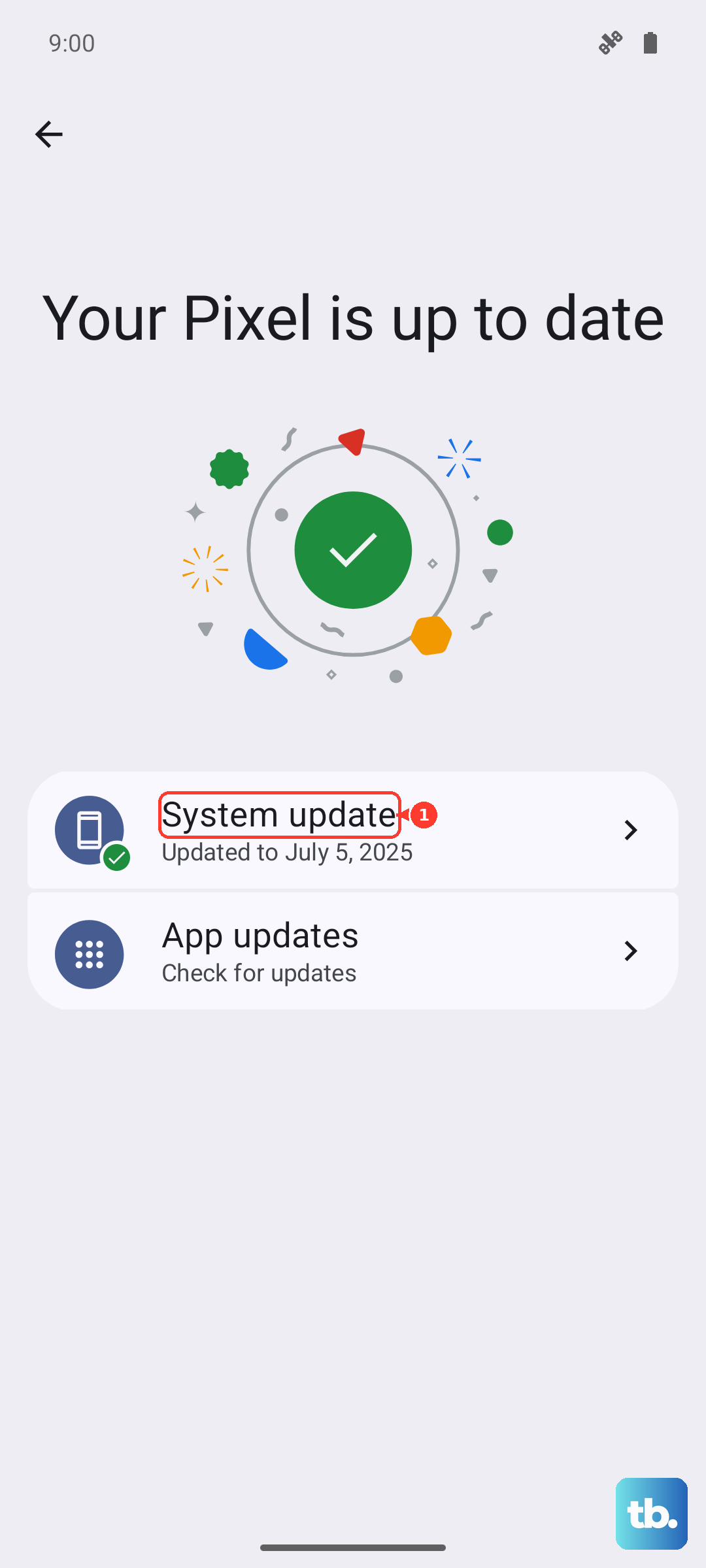
One thing to be aware of before you update: Motorola states "You can't downgrade to a previous software version after installing an update." That is normal, but it means the new build is permanent once applied.
Use Safe mode to catch a misbehaving app
Safe mode starts the phone "with only the original software and apps," so it is the cleanest way to find out whether something you downloaded is causing the flicker. If the screen behaves perfectly in Safe mode, a third-party app is the culprit.
Press and hold the Power and Volume up buttons at the same time.
Touch and hold Power off.
Touch OK to restart in safe mode.
You will see "Safe mode" across the bottom of the home screen while it is active. If the flicker is gone, restart the phone to exit Safe mode, then uninstall recently added apps one at a time until you find the one responsible.
Reset the phone when nothing else holds
If the flicker survives every setting above, a factory reset is the last software step before you treat it as hardware. This erases everything, so back up your photos, files, contacts, and messages first, and have your Google account username and password ready to restore afterward. Motorola is explicit that "Resetting your phone erases all data and brings it back to out-of-the-box condition."
If you can still open the menus, reset from within the system. Go to Reset options, then choose "Erase all data (factory reset)" and follow the prompts.
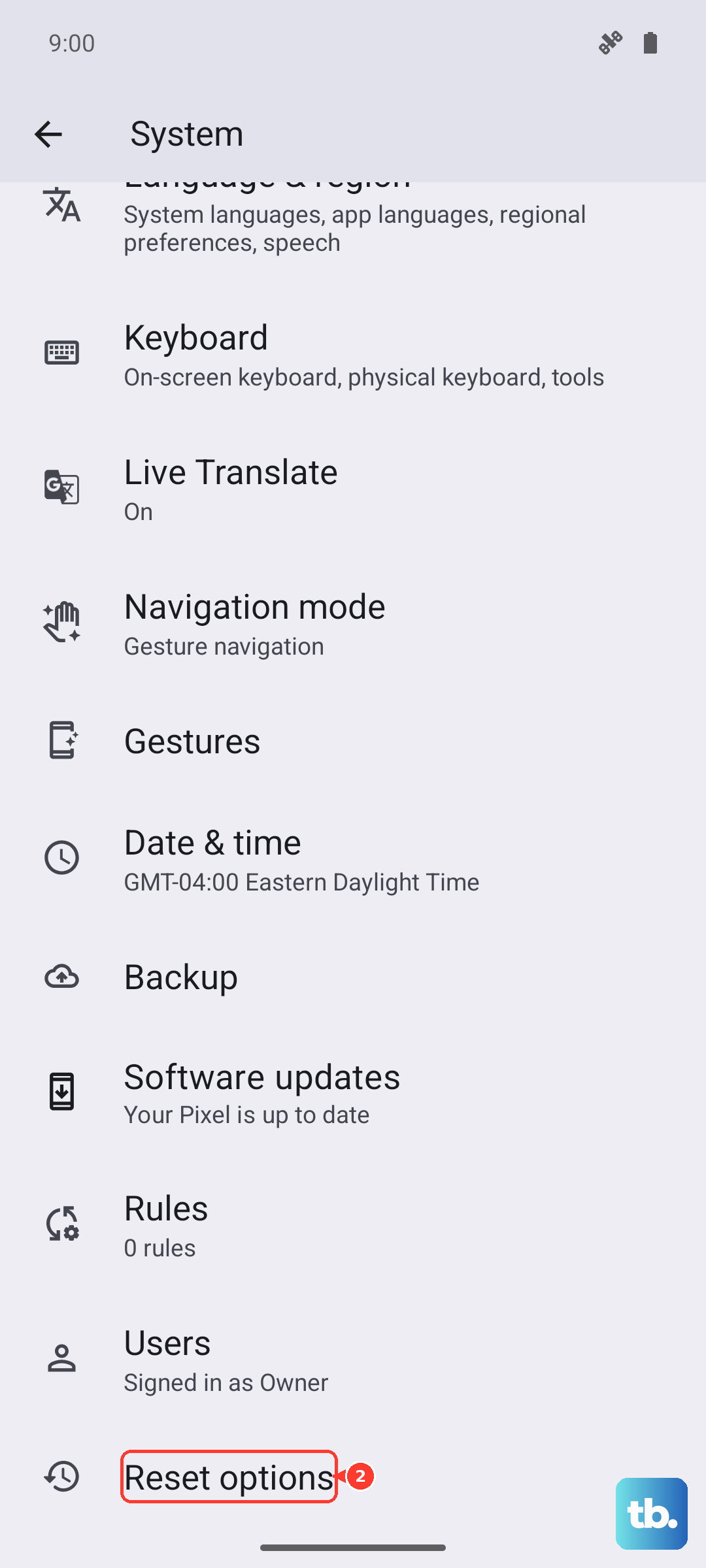
If the screen is too unstable to navigate Settings, use the external recovery-mode reset instead. Charge the phone to at least 30 percent and turn it off, then follow this sequence.
- 1.Press and hold the Volume Down button and the Power button at the same time until the phone turns on.
- 2.Press Volume Down until you reach "Recovery mode," then press Power to select it.
- 3.If an Android robot with a red exclamation mark appears, hold Power, then press and release Volume up.
- 4.Scroll to "Wipe data/factory reset," then select "Factory data reset," then "Reboot system now."
Everything on the device is deleted with this method, exactly as with the in-Settings reset. Only use it when the display is too erratic to reach the normal menus.
When it is hardware, get Motorola involved
If the flicker continues even after a clean factory reset, you are most likely looking at a hardware or display fault, and it is time to contact Motorola's official support. Reach out through Motorola's official support channels for the Moto G Power (2025), describe exactly when the flicker appears, and ask to have the device checked or repaired.
When you get in touch, mention any visible damage up front. A cracked or physically damaged screen is generally not handled as a standard warranty repair and may carry a cost, so being clear about the symptom and the panel's physical condition helps the service team route your case correctly and tell you what your options are.
Frequently Asked Questions
Does the Moto G Power (2025) have an anti-flicker or DC dimming setting?
No. The phone uses an LCD panel, and Motorola does not expose any anti-flicker, DC dimming, PWM, or dedicated flicker-reduction toggle for this model. The settings that genuinely affect flicker on this device are Adaptive brightness, the manual brightness slider, Display refresh rate, Dark theme, and Night Light, all under Settings > Display.
Will a force restart or these settings changes erase my data?
No. The force restart (holding the Power key for 10 to 20 seconds) and every display setting above leave your data intact; Motorola confirms data is not deleted by a forced reboot. Only a factory reset erases the phone, which is why it is saved for last and comes with a back-up warning.
How do I know whether an app is causing the flicker?
Boot into Safe mode by holding Power and Volume up, touching and holding Power off, then touching OK to restart in safe mode. Safe mode runs only the original software and apps, so if the flicker disappears there, a downloaded app is to blame and you can uninstall recent apps one by one after restarting to exit.
Why does my refresh rate keep dropping on its own?
Battery Saver forces the screen down to 60Hz. If you set a higher Display refresh rate in Settings > Display and it keeps reverting, check whether Battery Saver is switched on, since turning it off restores your chosen rate.
Is a flickering screen covered under warranty?
A genuine display fault can be handled through Motorola's official repair channels. However, a cracked or physically damaged screen is generally not treated as a standard warranty repair, so mention any visible damage when you contact support and they can explain your options and any costs before work begins.