
When your Motorola Moto G Power (2025) sends every call directly to voicemail, it can feel like you're suddenly invisible. This is a common but fixable problem on Android phones, and it's usually tied to a setting or a temporary network hiccup. I'd start with the simplest checks first, as they often do the trick.
Check Do Not Disturb and Focus Modes
Your phone might be in a mode that silences calls. Swipe down from the top of your screen twice to open the full Quick Settings panel. Look for icons labeled "Do Not Disturb," "Priority," or "Silent." If any are highlighted, tap them to turn them off. You can also go into Settings > Sound & vibration > Do Not Disturb to see if any schedules or rules are active.
Motorola's Android 15 software also includes Focus modes, which can block interruptions. Go to Settings > Digital Wellbeing & parental controls > Focus mode to check if one is running. Disabling it should restore normal call behavior immediately.
Restart Your Phone and Check Signal
A simple restart clears out temporary software glitches that can affect the phone app. Just press and hold the power button, then tap "Restart." If the phone is unresponsive, you can force a restart by holding the power button down for a solid 10 seconds or more until you feel it vibrate and the Motorola logo appears.
While you're at it, glance at the signal bars in the top-right corner. If you're seeing one bar or an "X," you might just be in a poor coverage area. Try moving to a different room or near a window. The Dimensity 6300 processor handles connectivity well, but it can't work with no signal.
Review Call Blocking and Spam Settings
The built-in spam protection might be a little too enthusiastic. Open your Phone app, tap the three-dot menu in the top-right, and go to Settings > Caller ID & spam. Look through the options here. You might need to turn off "Filter spam calls" or "See caller and spam ID" temporarily to test.
Also, check your blocked numbers list in the same settings menu. It's possible a number was accidentally added, or a system rule is blocking more than you intended. Clearing out this list can sometimes resolve the issue.
Disable Call Forwarding
Call forwarding could be silently redirecting all your calls. To check, open the Phone app, tap the three-dot menu, and go to Settings > Calls > Call forwarding. Make sure all the options, like "Always forward" or "When busy," are set to "Turn off" or your carrier's default deactivation code. This setting can sometimes get enabled without your direct input.
Re-seat Your SIM Card
A loose or dirty SIM card is a classic culprit. You'll need the SIM ejector tool that came with your phone. Gently push it into the small hole on the SIM tray, pop it out, and remove the SIM card. Give the gold contacts a quick wipe with a dry, soft cloth and blow any dust out of the tray slot.
Reinsert the SIM carefully, making sure it's seated flush in the tray, and push the tray back into the phone. Wait a minute for it to reconnect to the network. This physical reset often fixes "calls going to voicemail" errors.
Reset Your Network Settings
This step clears all your network-related configurations, which can resolve persistent calling issues. Go to Settings > System > Reset options. Tap on Reset Wi-Fi, mobile & Bluetooth and confirm.
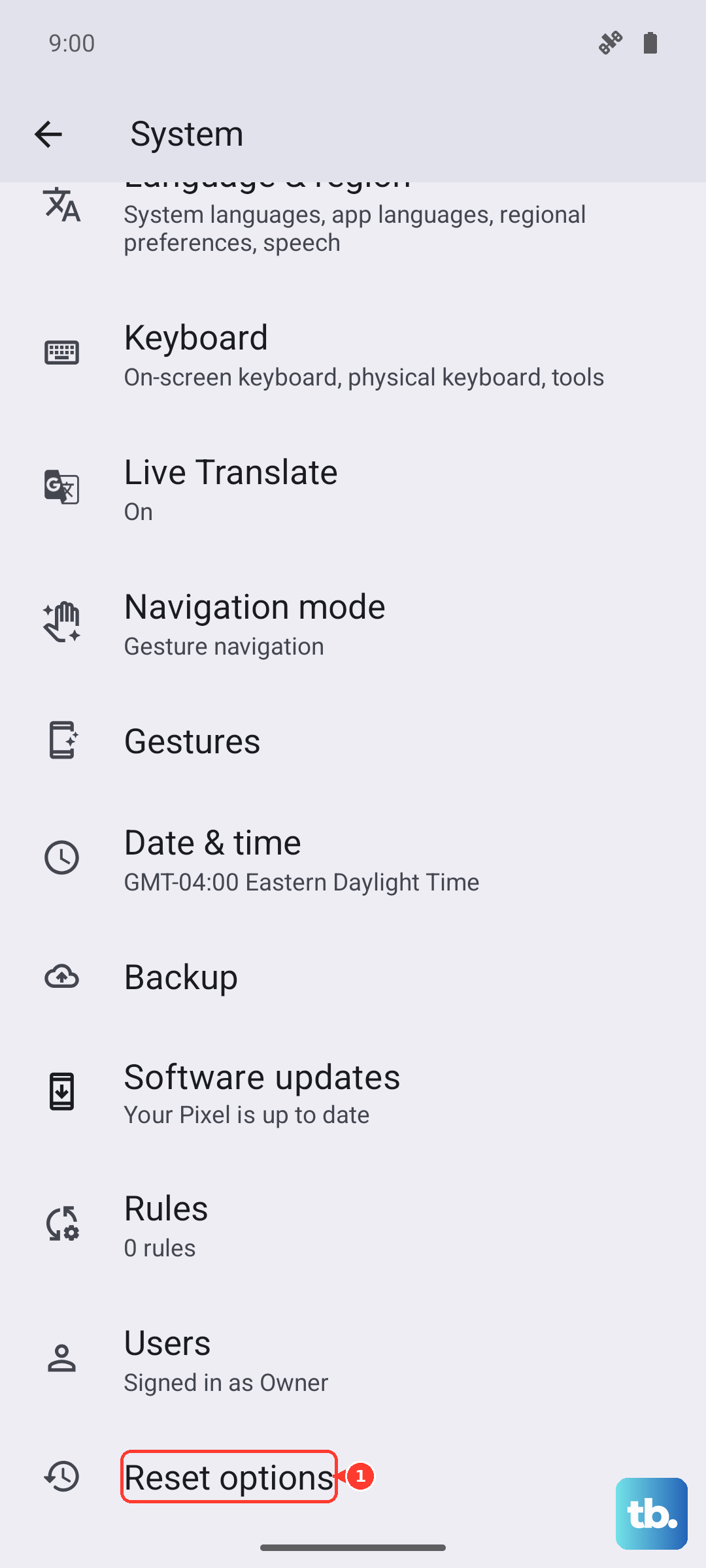
Be aware this will erase saved Wi-Fi passwords, Bluetooth pairings, and mobile network preferences. You'll have to reconnect to your Wi-Fi and re-pair devices like headphones afterward, but it's a very effective refresh for network problems.
Update Your Phone Software
Running outdated software can lead to bugs that affect calling. Motorola regularly releases updates to fix these kinds of issues. Connect to Wi-Fi, then go to Settings > System > System updates and tap "Check for update."
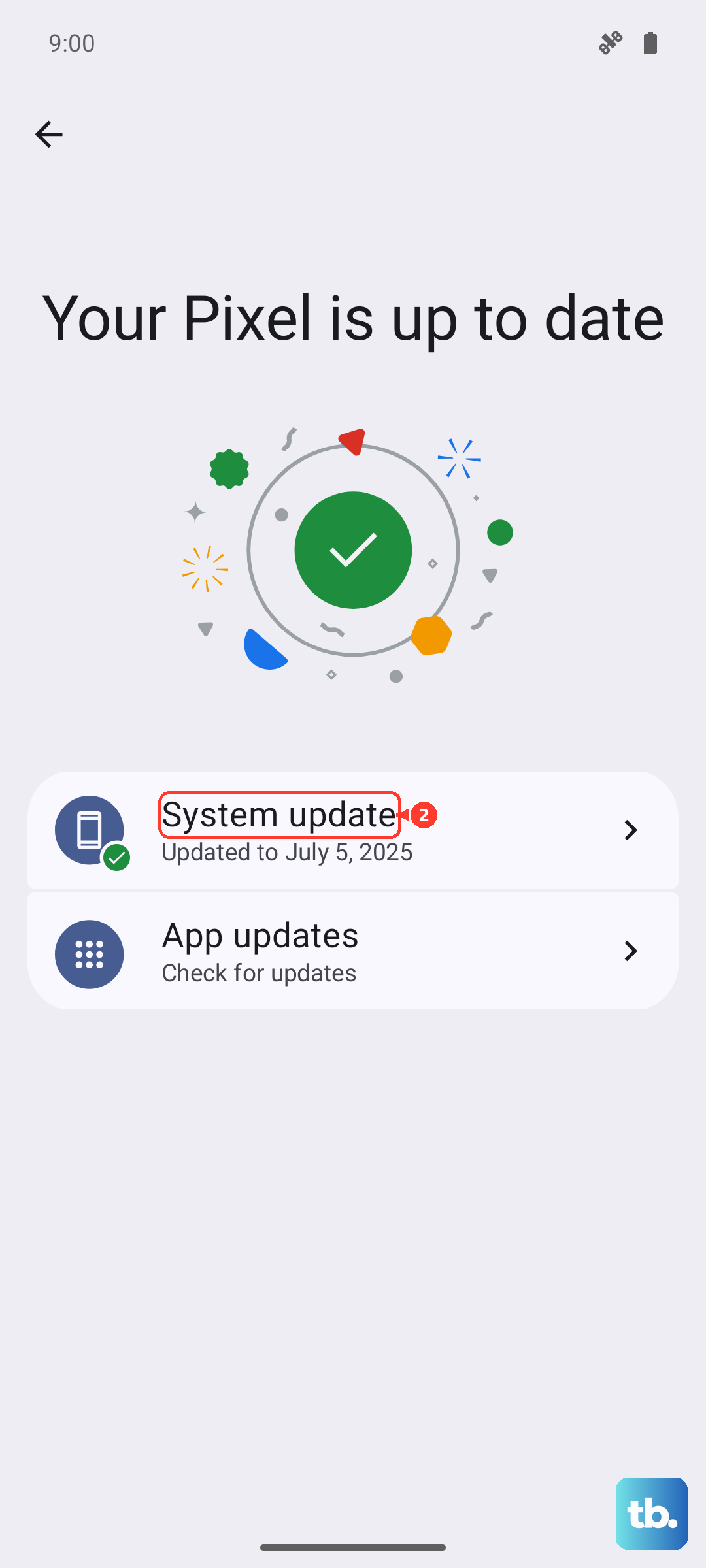
If an update is available, download and install it. The 128GB of base storage gives you plenty of room for updates. Keeping your Moto G Power on the latest Android 15 build ensures you have all the known fixes.
Clear the Phone App's Cache and Data
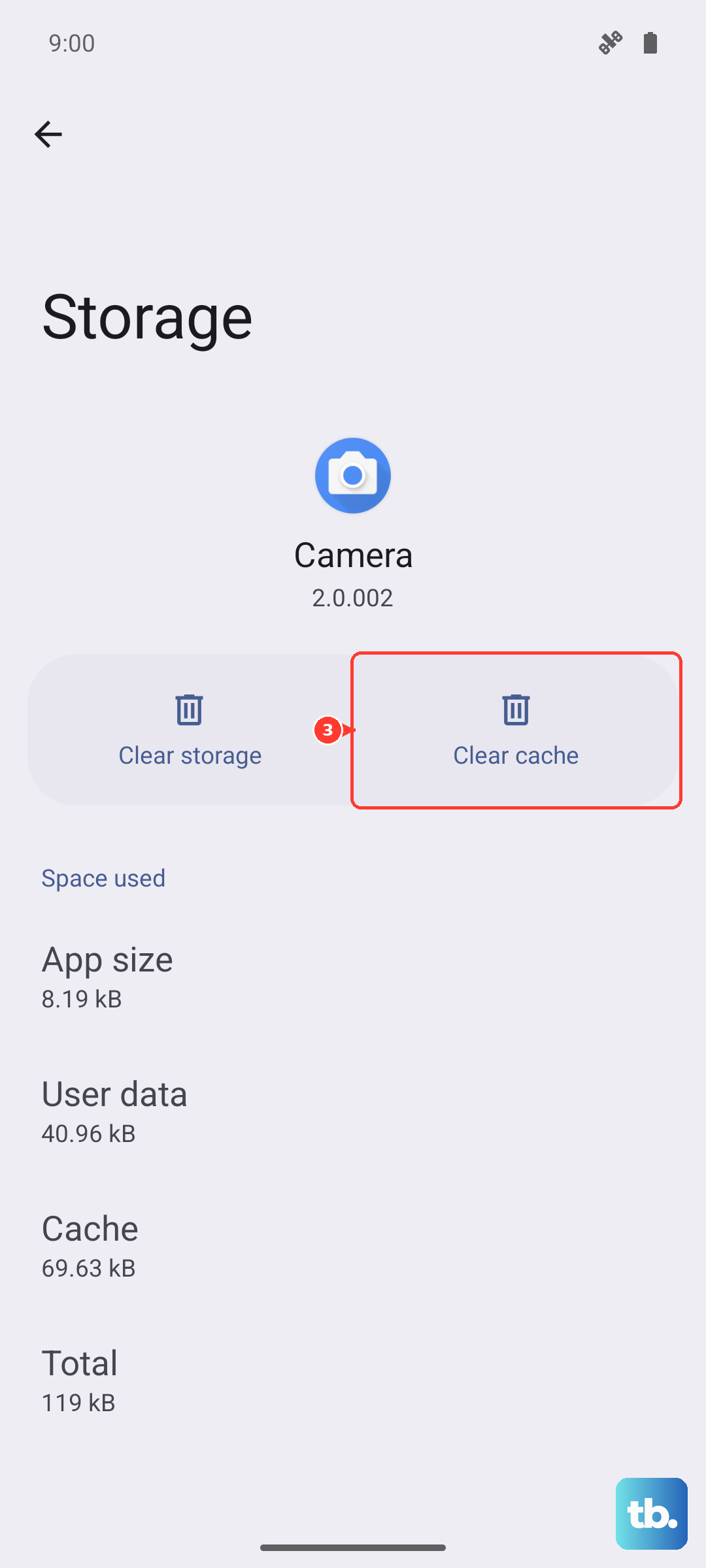
Corrupted data in the Phone app itself can cause problems. Go to Settings > Apps > See all apps. Find and tap on "Phone" in the list. Then, select Storage & cache.
Tap "Clear cache" first and test your calls. If the problem persists, go back and tap "Clear storage" or "Clear data." This resets the app to its default state, so you might lose your call history and any custom settings within the dialer, but it often resolves deep-seated glitches.
Check for Problematic Third-Party Apps
An app you recently installed could be interfering with telephony services. Think about any call-blocking, dialer, or security apps you've added. Try booting the phone into Safe Mode to test.
Press and hold the power and volume up buttons at the same time to open the power menu, or swipe down from the top of the screen and tap the power icon. Then, touch and hold "Power off" until you see the Safe Mode prompt. Tap "OK." If calls work normally in Safe Mode, a downloaded app is the cause. You'll need to uninstall apps one by one to find the offender.
Contact Your Mobile Carrier
If you've tried everything here, the issue might be on your carrier's end. There could be a network outage, a problem with your specific line, or a feature like "conditional call forwarding" active on your account. Use another phone to call your carrier's customer service.
Ask them to check your line for any irregularities and to reprovision your connection to the network. They can also verify if your SIM card is still in good standing. Sometimes, they can push a refresh signal to your phone that instantly fixes the calling problem.