
If your Motorola Moto G Power (2025) is refusing to send pictures or group texts, it's almost always a quick setting or connection hiccup. The first thing I'd check is your mobile data, as MMS won't work without it, even if you're on Wi-Fi.
Pull down the quick settings shade from the top of your screen and make sure the mobile data icon is active. You can also go into Settings > Network & internet > Mobile network to toggle it on. Give sending that photo another try once you've confirmed you have a data signal.
Verify Your MMS App Settings
Open your Messages app and tap the three-dot menu in the top right, then go to Settings. Look for a section called "Multimedia messages" or "Advanced." Inside, ensure that "Auto-download MMS" or "Auto-retrieve" is turned on.
Also, check that "Send as SMS when MMS fails" is disabled, as this setting can sometimes cause the phone to give up on sending the MMS too quickly. With Android 15, these options are usually straightforward to find in the messaging app's own settings menu.
Clear the Messaging App's Cache
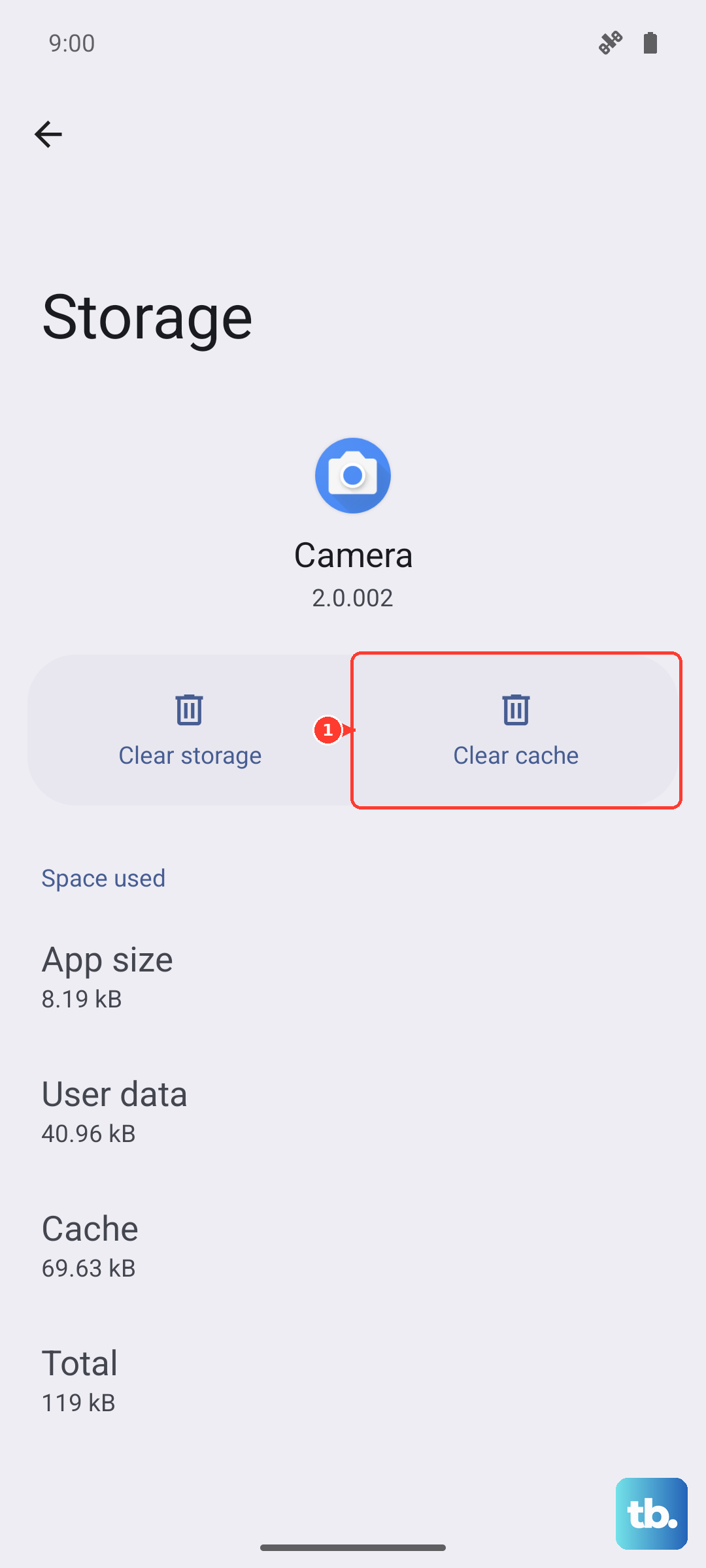
Temporary files can get corrupted and block MMS from sending. Clearing the cache is a safe first step that won't delete your texts. Go to Settings > Apps > See all apps and find your messaging app (often called "Messages").
Tap on it, then select Storage & cache. Tap "Clear cache." If the problem persists, you can try "Clear storage" or "Clear data," but be warned this will erase your entire message history on that app, so only do this if you're okay with that loss.
Check and Update APN Settings
Incorrect Access Point Name (APN) settings are a very common culprit. These tell your phone how to connect to your carrier's multimedia service. The path is Settings > Network & internet > Mobile network > Advanced > Access Point Names.
You should see a list with at least one APN selected. If it looks empty or wrong, you'll need to get the correct settings from your carrier's website or support team. Sometimes, simply tapping the three-dot menu and selecting "Reset to default" can fix a misconfiguration.
Perform a Force Restart
A simple reboot can clear out a minor software glitch. For the Moto G Power (2025), press and hold the Power button for about 10 seconds until you feel a vibration and see the Motorola logo appear. This forces a full restart.
Wait for the phone to boot up completely, which might take a minute. Once it's back on, try sending an MMS again. I've found this works more often than you'd think, especially if the phone has been running for a long time.
Ensure You Have Enough Storage
With a base of 128GB, your storage can fill up faster than you expect, especially with photos and videos. The phone needs a bit of free space to process and send MMS. Go to Settings > Storage to see how much space you have left.
If you're running low, consider offloading some photos to Google Photos or using the SD card slot to move files. Freeing up even a few hundred megabytes can sometimes be enough to get things moving again.
Reset Your Network Settings
This is a more thorough step that resets all network-related configurations back to factory defaults. It will erase saved Wi-Fi networks, Bluetooth pairings, and mobile data settings. To do this, go to Settings > System > Reset options.
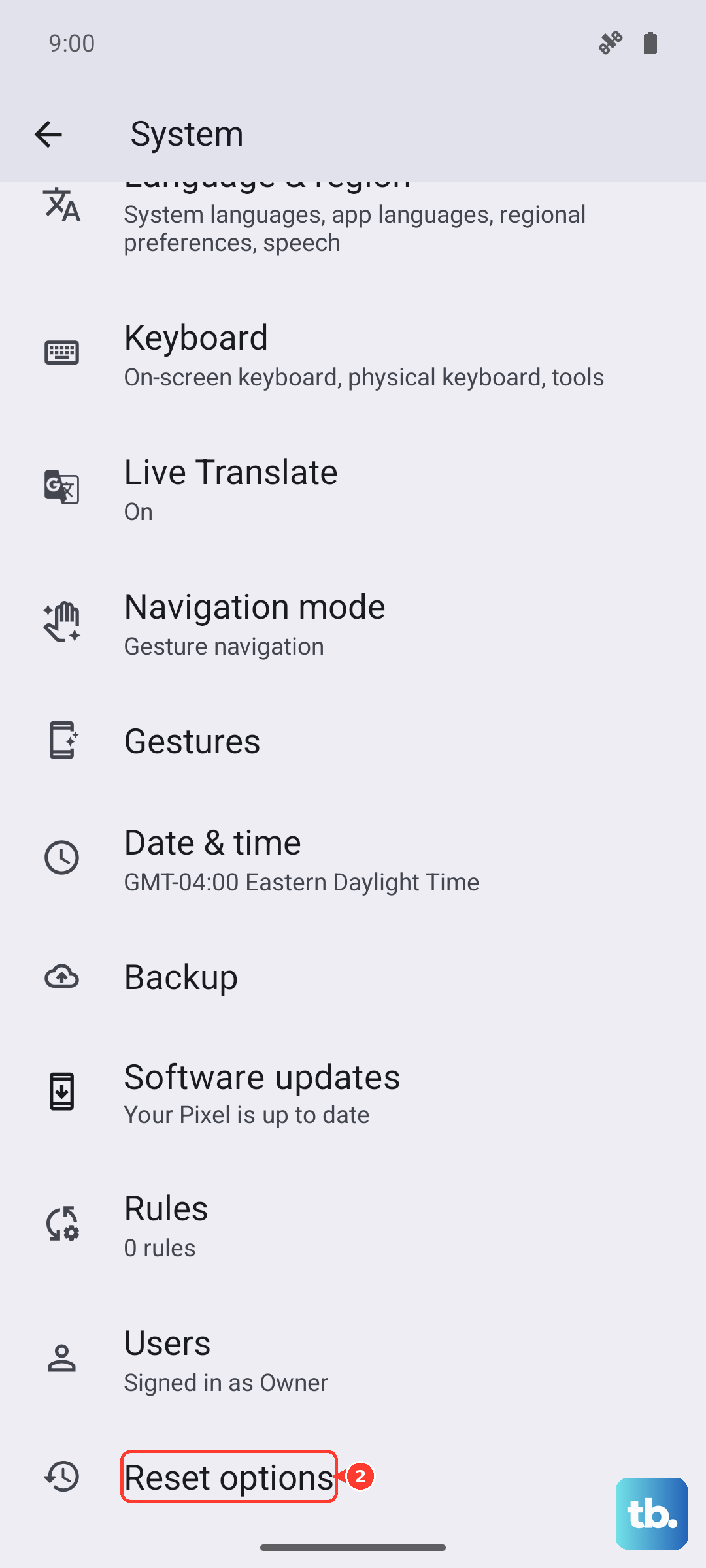
Tap Reset Wi-Fi, mobile & Bluetooth and confirm. Your phone will restart. Afterward, you'll need to reconnect to your Wi-Fi and re-pair Bluetooth devices, but your APN should automatically reconfigure, potentially fixing a deep-seated MMS issue.
Try Google Messages as Your Default App
Sometimes, the pre-installed messaging app can have a persistent bug. A great alternative is Google Messages, which is often more reliably updated. Download it from the Play Store, open it, and it will prompt you to set it as your default messaging app.
Once it's set as default, grant it the necessary permissions and try sending an MMS. Google Messages also supports RCS (Chat Features), which might give you a more modern and reliable messaging experience on your Moto G Power.
Check for a Software Update
Motorola periodically releases updates that can fix bugs affecting connectivity and messaging. Make sure your phone is running the latest software. Go to Settings > System > System updates and tap "Check for update."
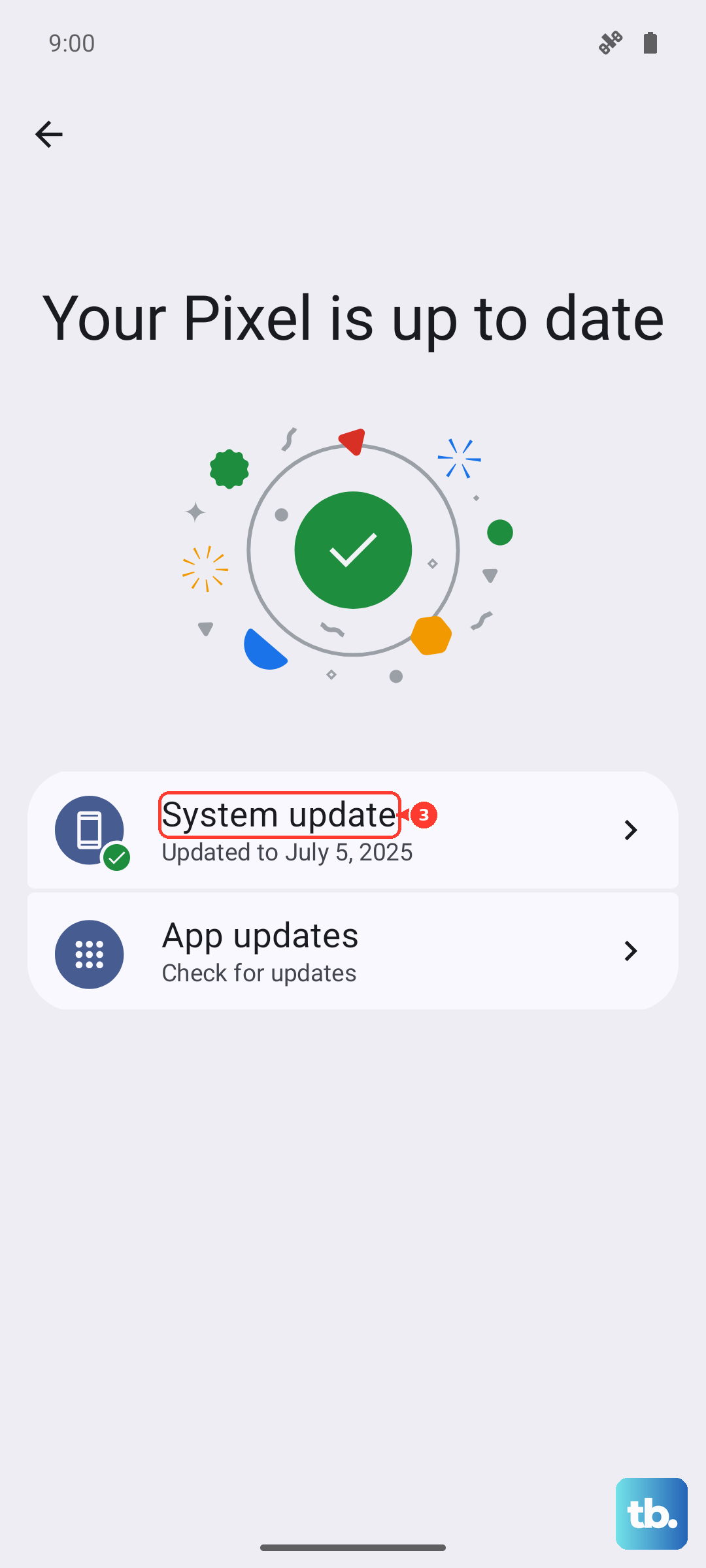
If an update is available, download and install it. It's a good idea to be connected to Wi-Fi for this. After the update completes and your phone restarts, test your MMS function again to see if the issue is resolved.