
If your Motorola Moto G Power (2025) is taking forever to charge, you're missing out on one of its best features. This phone is built for 30W TurboPower fast charging, which should give you hours of power in just minutes. When that doesn't happen, it's usually a simple fix.
Get a 30W USB-PD Charger
The Moto G Power (2025) doesn't come with a charger in the box. If you're using an old, low-wattage plug, that's your problem. You need a charger that supports USB Power Delivery (USB-PD) and can output at least 30 watts. Look for "30W USB-PD" on the label. I'd start with this one, as it's the most common reason for slow charging on this model.
Use a High-Quality USB-C Cable
Not all USB-C cables are created equal. The cheap, thin cable you got for free might only support slow charging speeds. For 30W TurboPower, you need a cable that can handle higher power. Use the cable that came with the phone, or invest in a sturdy, well-reviewed USB-C cable rated for fast charging.
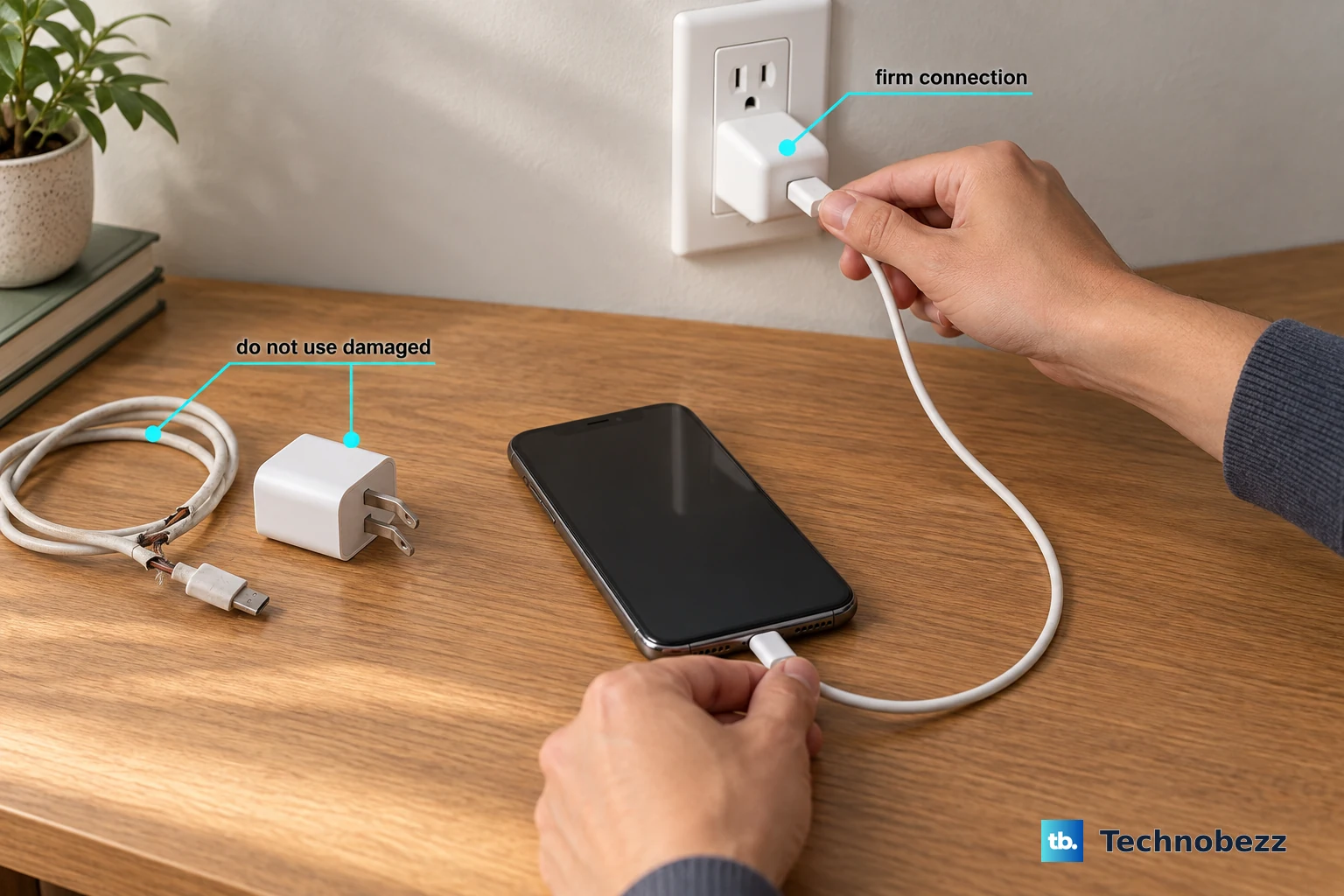
Check the cable for any signs of damage, like fraying or bent connectors. A damaged cable will struggle to deliver the full 30 watts, forcing your phone to charge at a snail's pace.
Clean the USB-C Port
Pocket lint and dust love to pack into the charging port. Over time, this creates a physical barrier that prevents the cable from seating properly. A poor connection means reduced power flow.
Power the phone off first for safety. Then, grab a wooden toothpick or a soft plastic pick and gently scrape around the inside of the port. You'll likely be surprised by how much debris comes out. Avoid using metal, like a paperclip, as it can damage the delicate pins.
Don't Use the Phone While It's Plugged In
This is a big one, especially with the Dimensity 6300 processor. Gaming, streaming video, or using the camera while charging makes the phone work hard. That generates heat, and to protect the battery, the system will automatically throttle the charging speed down to a safer, slower rate.
For the absolute fastest charge, just let it sit. If you need to use it, try putting it in Airplane Mode to reduce background activity and heat.
Remove the Phone Case
Your case is great for protecting that MIL-STD-810H-rated body from drops, but it's also great at trapping heat. During fast charging, some warmth is normal. A thick case can insulate the phone too well, causing it to overheat and slow down the charge.
If the back of your phone feels warm to the touch, take the case off while it's charging. Letting it breathe on a cool, hard surface like a table or countertop is ideal.
Force Restart the Phone
Sometimes a minor software glitch can mess with the charging system. A quick restart can clear it right up. Press and hold the Power button on the right side for about 10 seconds, or until you see the Motorola logo appear and the phone restarts.
This doesn't erase any data. It's just a fresh start for the software that manages power.
Check for a Software Update
Motorola releases updates that can improve system performance, including how the phone manages charging. Go to Settings > System > System updates and tap "Check for update."
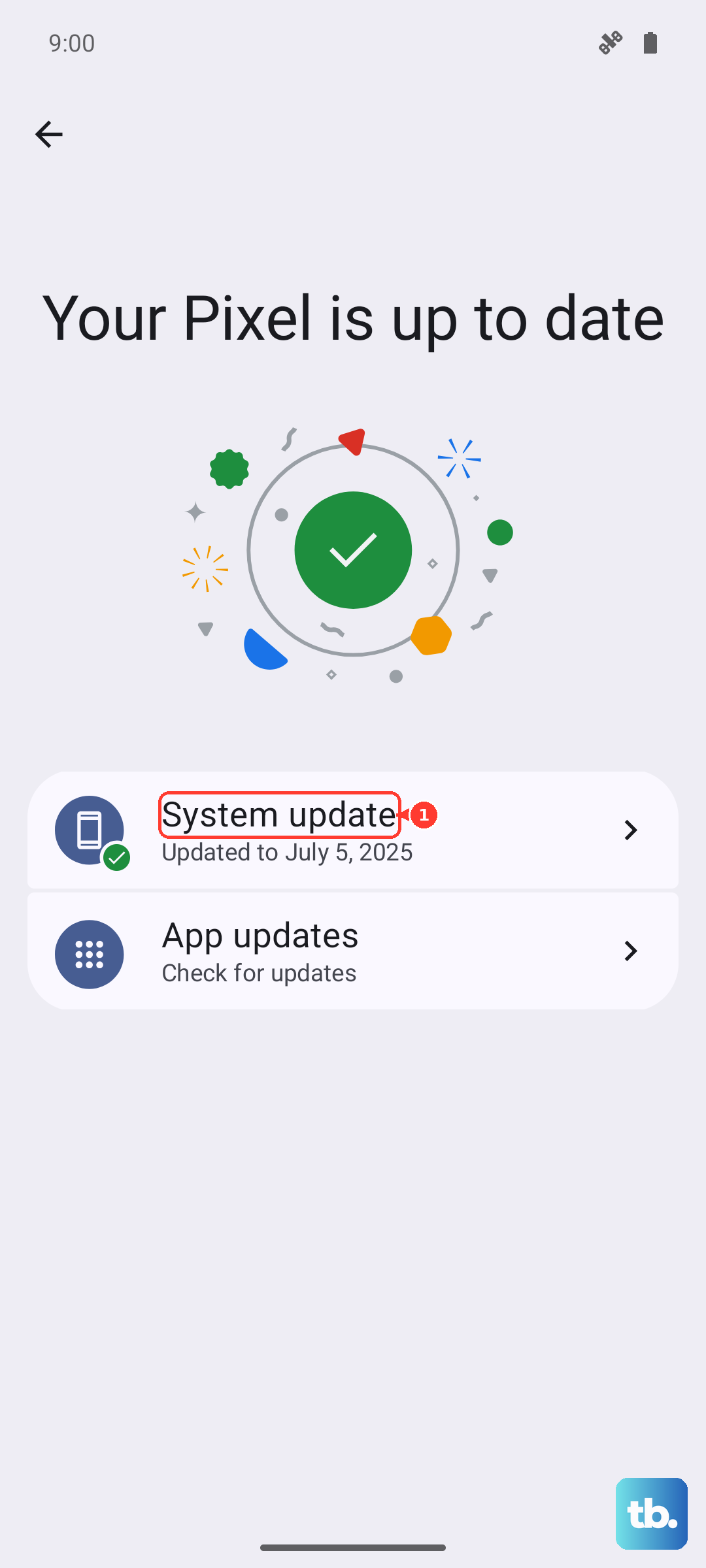
Installing the latest Android 15 update ensures you have the most optimized software, which can resolve bugs that might be affecting charging speed.
Try a Different Outlet and Adapter
The problem might not be your phone at all. Try plugging your 30W charger into a different wall outlet. Some power strips or older outlets can't deliver consistent power.
If you have access to another compatible fast charger, test it. If your phone charges quickly with a different adapter, then you know your original charger is faulty or not performing to spec.
Monitor for Background Apps
With 128GB of base storage, it's easy to fill your phone up with apps. Some apps run heavily in the background even when you're not using them, draining battery and generating heat that slows charging. After you restart, check which apps are active.
Go to Settings > Battery to see which apps are using the most power. If you see a social media or game app using a high percentage, consider force-stopping it while you charge.
Inspect for Physical Damage
Take a close look at the phone's USB-C port. Are any of the tiny gold pins bent, missing, or discolored? Is the port itself loose, so the cable wiggles too much? Physical damage inside the port will prevent a proper connection.
Also, check the cable's USB-C connector. If it's damaged, it could be the culprit. Since this phone does support 15W wireless charging, you can charge it wirelessly as a temporary workaround, but a damaged port means you'll need to get it repaired to restore fast wired charging.