When your Motorola Edge 50 Pro's volume buttons stop responding, it can be a real nuisance. You press the rocker, but nothing happens on screen, and you're stuck with whatever volume level you have. The good news is this is often a software hiccup or a simple obstruction, not a broken phone.
Before you think about a repair, try these steps. I'd start with the first one, as it's the most common fix for this kind of glitch.
Perform a Force Restart
A quick force restart clears out temporary software bugs that can freeze the volume controls. This is different from a normal restart and won't delete any of your data.
Just press and hold the power button for about 10 seconds. Keep holding it until you see the Motorola logo appear on the screen, then let go. Your phone will boot back up normally. Test the volume buttons as soon as you're back on the home screen.
Check for a Stubborn Case
Take your phone out of its case, especially if it's a thick or rigid one. Some cases, even official ones, can press against the volume rocker just enough to keep it from moving properly.
Inspect the cutout around the buttons for any lint or debris that might have gotten packed in there. With the case off, press the volume buttons a few times to see if they feel different and start working.
Clean the Volume Rocker
The Edge 50 Pro's slim design means the button assembly is pretty compact. Dust, pocket lint, or a bit of sticky residue can easily jam the mechanism.
Grab a can of compressed air and give the area around the volume rocker a few short bursts. For anything more stubborn, dip a cotton swab in a tiny amount of isopropyl alcohol (90% or higher is best), wring it out so it's just damp, and gently clean around the button. Let it dry completely before testing.
Verify Your Sound Settings
It's worth a quick look in your settings to make sure nothing got changed accidentally. Open the Settings app and go to Sound & vibration.
Scroll down and look for the "Volume" section. Tap on it to see all your volume sliders. While you're here, you can adjust them manually with the on-screen controls. Also, check that any "Do Not Disturb" or "Sound" profiles aren't actively limiting your media volume.
Test Across Different Apps
Sometimes the issue isn't with the phone, but with a specific app. Open your music player, like YouTube Music or Spotify, and try to change the volume while a song is playing.
Then, try it while watching a video on YouTube or in your gallery. If the buttons work in some apps but not others, you've found the culprit. Try force-stopping the problematic app or checking for its own internal sound settings.
Check for a Software Update
Motorola can be slower with updates than some brands, but when they do arrive, they often include bug fixes. A glitch affecting the volume controls could have been addressed in a recent patch.
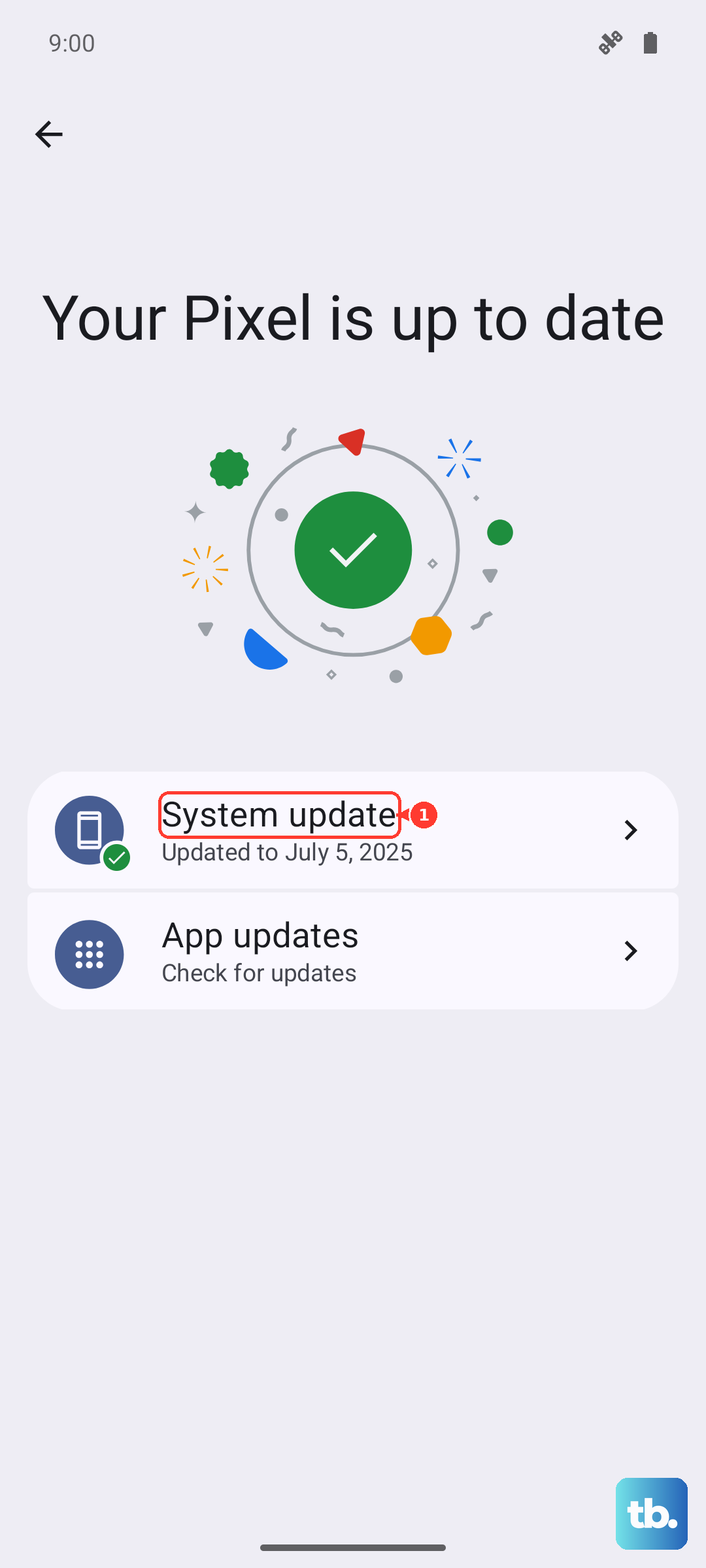
Go to Settings > System > System updates. Tap "Check for update." If one is available, it's a good idea to install it while connected to Wi-Fi and your 125W TurboPower charger to ensure it goes smoothly.
Boot Into Safe Mode
Safe mode temporarily disables all third-party apps you've downloaded. If your volume buttons work perfectly in safe mode, you know a recently installed app is causing the conflict.
To enter safe mode, press and hold the power button until the power off menu appears. Then, press and hold the "Power off" option on your screen. A prompt will ask if you want to reboot to safe mode. Tap "OK." Once booted, you'll see "Safe mode" in the bottom corner. Test your volume. To exit, just restart your phone normally.
Reset App Preferences
This is a useful middle-ground step that resets all your app permissions, notifications, and default apps without deleting any personal data. It can clear up conflicts caused by app settings.
Navigate to Settings > Apps > See all apps. Tap the three-dot menu in the top right and select "Reset app preferences." Confirm your choice. You'll need to re-grant permissions to apps as you use them, but it often resolves odd system behavior.
Use the On-Screen Volume Panel
While you're figuring this out, you can still control your volume. Simply press any volume button once to bring up the on-screen volume slider. You can then drag the slider with your finger to adjust it.
You can also access a more detailed panel by tapping the settings icon (it looks like a gear) next to the slider. This lets you independently adjust your media, call, alarm, and notification volumes.
Consider a Factory Reset
If you've tried everything else and the buttons are still unresponsive, a software corruption might be the cause. A factory reset will wipe your phone back to its original state.
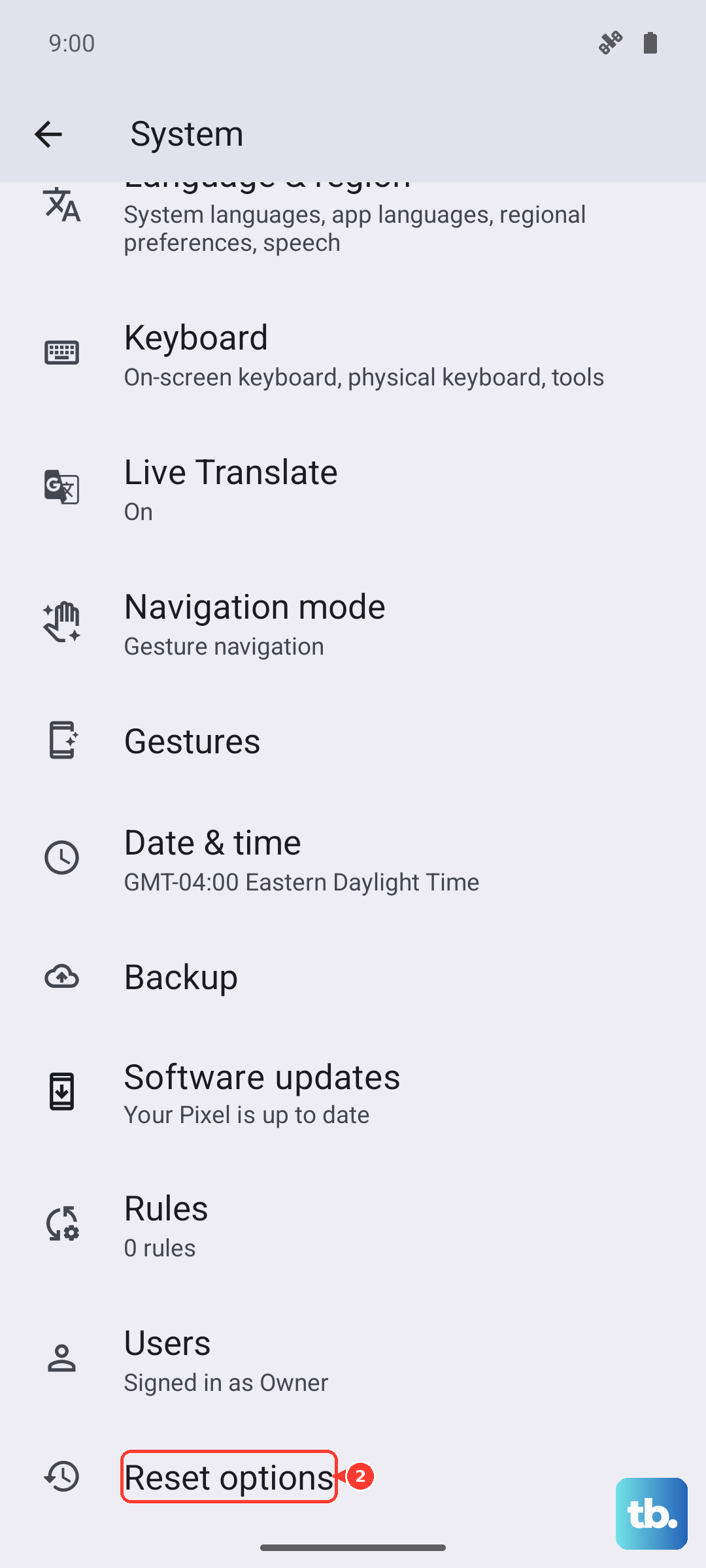
This will erase all your data, so you must back up everything important first. You can use Google's backup or transfer files to a computer. To perform the reset, go to Settings > System > Reset options > Erase all data (factory reset). Follow the prompts to complete the process.