When your Motorola Edge 50 Pro stops buzzing for texts or lighting up for emails, you can miss important stuff. It's a common hiccup, often tied to a specific app's settings or a system glitch. Let's get those alerts working again.
Check the Obvious First
Start with the basics. Swipe down from the top of your screen twice to open the Quick Settings panel. Make sure the Do Not Disturb or Modes & Routines icon isn't active. Also, tap the battery icon to ensure a power-saving mode isn't enabled, as these often block background notifications to save the 4500mAh battery.
Restart Your Phone
A simple restart clears out temporary software bugs that can freeze the notification system. Just press and hold the power button, then tap 'Restart'. If the screen is unresponsive, you can force a restart by holding the power button down for about 10 seconds until the Motorola logo appears.
Review App-Specific Notification Settings
This is where the fix usually is. Open Settings > Apps > See all apps. Find the app that's not alerting you, like Gmail or Messages, and tap it. Go to Notifications. Here, make sure notifications are turned on for the app overall. Then, tap on each notification category (like "Incoming messages" or "Primary inbox") to ensure they are enabled and set to make a sound or vibrate.
Check Background Data and Battery Restrictions
Android can restrict what apps do in the background. For the problematic app, go to Settings > Apps > [App Name] > Mobile data & Wi-Fi. Ensure 'Background data' is allowed. Next, go to Battery > Background restriction. If it's set to 'Restricted', change it to 'Optimized' or 'Unrestricted' so it can check for new messages.
Clear the App's Cache and Data
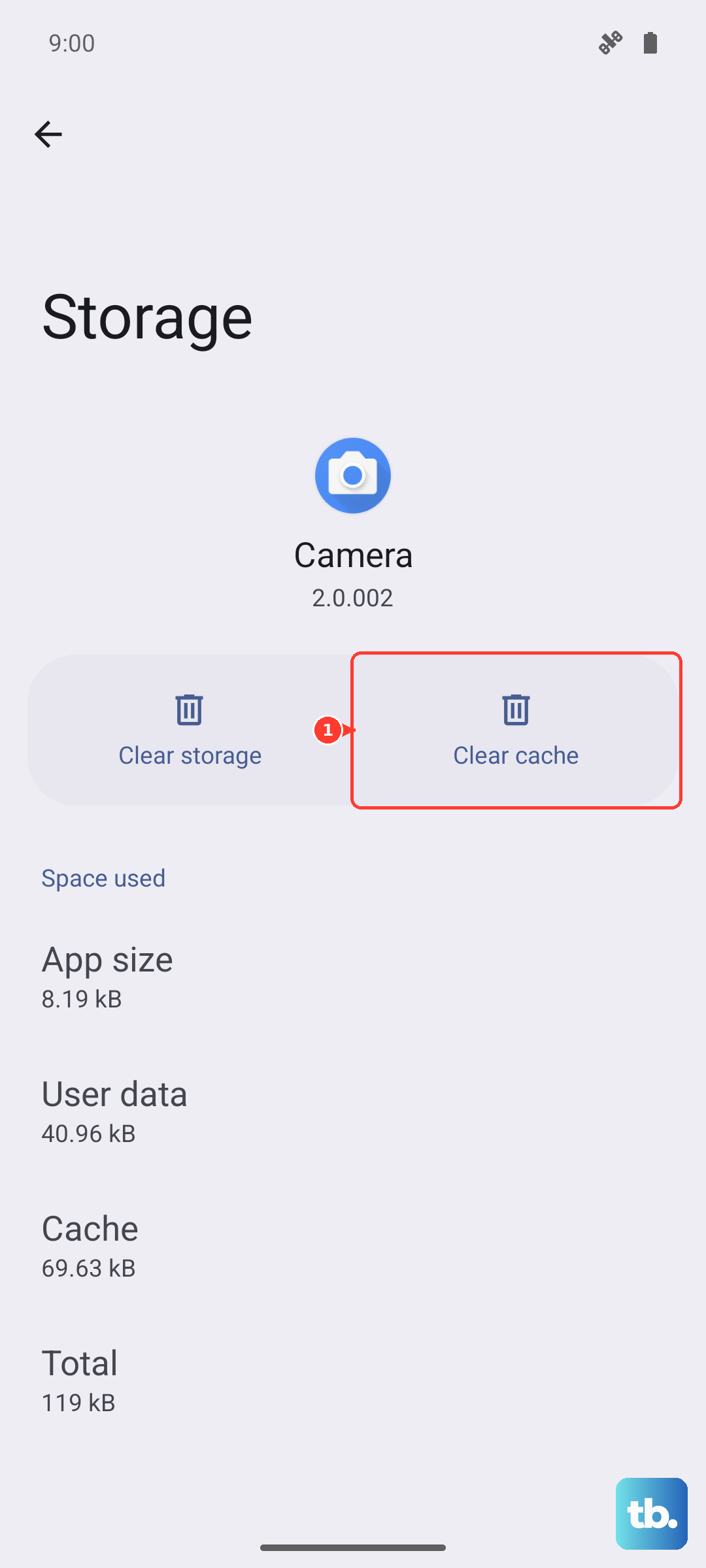
Corrupted temporary files can break notifications. Go back to the app's info screen in Settings and tap Storage & cache. Tap 'Clear cache' first, this is safe and won't delete your info. If that doesn't work, tap 'Clear storage' or 'Clear data'. Be warned, this will reset the app and you may need to log back in.
Verify System Notification Settings
There are a few global switches to check. Go to Settings > Apps > Notifications. Look for 'Notification history' to see if alerts are arriving but just not showing. Also, tap 'Default notification sound' to make sure a tone is selected and the volume slider is up.
Update the App and Your Phone's Software
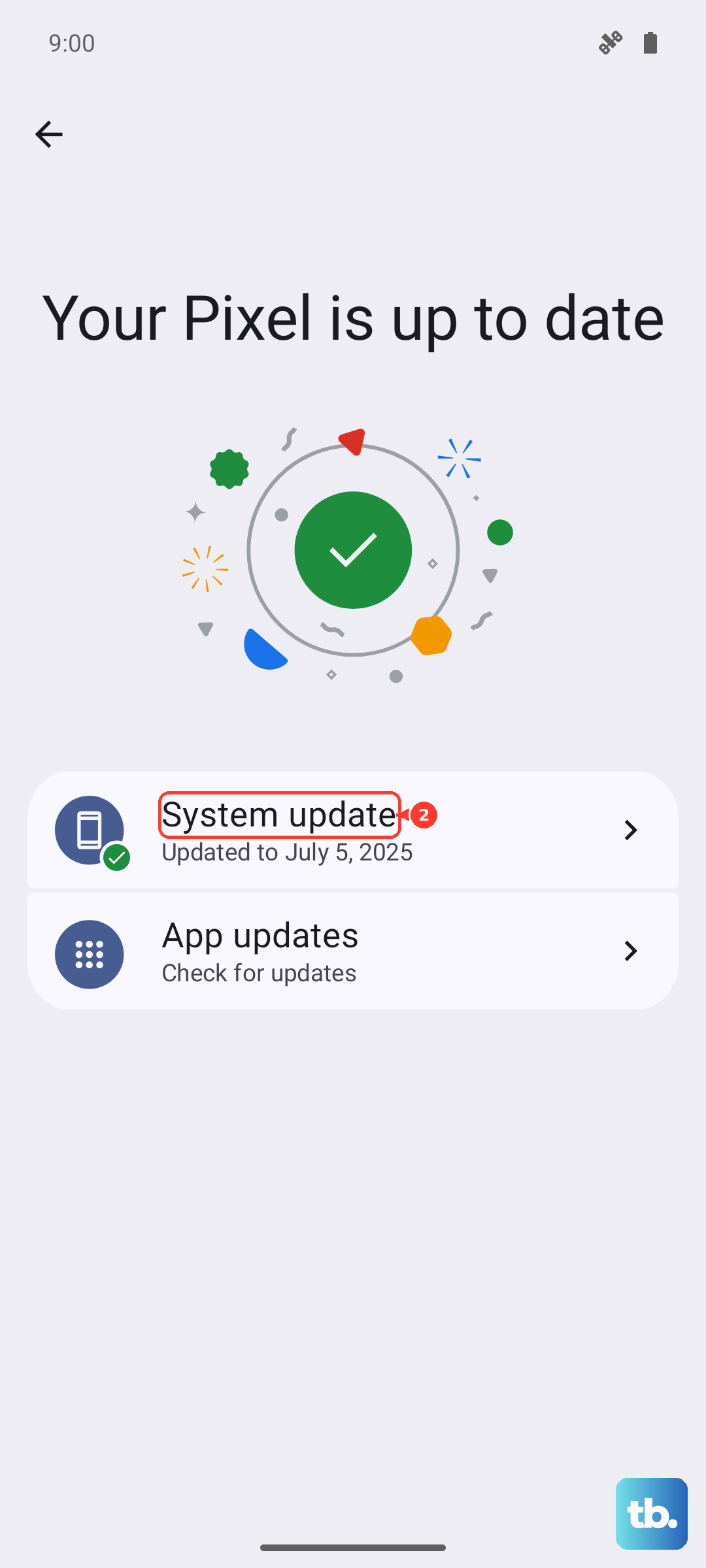
An outdated app can have bugs. Open the Google Play Store, tap your profile icon, and go to 'Manage apps & device' to check for updates. For system updates, which are crucial for the Snapdragon 7 Gen 3 chipset, go to Settings > System > System updates. Motorola can be slower with updates than Samsung, so it's worth checking manually.
Reset App Preferences
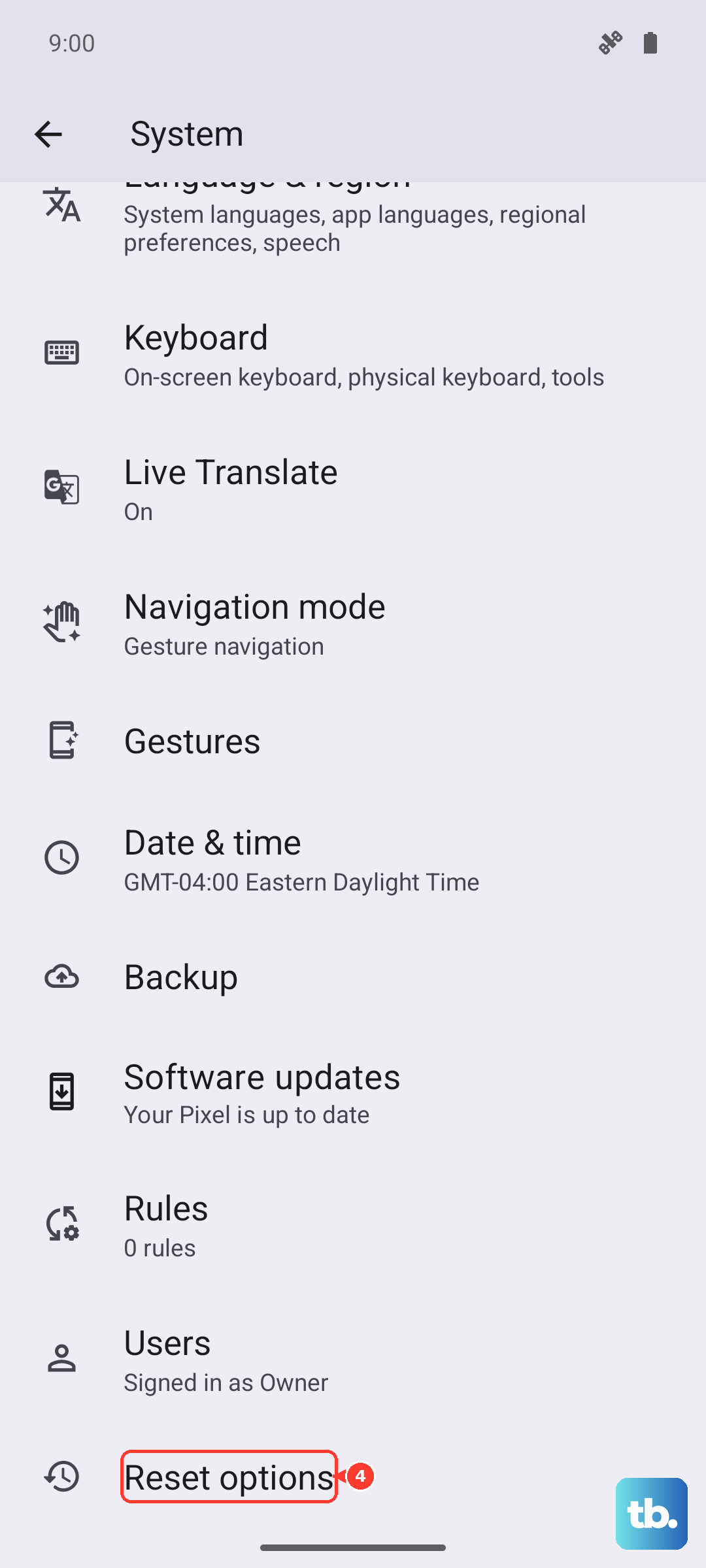
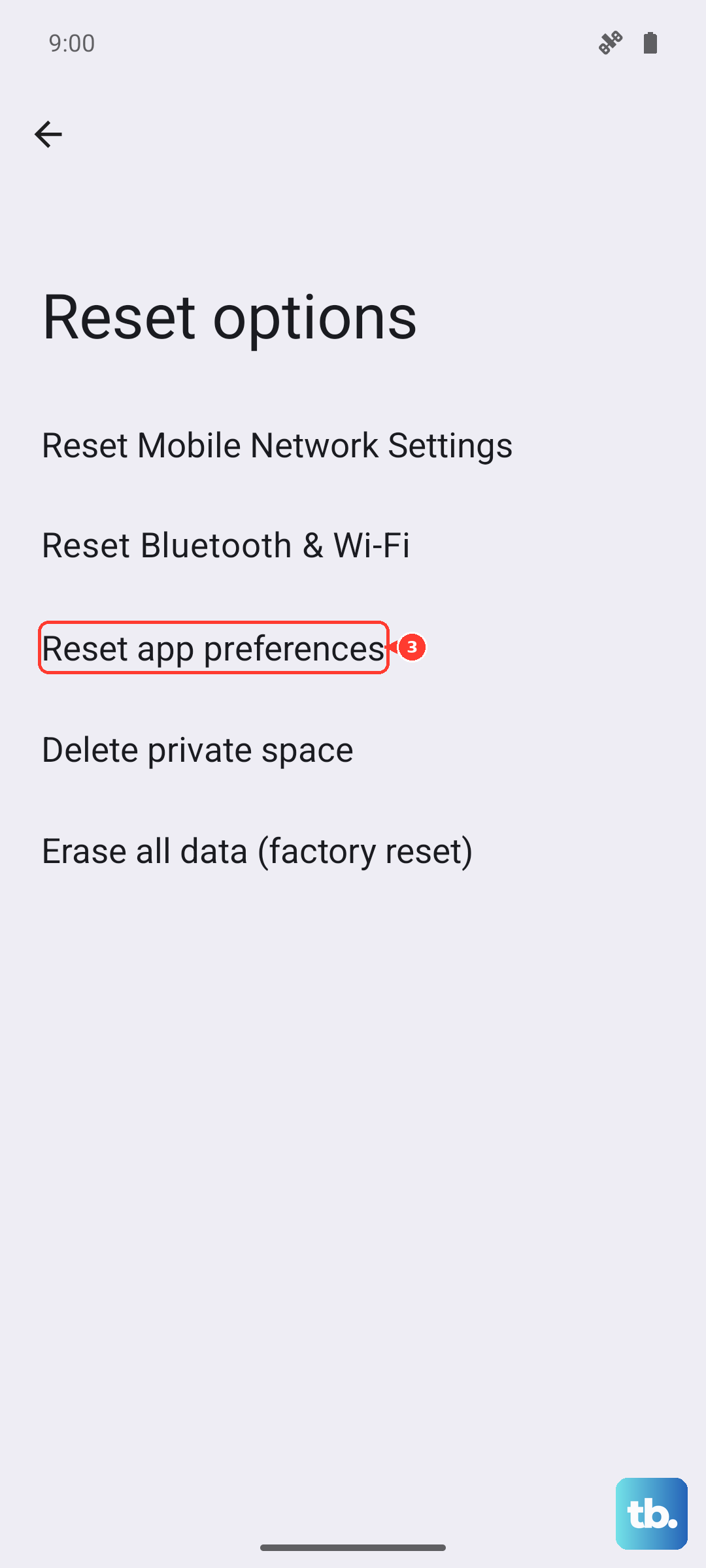
This resets all your app permissions, notifications, and default app assignments without deleting any personal data. Go to Settings > System > Reset options. Tap 'Reset app preferences' and confirm. You'll just need to re-grant permissions when you use apps for the first time afterward.
Check for Interfering Apps or Modes
Think about any new apps you've installed, like battery savers or custom launchers. Try uninstalling them temporarily. Also, explore Modes & Routines in your Settings. A routine you set up might be automatically turning on Do Not Disturb during certain times or locations.
Disable Adaptive Notifications
Motorola's software sometimes has features that try to "learn" and prioritize notifications. Go to Settings > Apps > Notifications > Advanced. Look for any settings labeled "Adaptive" or "Notification prioritization" and try turning them off to see if it brings your alerts back.
Perform a Network Settings Reset
If your missing notifications are specifically for online apps like WhatsApp or email, a network glitch could be the cause. Go to Settings > System > Reset options. Tap 'Reset Wi-Fi, mobile & Bluetooth' and confirm. This will erase saved networks and Bluetooth pairings, so you'll need to reconnect to your Wi-Fi afterward.