
That "Invalid SIM" error popping up on your Motorola Edge 50 Pro can stop you in your tracks. It's a common hiccup that usually has a simple fix, whether it's a bit of dust in the tray or a software setting that needs a nudge.
Let's start with the most effective fixes that work for most people. These are quick and don't require any special tools.
Restart Your Edge 50 Pro
It sounds too simple, but a restart clears out temporary software glitches that can confuse the SIM reader. Just press and hold the power button, then tap "Restart" on the screen.
If the phone is completely frozen and you can't get to the restart menu, you can force a reboot. Press and hold the power button for about 10 seconds until you feel it vibrate and the screen goes black, then release it. The phone will start back up on its own.
Check and Clean the SIM Card
This is often the culprit. Power your phone off completely first. Use the SIM ejector tool that came in the box to pop out the tray.
Take out the SIM card and give the gold contacts a close look. If you see any dust, lint, or discoloration, gently wipe them with a clean, dry microfiber cloth. Blow any dust out of the SIM tray slot as well.
When you reinsert the card, make sure it's seated correctly in the tray and that the tray itself goes back in smoothly without forcing it. A slightly misaligned SIM won't make proper contact.
Toggle Airplane Mode
This quickly resets all the phone's radio connections, including the cellular modem. Swipe down from the top of your screen twice to open the full Quick Settings panel.
Tap the Airplane Mode icon to turn it on, wait about 10 seconds, then tap it again to turn it off. You should see the network signal bars reappear if this did the trick.
Verify Your SIM is Enabled in Settings
Sometimes a SIM can get accidentally disabled in the software. Open your Settings app and go to Network & internet.
Tap on SIMs. You should see your SIM card listed here. Make sure the toggle switch next to it is turned on. If you have an eSIM set up as well, ensure the correct one is selected for calls and data.
Update Your Phone's Software
Since the Edge 50 Pro runs Android 14, bugs in the system software can sometimes affect SIM detection. Motorola does release patches for these kinds of issues.
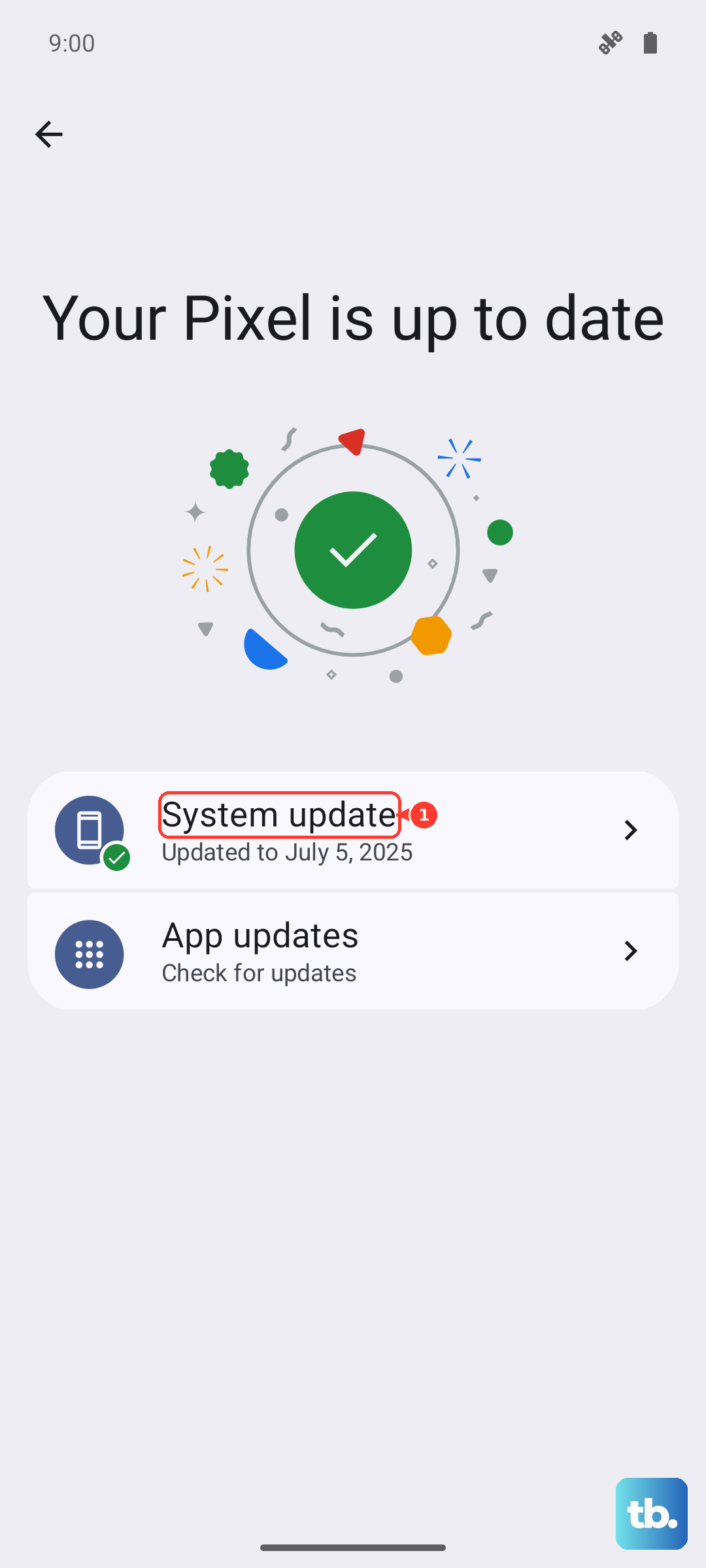
Go to Settings > System > System updates. Tap "Check for update" and install anything that's available. I'd recommend doing this over Wi-Fi, and it's a good idea to plug in your 125W TurboPower charger during the update just to be safe.
Reset Your Network Settings
This is a more thorough reset than just toggling Airplane Mode. It will clear all your saved Wi-Fi networks, Bluetooth pairings, and cellular network preferences back to factory defaults, but it won't touch your personal files or apps.
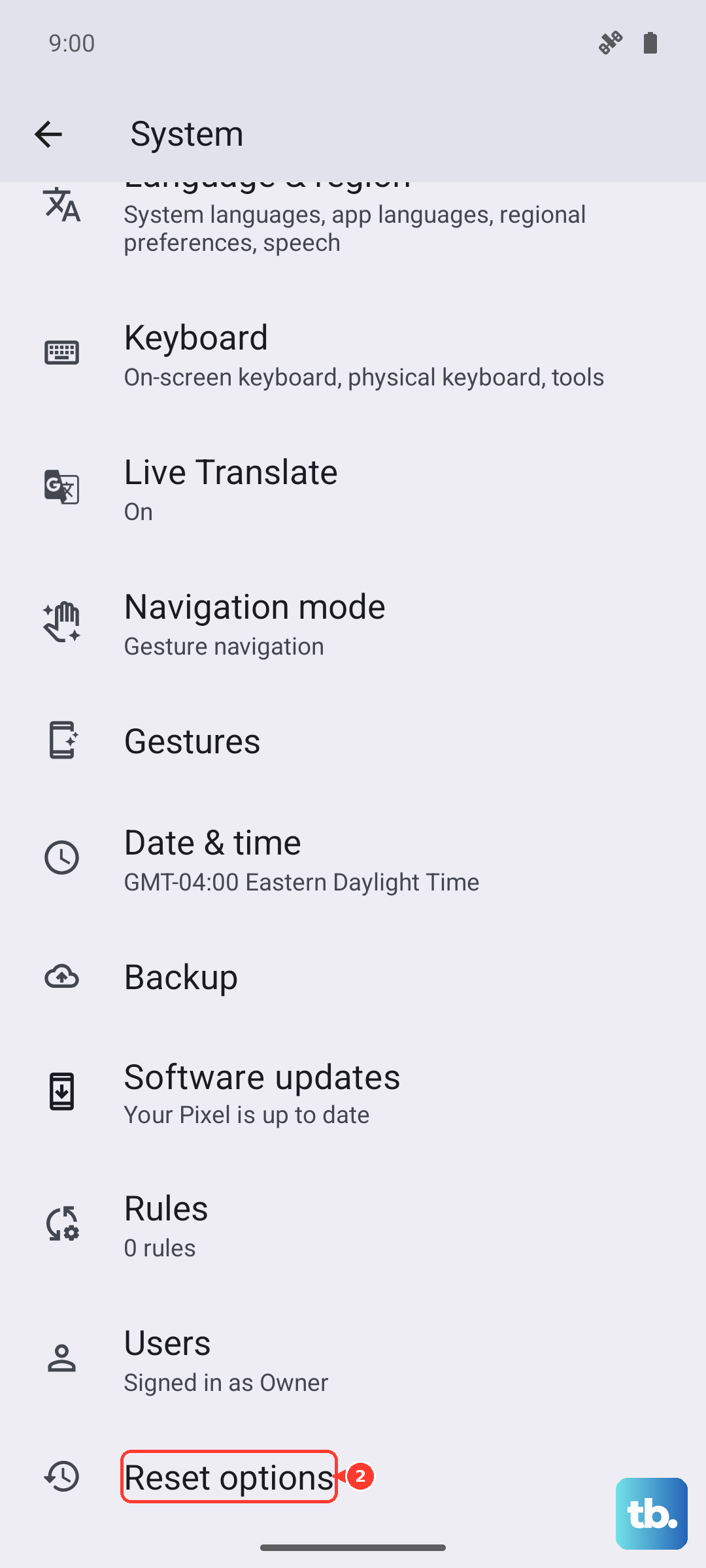
To do this, navigate to Settings > System > Reset options. Tap on Reset Wi-Fi, mobile & Bluetooth and confirm. Your phone will reboot, and you'll need to reconnect to Wi-Fi and re-pair Bluetooth devices afterward.
Check for Carrier Updates or Issues
Your problem might not be with the phone at all. Give your carrier a quick call or check their service status page online or on social media.
They can tell you if there's an outage in your area. They can also push a carrier settings update to your phone, which can resolve compatibility issues. It's worth asking them if your SIM card is still active and properly provisioned on your account, too.
Manually Select Your Network
Your phone usually finds and connects to your carrier's network automatically. If that process is glitching, you can choose it yourself. Go to Settings > Network & internet > SIMs.
Tap on your active SIM, then look for an option like Network operators or Carrier. Tap "Choose automatically" to turn it off. Your phone will search for available networks. When the list pops up, select your carrier's name from it.
Test Your SIM in Another Phone
This is the best way to figure out if the problem is with the SIM card itself or your Edge 50 Pro. If you have access to another unlocked phone, power it off, insert your SIM, and turn it back on.
If the other phone also shows an "Invalid SIM" or no service message, the SIM card is likely faulty. You'll need to visit your carrier's store to get a replacement SIM, which they usually provide for free or a small fee.
Consider Switching to an eSIM
The Motorola Edge 50 Pro supports eSIM. If your physical SIM slot seems problematic or you keep having issues, moving to a digital eSIM can be a permanent solution.
Contact your carrier to see if they support eSIM activation. They can guide you through scanning a QR code or entering details manually in Settings > Network & internet > SIMs > Add a carrier. This completely bypasses the physical SIM tray.