
If your Motorola Edge 50 Pro is struggling to send picture messages, it's a common but fixable snag. The issue usually comes down to a setting that needs a tweak or a temporary glitch in the messaging service. Let's get your MMS working again.
Start With Mobile Data
Picture messages, or MMS, can't send over Wi-Fi alone. They require an active mobile data connection. First, pull down the quick settings shade from the top of your screen and make sure the mobile data icon is turned on.
If you have a strong signal but it's still not working, try toggling Airplane mode on and off. Swipe down twice to see all your quick settings, tap the Airplane mode icon, wait about 10 seconds, and then tap it again to turn it off. This forces your phone to reconnect to the cellular network from scratch.
Verify Your MMS Settings in Google Messages
The Edge 50 Pro typically uses Google Messages as its default app. Open the Messages app and tap your profile picture in the top right corner. Go to Messages settings > Advanced.
Here, make sure "Auto-download MMS" is enabled. While you're in this menu, also check that "Auto-download MMS when roaming" is on if you're traveling, though be mindful of potential data charges.
Clear the Messaging App's Cache
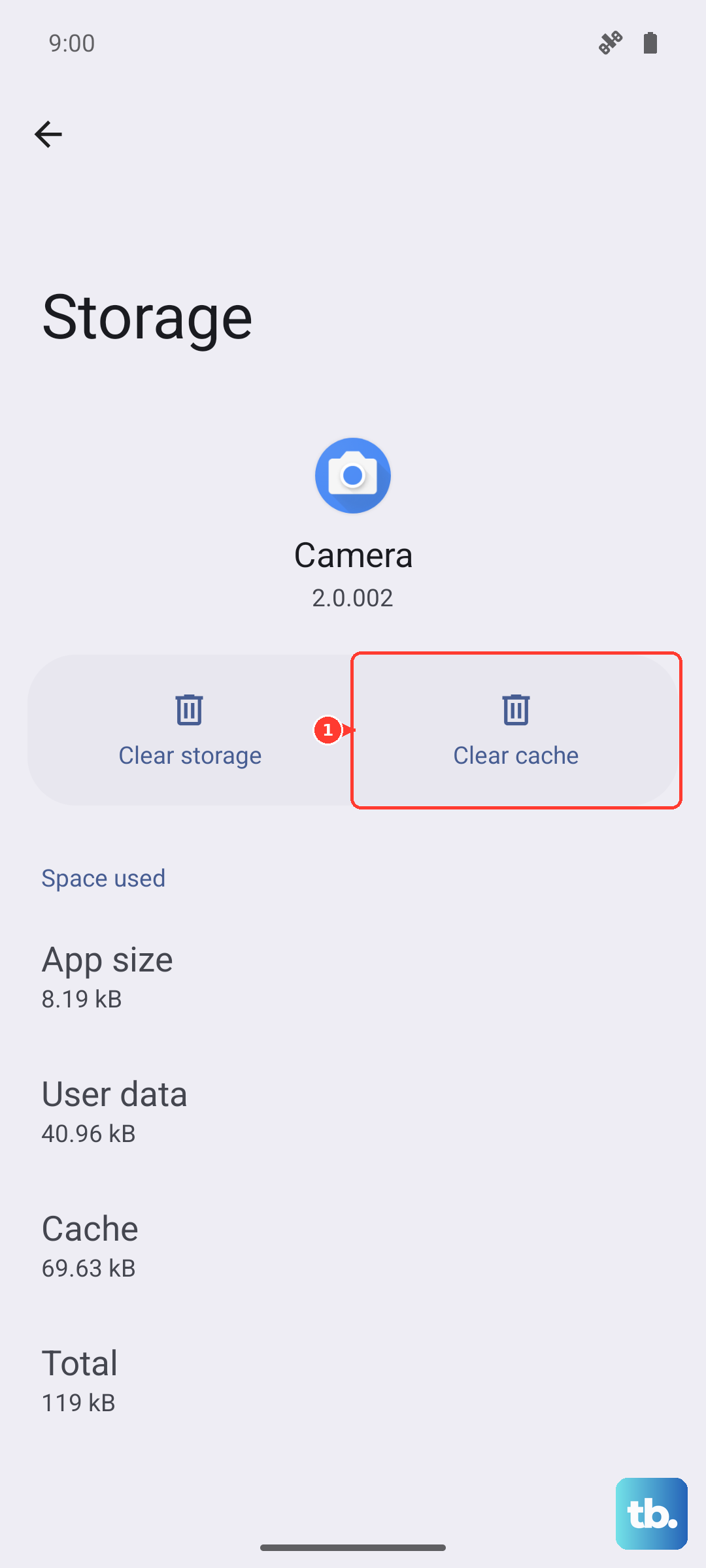
A corrupted cache in the Messages app can block MMS from sending. This is a safe first step that won't delete your conversations. Go to your phone's Settings > Apps > See all apps.
Find and tap on "Messages." Select Storage & cache and then tap Clear cache. After doing this, restart your phone by holding the power button for 10 seconds until it reboots, then try sending a picture again.
Check Your APN Configuration
Incorrect Access Point Name (APN) settings are a frequent culprit. These tell your phone how to connect to your carrier's multimedia service. Go to Settings > Network & internet > SIMs (or SIMs & Mobile network) > your SIM > Access Point Names.
You should see a list of APNs, with one selected (usually your carrier's name). Tap on the selected APN to view its details. Don't change anything unless you're sure, but you can try tapping the three-dot menu and selecting "Reset to default" if the option is there.
If problems persist, the most reliable move is to get the correct settings directly from your carrier. A quick web search for "[Your Carrier] APN settings 2024" or a call to their support will give you the exact values to enter.
Update Your Phone's Software
Since the Edge 50 Pro runs Android 14, it's important to have the latest system update. Motorola's updates can sometimes include fixes for connectivity and messaging bugs. Go to Settings > System > System updates.
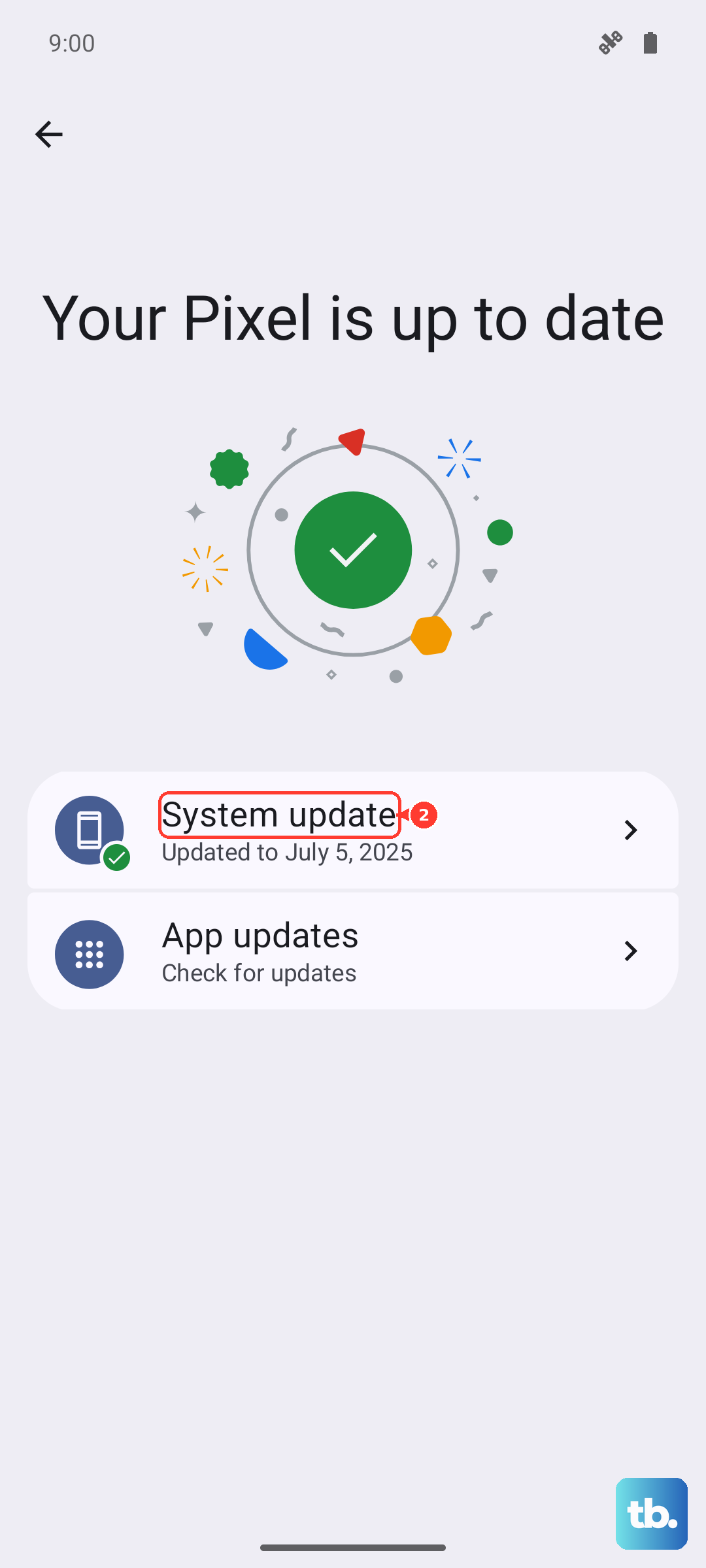
Tap "Check for update" and install anything available. I've seen pending updates resolve MMS issues on other Motorola phones, so it's always worth a look. After updating, give your phone a fresh restart.
Reset Network Settings
This is a more comprehensive step if the simpler fixes haven't worked. It will erase all your saved Wi-Fi networks, Bluetooth pairings, and cellular settings, but it won't touch your personal data.
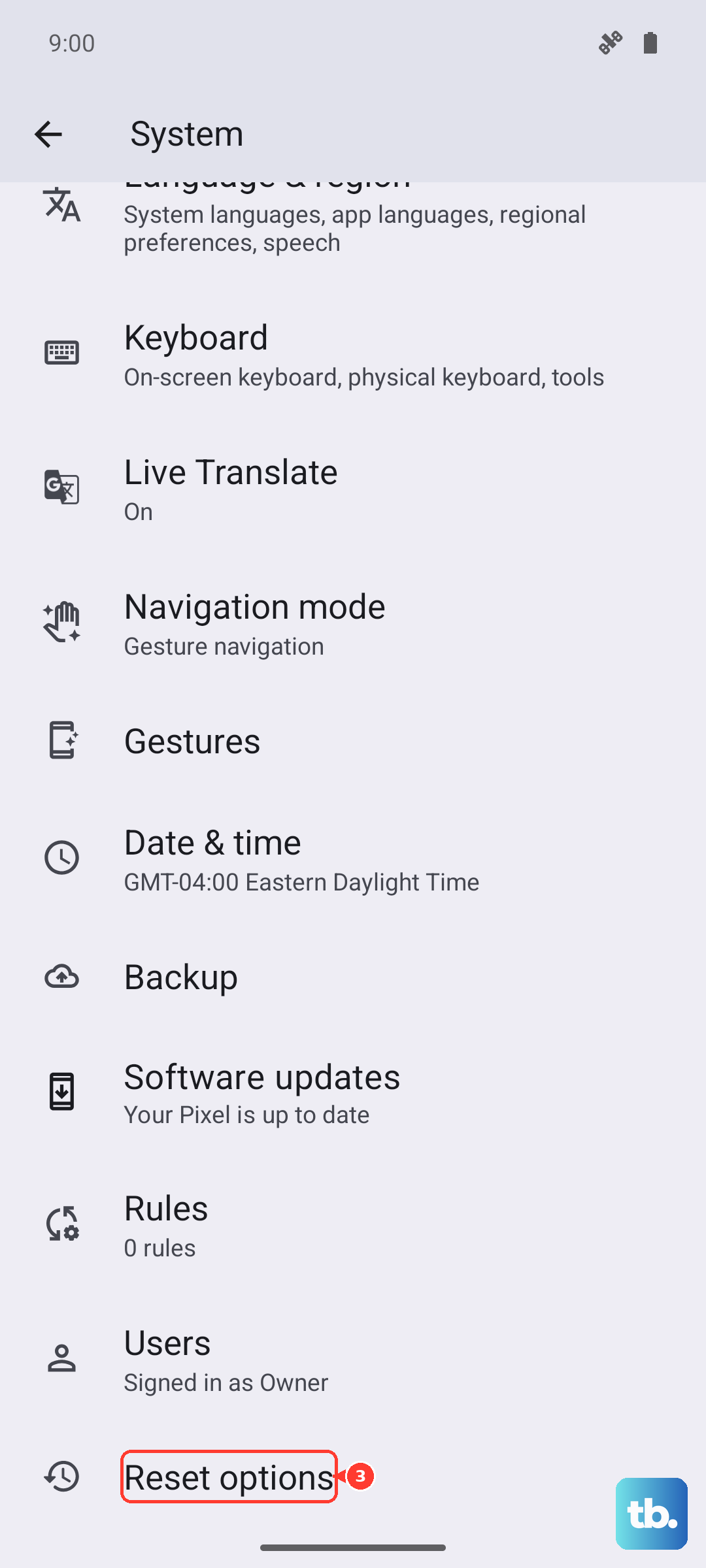
On your Edge 50 Pro, navigate to Settings > System > Reset options. Tap on Reset Wi-Fi, mobile & Bluetooth and confirm. Your phone will restart, and you'll need to reconnect to your Wi-Fi and re-pair Bluetooth devices, but it often clears up stubborn network-related MMS problems.
Ensure You Have Enough Storage
Your phone needs a bit of free space to process and send multimedia messages. If your storage is critically low, it can fail silently. Open Settings > Storage to see how much space you have left.
Try to keep at least 1-2GB free for smooth operation. You can quickly free up space by clearing old downloads or offloading some photos to Google Photos or another cloud service.
Try an Alternative Messaging App
If you're still stuck, the issue might be isolated to the Google Messages app itself. As a test, you can install a different app like Textra or Handcent Next SMS from the Play Store.
Set the new app as your default when prompted, and see if you can send a picture message through it. If it works, you know the problem is with the app configuration. You can then stick with the new app or use it as a reference to reconfigure Google Messages.