
If your Motorola Edge 50 Pro is feeling sluggish, you're not alone. Even with its Snapdragon 7 Gen 3 chip, performance can sometimes lag. The good news is there are several straightforward things you can do to speed it up right now.
I'd start with a simple restart. Just press and hold the power button for about 10 seconds until the screen goes black and the Motorola logo reappears. This clears out temporary system glitches and is often the quickest fix.
Free Up Storage Space
Android performance can really suffer when your storage is nearly full. Head to Settings > Storage to see what's taking up space. The Edge 50 Pro doesn't have expandable storage, so managing what's on the device is key.
Look for old downloads, cached app data, and large video files you can delete or move to the cloud. If you're below 10% free space, that's almost certainly contributing to the slowdown.
Close Background Apps
Too many apps running in the background can bog down the processor. Swipe up from the bottom and hold to enter the recent apps view. You can swipe each app card away to close it individually.
For a quicker method, tap the three vertical dots at the bottom of the recent apps screen and select "Close all." This gives your phone a clean slate.
Check for Software Updates
Motorola can be slower with updates than some brands, but it's still important to check. Go to Settings > System > System updates. Installing the latest software can include performance optimizations and bug fixes that directly address lag.
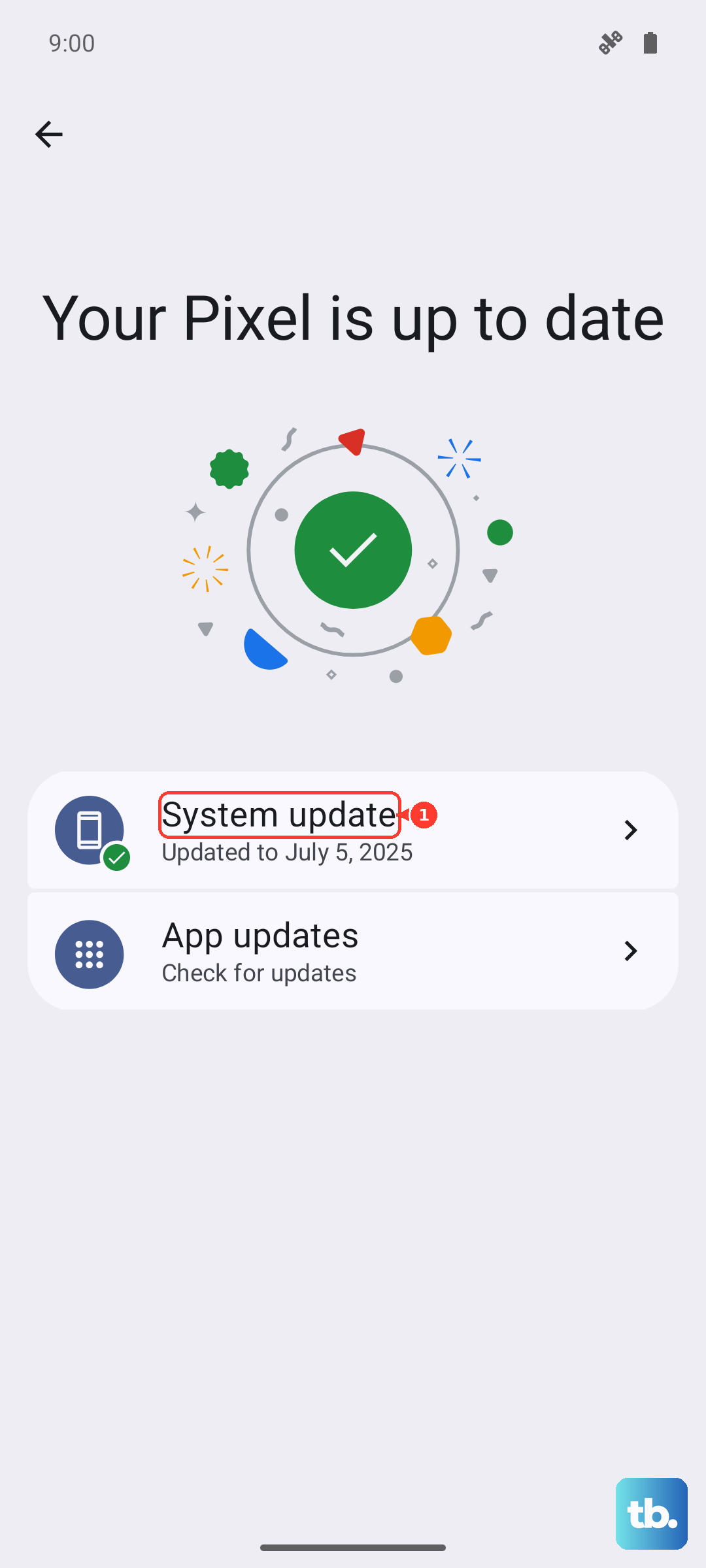
Since the phone runs Android 14, make sure you have the latest security patch and feature drop from Motorola. These updates often smooth out performance quirks.
Manage Battery Health and Charging Habits
The included 125W TurboPower charger is incredibly fast, but frequent ultra-fast charging can stress the 4500mAh battery over time. A degraded battery can lead to performance throttling.
To help your battery last longer, enable battery protection. Go to Settings > Battery > Battery protection. This feature limits the maximum charge to around 80-90%, which is much gentler on the battery's long-term health.
Clear App Caches
Individual apps store temporary data that can get corrupted and slow things down. Go to Settings > Apps, select an app, then tap Storage & cache. Tap "Clear cache."
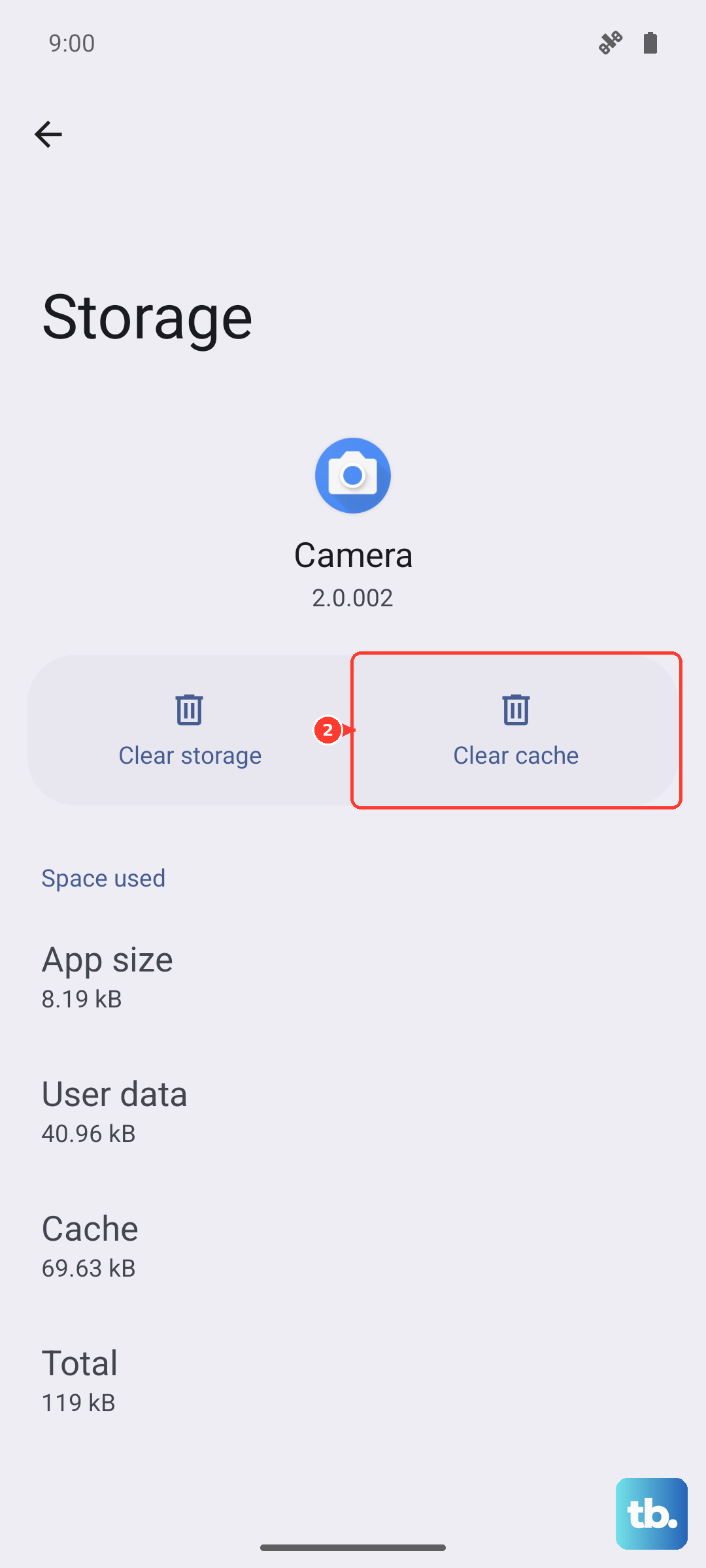
Focus on apps you use frequently, like social media, browsers, or messaging apps. You won't lose any personal data like login info, just temporary files.
Review Background App Activity
Some apps are overly aggressive about running in the background. You can restrict this. Go to Settings > Apps, select an app, then tap Battery. If it's set to "Unrestricted," change it to "Optimized."
This tells Android to better manage that app's background activity, freeing up resources for what you're actively doing.
Reduce Animations
The visual effects when opening apps or switching screens, while nice, use processing power. You can scale them back. First, you need to enable Developer Options by tapping Build number in Settings > About phone seven times.
Then, go to System > Developer options and scroll to the Drawing section. Look for "Window animation scale," "Transition animation scale," and "Animator duration scale." Change each from 1x to 0.5x. This makes the UI feel snappier instantly.
Uninstall or Disable Unused Apps
Pre-installed apps and ones you never use can still consume system resources. Go through your app drawer and uninstall anything you don't need. For apps that can't be uninstalled (often Motorola or carrier apps), you can usually disable them.
Long-press the app icon, tap App info, and select "Disable." This stops them from running or updating in the background.
Perform a Soft Reset (Reset All Settings)
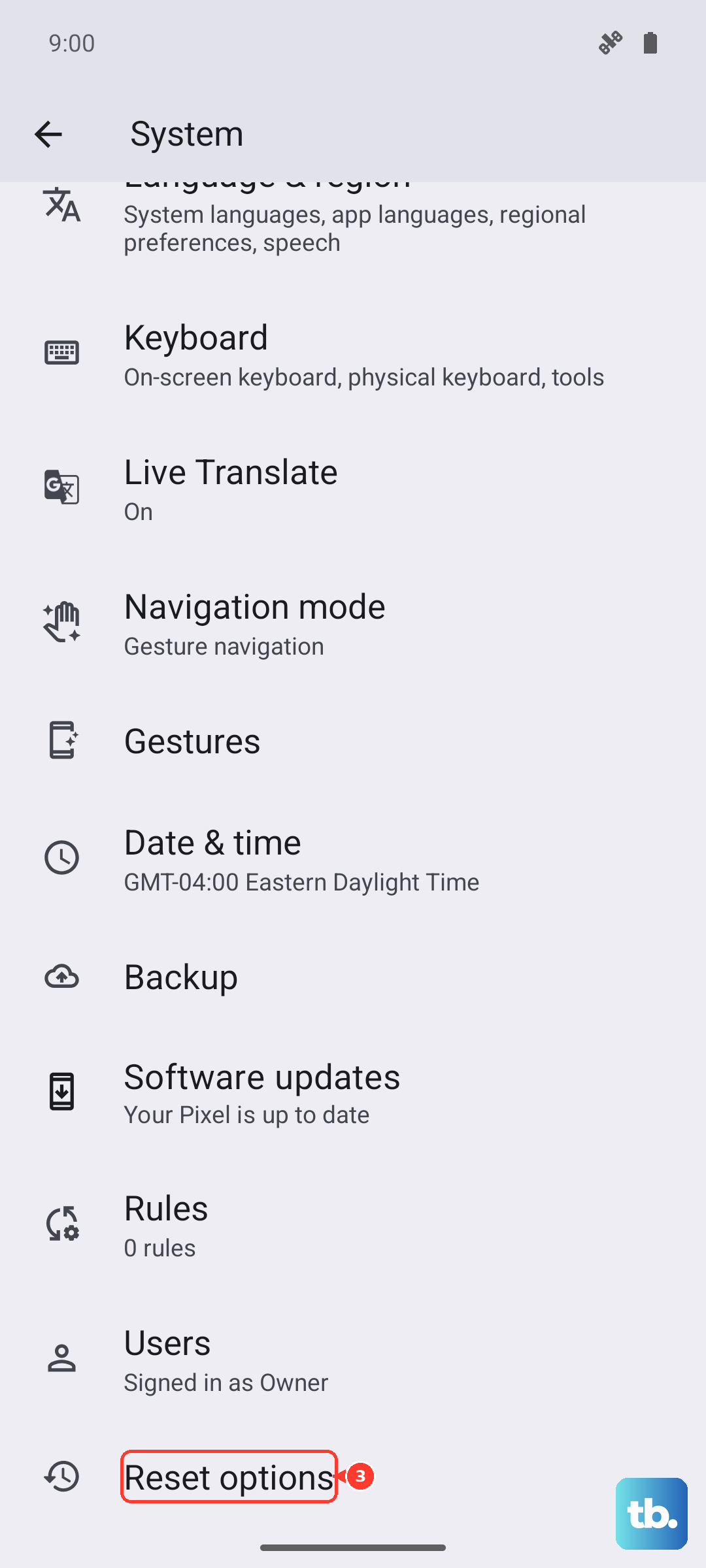
If you're still experiencing lag, a soft reset can help. This resets all your preferences (like Wi-Fi passwords and wallpaper) to default but won't delete your personal data or apps.
Go to Settings > System > Reset options. Tap "Reset all settings" and confirm. You'll need to set up your preferences again, but it can clear out configuration errors causing slowdowns.
Start with the simpler steps like the restart and clearing cache. For many users, managing background apps and checking storage makes a noticeable difference. The Edge 50 Pro has capable hardware, and these tweaks should help it run much more smoothly.