
When your Motorola Edge 50 Pro starts restarting on its own, it's incredibly disruptive. This can happen for a few reasons, from a simple app conflict to a deeper software glitch. I'd start with a force restart, as it's the quickest way to clear out temporary software hiccups.
Before you begin, it's a good idea to make sure your data is backed up. You can use Google Drive or the built-in backup feature in your settings. This protects your photos, contacts, and app data just in case.
Perform a Force Restart
This is different from a normal restart and can stop a boot loop or random restart cycle. For the Edge 50 Pro, simply press and hold the Power button for about 10 seconds. Keep holding it until you see the Motorola logo appear on the screen, then you can let go. The phone will complete its boot process.
This doesn't delete any of your personal data. It just forces the system to shut down and start fresh, which can clear up the immediate problem.
Check for App Conflicts
A newly installed or recently updated app is a common trigger for random restarts. Think about what you installed or updated just before the problem started. You can boot into Safe Mode to test this theory.
To enter Safe Mode, press and hold the Power button until the power off menu appears. Then, press and hold the "Power off" option on your screen. You'll get a prompt to reboot into Safe Mode. Tap "OK". If the restarts stop in Safe Mode, you've confirmed an app is the culprit.
From there, you'll need to uninstall apps one by one, starting with the most recent, until the problem goes away. It's a bit tedious, but it's the most direct way to find the bad app.
Update Your Software and Apps
Outdated software can lead to instability. Motorola can be slower with updates than some brands, but it's still crucial to check. Go to Settings > System > System updates to see if a new version of Android is waiting.
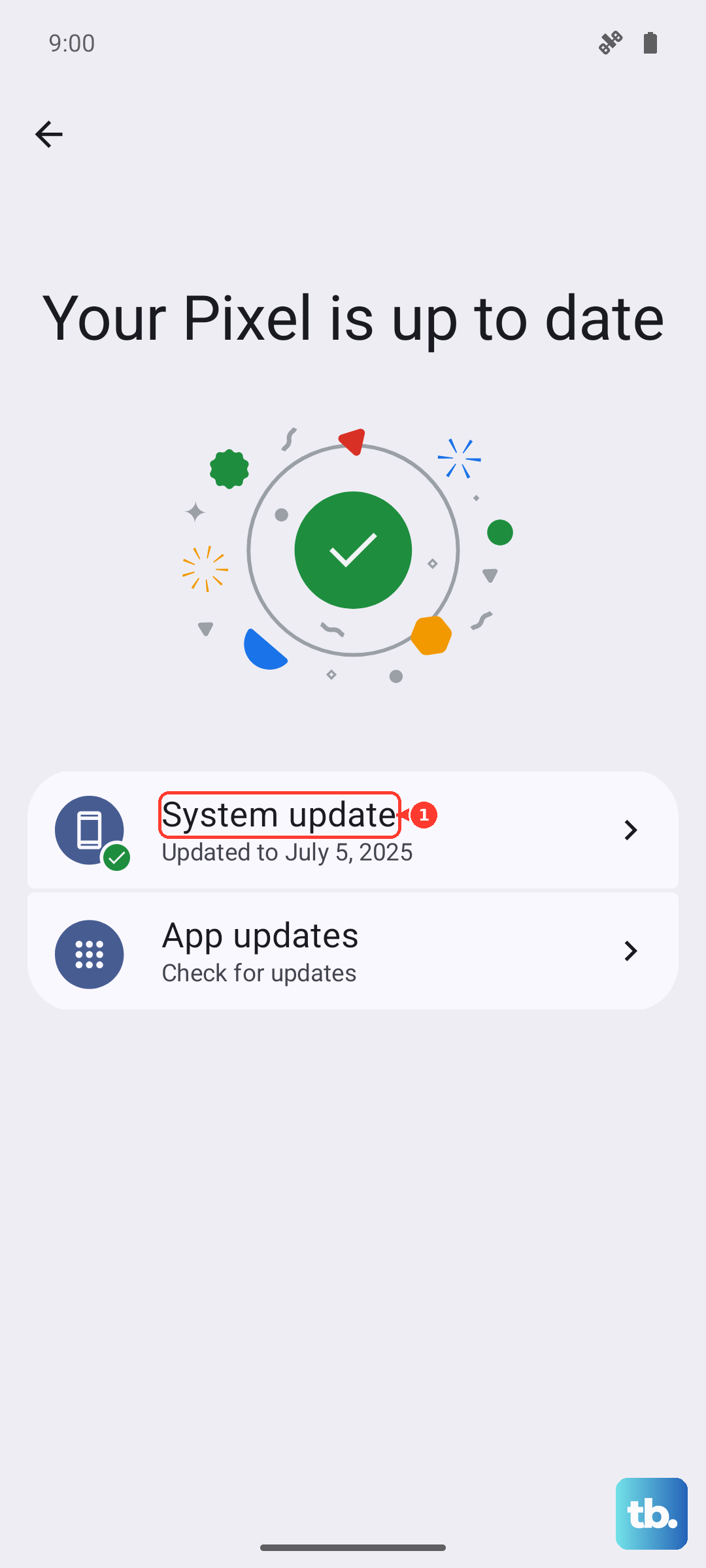
Also, head to the Google Play Store and tap your profile icon in the top right. Go to Manage apps & device and see if there are updates available for all your installed apps. Installing these updates can fix compatibility bugs that cause crashes.
Free Up Storage Space
The Edge 50 Pro doesn't have expandable storage, so if you're running low on space, it can cause system-wide issues. Go to Settings > Storage to see how much space you have left.
If you're below 10% free space, the system can struggle. Clear out cached data from apps, delete old downloads, and consider moving photos and videos to the cloud. A little breathing room can make a big difference in stability.
Review Battery and Charging Habits
The included 125W TurboPower charger is incredibly fast, but consistently using maximum-speed charging can stress the battery over time. This stress can sometimes manifest as system instability.
Consider using a slower charger occasionally, or enable Battery Protection mode if your phone has it. You can find this in Settings > Battery. This mode limits the maximum charge to around 80-85% to prolong battery health, which might also help with stability.
Also, try a different charging cable and power adapter. A faulty cable, even the one that came in the box, can cause power delivery issues that make the phone act erratically.
Reset App Preferences
This is a useful middle step before a full reset. It resets all your app permissions, default apps, and background data restrictions without deleting any app data. Go to Settings > System > Reset options.
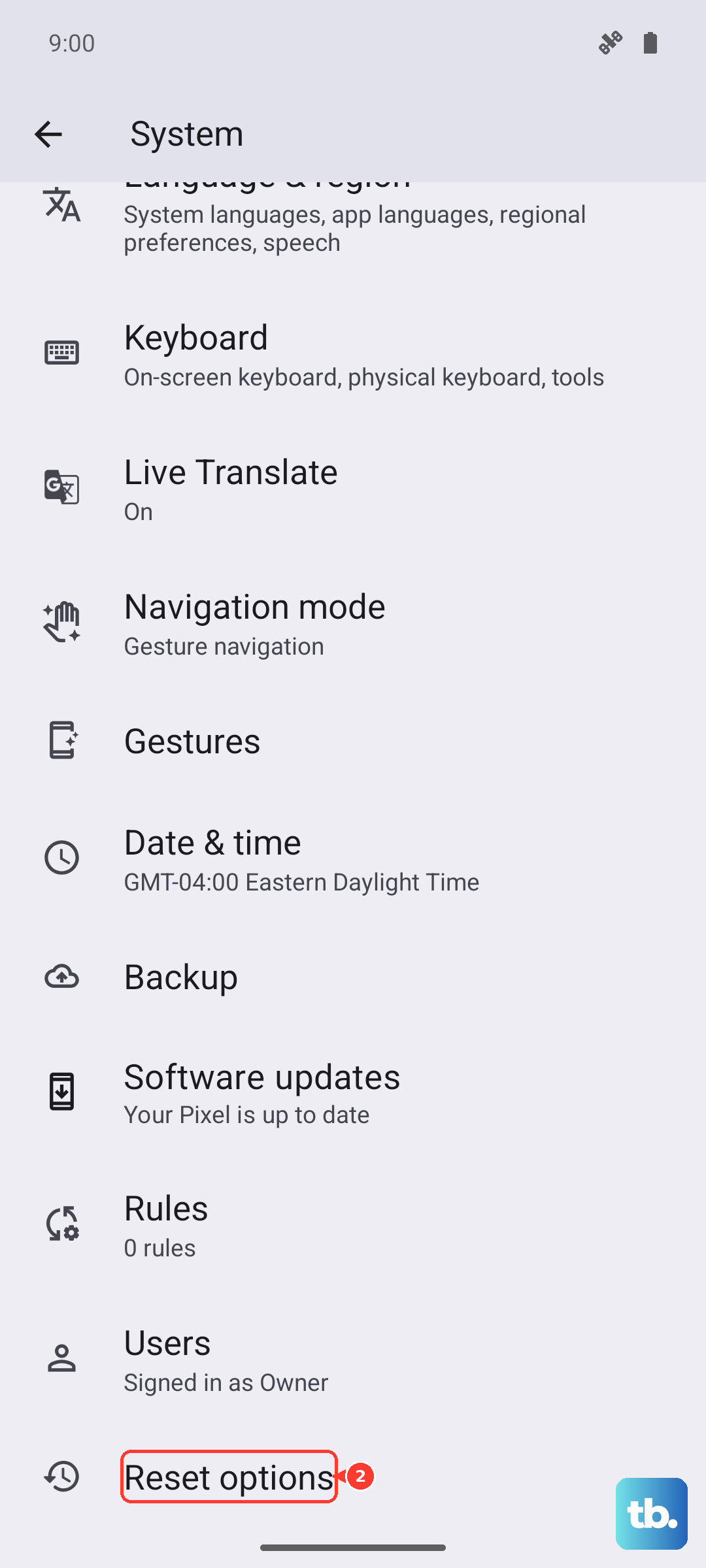
Tap Reset app preferences. You'll need to re-grant permissions to apps the next time you use them, but it can resolve conflicts caused by corrupted app settings.
Clear the System Cache
Over time, temporary system files can get corrupted. You can wipe this cache from the recovery menu. First, power off your phone completely. Then, press and hold the Power and Volume Down buttons together.
Hold them until the Motorola logo appears, then release. Use the volume buttons to navigate to "Recovery mode" and press the power button to select it. You'll see an Android robot with an exclamation mark.
Hold the Power button and press Volume Up once. Use the volume buttons to highlight "Wipe cache partition" and select it with the power button. Confirm the action. This process only deletes temporary files, not your photos or apps.
Check for Overheating
The Snapdragon 7 Gen 3 chip is powerful, but it can get warm under heavy loads. If the phone is overheating, it will throttle performance or restart to protect itself. Feel the back of the phone after it restarts.
If it's very hot, avoid using it while charging, especially with the 125W adapter. Also, take it out of its case during intensive tasks like gaming. Let it cool down on a flat, hard surface.
Perform a Factory Reset
If nothing else has worked, a factory reset is the final software step. Remember, this will erase everything on your phone. Ensure your backup is complete first. Go to Settings > System > Reset options.
Select Erase all data (factory reset). You'll need to enter your PIN or password and confirm the action. The phone will reboot into a clean state. If the random restarts continue even after a fresh setup, the issue is likely hardware-related.