You plug your Motorola Edge 50 Pro into its charger expecting the battery to race upward, but the percentage barely moves, the TurboPower indicator never appears, or the phone tops up far slower than it did when it was new. Fast charging trouble on this model is usually fixable at home, and often the phone is behaving exactly as Motorola designed it. Before you assume the hardware is failing, work through the checks below in order, starting with the quickest and safest.
Two things are worth knowing first, because they look like faults but are not. The Edge 50 Pro only charges at full TurboPower speed while the battery is below 78%, and once it reaches 78% or higher it deliberately slows to a regular rate. Separately, Overcharge Protection caps the charge at 80% if the phone has been plugged in for three days straight, which protects long-term battery health. Keep both in mind as you go, because they explain a lot of "fast charging not working" reports.
Inspect the cable, USB-C port, case, and outlet
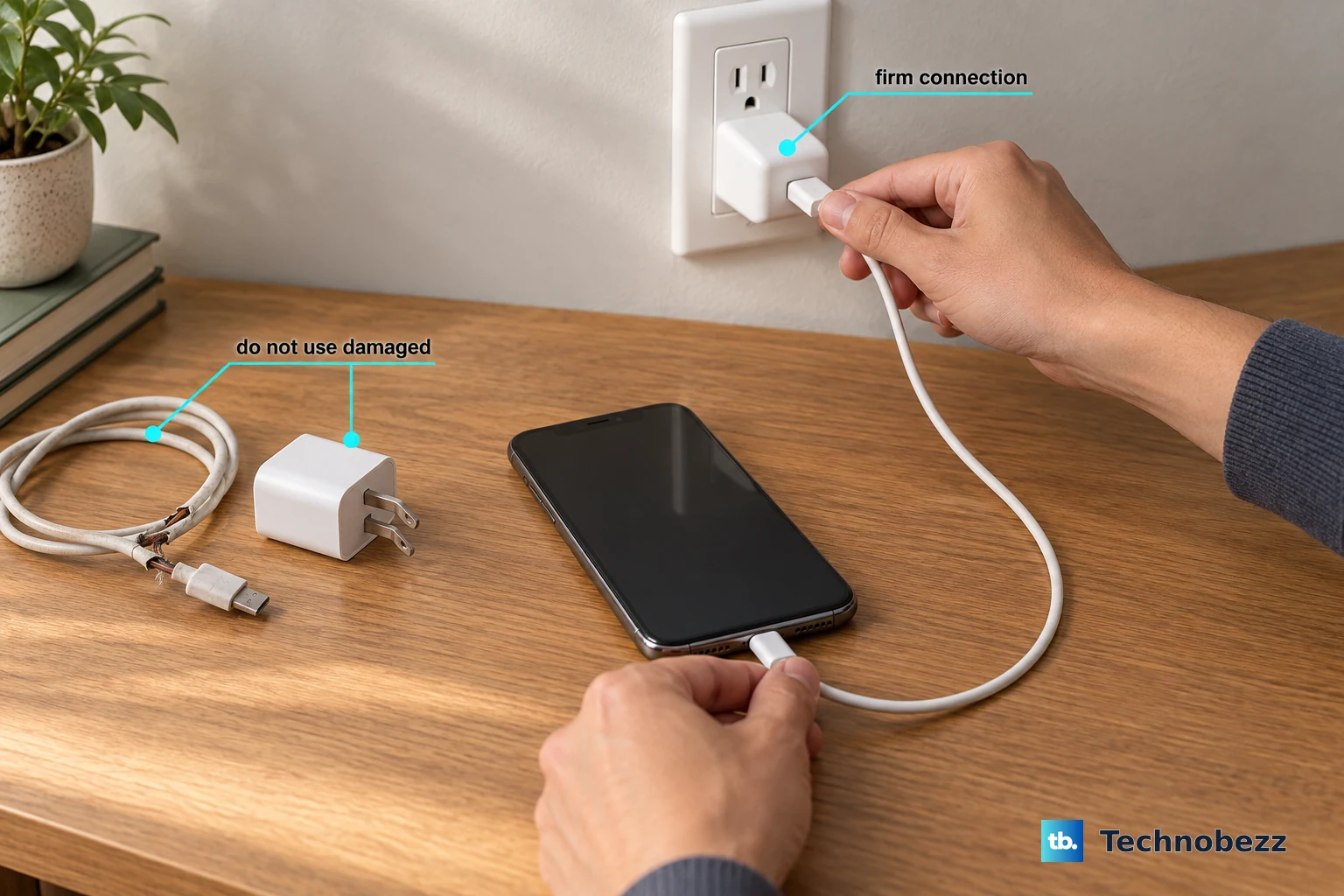
Most fast-charging complaints trace back to a loose or damaged connection rather than the phone itself. The Edge 50 Pro uses a USB Type-C (USB 3.1) port, and a plug that does not seat fully will not pull TurboPower current. Run through these physical checks before anything else.
Make sure the USB plug fits securely into the phone.
Next, remove any case to see if it is impeding the charger or port connection.
Inspect the charger for damage to the wire or plug. If you see damage, try charging by connecting to your computer with a USB cable.
Then check the outlet for damage or loose parts, and if it is switch-controlled, make sure the switch is on.
Lint or debris packed into the Type-C port can also stop a connector from seating properly, so a clean, snug fit matters. If a different known-good cable suddenly charges quickly, you have found your culprit.
Charge with the original or a compatible TurboPower charger
The Edge 50 Pro supports 125W TurboPower wired charging, but it can only reach those speeds with hardware that can deliver them. Use the charger that came with the phone, or a charger that is compatible with your phone. An underpowered or non-compatible charger or cable can charge slowly or fail to trigger fast charging at all.
Other chargers may simply be slower by design, so a generic plug or a low-wattage laptop port will not match a true TurboPower setup. If you have been mixing and matching accessories, swap back to the matched charger and cable as your baseline test.
Understand the 78 percent rule, then unplug and replug
This is normal behavior, not a fault. When the battery is below 78%, the TurboPower charger charges rapidly; when the battery is at 78% or higher, it charges at regular speed. So a slow climb in the upper portion of the battery is expected, not a defect.
If your battery is below 78% and still is not charging rapidly, there is a simple reset to try. Disconnect your phone from the charger and plug it back in again, and check that Charge boost is turned on. Reseating the connection often re-establishes the fast-charge handshake.
Switch on Charge boost for a faster top-up
Charge boost speeds up charging when it is on, and if it is switched off your phone will fill more slowly than it should. You can confirm and enable it from the battery settings.
- 1.Go to Settings > Battery.
- 2.Tap Charge boost.
- 3.Turn Use charge boost on for a faster charge, or off if you are concerned about your phone being warm.
To charge as fast as possible, avoid using your phone while it is plugged in, since active use draws power and slows the net gain. If you want the phone to warn you when something is throttling the speed, go to Settings > Battery and turn Slow charging notification on.
Let the phone cool down when it gets warm
TurboPower's rapid charging can cause the battery to heat up, which is normal. If the battery reaches 111 degrees (F), the charging rate slows down on purpose to protect the cells, and once the battery cools down the charger begins rapid charging again. A hot environment or a demanding game during charging makes this far more likely.
Move the phone to a cooler spot, get it out of direct sunlight or off soft bedding that traps heat, and stop using it while it charges. You can also turn off Charge boost to prevent your phone from heating up while charging, accepting a slower rate in exchange for a cooler device.
Rule out Overcharge Protection if it stops at 80 percent
If the phone seems stuck at 80% and will not climb higher, that is very likely Overcharge Protection rather than a charging failure. This feature keeps your battery healthy by limiting its charge to 80% if it has been plugged in for three days.
The fix is simple. To fully charge your phone from 80%, just disconnect it from the charger and plug it in again. The phone will then resume charging toward 100% normally.
Revive a completely drained battery
A phone that has run all the way down to zero will not respond or fast charge the instant you plug it in. It needs a little time to build up enough voltage before the charging circuit and the screen will react.
If the battery is completely depleted, connect the charger and wait about 10 minutes until it has enough voltage to charge, then press the Power button. Give it those few minutes on the charger before you decide the phone is dead.
Force restart a frozen Edge 50 Pro
A frozen or hung software state can quietly stop charging from working even though the hardware is fine. A force restart clears that state without deleting any of your data, so it is a safe step to try. Make sure the phone has at least a little charge first.
Reboot the phone by pressing and holding the Power button for 7 to 10 seconds, and the phone will restart normally. Motorola's dedicated force-restart guidance words this as holding the Power key for 10 to 20 seconds instead, so if it does not cycle right away, keep holding until it does.
Install any pending system update
A software bug can affect charging behavior, and Motorola pushes fixes through system updates. Your phone notifies you when an update is available, but you can also check on demand.
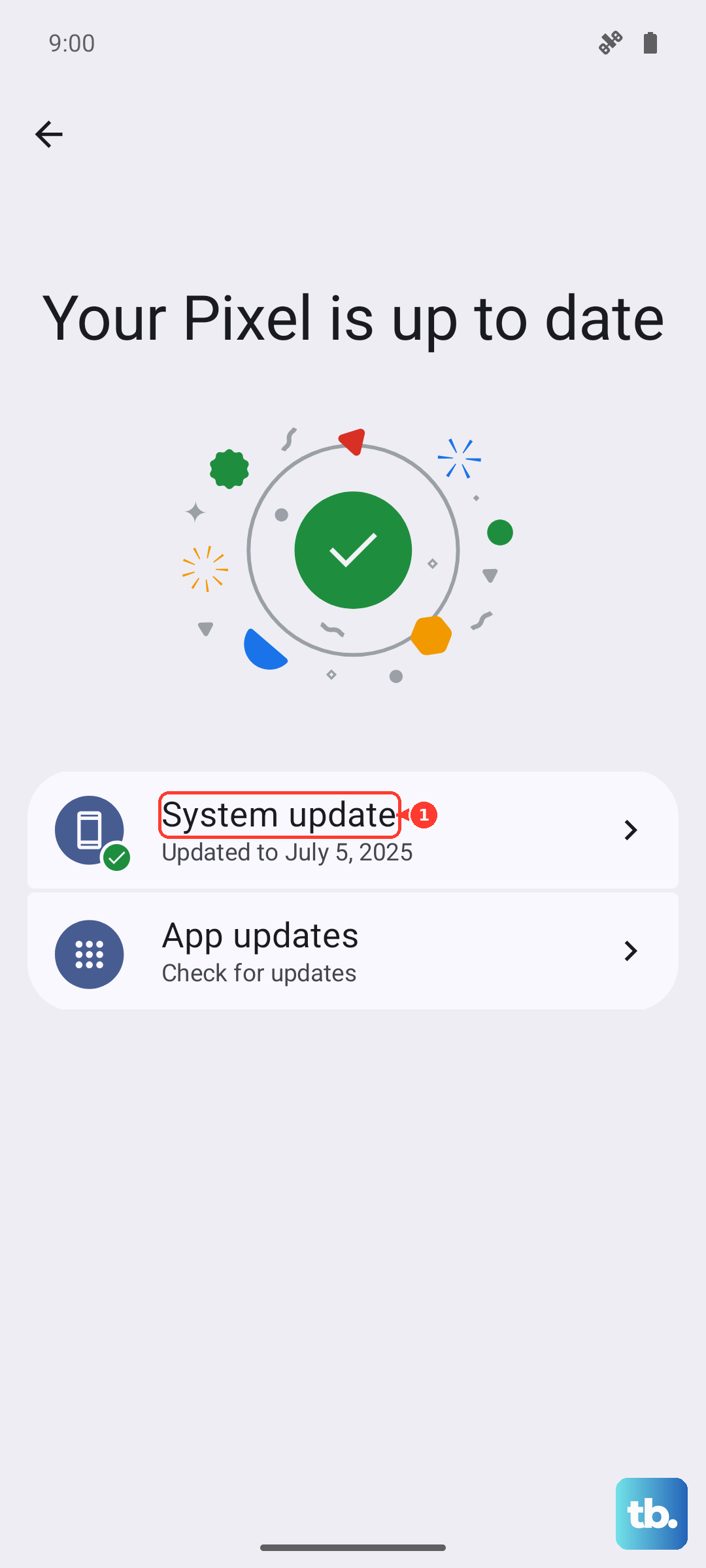
Go to Settings > System updates > Check for updates.
If an upgrade is available, follow the onscreen instructions to install it.
Use Wi-Fi to save data charges while the update downloads. The Edge 50 Pro ships on Android 14 and is eligible for Android 15, and you can confirm your current build at Settings > About phone > Device details > Android version.
Factory reset as a last resort, then reach Motorola Support
If none of the steps above restores fast charging, a factory reset can clear a stubborn software problem, but it is a destructive step. Resetting your phone erases all data and brings it back to out-of-the-box condition, removing your Google account, media (music, photos, videos), system settings and data, app settings and data (including text messages), and downloaded apps. Before you reset, back up your data.
When you are ready, run the reset from settings.
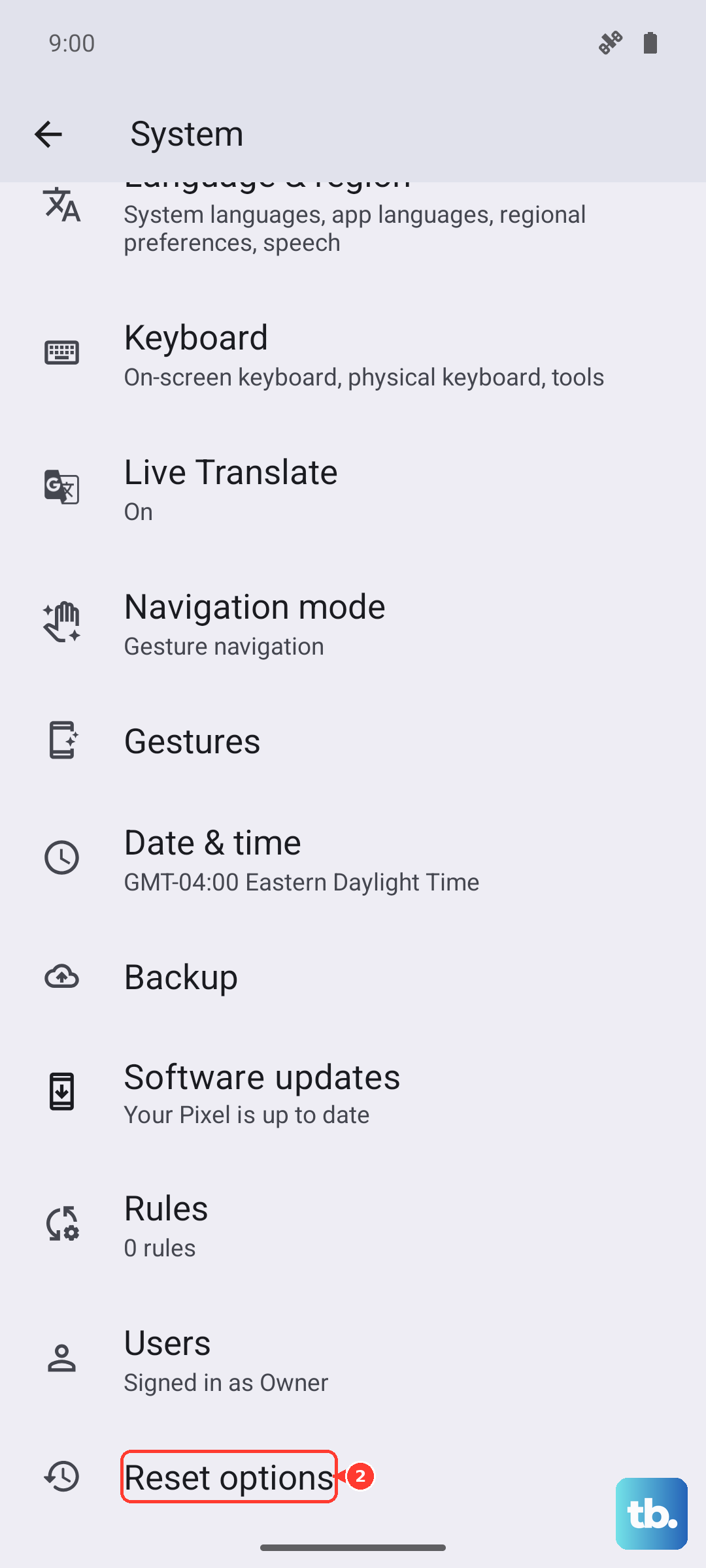
Go to Settings > System.
After that, tap Reset options > Erase all data (factory reset).
If Settings will not open, you can do an external reset instead. Charge your battery 30% or more, turn off the phone, then press and hold the Volume Down button and the Power button at the same time until the phone turns on, and press the Volume Down button until you see Recovery mode. If charging still fails after a reset, the problem is most likely hardware, so contact Motorola Support through the official support site to arrange a repair.
Frequently Asked Questions
Why does my Edge 50 Pro charge fast at first and then slow down?
That pattern is by design. The TurboPower charger charges rapidly while the battery is below 78%, and once it reaches 78% or higher it switches to a regular charging speed, so the slowdown in the upper range is expected rather than a fault.
Why is my phone stuck at 80 percent and not charging further?
Overcharge Protection limits the charge to 80% if the phone has been plugged in for three days, which protects battery health. To finish charging, just disconnect the phone from the charger and plug it in again, and it will continue past 80%.
Does turning on Charge boost make charging faster?
Yes. Charge boost speeds up charging when it is on, and you can enable it at Settings > Battery > Charge boost by turning Use charge boost on. If you would rather keep the phone cooler, you can leave it off and accept a slower charge.
Is it bad that my Edge 50 Pro gets warm while fast charging?
Some warmth is normal, since rapid TurboPower charging heats the battery. If it reaches 111 degrees (F) the charging rate slows automatically, then speeds back up once the battery cools, so moving the phone somewhere cooler and not using it while charging helps it charge faster.
Will a factory reset fix my charging problem?
It can resolve a charging issue caused by software, but it erases all data and returns the phone to out-of-the-box condition, so back up first. If fast charging still fails after a reset, the cause is most likely hardware, and you should contact Motorola Support through the official support site.