Seeing "Call Failed" or having your Motorola Edge 50 Pro drop calls unexpectedly is a real headache. It's usually a sign your phone is struggling to maintain a stable connection to your carrier's network. This can be due to a weak signal, a temporary software hiccup, or a setting that's gotten out of sync.
Let's run through the most effective fixes, starting with the quick ones you can do in under a minute.
Toggle Airplane Mode On and Off
This is the fastest way to refresh your cellular connection. It forces your phone to disconnect from the network and reconnect, which can clear up temporary glitches. Swipe down from the top of your screen to open the Quick Settings panel and tap the Airplane Mode icon.
Wait about 10 seconds for it to fully disconnect, then tap it again to turn it off. Your phone will search for the network again. Give it another moment, then try making a call.
Check Your Signal Strength
Look at the signal bars in the top-right corner of your screen. If you're seeing one bar or the dreaded "No Service" icon, that's your main problem. The Snapdragon 7 Gen 3 modem is good, but it can't work miracles with no signal.
Try moving to a different room, near a window, or even stepping outside. Buildings, especially with certain materials, can significantly block cellular signals. If you're in a basement or a large concrete structure, you might need to relocate to make a call.
Perform a Force Restart
A simple reboot can fix a surprising number of software-related calling issues. For the Motorola Edge 50 Pro, press and hold the Power button for about 10 seconds. Keep holding it until you see the Motorola logo appear on the screen, then release.
This is slightly different from a normal restart and can clear out deeper system caches that might be interfering with the phone app or network services. It's a good second step if Airplane Mode didn't help.
Verify Do Not Disturb and Focus Modes
Check that you haven't accidentally silenced all calls. Swipe down twice from the top to see your full Quick Settings tiles. Look for a "Do Not Disturb" or "Priority only" icon. If it's highlighted, tap it to turn it off.
Also, open your Settings and go to Sound & vibration > Do Not Disturb. Make sure the schedule is off or that your calls are allowed through any active rules. Sometimes a previously set schedule can kick in and block calls without you realizing it.
Update Your Date and Time Settings
Incorrect time settings can sometimes cause authentication issues with the cellular network. It's a less common problem, but it's very easy to check and fix. Go to Settings > System > Date & time.
Make sure the "Use network-provided time" and "Use network-provided time zone" options are both toggled on. This lets your carrier automatically set the correct time for your location.
Review Your Blocked Numbers List
It's worth a quick check to ensure you haven't blocked the number you're trying to call, or that you aren't blocking all unknown callers. Open your Phone app and tap the three-dot menu in the top-right corner.
Go to Settings > Blocked numbers. Look through the list. If you find a number there by mistake, tap the "X" next to it to unblock. Also, check that "Block unknown callers" isn't enabled if you're expecting calls from numbers not in your contacts.
Check Mobile Data and Network Mode
First, ensure your mobile data is actually turned on. Go to Settings > Network & internet > Mobile network and make sure "Mobile data" is enabled. While you're here, tap on "Preferred network type".
If you're having consistent call failures, try switching from "5G" to "4G" or "3G" temporarily. Older network technologies sometimes have more reliable voice call coverage in certain areas. You can always switch it back after testing.
Update Your Carrier Services and System Software
Outdated software can contain bugs that affect calling. Motorola can be slower with major Android updates, but carrier configuration updates happen more frequently. Open the Google Play Store, tap your profile icon, and go to "Manage apps & device".
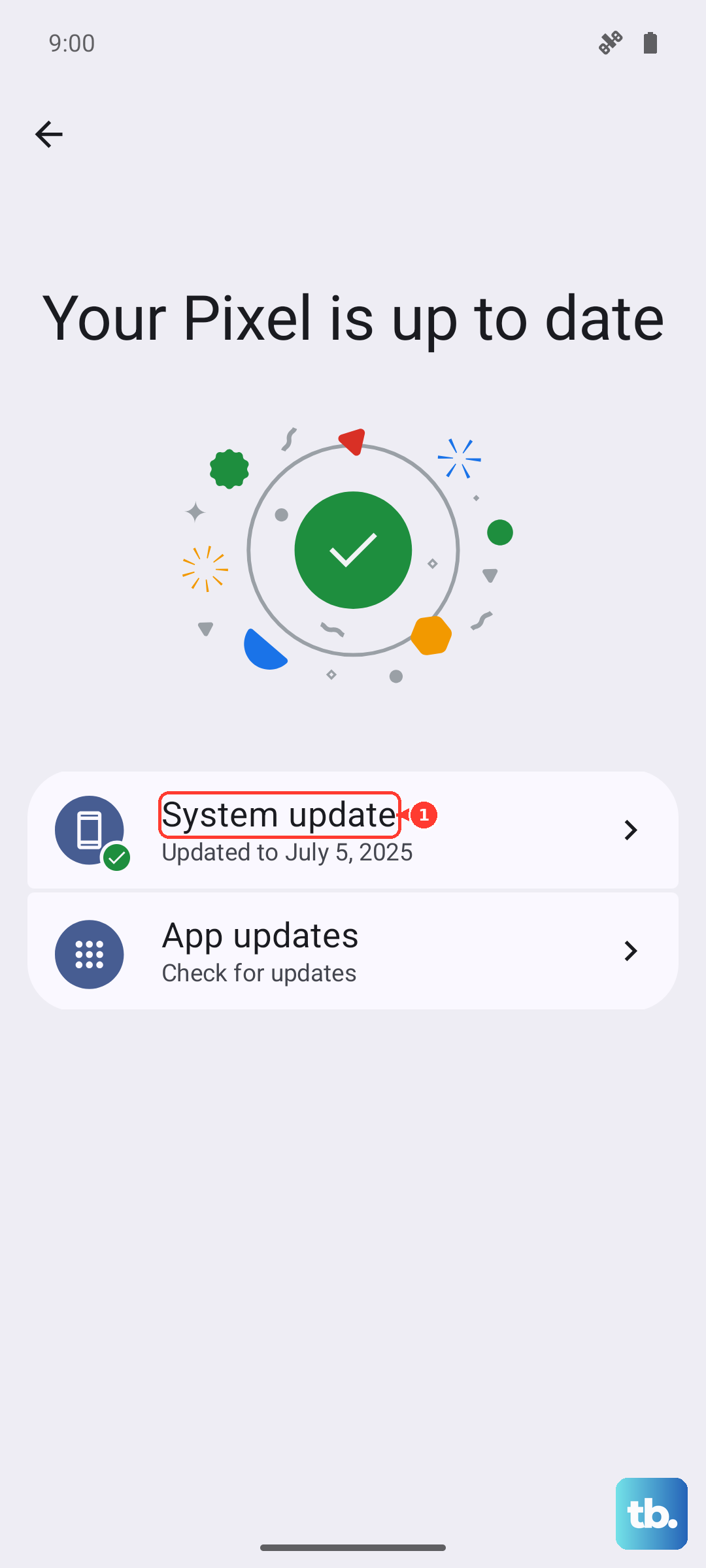
Check for updates, specifically for an app called "Carrier Services". Update it if available. Then, go to Settings > System > System updates to check for the latest Android security patch or system update. Keeping these current is key for network stability.
Reinsert Your SIM Card
A loose or dirty SIM card can cause intermittent connection problems. Locate the SIM tray on the bottom edge of your Edge 50 Pro. Use the ejector tool that came in the box (or a small paperclip) to pop the tray out.
Carefully remove the SIM card, give the gold contacts a gentle wipe with a soft, dry cloth, and then reseat it firmly in the tray. Push the tray back into the phone until it clicks. This simple physical reconnection can often solve the issue.
Reset Your Network Settings
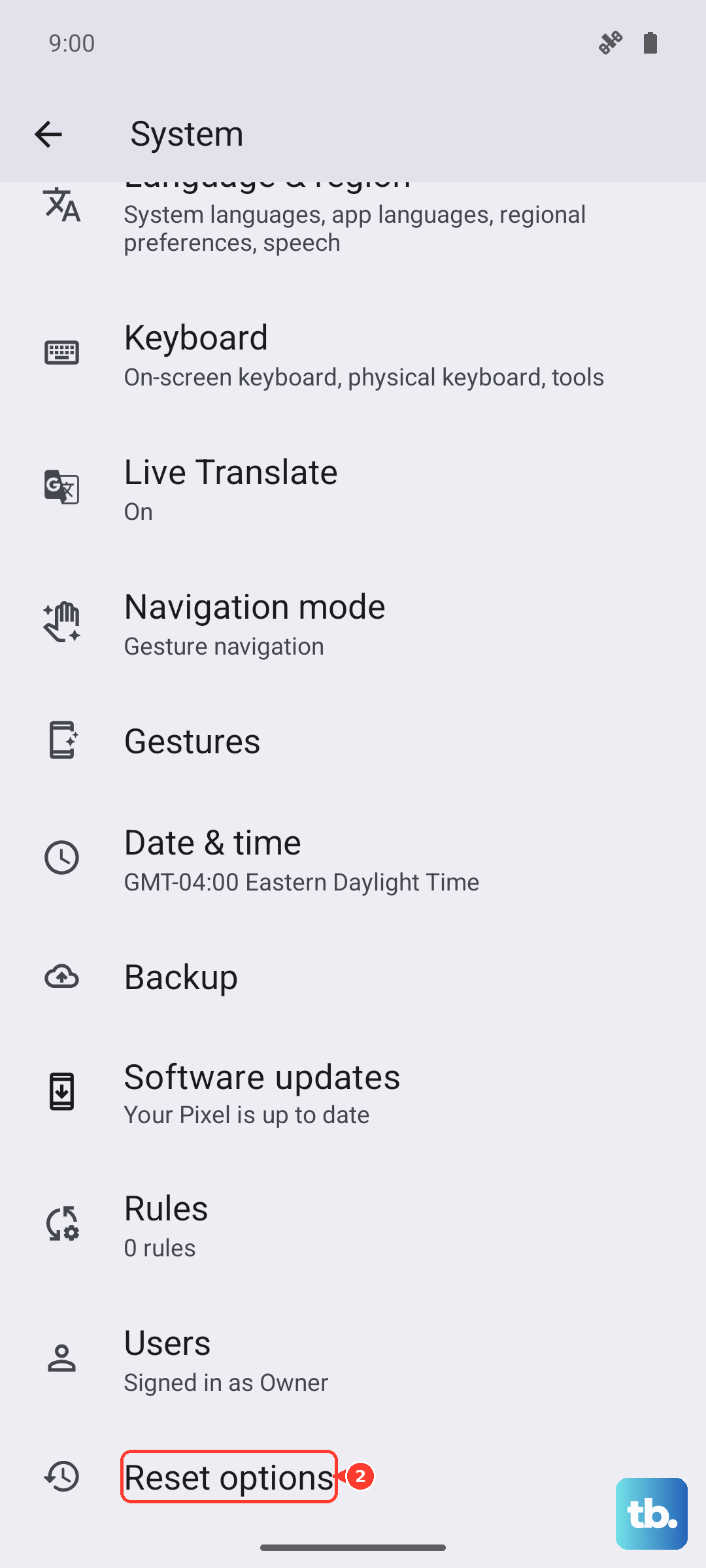
This is a more thorough step that will erase all your saved Wi-Fi networks, Bluetooth pairings, and cellular network preferences. It won't touch your personal data like photos or messages, but you will have to reconnect to Wi-Fi networks afterward.
To do this, go to Settings > System > Reset options. Tap on "Reset Wi-Fi, mobile & Bluetooth". You'll need to enter your PIN or password to confirm. After the phone restarts, test your calls again on the cellular network.