Is your Motorola Edge 50 Pro stuck in one orientation and refusing to flip when you turn it sideways? It's a common hiccup where the screen rotation just stops responding, leaving you manually rotating videos or struggling with apps that should switch to landscape.
The cause can be anything from a quick settings toggle to a deeper software glitch. Here are the most effective ways to get your auto-rotate working again on your Edge 50 Pro.
Toggle the Quick Settings Rotation Lock
The absolute first thing to check is the rotation lock in your quick settings panel. It's incredibly easy to tap this icon by accident when pulling down the notification shade. When it's locked, you'll see a little padlock icon on the auto-rotate button.
To fix it, swipe down from the top of your screen twice to open the full quick settings menu. Look for the icon that says "Auto-rotate" or shows a phone with arrows circling it. Tap it once to enable it, the icon should highlight, and the padlock should disappear.
Enable Home Screen Rotation in Moto App
By default, Android and Motorola's software often keep the home screen locked in portrait mode for consistency. If you want your home screen and app drawer to rotate as well, you need to dig into the Moto app. This is where Motorola puts a lot of its custom features and gestures.
Open your app drawer and find the app called "Moto." Tap into it and look for the "Peek display" settings. Inside there, you should find a toggle for "Rotate home screen." Switch this on, and your home screen should now follow your phone's orientation.
Restart Your Edge 50 Pro
If the quick toggle doesn't work, give your phone a fresh start. A simple reboot can clear out temporary system glitches that might be confusing the accelerometer. Just press and hold the power button until the power menu pops up on screen, then tap "Restart."
Wait for the phone to completely shut down and boot back up. This takes about 30 seconds. Once it's back, test the rotation in an app like YouTube or your gallery to see if it's working again.
Check for App-Specific Rotation Settings
Not every app supports both orientations. If rotation works perfectly in your camera app but not in your web browser, the issue is likely with that specific application. Some developers lock their apps to portrait mode by default.
First, check the app's own settings menu for a display or rotation option. If you can't find one, the app may simply not support landscape mode. Try a few different apps to see if the problem is universal or isolated.
Test in Safe Mode
If rotation is broken everywhere, a third-party app you installed might be interfering. Booting into Safe Mode temporarily disables all downloaded apps. Press and hold the power button, then tap and hold the "Power off" option on your screen until you see a prompt to reboot to Safe Mode.
If auto-rotate works perfectly in Safe Mode, you know a downloaded app is the culprit. You'll need to uninstall apps one by one, starting with the most recently installed, to find the problematic one.
Update Your Phone's Software
Motorola isn't the fastest with updates, but it's still important to check. A bug in your current version of Android 14 could be affecting the sensor hub. Go to Settings > System > System updates and tap "Check for update."
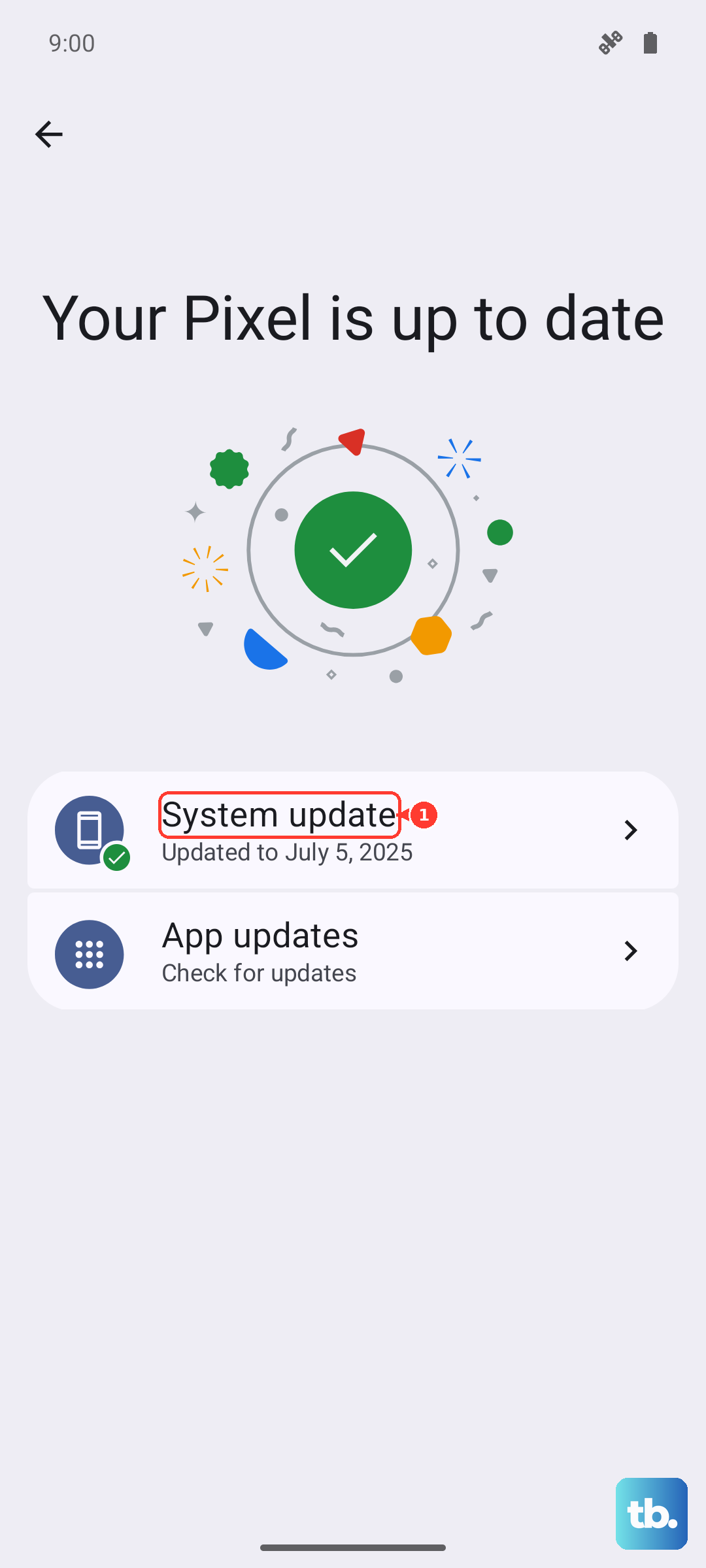
If an update is available, download and install it. I'd recommend doing this while your phone is connected to Wi-Fi and has at least a 50% charge, especially since the 125W TurboPower charging, while fast, can degrade battery health slightly faster over time if used constantly.
Calibrate Your Phone's Sensors
Your Edge 50 Pro uses an accelerometer and gyroscope to detect movement. Sometimes these sensors can lose their calibration, especially after a drop or a major software update. You can recalibrate them using a hidden testing menu.
Open your Phone dialer and type *#*#2486#*#*. This should open the "CQA" test menu. Look for an option related to "Accelerometer calibration" or "Sensor test." Follow the on-screen instructions, which usually involve placing the phone on a flat, level surface and tapping a button to calibrate.
Clear Cache for the System UI
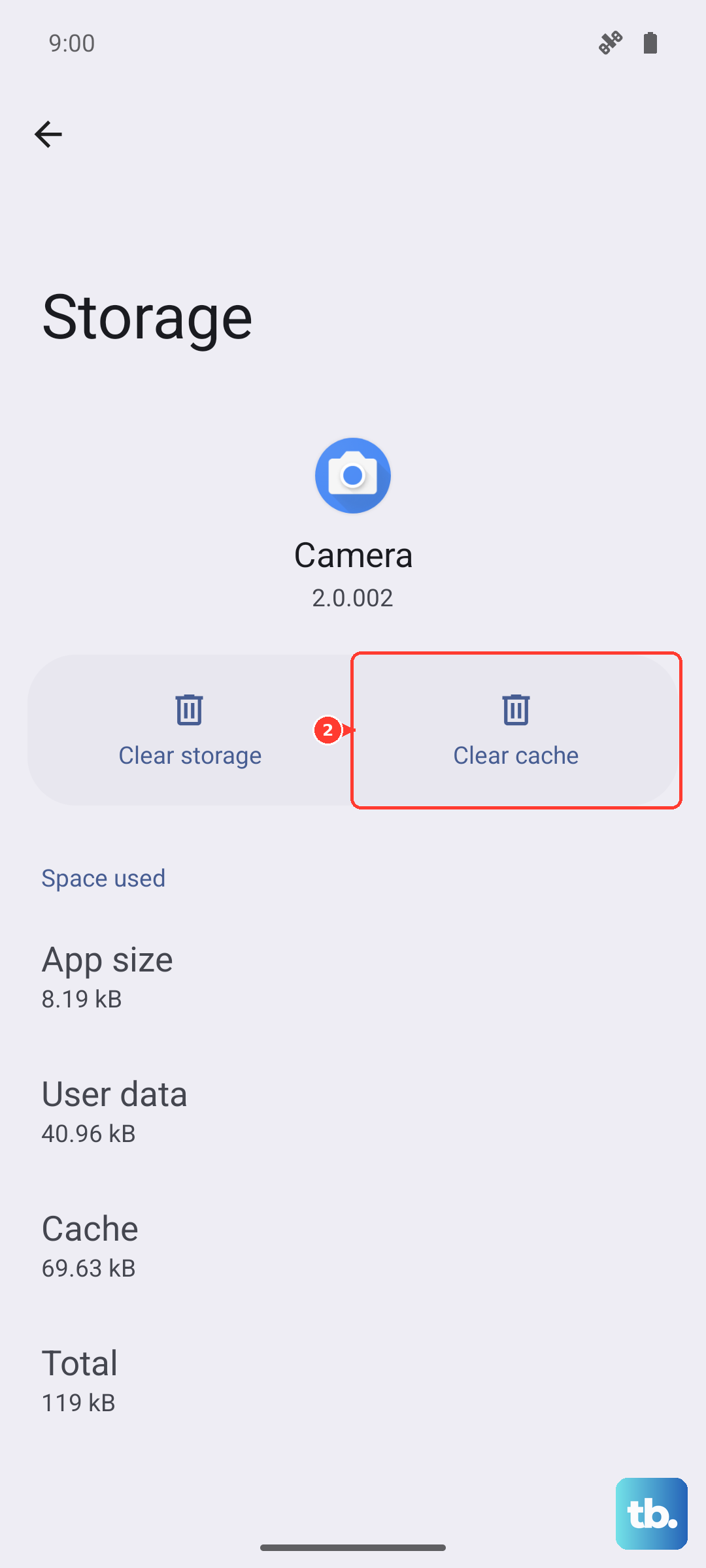
The System UI is the part of Android that handles things like your notification shade and quick settings. Its cache can sometimes become corrupted. Clearing it won't delete any personal data, but it can resolve odd behavior.
Go to Settings > Apps > See all apps. Tap the three-dot menu in the top right and select "Show system." Now scroll down and find "Android System" or "System UI." Tap on it, then select "Storage & cache." Tap "Clear cache" and then restart your phone.
Perform a Factory Reset (Last Resort)
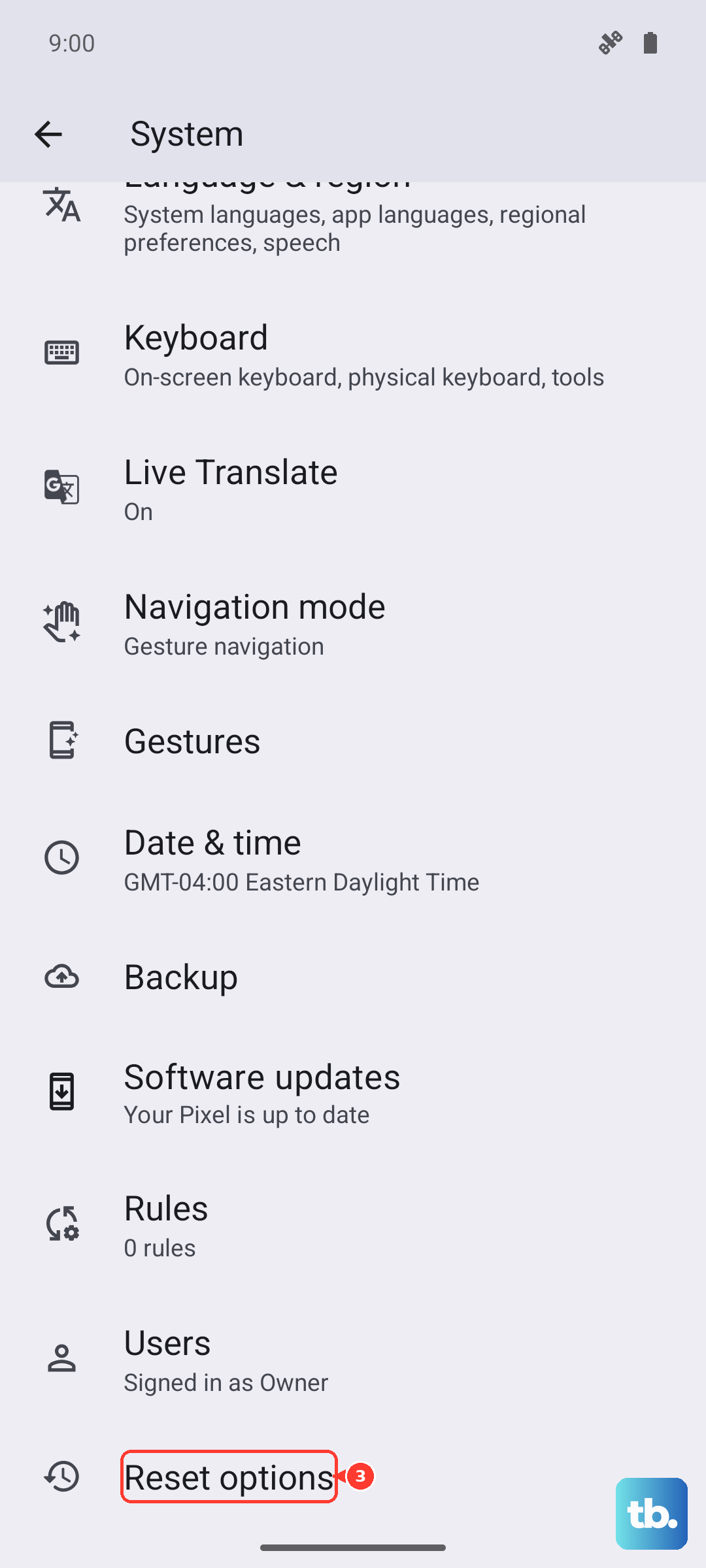
If nothing else has worked, a factory reset will wipe your phone back to its original out-of-the-box state. This will erase all your apps, settings, and personal data, so this is an absolute last resort. Make sure you have a complete backup before proceeding.
To do this, go to Settings > System > Reset options > Erase all data (factory reset). Follow the prompts. After the reset is complete, set up the phone minimally and test the auto-rotate function before restoring your backup, to see if the problem was software-related.