You open Settings on your Motorola Edge 40, head to System updates expecting a fresh Android build, and instead you get a spinning check that never resolves, a download that freezes at a stubborn percentage, or the flat message that your system is already up to date. That last one trips up a lot of owners, because the "won't update" complaint on this phone is often two different problems wearing the same costume. Either a security update is genuinely available but stalling partway through, or you are waiting on a major Android version that this model is not scheduled to receive.
Here is the important context before you start poking at settings. The Motorola Edge 40 launched in 2023 on Android 13, was upgraded to Android 14, and then received Android 15 (the rollout began around June 30, 2025). Android 15 is its final guaranteed major OS upgrade. After that, Motorola provides periodic security updates only, listed through roughly May 2027, with exact timing varying by region and carrier. There is also no separate "2026 edition" of this phone, so if you came here expecting a newer full operating system, the absence of one is usually expected behavior rather than a fault. The fixes below go easiest and safest first, and they work whether your real issue is a stuck security patch or a misread of what your phone can install.
Start with a clean check over Wi-Fi
Updates download over Wi-Fi by default, and a flaky or absent connection is the single most common reason a check fails. Motorola's own guidance is to use a Wi-Fi connection to download software updates so you avoid mobile data charges, so confirm you are on a stable network before anything else.
- 1.Connect the phone to a known-good Wi-Fi network.
- 2.Go to Settings > System > Advanced > System updates. (Motorola's general wording is Settings > (System > Advanced) > System updates > Check for updates, and the Advanced submenu may not appear on every software version.)
- 3.If an update is offered, follow the onscreen instructions to install it.
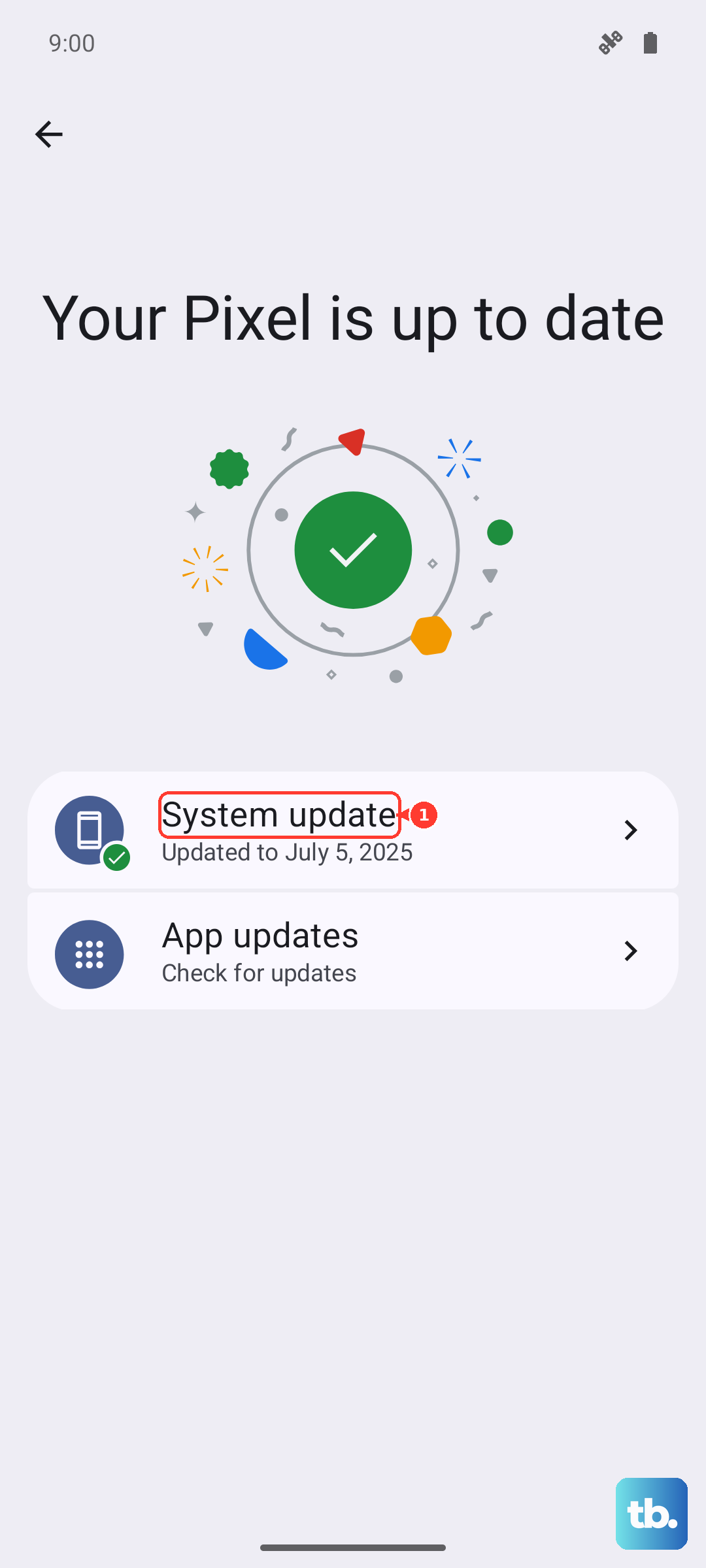
One thing worth knowing before you commit is that you cannot downgrade to a previous software version after an update is installed. Security updates can also download automatically over the mobile network if Wi-Fi is not available within a few days of the notification, so sometimes patience on Wi-Fi is all that is needed.
Reboot the phone to clear a stalled install
A download or installation that hangs will frequently sort itself out after a restart, which clears temporary memory and lets the update routine begin cleanly. If the phone is responsive, just restart it normally and then check again.
If the screen is frozen and nothing responds, force a reboot by pressing and holding the Power key for 10 to 20 seconds. Motorola confirms that data on your phone will not be deleted with this step, so it is safe to use on a stuck update. If you have remapped the Power button to do something other than open the Power menu, press Power and Volume up at the same time to bring up the menu to restart. Once the phone is back up, return to System updates and try the check once more.
Sort out the network your download depends on
If the check runs but the file refuses to download, the connection itself is the likely culprit rather than the phone. Motorola recommends restarting your wireless router by unplugging it from the power outlet for about 30 seconds and then plugging it back in. Let the router come fully back online, reconnect the Edge 40 to Wi-Fi, and retry the update.
If reconnecting does not help, Motorola also lists resetting the phone's Wi-Fi and Bluetooth network settings. The exact settings path for this varies by Android version, so look for the network or reset options within Settings on your current software. This clears any corrupted saved network state that could be blocking the transfer.
Give the battery enough charge to finish
An update should never be started on a nearly empty battery, because a mid-install shutdown can leave the software in a bad state. Motorola requires at least 5 percent charge for the phone to power on or reboot at all, and a fully drained phone needs to be charged for at least 15 minutes with the provided charger before it will even respond.
Plug in, let the battery climb to a comfortable level, and only then begin the download and install. This small wait removes a whole category of failures where the process quits partway because power ran low.
Make room for the upgrade file
An update needs temporary space to store the upgrade file before it can install, and a phone that is low on storage will block the process. Motorola does not publish a specific minimum figure for the Edge 40, so the practical move is simply to clear breathing room.
Open Settings and uninstall apps you no longer need; remember that only apps you installed yourself can be removed. Freeing up that space and then returning to System updates is often enough to let a previously failing update go through.
Confirm an update actually exists for your model and region
Updates roll out in stages by model, region, and carrier, so an update that exists for someone else may simply not be live for your specific phone yet. Before assuming something is broken, check Motorola's official software upgrade and security update pages for the Edge 40 to see what has actually been released for your configuration.
This is also where the earlier context matters most. Because Android 15 is the Edge 40's final major OS upgrade, with only security updates provided afterward (listed through roughly May 2027), a missing newer Android version is expected rather than a defect. If the page shows your phone is current on security patches, your "won't update" situation may already be resolved, just not in the way you anticipated.
Repair the software from a PC with Motorola Software Fix
If over-the-air updating keeps failing no matter what you try, Motorola offers an official desktop tool called Motorola Software Fix that can repair the phone's software from a computer. It runs on a PC and connects to the Edge 40 over USB, working through the software to clear problems that an on-device update could not resolve.
Because this tool can reflash the phone's software, back up everything you want to keep before you start, since a repair can affect the data stored on the device. Download the tool from Motorola's official support site, install it on your computer, connect the Edge 40 with a USB cable, then follow the prompts to repair the software and check for the update again afterward.
Reset the phone as a last resort
A factory reset is the final on-device step, and it is a heavy one because it erases all data and restores the phone to out-of-the-box condition. Back up everything you care about before you begin. Save photos and videos to Google Photos, save files and folders to Drive, and sync your contacts and calendar to an account so they return after the reset.
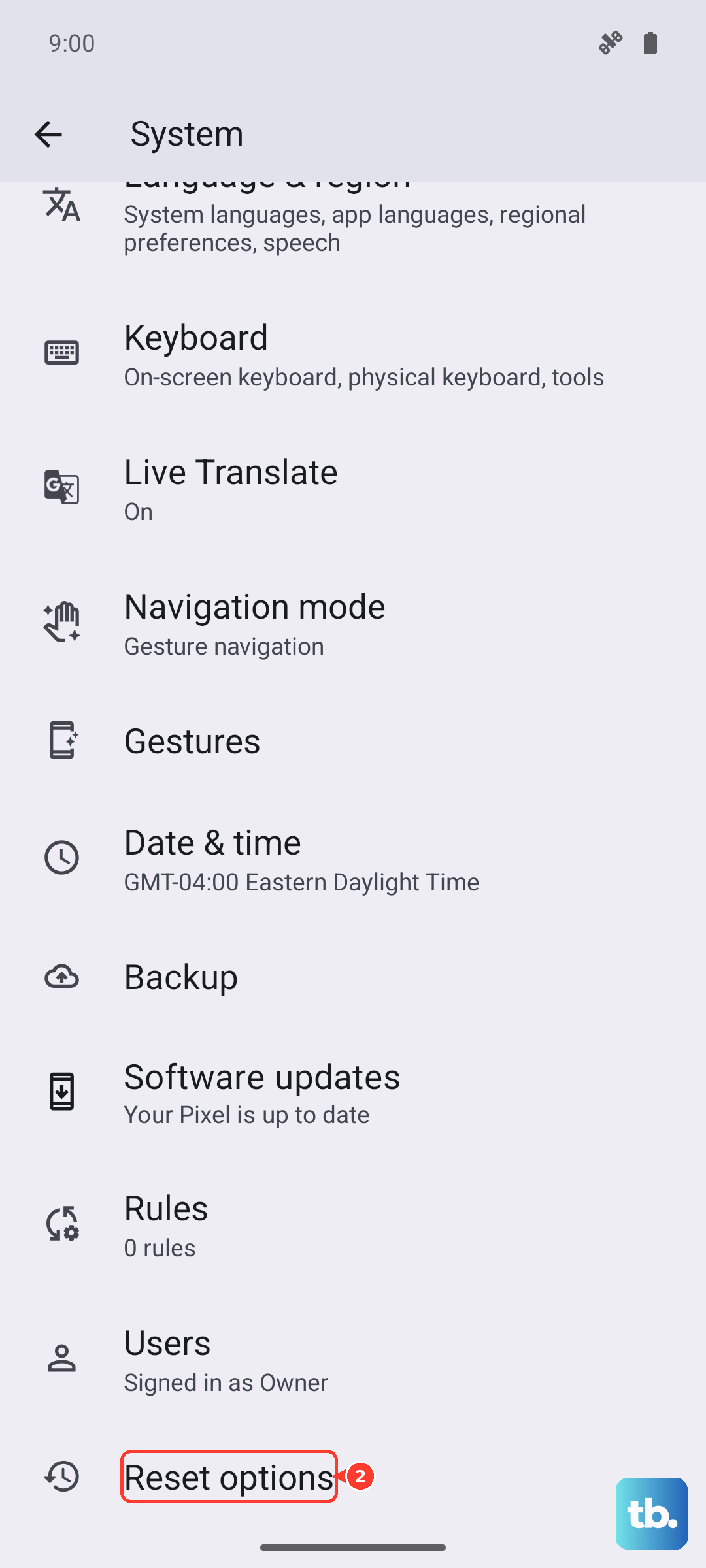
If you can open Settings, go to Settings > System, then touch Reset options > Erase all data (factory reset) and follow the prompts. If Settings will not open at all, use Recovery mode instead.
- 1.Charge the battery to 30 percent or more, then turn off the phone.
- 2.Press and hold the Volume Down button and the Power button at the same time until the phone turns on.
- 3.Press Volume Down until you see "Recovery mode", then press Power to restart in Recovery mode.
- 4.Use the Volume buttons to scroll to "Factory data reset" and press Power to select it.
- 5.Allow several seconds for it to complete, then scroll to "Reboot system now" and press Power.
After the reset and setup, connect to Wi-Fi and check for the update again; a clean software state will often accept an install that previously refused.
When to hand it to Motorola
If the update still will not install after working through the steps above, the problem may be specific to your device, region, or carrier in a way that home troubleshooting cannot reach. Contact Motorola Support at that point for help tailored to your exact phone and location, including any service options if the hardware or software needs deeper attention.
Frequently Asked Questions
Why does my Edge 40 say it is up to date when I expected a newer Android?
Android 15 is the Edge 40's final guaranteed major OS upgrade. After it, Motorola provides security updates only, listed through roughly May 2027, and there is no "2026 edition" of this phone. So an "up to date" message often means your phone genuinely has nothing newer to install beyond the latest security patch.
Will force restarting the phone delete my data?
No. Motorola states that data on your phone will not be deleted when you force a reboot by pressing and holding the Power key for 10 to 20 seconds. It is a safe step for clearing a stuck update.
Can I undo an update if I do not like it?
No. Once an update is installed on the Edge 40, you cannot downgrade to a previous software version, so it is worth being on Wi-Fi with a charged battery before you commit to installing.
Do I need a companion app or a computer to update the Edge 40?
No companion app is required; updates are performed entirely on-device through Settings > System > Advanced > System updates. A computer comes into play only if you need the optional Motorola Software Fix tool to repair the software when over-the-air updating keeps failing.