When your Motorola Edge 40's voice assistant stops responding, it can feel like you've lost a helpful companion. Whether it's Google Assistant or Moto Voice that's gone quiet, the sudden silence is a real inconvenience. Let's walk through the steps to get it listening and talking again.
Start With a Quick Restart
Before diving into settings, give your phone a fresh start. Press and hold the Power button for about 15 seconds, or until the phone restarts. Keep holding until you see the Motorola logo appear on the screen. This force restart can clear out temporary software glitches that might be blocking the microphone or voice services.
Verify Your Voice Assistant is Enabled
It's worth checking that the feature hasn't been accidentally turned off. Open your Settings app and look for "Apps" or "Google." Inside, you should find settings for Google Assistant. Make sure "Hey Google" or voice match is toggled on. If you use Moto Voice, check its dedicated app in your app drawer to ensure it's active and has the necessary permissions.
Sometimes, a system update can reset these preferences. I've seen this happen after a major Android version jump, so it's a good first place to look.
Check the Microphone Permissions
Your voice assistant needs explicit permission to use the microphone. Go to Settings > Apps > App permissions > Microphone. Find Google or the Assistant app in the list and make sure the toggle is switched on. Without this permission, the phone literally can't hear you trying to activate it.
While you're there, also check the permissions for the Google app itself. It handles the core voice recognition for "Hey Google" on most Android devices, including the Edge 40.
Look for Audio Interference
Other apps or features can sometimes hijack the microphone. If you have any voice recording apps, walkie-talkie style messaging apps, or even certain games open, try closing them completely. Also, check if your phone is connected to a Bluetooth headset or your car.
Disconnect from any Bluetooth audio device and try the voice command again using the phone's own speakers and mics. Bluetooth connections, while usually seamless, can occasionally cause a conflict where the assistant isn't sure which microphone to use.
Retrain the Voice Model
If the assistant hears you but doesn't activate, your voice model might need updating. This is especially true if you've been sick, are in a much noisier environment, or simply want to improve accuracy. Open the Google app, tap your profile picture, go to Settings > Voice > Voice Match.
You can choose to retrain the model for "Hey Google." The phone will ask you to say a few phrases again. Speak clearly and at your normal volume and pitch. This process only takes a minute and can make a significant difference in recognition.
Inspect the Physical Microphones
The Motorola Edge 40 has multiple microphones for noise cancellation and clear audio. These tiny ports can get clogged with pocket lint, dust, or debris over time. Take a close look at the small holes along the top, bottom, and possibly the back of the phone.
Use a dry, soft-bristled brush (a clean, unused makeup brush works well) or a can of compressed air to gently dislodge any blockages. Never use a metal pin or paperclip, as you could easily damage the sensitive microphone diaphragm inside. A blocked mic will prevent any voice command from working.
Update Your Software
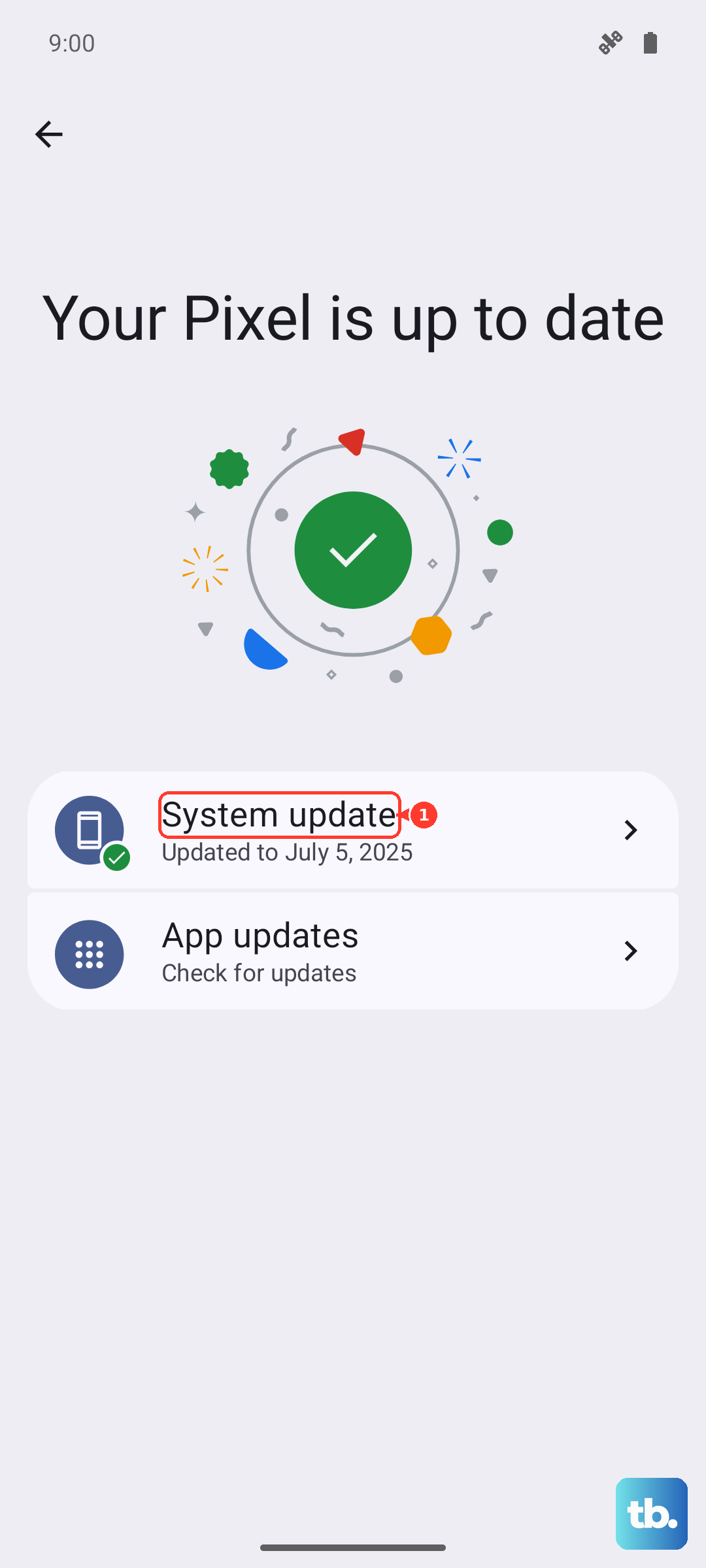
Go to Settings > System > System updates and check for any available downloads. Motorola and Google regularly release updates that fix bugs, including issues with voice recognition and microphone handling. Installing the latest Android security patch or feature drop could resolve the problem instantly.
Make sure your Google app is also up to date. Head to the Play Store, search for the Google app, and see if an update is pending. The voice recognition intelligence lives largely within this app, so keeping it current is crucial.
Review Battery Optimization Settings
Android's aggressive battery saving features can sometimes put essential services to sleep. To prevent this, you need to exempt your voice assistant from optimization. Navigate to Settings > Apps > [Google/Assistant app] > Battery.
Change the battery optimization setting to "Unrestricted." This tells the system to keep the necessary background processes alive so "Hey Google" is always listening and ready, even when the screen is off.
Clear the App Cache and Data
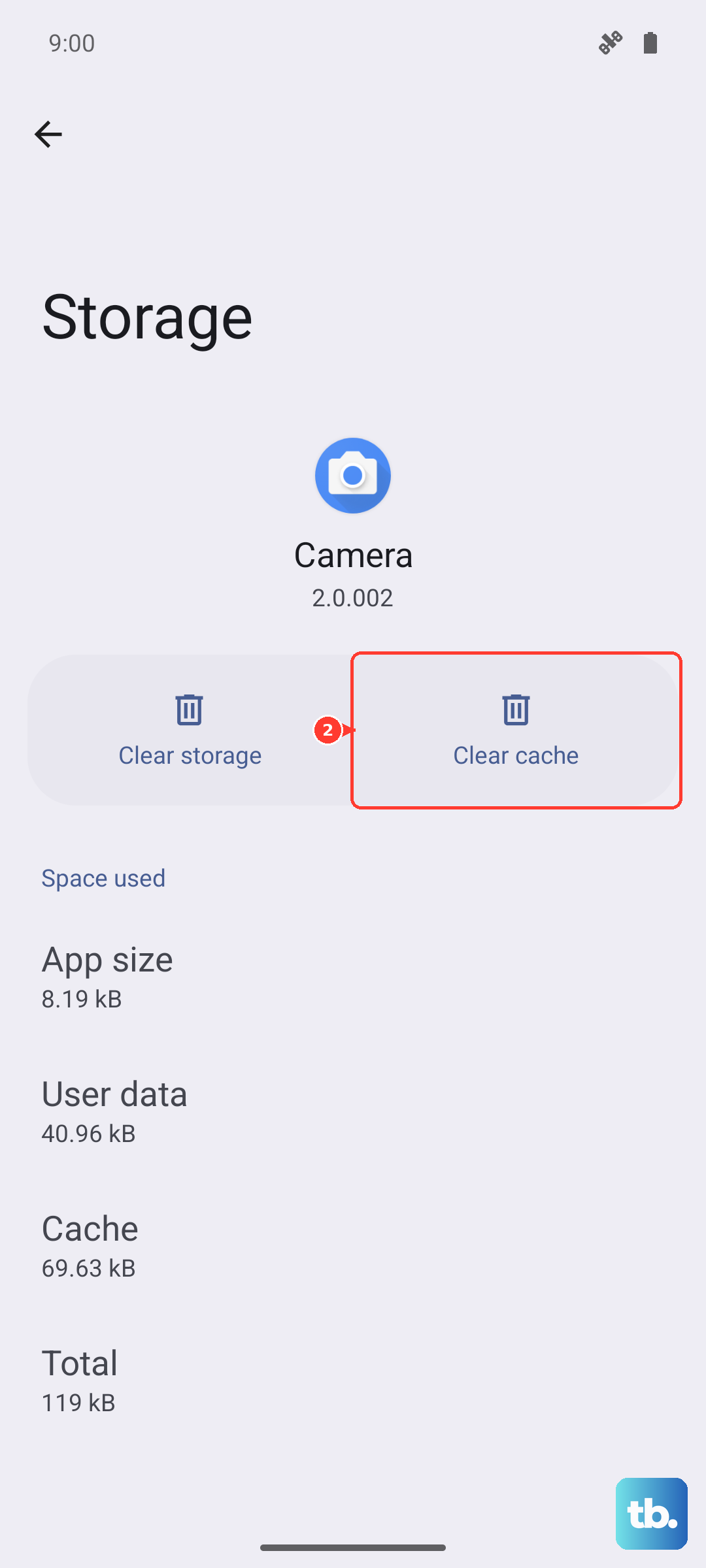
If the voice assistant app has corrupted temporary files, it can malfunction. Go to Settings > Apps > See all apps. Find the Google app (or Google Assistant app) and tap on it. Select Storage & cache.
Tap "Clear cache" first and test the voice command. If that doesn't work, you can try "Clear storage" or "Manage space" followed by "Clear all data." Be aware that this will reset the app's settings, so you'll likely need to set up "Hey Google" again afterward.
Check for Accessibility Feature Conflicts
Certain accessibility services can interfere with the always-listening function. Go to Settings > Accessibility. Look at the services that are turned on, particularly any related to sound or interaction control.
If you have features like "Sound Notifications" or "Live Transcribe" enabled, try disabling them temporarily to see if your voice assistant starts working again. You can always turn them back on afterward if they aren't the cause.
Reset App Preferences or Network Settings
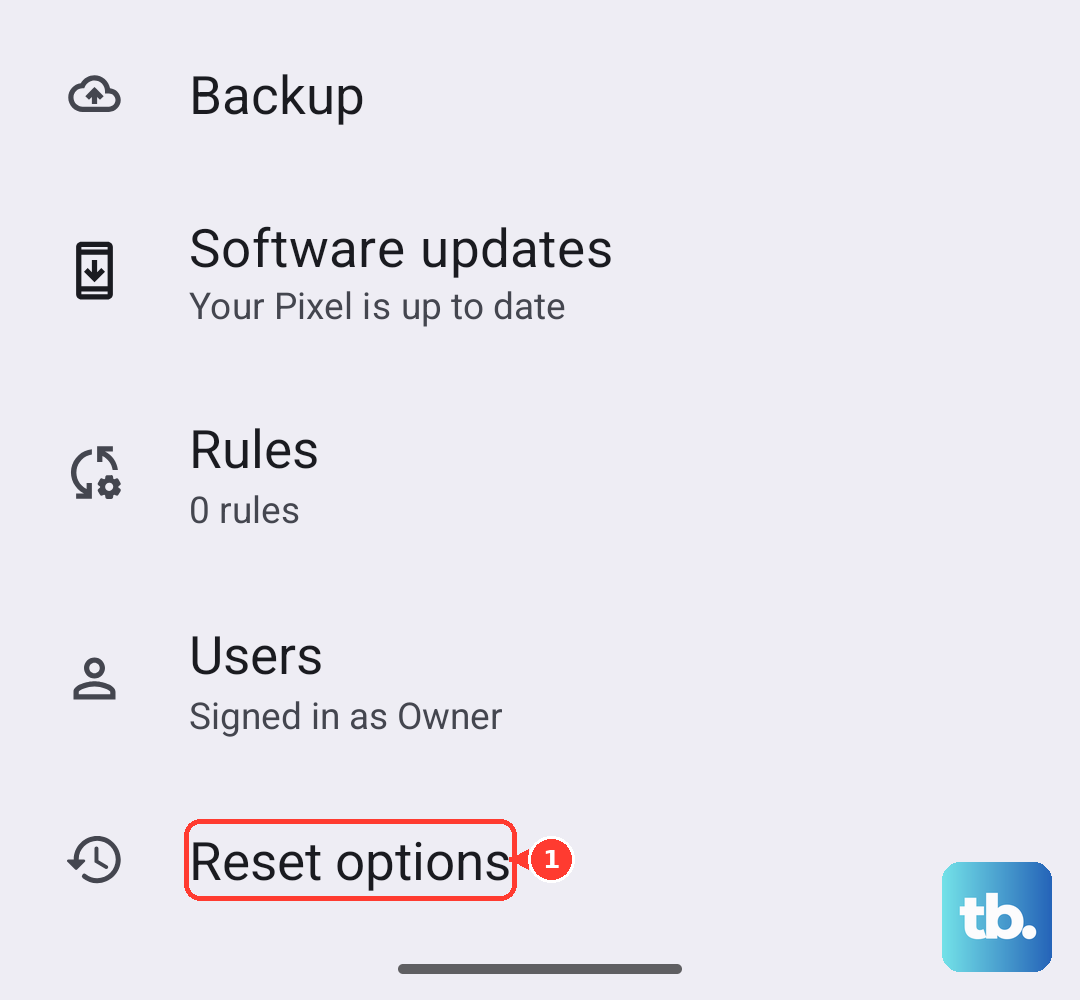
As a broader step, you can reset all your app preferences without losing personal data. This returns all app permissions, notification settings, and background data restrictions to their defaults. Find this option under Settings > System > Reset options > Reset app preferences.
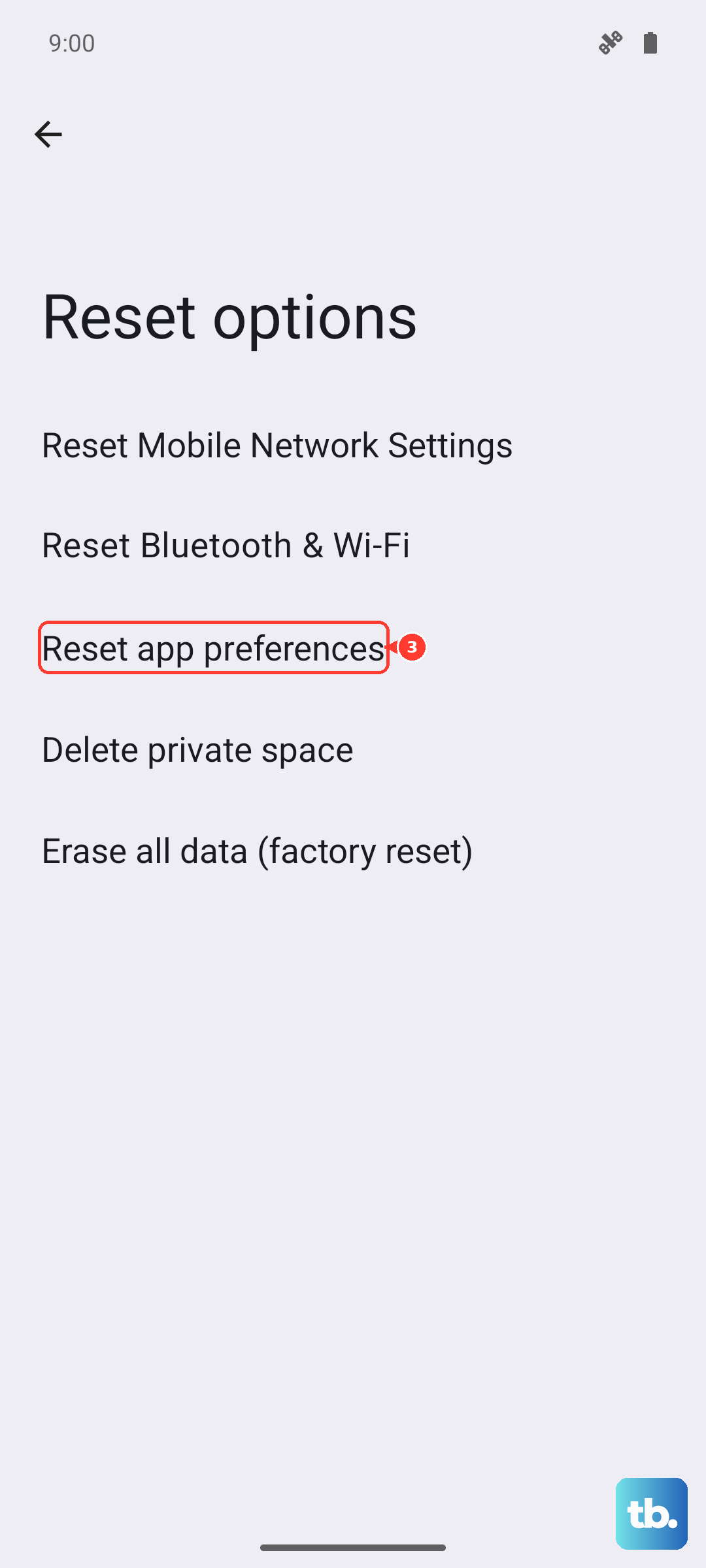
If the assistant works on Wi-Fi but not mobile data, a network settings reset might help. This will erase all saved Wi-Fi networks and Bluetooth pairings, so be prepared to reconnect to them. You can find it in the same Reset options menu.