
If your Motorola Edge 40 has gone silent and you're missing calls or notifications because the vibration motor isn't working, it's a surprisingly common hiccup. The good news is that it's almost always a software or settings issue you can fix yourself in a few minutes.
Force Restart Your Phone
Before you dive into settings, give your phone a quick reboot. This clears out any temporary software glitches that might be telling the vibration motor to stay quiet. For the Edge 40, press and hold the Volume Down button and the Power button together for about 10 to 15 seconds.
Keep holding until you see the Motorola logo appear on the screen, then let go. This is different from a normal restart and often kicks stubborn system processes back into gear.
Check Your Sound and Vibration Profile
Android 15 on Motorola phones gives you quick control over sound profiles right from the notification shade. Swipe down from the top of your screen twice to see the full quick settings panel. Look for a tile that says something like "Sound," "Vibrate," or "Silent."
Make sure it's set to either "Sound" or "Vibrate." If it's on "Silent," your phone won't vibrate at all. Tap the tile to cycle through the options until you land on the right one. I've seen this catch people out more often than you'd think.
Verify the Core Vibration Settings
Sometimes the main system vibration gets turned off. Open your Settings app and go to Sound & vibration. In here, look for a toggle labeled "Vibrate for calls" or "Also vibrate for calls."
Make sure this switch is flipped on. If it's already on, try turning it off and back on again. Just below that, you should also see an option for "Vibrate on tap" or "Touch vibration." Enabling this will make your phone vibrate when you type or interact with certain buttons, giving you an immediate test.
Adjust the Vibration Strength
If the vibration is working but it's so weak you can't feel it, you can crank it up. Still in Settings > Sound & vibration, look for a menu called "Vibration & haptics" or "Vibration intensity." Tap into it.
You'll typically find separate sliders for call vibration, notification vibration, and touch feedback. Slide each one to the right to increase the intensity. Give your phone a test by tapping the "Test" button if one is available, or by having someone call you.
Inspect App-Specific Notification Settings
Your phone might be vibrating for some apps but not others, like your messaging app. This means the problem is isolated to that app's notification settings. Go to Settings > Apps, then select "See all [number] apps."
Find the app that's not vibrating (like Messages or WhatsApp) and tap on it. Select Notifications. Here, make sure notifications are allowed overall. Then, tap into specific notification categories, like "Messages" or "Incoming messages," and ensure the "Vibrate" option is checked for each one.
Boot Into Safe Mode
If vibration is completely dead, a third-party app you installed could be causing a conflict. Booting into Safe Mode temporarily disables all downloaded apps. To enter Safe Mode on the Edge 40, press and hold the Power button until the power menu appears.
Then, tap and hold the "Power off" option on your screen. A prompt will ask if you want to reboot to Safe Mode; tap "OK." If your phone vibrates normally in Safe Mode, you'll know a downloaded app is the culprit. Restart your phone normally to exit Safe Mode and start uninstalling recent apps one by one to find the offender.
Update Your Software
Outdated software can have bugs that affect hardware functions like the vibration motor. Motorola is pretty good about pushing out optimizations. Go to Settings > System > System updates.
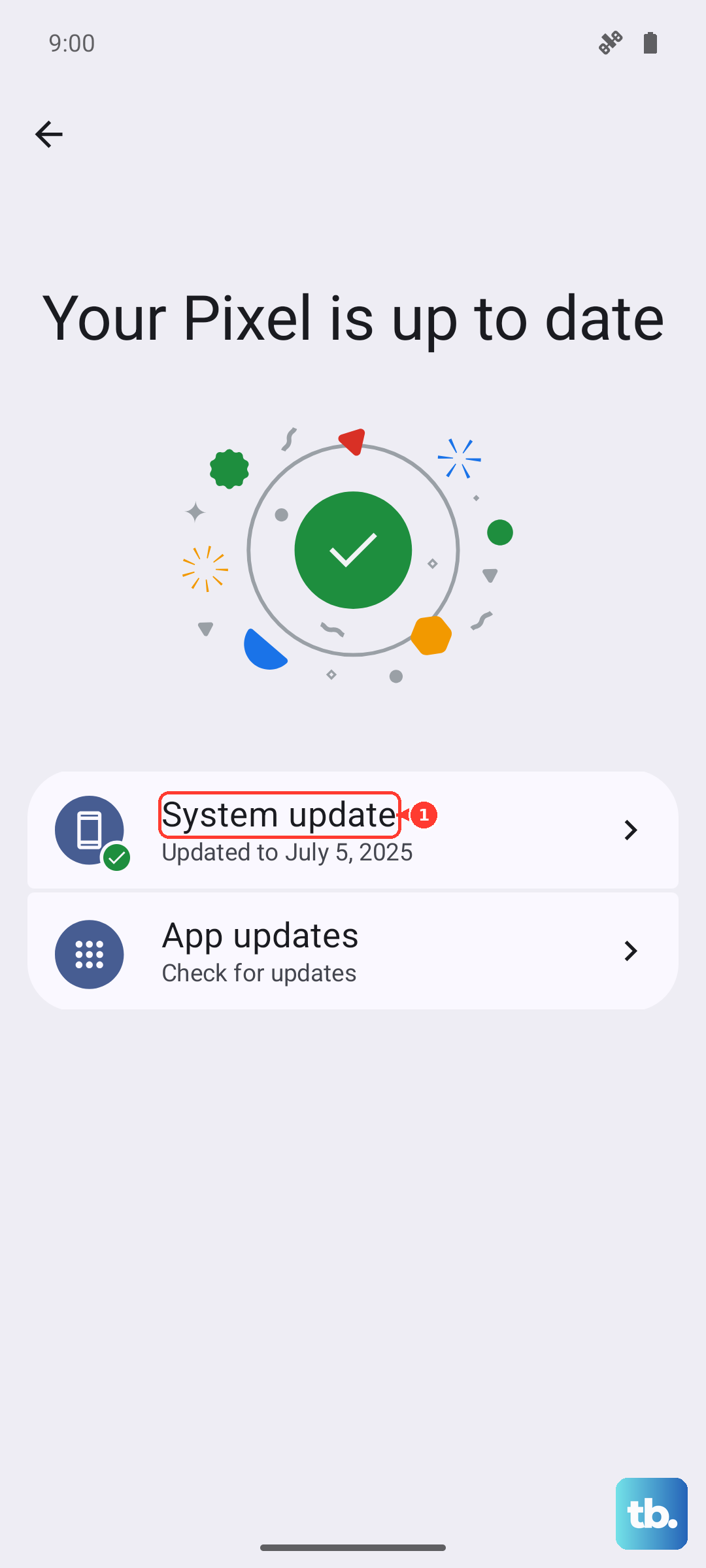
Tap "Check for update." If an update is available, download and install it. Make sure your phone is connected to Wi-Fi and has a good charge, preferably above 50%, before you start. A software update has resolved quirky vibration issues for many users.
Reset App Preferences or Network Settings
Before doing anything drastic, try a targeted reset. Go to Settings > System > Reset options. Here, you'll see "Reset app preferences." This resets permissions, notification settings, and background data restrictions for all apps without deleting any of your personal data.
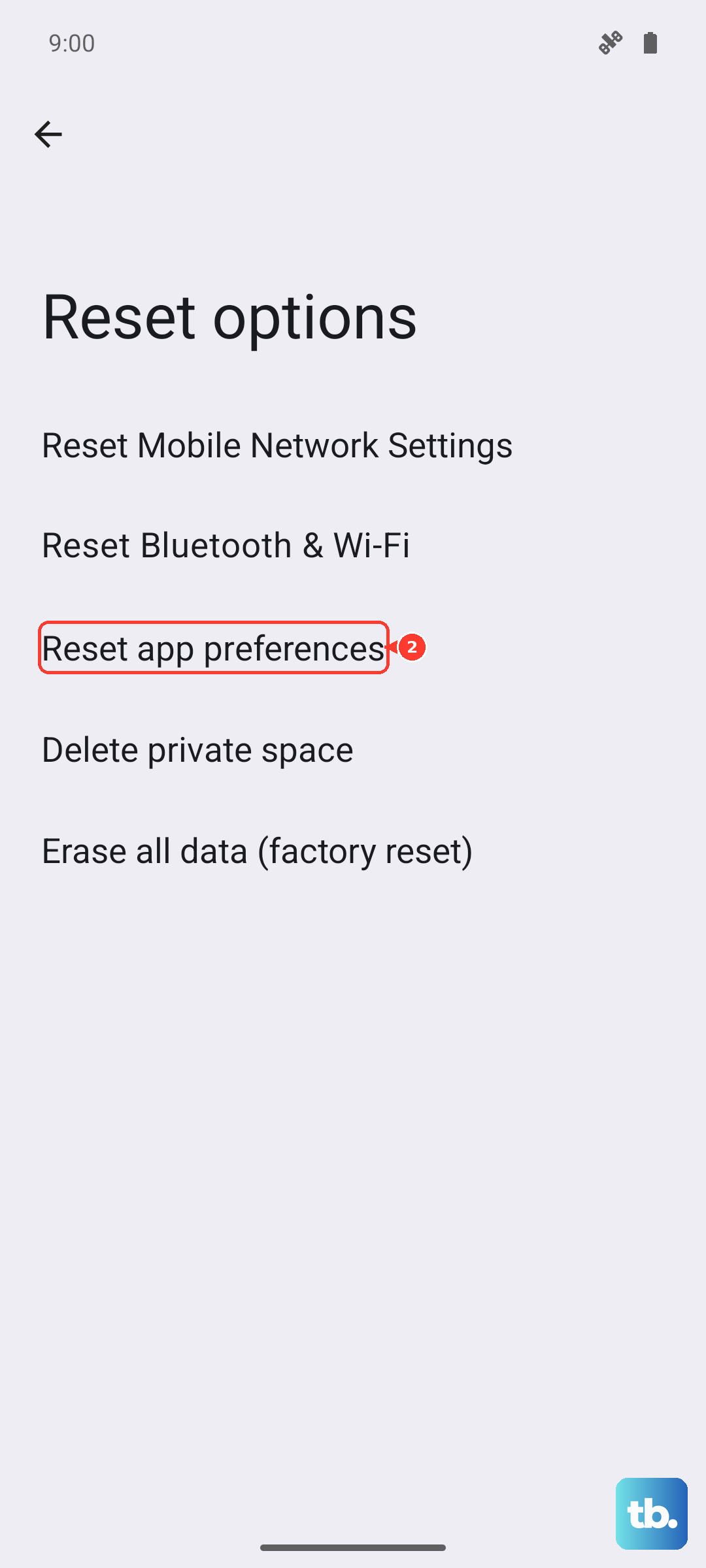
It can clear up conflicts that stop apps from vibrating. If you suspect a deeper system glitch, you can also try "Reset Wi-Fi, mobile & Bluetooth" from the same menu, though this is less likely to be the direct cause of a vibration problem.
Check for Physical Damage or Obstructions
While less common, it's worth considering the physical side. If your phone has taken a recent hard drop or been exposed to water, the internal vibration motor could be damaged. Also, a very thick or poorly fitted case can sometimes dampen vibrations to the point where they feel nonexistent.
Try removing your case and testing the vibration again. Listen closely near the bottom or middle of the phone for a faint buzzing sound when a call comes in, which would indicate the motor is trying to work.
If you've been through all these steps and your Motorola Edge 40 still won't vibrate, the issue may be with the hardware itself. The final software step would be a factory reset, but be sure to back up everything important first. If a reset doesn't help, it's likely time to contact Motorola support to explore repair options for the vibration motor.