
Seeing your Motorola Edge 40 frozen on the startup screen is a stressful experience. The Motorola logo just sits there, refusing to move on to your home screen. This usually happens after a software update gets interrupted, an app causes a conflict, or the system files become corrupted. The good news is you can almost always get it working again.
Give It Time and Charge It
First, don't panic. If this happened right after you installed a system update, the phone might just be taking its time. Android 15 can sometimes need a long while to optimize apps and finalize the installation process. Plug the phone into its original 68W charger using a good USB-C cable and leave it alone for at least 30 minutes. If you see any animation or progress indicator, that's a sign it's still working.
Perform a Force Restart
If the logo is completely static after a half-hour, a force restart is your best first step. This clears the phone's temporary memory and breaks the boot loop. Press and hold the Volume Down button and the Power button together for 10 to 15 seconds. Release the buttons when you see the Motorola logo appear and hopefully disappear, letting the phone boot normally.
Boot into Recovery Mode
When a force restart doesn't work, you need to access the recovery menu. First, turn the phone off if you can. Then, press and hold the Volume Down and Power buttons again, but this time, release the Power button as soon as you feel a vibration. Keep holding Volume Down until you see the Android recovery screen.
Use the volume buttons to navigate and the power button to select. Choose Wipe cache partition. This deletes temporary system files that can cause boot issues without touching your personal data. After it completes, select Reboot system now.
Consider a Factory Reset
If clearing the cache doesn't help, a more significant step is needed. Boot back into recovery mode using the steps above. This time, navigate to and select Wipe data/factory reset. You will need to confirm this action. I must warn you, this will erase all data on your phone, including apps, photos, and settings. Only proceed if your data is backed up.
After the reset completes, choose Reboot system now. The phone should start up as if it were brand new. You can then restore your data from your Google Drive backup during the setup process.
Check for Software Updates After Recovery
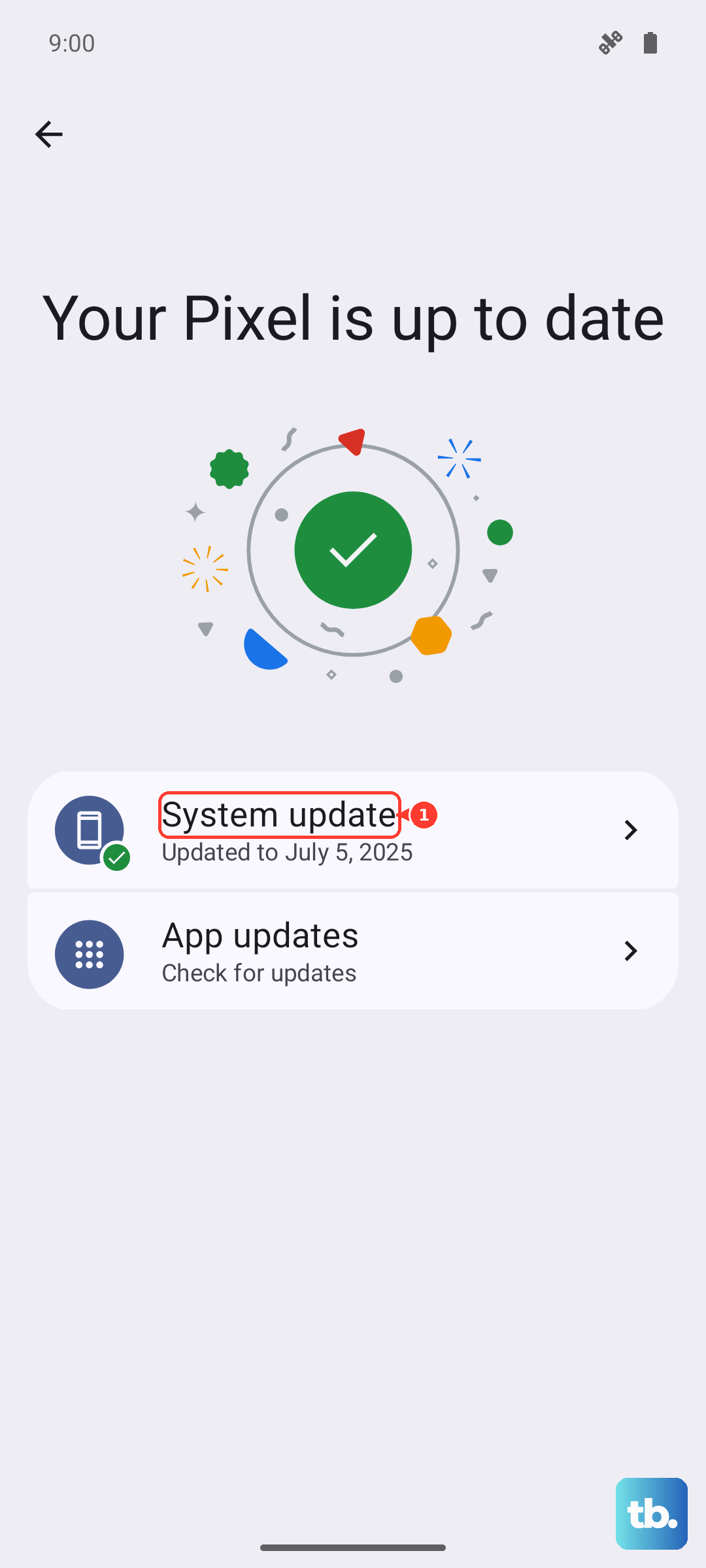
Once you get the phone running again, it's crucial to check for software updates immediately. Go to Settings > System > System updates. Motorola may have released a patch that fixes the exact bug that caused your boot loop. Keeping the system updated is one of the best ways to prevent this issue from happening again.
Rule Out a Failing Battery
Although less common, a battery that can't hold a proper charge can cause boot failures. If your phone was extremely low on power before this happened, try charging it with a different method. Use the original charger and cable, and also try placing it on a Qi2 wireless charger for a few hours to see if it responds differently. A completely dead battery might need a longer charging time before it can even attempt to boot.
If the phone remains completely unresponsive to any button combination or charging method, the issue could be hardware-related. In that case, contacting Motorola support for further diagnosis would be the necessary next step.