
Seeing a "Not registered on network" message on your Motorola Edge 40 is frustrating. It means your phone can't connect to your carrier's cellular service, so calls, texts, and mobile data won't work. This error can pop up for a few different reasons, from a simple software hiccup to a deeper issue with your SIM card or network settings.
The good news is you can usually fix it yourself. I'd start with the quickest solutions first, as they often do the trick. Before you try anything, check your IMEI by opening your phone dialer and entering *#06#. If it shows a valid 15-digit number, the issue is likely a temporary glitch. If it shows "null" or zeros, you might need to try a few more steps.
Restart Your Phone
It sounds too simple, but a restart forces your phone to re-register with the nearest cell towers. This clears out any temporary software bugs that might be blocking the connection. Just hold the power button, tap restart, and wait for it to fully boot up before checking your signal.
Toggle Airplane Mode
Switching Airplane Mode on and off resets your cellular radio without a full reboot. Swipe down from the top of your screen to open the Quick Settings panel and tap the airplane icon. Wait about 10 seconds, then tap it again to turn it off. Your phone will search for a network signal again, which often resolves the error.
Check Your SIM Card
A loose or dirty SIM card is a common culprit. First, power off your Motorola Edge 40. Use the SIM eject tool to pop out the tray and carefully remove the SIM card. Inspect the gold contacts for any dirt or damage, and gently clean them with a soft, dry cloth. Blow any dust out of the tray slot before reinserting the SIM firmly. Power your phone back on and see if it connects.
Verify Your Carrier Account
Sometimes the problem isn't your phone at all. If your prepaid plan has expired or your postpaid account has been suspended for non-payment, you'll get this error. I'd recommend logging into your carrier's website or app from another device, or calling their support line, to make sure your account is active and in good standing.
Reset Your Network Settings
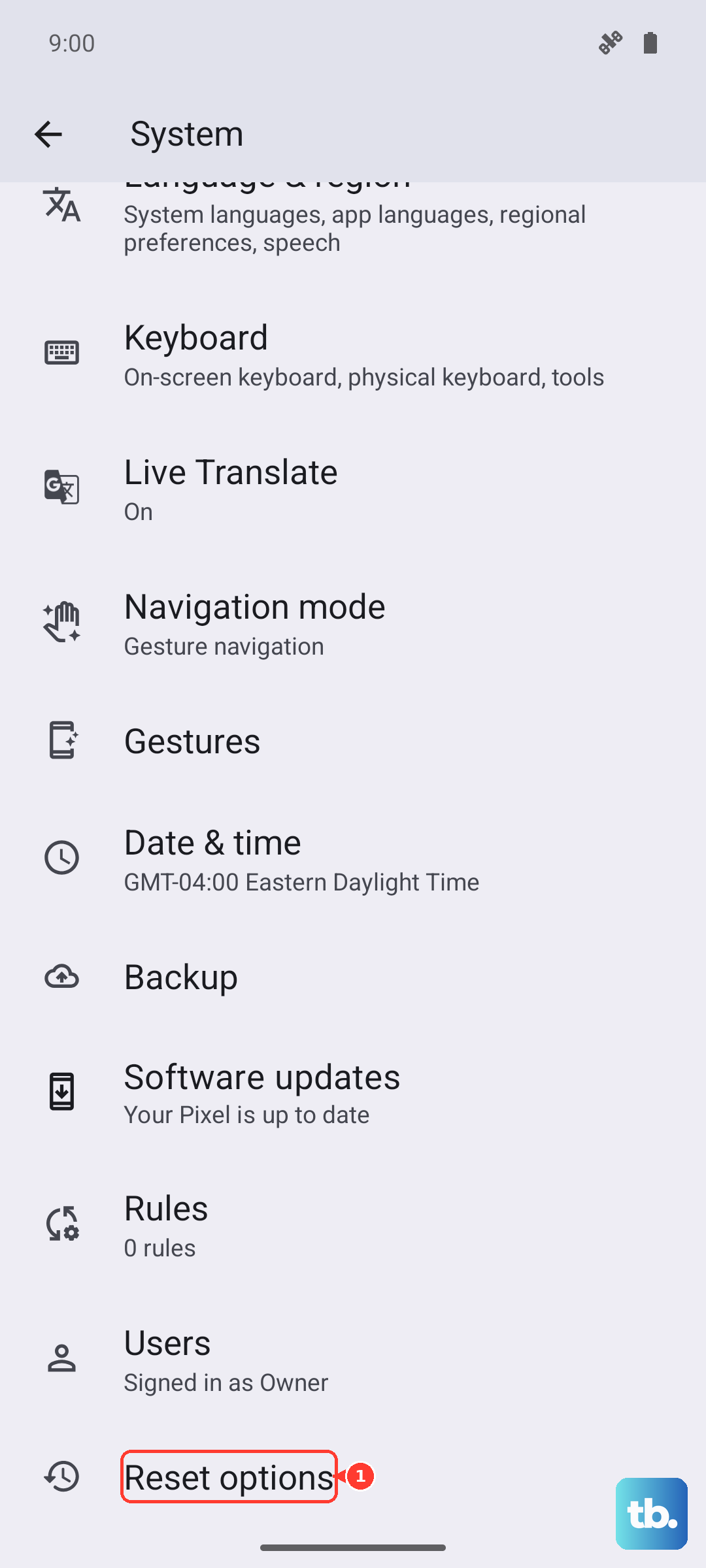
This step clears all your saved Wi-Fi networks, Bluetooth pairings, and cellular configurations. It's a great way to wipe out any corrupted settings that are preventing network registration. On your Motorola, go to Settings > System > Reset options > Reset Wi-Fi, mobile & Bluetooth. Confirm the reset, and your phone will restart. You'll need to reconnect to Wi-Fi and re-pair Bluetooth devices afterward.
Manually Select Your Network
Your phone might be struggling to latch onto the right network band automatically. You can try forcing it to use a different one. Go to Settings > Network & internet > Mobile network > Advanced > Preferred network type. Try switching from "5G" to "LTE" or "3G/2G". If it connects on a lower band, there might be a coverage issue with 5G in your specific location.
Update Your Software
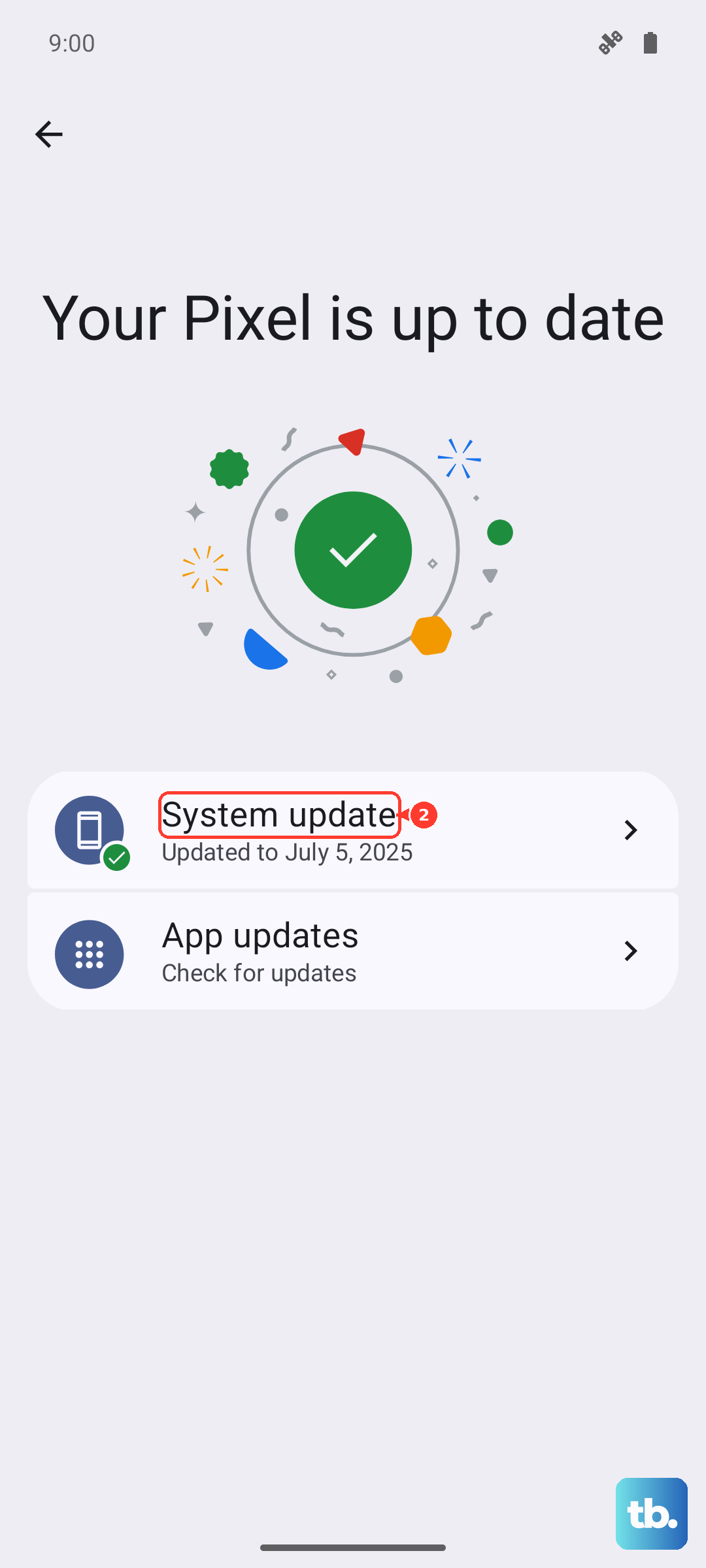
Motorola and your carrier release updates that often include fixes for connectivity bugs. Running outdated software can cause known network problems. Check for an update by going to Settings > System > System updates. If an update is available, install it and let your phone restart. This has resolved network registration issues for many users.
Clear the Phone Services Cache
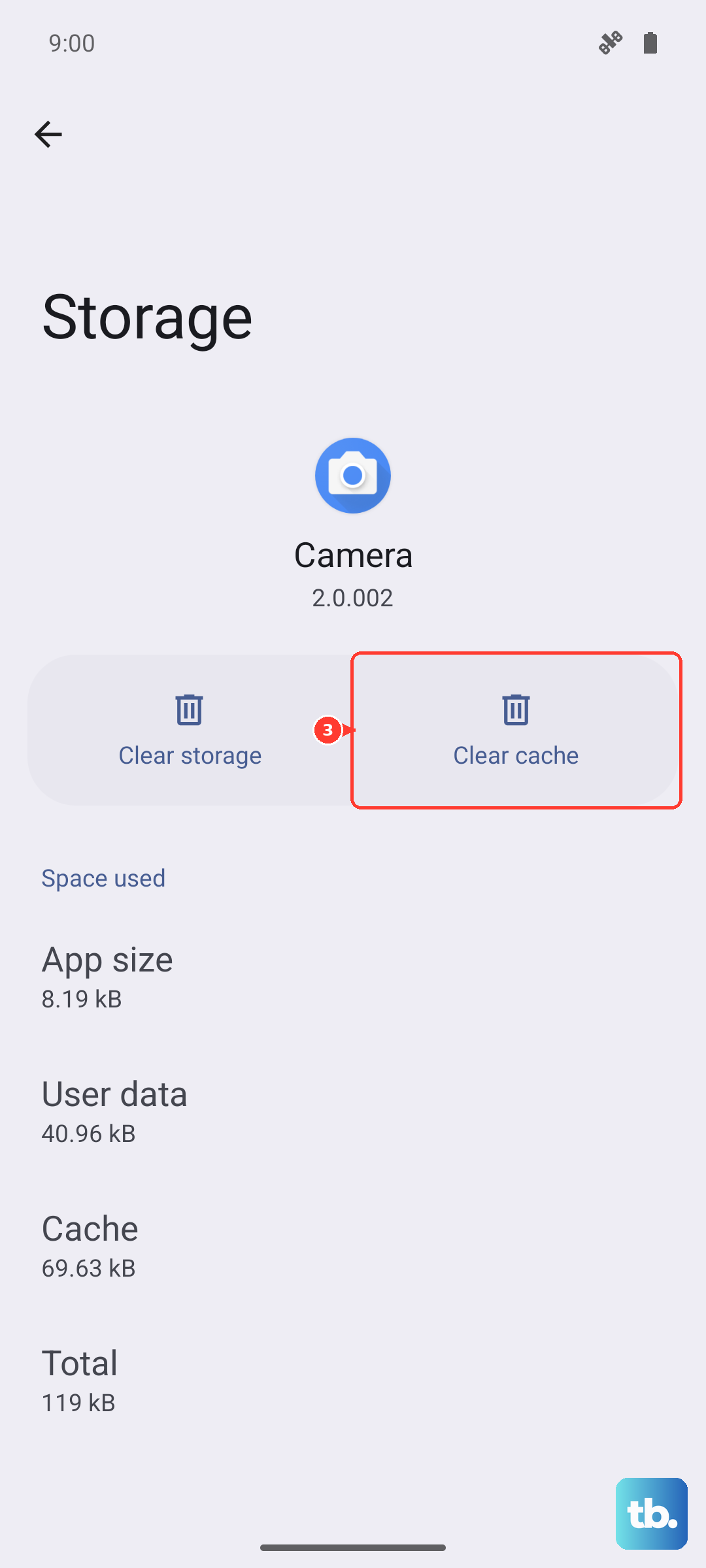
The app that manages your cellular connection can accumulate corrupted temporary data. Clearing its cache can help. Navigate to Settings > Apps > See all apps. Tap the three-dot menu, select "Show system", then find and select "Phone Services". Go to Storage & cache and tap "Clear Cache". Restart your phone afterward.
Test With a Different SIM Card
This step helps you figure out if the problem is with your SIM or the phone itself. If you can, borrow a known-working SIM card from a friend or family member (on the same carrier if possible) and insert it into your Motorola Edge 40. If the new SIM connects without issue, your original SIM card is likely faulty and you should contact your carrier for a replacement. If the new SIM also fails, the issue is with your phone.
Perform a Factory Reset
This is your last resort software fix, as it will erase all data from your phone. Make absolutely sure you have backed up everything important first. To perform the reset, go to Settings > System > Reset options > Erase all data (factory reset). Follow the prompts to confirm. After the reset is complete, set up your phone as new and check for the network error. If it persists after a clean factory reset, the issue is likely a hardware problem with the phone's internal modem.