
Missing calls on your Motorola Edge 40 is a real headache, especially when you're expecting something important. The issue can pop up from a few different places, but I've found most of the time it's a setting that got changed or a small software hiccup. Let's run through the fixes that usually get things working again.
First, try the quickest one. Pull down the notification shade twice to see your full Quick Settings panel and make sure Airplane Mode isn't accidentally turned on. If it is, tap it to turn it off. If that doesn't do it, give your phone a simple restart by holding the power button and tapping restart. This clears out temporary glitches and is worth doing first.
Check Your Do Not Disturb and Focus Settings
Android 15 has some pretty granular focus modes that can silence calls without you realizing it. Swipe down from the top and look for a moon icon or a "Focus" tile. Tap it to see which mode is active and turn it off. For a deeper look, go into Settings > Notifications > Do Not Disturb.
Check the rules and schedules here. Make sure "Calls" aren't being silenced and that any active schedule isn't blocking calls during the times you're missing them. You can also set exceptions here to allow calls from your contacts or repeated callers.
Review Call Blocking and Spam Protection
Motorola's software, combined with Google's dialer, has aggressive spam protection that might be a bit too good. Open your Phone app and tap the three dots in the top right, then go to Settings > Caller ID & spam.
Look at the options here. If "Filter spam calls" is on, try turning it off temporarily to see if legitimate calls come through. Also, tap on "Blocked numbers" to review the list. A number might have been blocked by mistake, preventing it from ringing through.
Verify Your Network Connection and SIM
Poor signal is an obvious culprit. Check the signal bars in the top corner of your Edge 40. If they're low, try moving to a different location or near a window. You can also try toggling Mobile Data off and back on from the Quick Settings panel to refresh the connection to your carrier's network.
It's worth popping out the SIM tray with the included tool and giving the SIM card a look. Make sure it's seated properly in the tray and that the gold contacts are clean. Reinsert it firmly and restart your phone. If you have access to another phone, testing your SIM card in it can tell you if the issue is with the card or your Edge 40.
Disable Any Active Call Forwarding
Call forwarding is easy to activate by accident, especially with some carrier codes. Let's make sure your calls aren't being sent somewhere else. Open the Phone app, tap the three-dot menu, and go to Settings > Calling accounts.
Select your carrier line (like T-Mobile or Verizon) and look for "Call forwarding." Tap it and ensure all the options, like "Always forward" or "When busy", are set to "Turn off" or your carrier's equivalent. This ensures calls ring on your device.
Reset Your Network Settings
If you've been traveling or switching networks a lot, your network configuration can get a bit messy. Resetting it clears all that out and starts fresh. Go to Settings > System > Reset options.
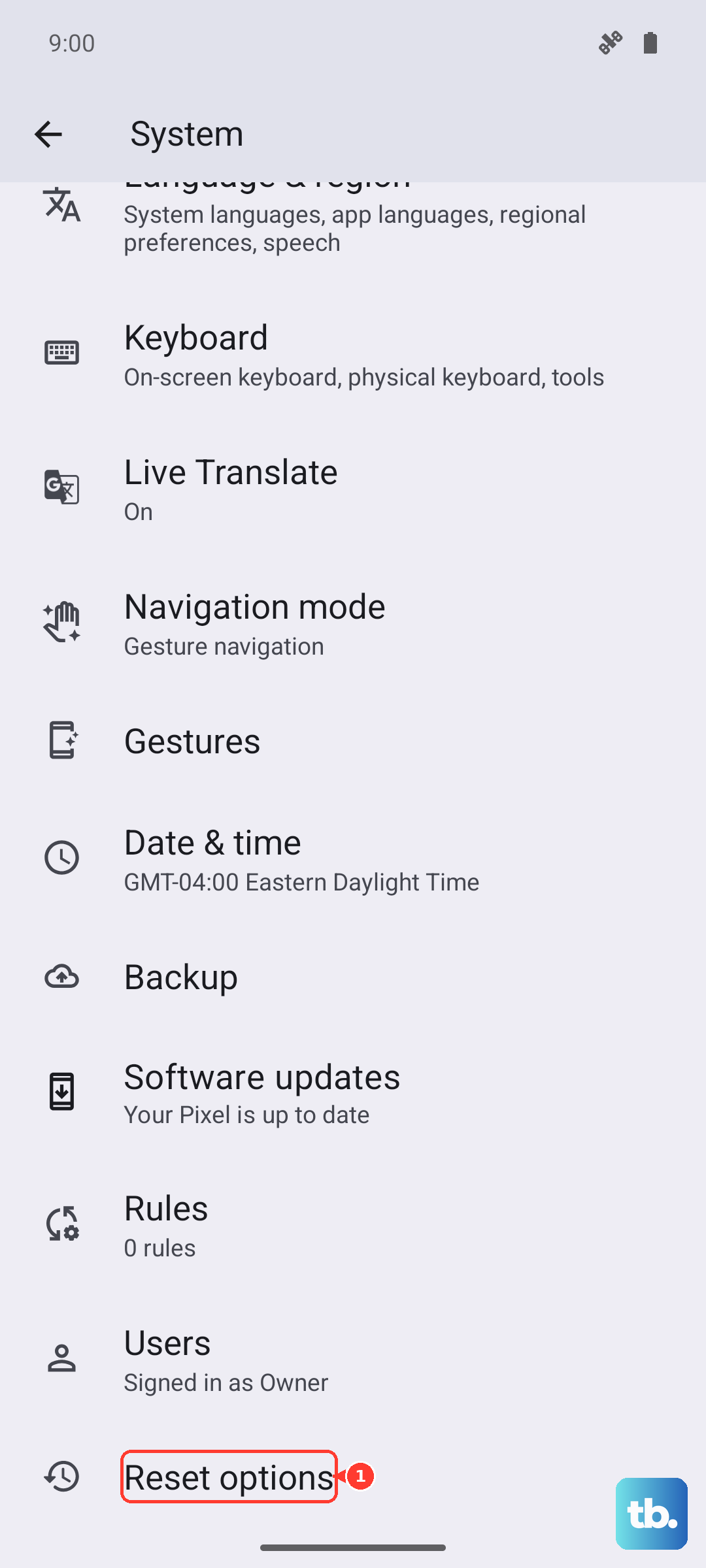
Tap on "Reset Wi-Fi, mobile & Bluetooth." Confirm the action. Just remember, this will erase all saved Wi-Fi passwords, Bluetooth pairings, and mobile network preferences, so you'll need to reconnect to your wireless networks and re-pair accessories afterwards.
Update Your Phone's Software
Motorola releases updates that often include fixes for connectivity and calling issues. Keeping your Edge 40 on the latest Android 15 build is crucial. Go to Settings > System > System updates.
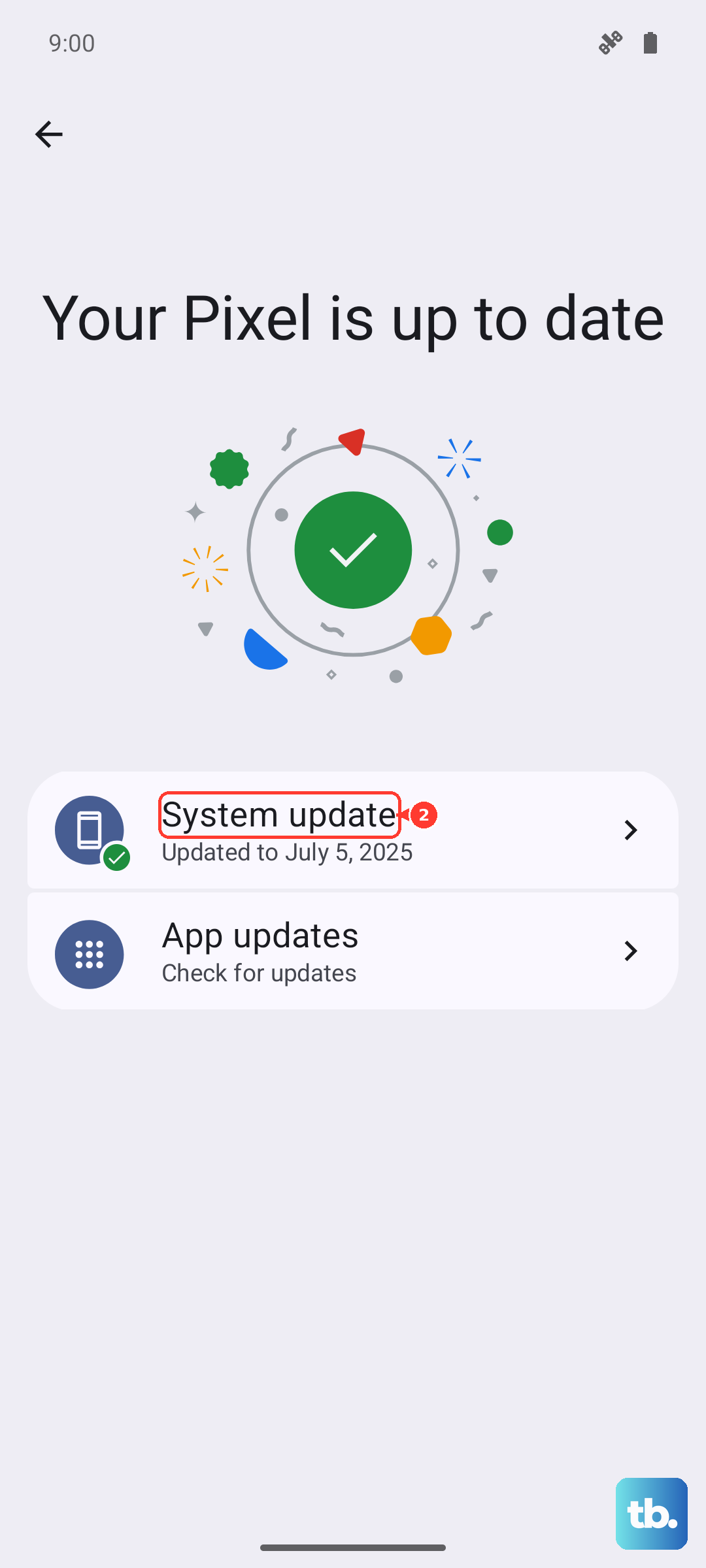
Tap "Check for update." If one is available, download and install it. It's best to do this while connected to Wi-Fi and with your phone plugged into its 68W charger to ensure it doesn't run out of battery during the process.
Clear the Phone App's Cache and Data
The Phone app can accumulate corrupted temporary files. Clearing its cache is safe and often helps. Go to Settings > Apps > See all apps. Find "Phone" in the list and tap on it.
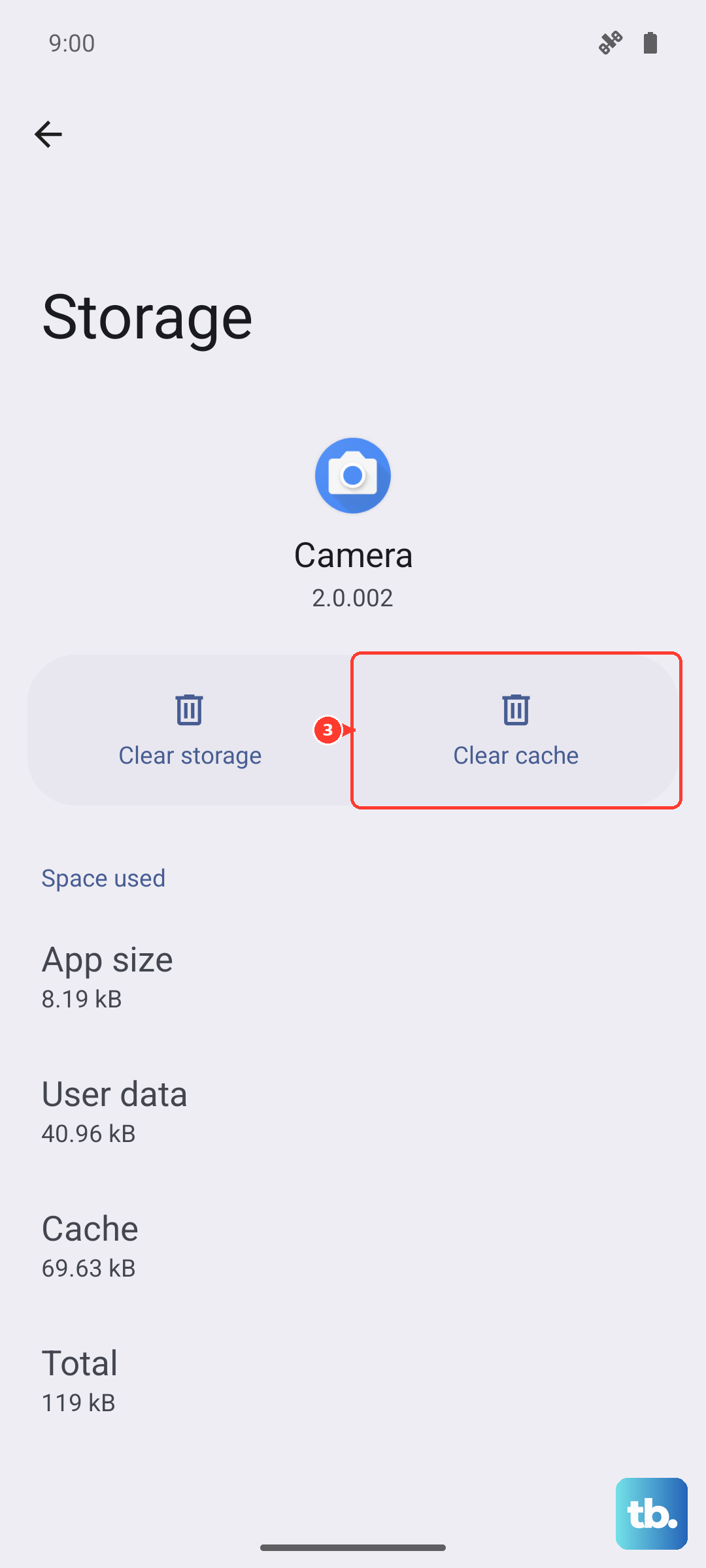
Select Storage & cache. Tap "Clear cache" first. If the problem persists, you can go back and tap "Clear storage" or "Clear data." Be aware that clearing data will reset the app to its default settings, so you might lose your call history within the app.
Check for Problematic Third-Party Apps
Sometimes an app you installed can interfere with telephony services. Think about any apps that manage calls, screens, or permissions that you installed around the time the problem started. Boot your Motorola Edge 40 into Safe Mode to test.
Press and hold the power button until the power menu appears. Then tap and hold the "Power off" icon until you see a prompt to reboot to Safe Mode. Tap OK. In Safe Mode, if your calls work normally, a downloaded app is likely the cause. You'll need to uninstall apps one by one to find the culprit.
Perform a Factory Reset
If you've tried everything else, this is the final step. A factory reset will wipe your phone back to its original out-of-the-box state. Before you do this, it is absolutely critical to back up everything you want to keep, photos, contacts, messages, and app data.
Once backed up, go to Settings > System > Reset options > Erase all data (factory reset). Follow the prompts. After the reset is complete, set up your phone as new initially to see if the calling issue is resolved before restoring your backup, as the backup could potentially restore the problematic configuration.