
When the microphone on your Motorola Edge 40 stops picking up your voice, it can turn simple tasks into a hassle. Calls drop, voice notes are silent, and Google Assistant stops listening. The first thing I'd do is figure out which microphone is acting up, as the Edge 40 has a few of them.
It is worth running a online mic test before working through the steps below. The live waveform makes it obvious whether the microphone is picking up sound at all.
You'll find the primary microphone at the bottom next to the USB-C port. There's another one up top for noise cancellation, and one or more near the camera module for video recording. A quick test in the Voice Recorder app can tell you a lot.
Test Your Motorola Edge 40 Microphone
Open the Voice Recorder app that came with your phone. Tap the record button and speak normally for about 10 seconds. Play it back. If the audio is muffled, crackly, or completely absent, you've confirmed the issue.
You can also try making a regular phone call or asking "Hey Google" a question. If the other person can't hear you or the Assistant doesn't activate, it's time to start troubleshooting.
Remove Your Phone Case
This is the easiest fix and often the most effective. Some cases, especially rugged or poorly designed ones, can partially cover the microphone holes. Take the case off and test the microphone again immediately.
Pay attention to the bottom edge where the primary mic is. Even a small lip of material can deflect sound away from the microphone opening.
Check for Debris in the Microphone Ports
Lint and pocket debris love to get packed into those tiny holes. Grab a can of compressed air and give short, gentle bursts into the microphone openings at the bottom and top of the phone.
If you don't have compressed air, you can carefully use a dry, soft-bristled toothbrush or a plastic toothpick. Be extremely gentle. The goal is to dislodge debris, not push it further in or damage the internal mesh.
Disconnect Bluetooth Accessories
If your Edge 40 is connected to wireless earbuds, a headset, or a car stereo, it will route all audio through that device. This includes the microphone for calls and recordings.
Swipe down from the top of your screen to open the Quick Settings panel and tap the Bluetooth icon to turn it off. Now try your microphone test again. If it works, you know the issue was with the audio routing.
Restart Your Phone
A simple reboot clears out temporary glitches in the audio software stack. Press and hold the Power button until the power menu appears, then tap "Restart."
If your screen is unresponsive, you can force a restart. Press and hold the Volume Down button and the Power button together for about 10 to 15 seconds. Let go when you see the Motorola logo appear on the screen.
Check App Permissions in Android 15
In Android 15, app permissions are more granular. An app might have permission to use the microphone, but a recent update could have reset it. Go to Settings > Privacy & security > Permission manager.
Tap on "Microphone." You'll see a list of all apps that have ever requested access. Find the app you're having trouble with (like Phone, WhatsApp, or Instagram) and make sure the permission is set to "Allow."
Close and Reopen the Problem App
If the microphone only fails in one specific app, that app's audio process might have crashed. Swipe up from the bottom of your screen and hold to enter the recent apps view.
Swipe the problematic app all the way up to close it. Then, tap its icon again to launch it fresh. This often resolves app-specific microphone freezes.
Update Your Software
Motorola regularly releases software updates that include bug fixes for audio and hardware communication. Go to Settings > System > System updates and tap "Check for update."
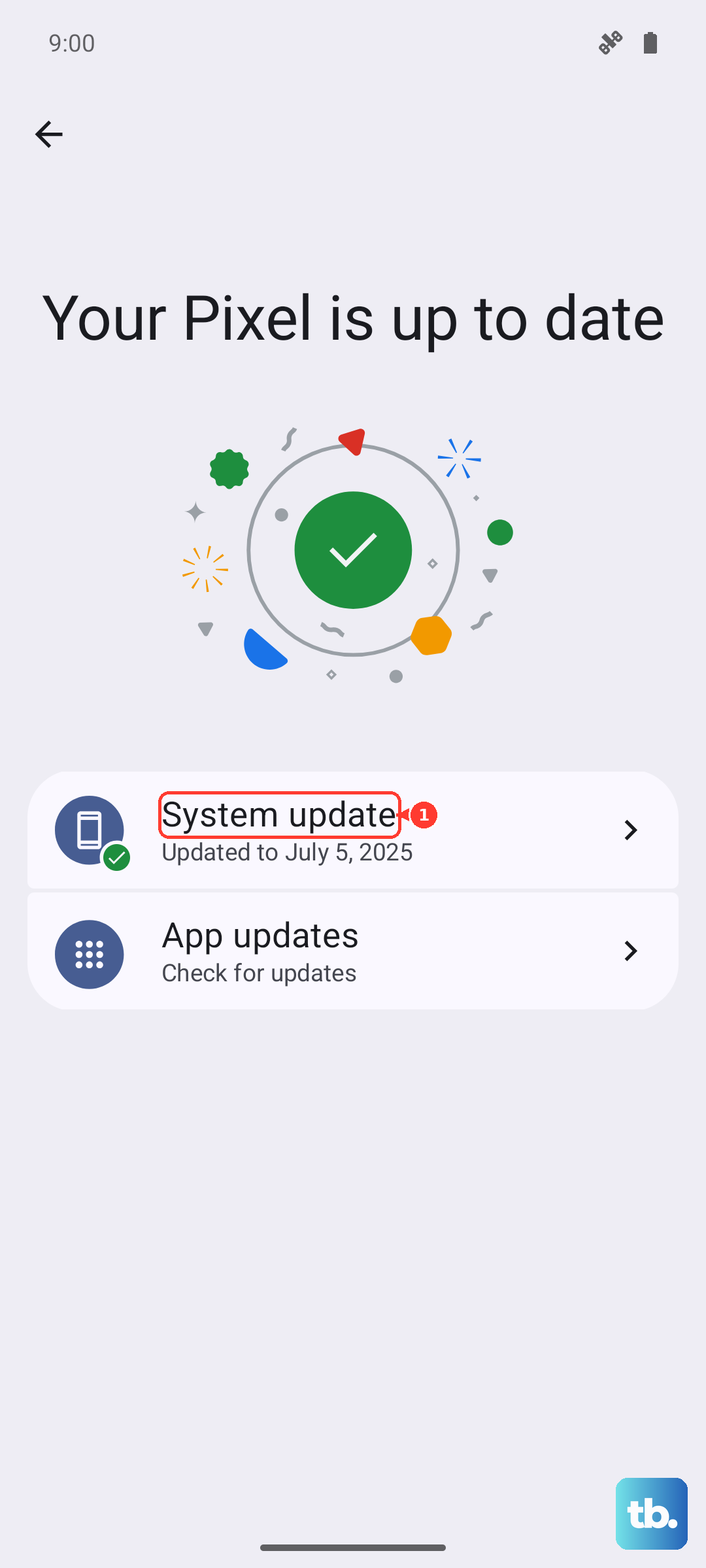
If an update is available, install it. Make sure your phone is connected to Wi-Fi and has at least a 50% charge before you start. A pending update can sometimes cause conflicts with hardware functions.
Clear the Cache for Key Apps
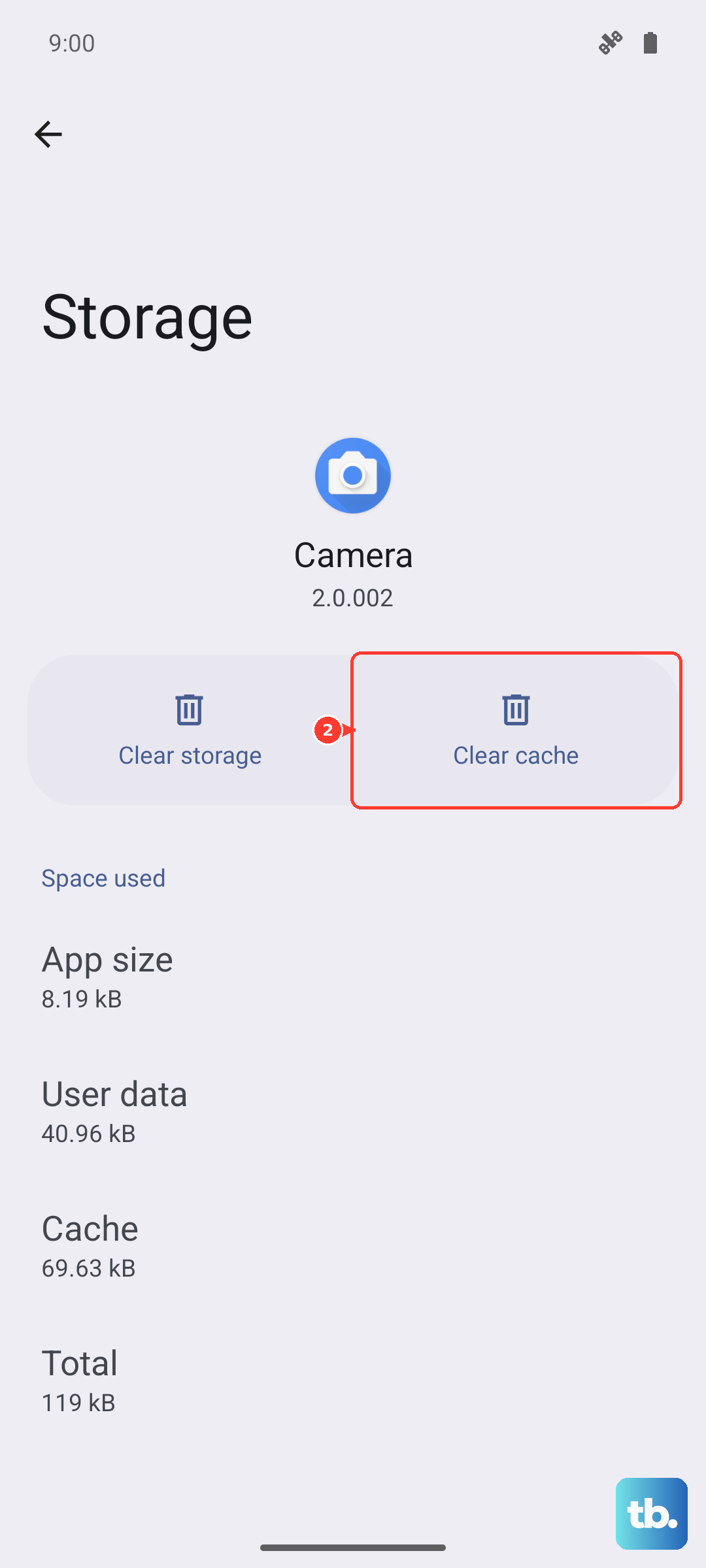
Corrupted cache data in the Phone or Google app can interfere with microphone access. Go to Settings > Apps > See all apps. Find the "Phone" app in the list and tap on it.
Tap on Storage & cache, then tap "Clear cache." Do not tap "Clear storage" or "Clear data," as that will reset the app completely. You can repeat this process for other apps like Google or your dialer app.
Reset All Network Settings
This is a bit deeper but won't delete your personal files. It resets Wi-Fi, mobile data, and Bluetooth connections. Go to Settings > System > Reset options.
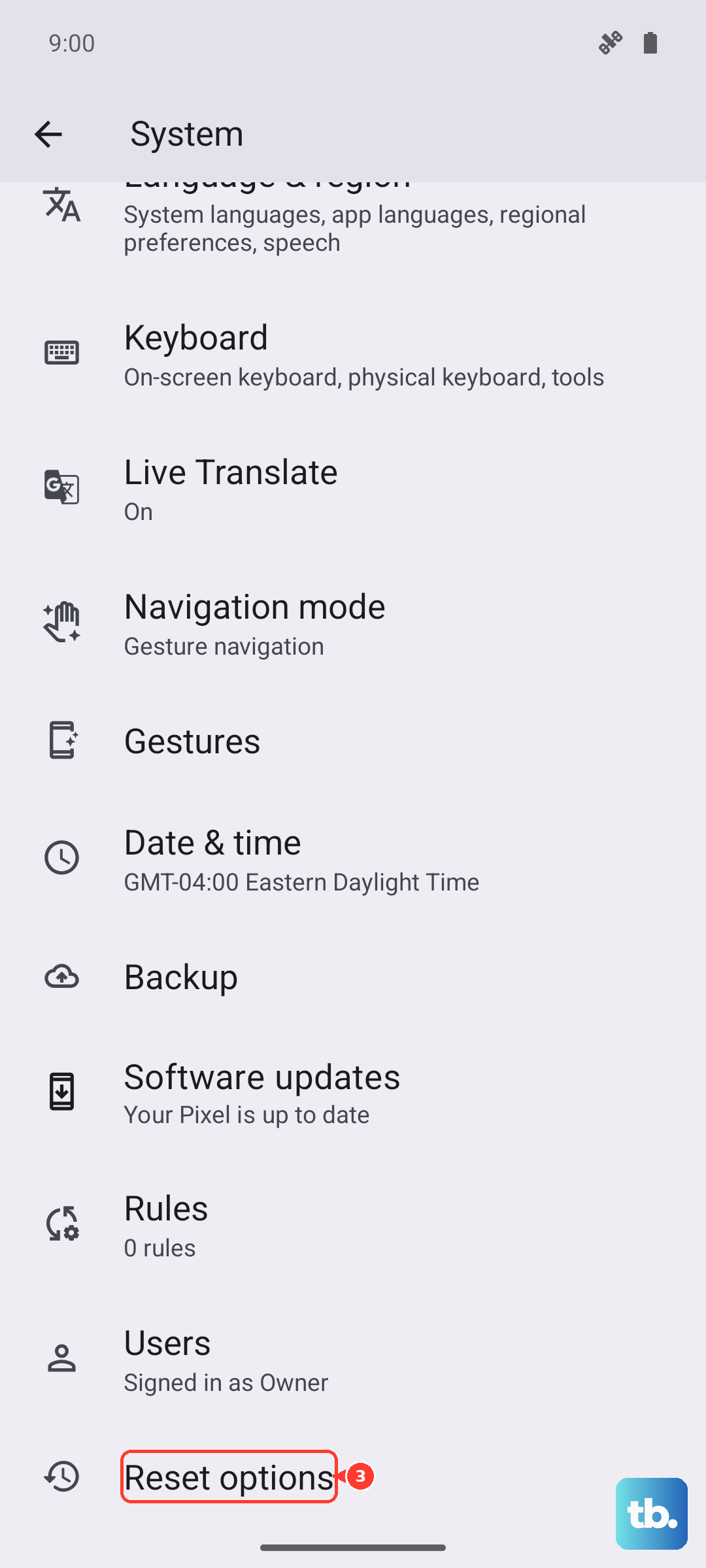
Tap on "Reset Wi-Fi, mobile & Bluetooth." You'll need to re-enter Wi-Fi passwords and re-pair Bluetooth devices afterward, but it can clear up deep-seated connection conflicts that affect call audio.
Perform a Factory Reset
This is your last resort before considering a hardware problem. A factory reset will erase everything on your phone, so you must back up your photos, contacts, and important data first.
Once backed up, go to Settings > System > Reset options > Erase all data (factory reset). Follow the prompts. After the phone restarts, set it up as new and test the microphone immediately before restoring your apps.