If your Motorola Edge 40 is starting to feel sluggish, you're not imagining it. Even a powerful phone running Android 15 can slow down over time as apps pile up and settings get cluttered. The good news is you can almost always get that snappy performance back without any drastic measures.
I'd start with a simple restart. It's the quickest way to clear out temporary glitches and stop any runaway background processes that might be hogging resources.
Just press and hold the Volume Down button and the Power button together for about 10 to 15 seconds. Keep holding until you see the Motorola logo appear, then let go. Your phone will reboot, and you might notice an immediate difference.
Check Your Available Storage
When your phone's storage gets too full, it doesn't have room to work efficiently. Android needs free space for caching and temporary files to keep things running smoothly.
Head to Settings > Storage to see a breakdown of what's using space. Look for large files you no longer need, old downloads, or cached data from apps. Clearing out just a few gigabytes can make a noticeable impact on performance.
Update Your Apps and Android Version
Outdated software is a common culprit for lag. App developers and Motorola release updates that often include performance optimizations and bug fixes specifically for your device.
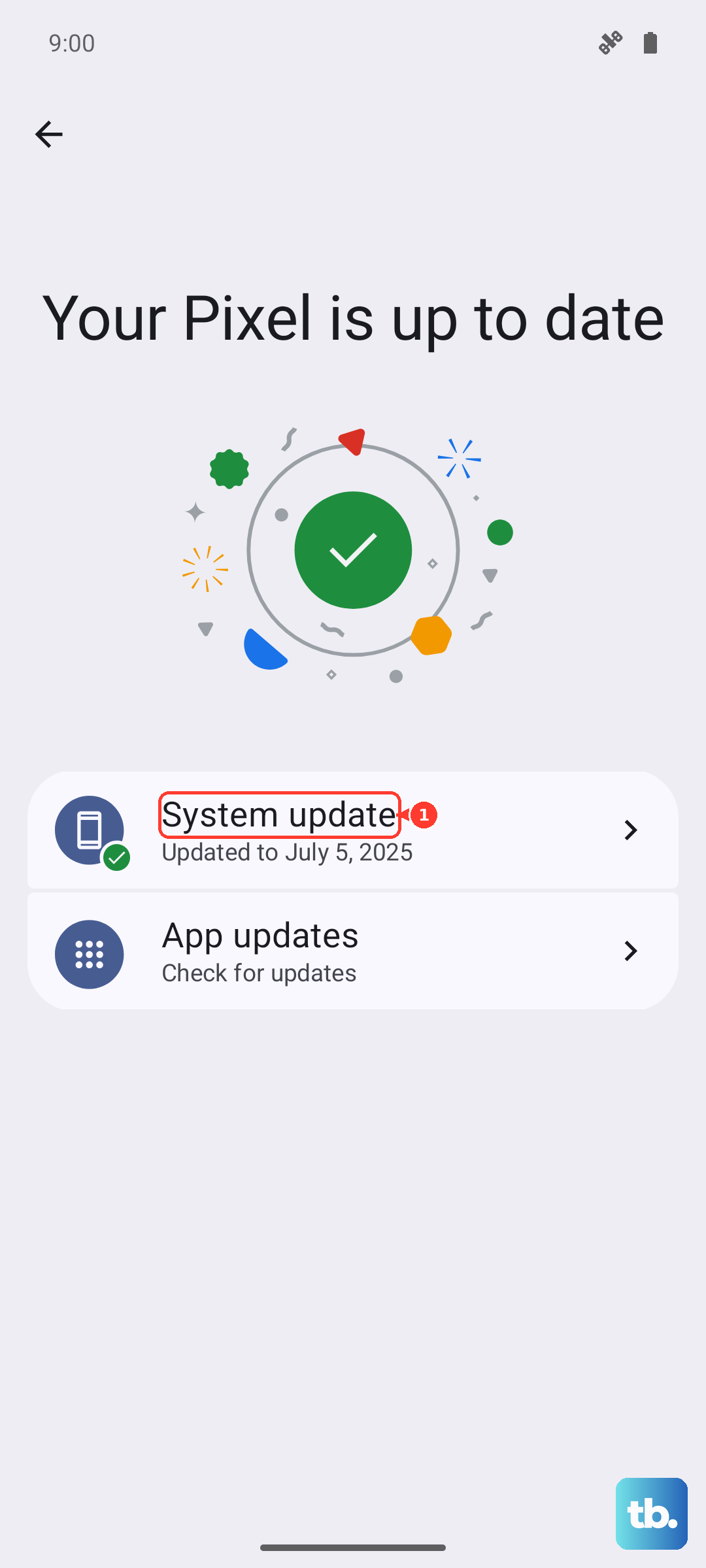
Open the Google Play Store, tap your profile icon, and go to Manage apps & device. Install any pending app updates. Then, check for a system update by going to Settings > System > System update. Keeping everything current is one of the best ways to maintain speed.
Manage Your Background Apps
Too many apps running in the background can drain your Edge 40's processing power and memory. While Android 15 is good at managing this, some apps can be overly aggressive.
Swipe up from the bottom of your screen and hold to enter the recent apps view. Swipe away any apps you're not actively using. For more control, you can go to Settings > Apps > See all apps, select an app, and tap Force stop if it's misbehaving.
Review Your Battery Health and Usage
A declining battery can sometimes lead to performance throttling. While Android doesn't have a built-in percentage like some other systems, you can check for apps that are draining power excessively.
Go to Settings > Battery. Look at the battery usage chart to see which apps are using the most power in the last 24 hours. If you see a rarely-used app high on the list, it might be running poorly in the background and slowing things down.
Clear App Caches
Over time, apps store temporary data, or cache, to load faster. Sometimes this cache can become corrupted or too large, having the opposite effect and slowing the app down.
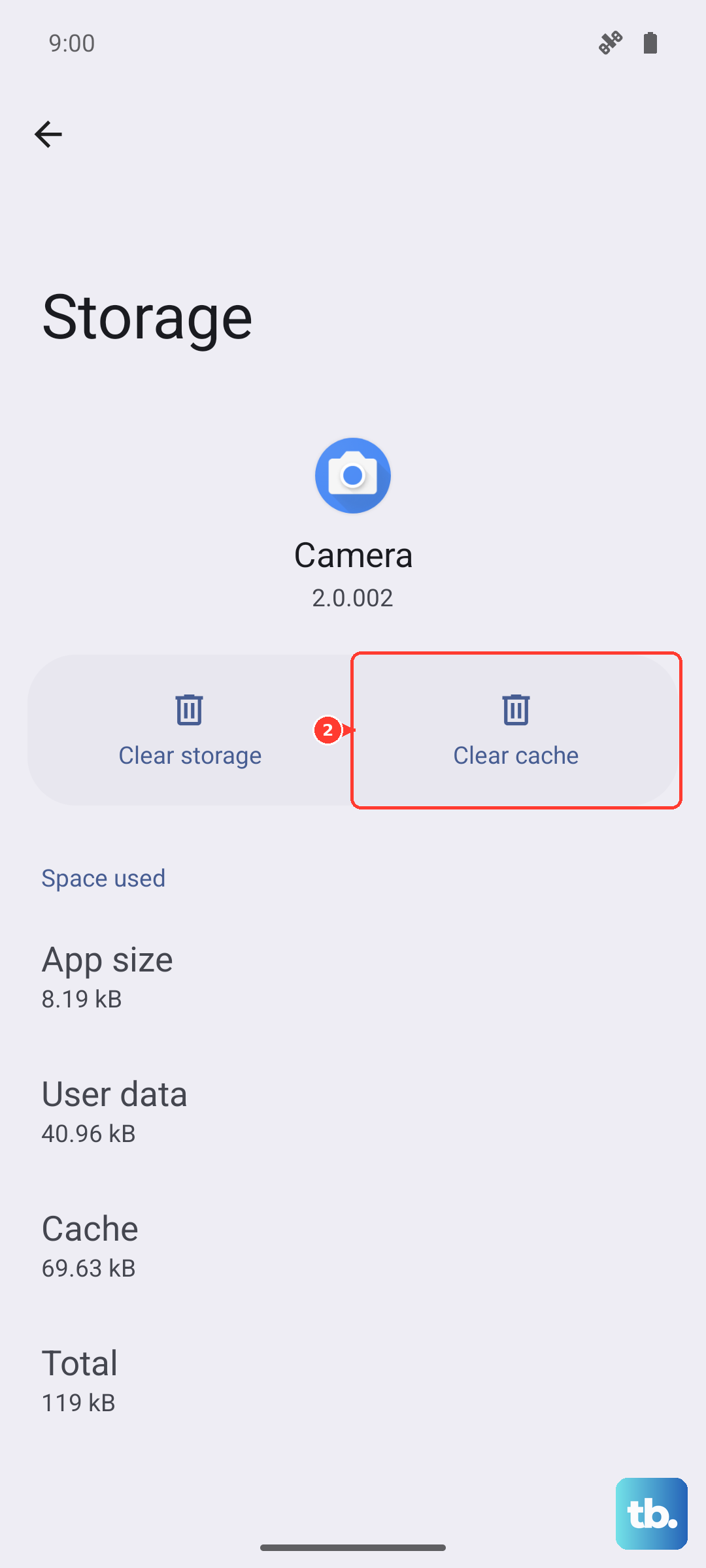
You can clear the cache for individual apps. Go to Settings > Apps > See all apps. Tap on an app, select Storage & cache, and then tap Clear cache. This won't delete your personal data in the app, just the temporary files.
Turn On Adaptive Battery
Your Motorola Edge 40 has a smart feature called Adaptive Battery that learns how you use your apps. It then limits battery usage for apps you don't use often, which can also prevent them from slowing down your phone.
Make sure it's enabled by going to Settings > Battery > Adaptive preferences. Turn on Adaptive Battery. It takes a few days to learn your habits, but it's a great set-it-and-forget-it optimization.
Simplify Your Home Screen
Live wallpapers, widgets that constantly update, and cluttered home screens can use more graphics processing power than you might think. This can make animations feel less smooth.
Try switching to a static wallpaper for a bit to see if it helps. Also, consider removing widgets you don't absolutely need by long-pressing them and tapping Remove. A cleaner home screen is often a faster one.
Reduce Animations
Android uses visual animations for transitions between apps and screens. While they look nice, reducing their speed can make your phone feel more instantaneous.
You'll need to enable developer options first. Go to Settings > About phone and tap Build number seven times. Then, go back to Settings, enter the new System > Developer options menu, and look for the animation scale settings (Window animation scale, Transition animation scale, Animator duration scale). Try setting these to 0.5x instead of 1x.
Perform a Software Reset
If you've tried everything else and your phone is still slow, a reset can work wonders. This resets all your system settings to default without touching your personal data like photos and messages.
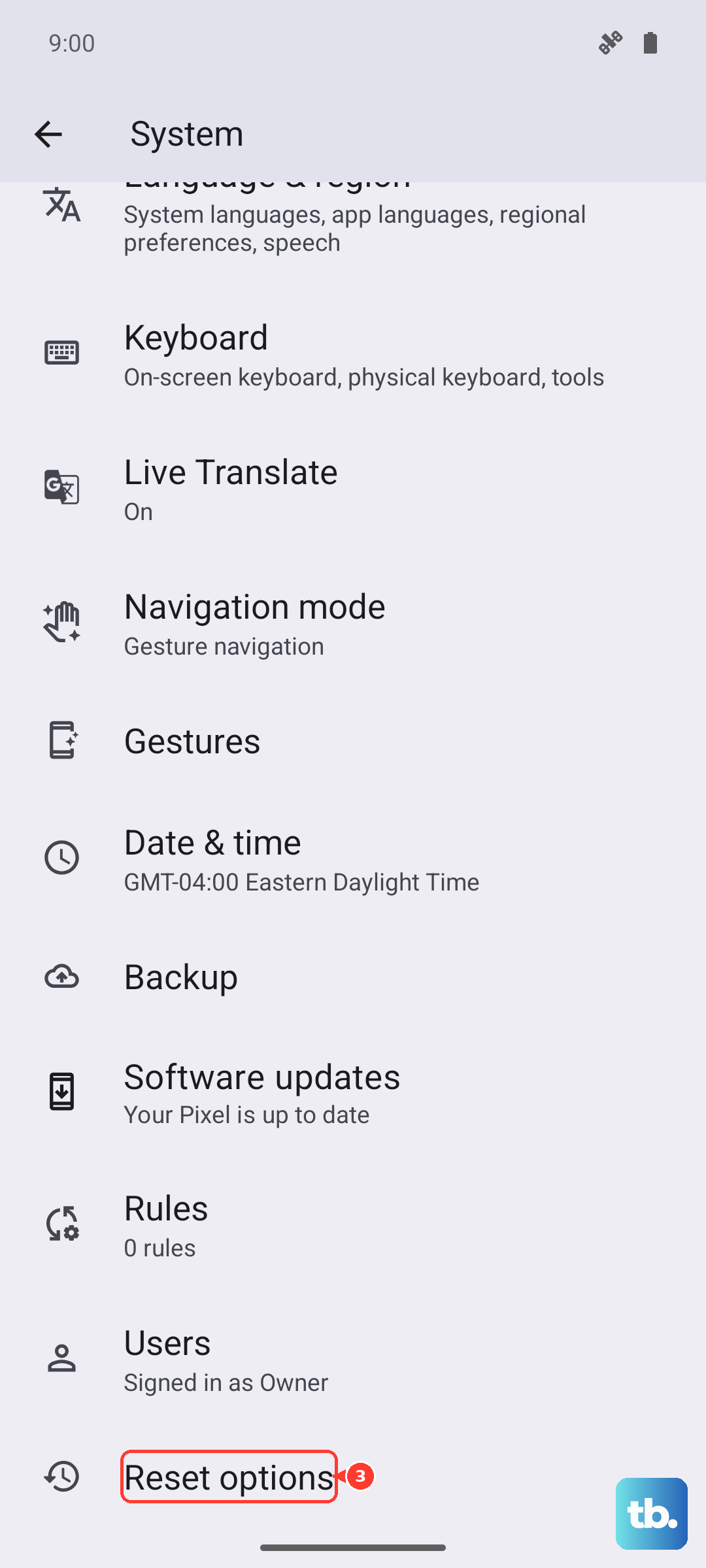
Go to Settings > System > Reset options. Tap Reset all settings. You'll need to re-enter Wi-Fi passwords and reconfigure some preferences, but it can clear out any deep-seated software conflicts causing the lag.