Your Motorola Edge 40 is built around 68W TurboPower charging, so a battery that barely climbs while it is plugged in feels like something has broken. Maybe the percentage crawls upward, the charging icon flickers on and off, or a top-up that used to take minutes now drags on for an hour while the phone grows warm. Before you assume the port or the battery has failed, know that most slow-charging complaints on this phone trace back to the charger, the cable, the outlet, or a normal behavior that only looks like a fault.
One quick clarification on the name. There is no official "Motorola Edge 40 (2026)" handset; the device almost everyone means is the Motorola Edge 40 that launched in 2023 and has been updated through Android 14 to Android 15, its last major version. The steps below apply to that phone on its latest software, and they are ordered from the simplest, safest checks to the official reset and service paths you should only reach for last.
Why your fast charging may not be broken at all
The most common reason an Edge 40 seems to charge slowly is normal TurboPower behavior, not damage. With a Motorola TurboPower charger, the phone charges at its faster rate while the battery is below 78%, then drops to regular speed once the battery reaches 78% or higher. That design protects the cell, but it also means a top-up that started quickly can visibly slow down as you approach a full charge.
Stack a near-full battery on top of a weak power source or heavy use while plugged in, and a perfectly healthy phone can look like its fast charging has quit. Work through the checks in order, and most of the time you will find the cause well before any repair is needed.
Start with the charger and cable that came in the box
A surprising number of "not charging" cases come down to the cable, the adapter, or a case getting in the way. Motorola's guidance is to connect your phone to the charger that came with your phone, or to a charger that is compatible with your phone, since other chargers, including laptops, can charge more slowly. A loose or partially inserted plug can show a charging icon yet not actually charge the phone.
- 1.Remove any case on the device, as this may impede the charger or port connection.
- 2.Plug the USB-C cable into the in-box adapter, or into another charger that is compatible with your phone.
- 3.Ensure the charging cable is not only fitting snug in the device, but also that the cable is fitting snug into the charger.
Go straight to a wall outlet, not a laptop or USB port
Where you plug in matters as much as what you plug in. Motorola advises that you do not use the charger connected to a USB port, because the charging rate is much lower, and it notes again that other chargers, including laptops, can charge more slowly. Insert the TurboPower adapter directly into an electrical outlet so the phone can draw full speed rather than the trickle a computer port provides.
Let a flat battery sit for 15 to 20 minutes first
If the battery drained all the way to empty, the phone may show nothing for a while after you connect it. Motorola says it will take approximately 15 to 20 minutes with the supplied charger to charge the device to a minimal level before it powers on or shows visible progress. Give it that window on a wall outlet before deciding that charging has failed; a deeply discharged battery simply needs time to recover.
The 78 percent rule that mimics a charging fault
If the speed only seems to drop once the battery is fairly full, that is expected. By design, a Motorola TurboPower charger charges your phone at a faster rate when the battery is below 78%, and once the battery is at 78% or higher it charges at regular speed. Slower movement in the last stretch toward 100% is normal protective behavior, not a sign that fast charging is broken.
Put the phone down while it tops up
Using the phone hard while it is plugged in works directly against fast charging. Motorola notes that you can use your phone while charging, but to charge faster, don't use your phone while charging. Gaming, navigation, and video playback all draw power and add heat at the same time the charger is trying to fill the battery, which can cancel out the speed gains you were hoping for. Setting the phone aside until it nears full is the simplest way to let it pull its quickest rate.
Force a reboot with the Power key alone
A stuck charging or power-management state often clears with a forced restart, and this does not erase anything. For the Motorola Edge 40, press and hold the Power key for 10 to 20 seconds to force a reboot; data on your phone will not be deleted. The charger troubleshooter adds that you can perform this while connected to a wall charger.
- 1.Leave the phone connected to a wall charger if you like.
- 2.Press and hold the Power key for 10 to 20 seconds (about 10 seconds is enough to trigger the force reboot).
- 3.Let go when the phone restarts, then watch whether the charging speed recovers.
Use the Power button on its own for this model. Do not use a Volume plus Power combination for the Edge 40's force restart.
Update the software to clear charging bugs
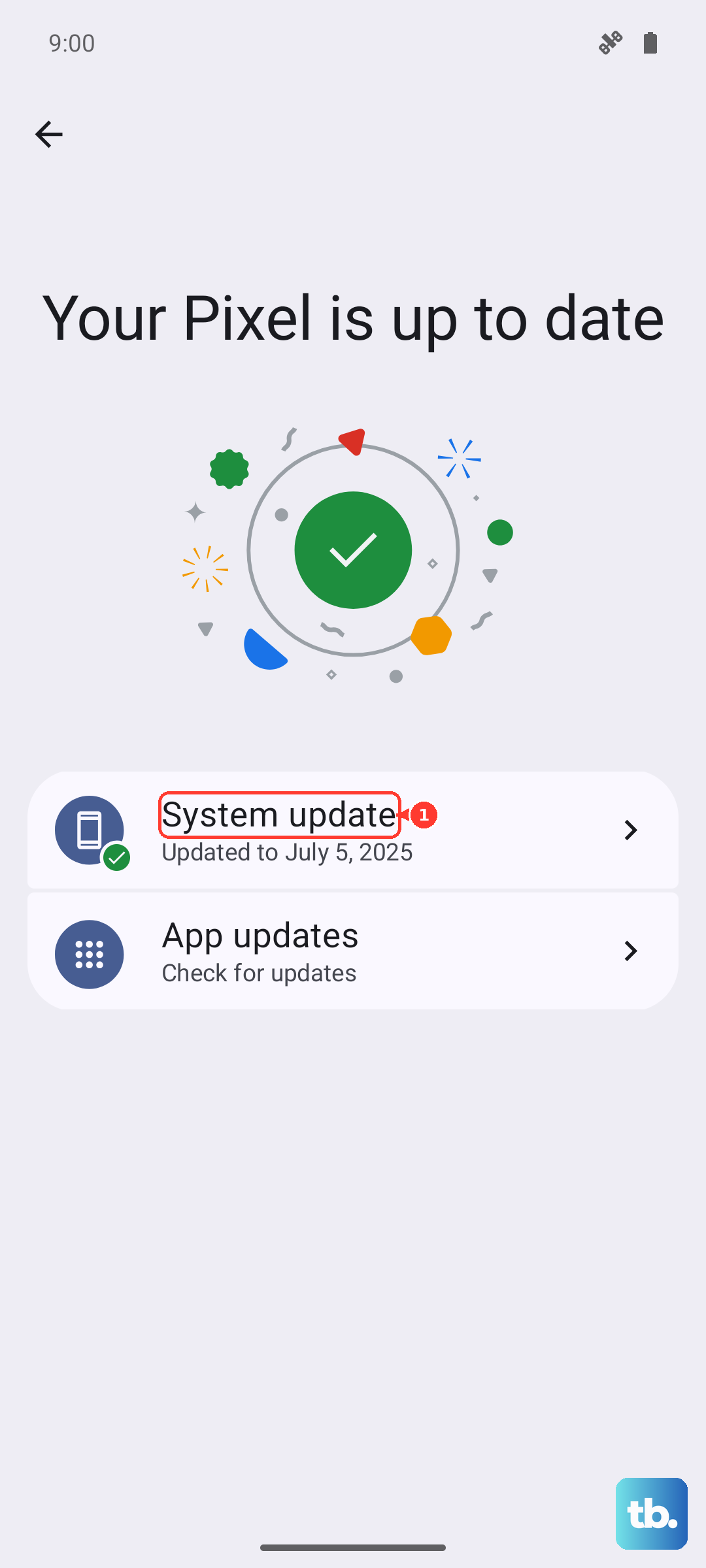
Keeping the phone current can resolve charging and power-management bugs that ship in older builds. On this model, the path is Settings > System > Advanced > System updates, which may appear as Settings > System > System update on newer software; if an update is available, follow the onscreen instructions to install it. You can confirm what you are running under Settings > About phone > Android version.
Reset to factory settings when nothing else sticks
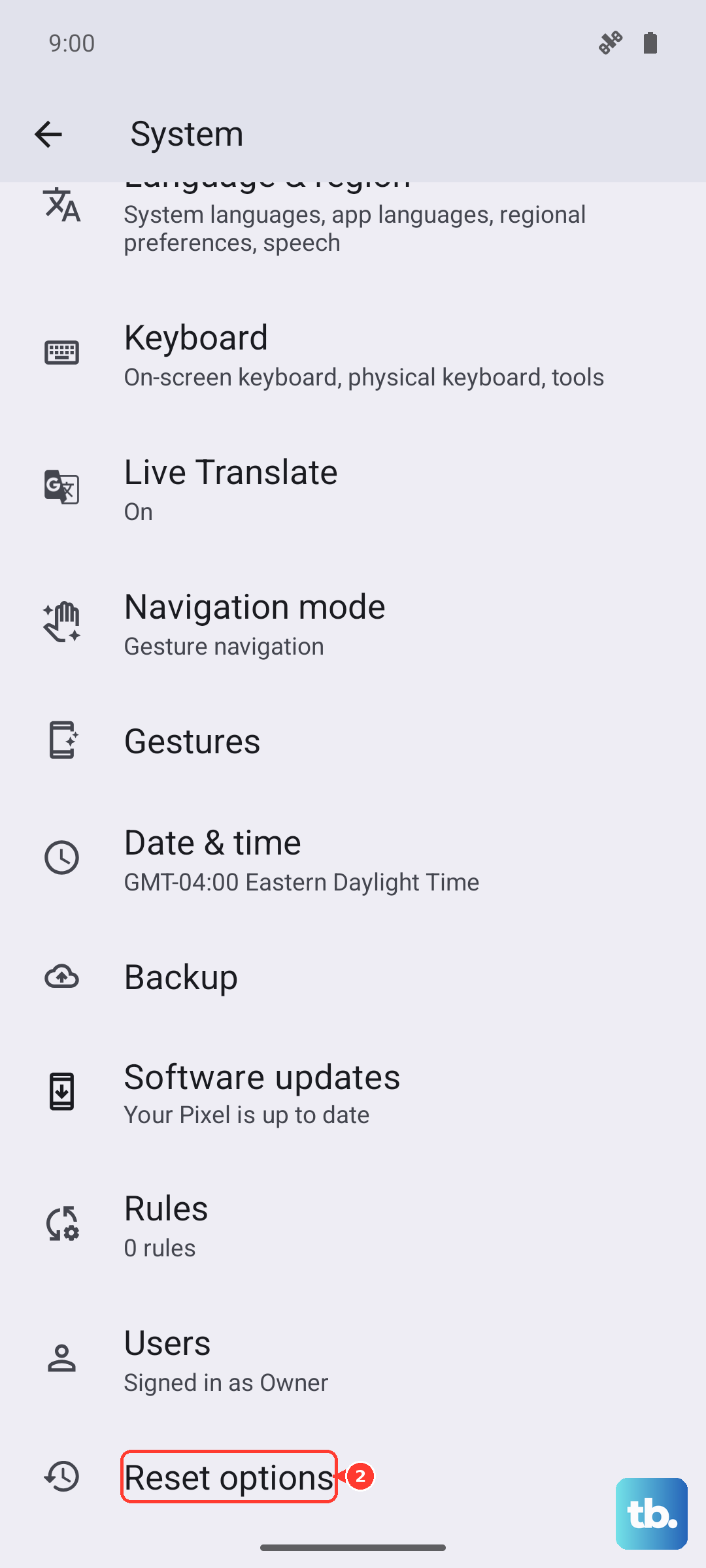
If charging still misbehaves after the charger, cable, outlet, reboot, and update checks, a factory reset is the last software step. The official path is Settings > System, then touch Reset options > Erase all data (factory reset). Be aware that resetting your phone erases all data and brings it back to out-of-the-box condition, so prepare before you tap it.
- 1.Back up your photos and videos to Google Photos or a computer, since everything on the phone will be erased.
- 2.Confirm you know your Google account email and password; Factory Reset Protection requires them to set the phone up again.
- 3.Go to Settings > System, touch Reset options, then Erase all data (factory reset), and follow the prompts.
When to hand it to Motorola for service
If the phone still will not charge after you have tried the supplied charger, a snugly seated cable, a wall outlet, a forced reboot, and a software update, the issue may be hardware. At that point, Motorola directs you to its official self-service troubleshooter or to seek service from an authorized service center through Motorola Support for possible repair. Have your model and a description of what you have already tried ready so the diagnosis goes faster.
Frequently Asked Questions
Is it normal for my Motorola Edge 40 to charge slower near a full battery?
Yes. With a Motorola TurboPower charger, the phone charges at its faster rate while the battery is below 78% and drops to regular speed once the battery reaches 78% or higher. Slower movement in the final stretch toward 100% is expected protective behavior, not a fault.
Does the Motorola Edge 40 support wireless charging?
Yes. Alongside its 68W TurboPower wired charging, the Edge 40 supports 15W wireless charging and low-watt reverse power-sharing. If wireless charging is slow, remember that wired TurboPower through a wall outlet is the fastest way to fill the battery.
Is there really a Motorola Edge 40 (2026)?
No. There is no official Motorola model called the "Motorola Edge 40 (2026)." The actual device is the Motorola Edge 40 that launched in 2023, updated through Android 14 to Android 15 as its last major version, so the guidance here applies to that phone on its latest software.
Will a factory reset delete my data?
Yes. A factory reset erases all data and brings the phone back to out-of-the-box condition, so back up your photos, videos, and important files first. You will also need your Google account details afterward, because Factory Reset Protection requires them to set the phone up again.