
Is your Motorola Edge 40 stuck in one orientation and refusing to flip when you turn it sideways? It's a common hiccup where the auto-rotate feature just stops responding, leaving you stuck in portrait or landscape mode.
The fix is usually simple, often just a setting that got toggled off. Here are the most effective ways to get your screen rotating properly again on your Edge 40.
Toggle the Quick Settings Rotation Lock
The fastest thing to check is the rotation lock in your notification shade. Swipe down from the top of your screen to open the Quick Settings panel. Look for the icon that looks like a phone with arrows circling it; this is the auto-rotate toggle.
If the icon appears grayed out or has a small lock on it, tap it. It should light up or change color, indicating auto-rotate is now active. I've seen this fix the issue more times than I can count, as it's easy to bump this toggle by accident.
Check the Full Auto-Rotate Setting
Sometimes the quick toggle doesn't tell the whole story. For a more definitive check, head into your main settings. Open the Settings app and go to Display.
Look for an option called "Auto-rotate screen" or simply "Rotation." Make sure this switch is turned on. On some Android 15 builds, there might be additional sub-options here, so ensure everything related to screen rotation is enabled.
Restart Your Motorola Edge 40
If the settings look correct but rotation still isn't working, give your phone a fresh start. A simple reboot can clear out temporary software glitches that might be confusing the sensors.
Just press and hold the power button until the power menu appears, then tap "Restart." Wait for the phone to fully boot back up, then test the rotation again in an app like YouTube or your photo gallery.
Perform a Force Restart
When a normal restart doesn't cut it, a force restart can be more effective. This is different from a standard reboot and can clear deeper system caches without deleting your data.
On the Motorola Edge 40, press and hold the Volume Down button and the Power button simultaneously for about 10 to 15 seconds. Keep holding until you see the Motorola logo appear on the screen, then release. Your phone will boot up normally.
Update Your Phone's Software
Software bugs in Android 15 or Motorola's My UX skin can occasionally break sensor functions. Manufacturers often release patches for these kinds of issues.
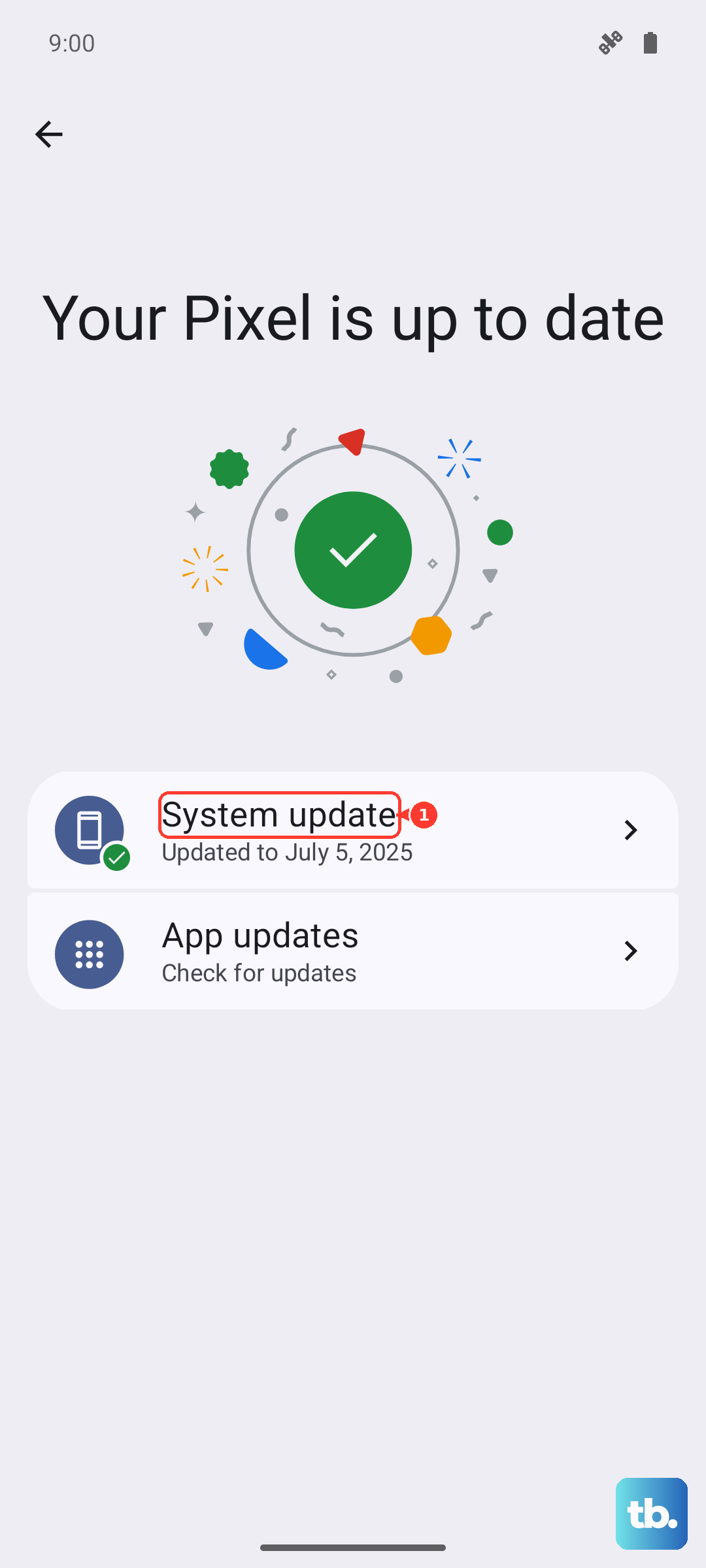
Go to Settings > System > System updates and tap "Check for update." If an update is available, install it. I'd recommend doing this over Wi-Fi and ensuring your battery is above 50% before starting.
Test for App-Specific Problems
Not every app supports rotation. If your screen rotates fine in your camera app but not in your web browser, the problem is likely with that specific application.
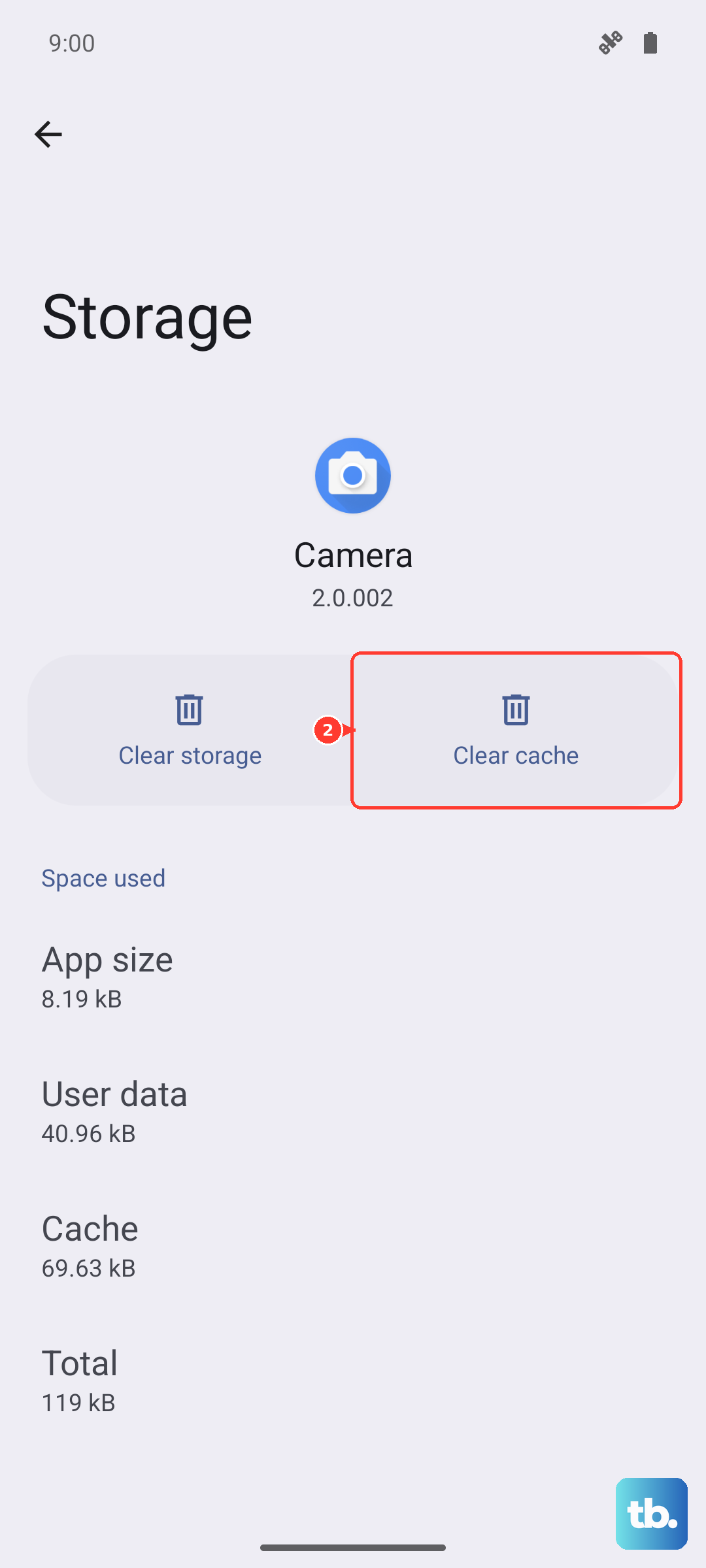
Try clearing the app's cache first. Go to Settings > Apps, select the problematic app, then go to Storage & cache and tap "Clear cache." If that fails, check the app's own settings for a rotation lock option.
Check for Sensor Issues
Auto-rotate depends on the accelerometer and gyroscope. You can test these sensors using a hidden diagnostic menu. Open your phone's dialer and type *#*#2486#*#* (which spells "CIT#" for Customer Interface Test).
This should open Motorola's engineering menu. Look for tests related to the accelerometer, gyroscope, or "G-Sensor." Follow the on-screen instructions to see if the sensor readings change when you physically rotate the phone.
Consider a Hardware Problem
If all software steps fail and the sensor tests show no response, there's a chance of a physical issue. The sensors on the logic board could be damaged, perhaps from a past drop or impact, even if the screen itself looks fine.
Before assuming the worst, try a factory reset as an absolute last resort, remembering to back up your data first. If the problem persists after a reset, it would point toward a hardware fault requiring professional repair.