
When Bluetooth won't connect on your Surface Pro 11, your wireless mouse, headphones, or keyboard suddenly become useless. You might see the device fail to pair, drop the connection constantly, or not even appear in the list. I'd start with the quick fixes below, as they resolve most connection hiccups.
Toggle Bluetooth Off and On
Open the Quick Settings panel by clicking the network, sound, or battery icon in the taskbar. Look for the Bluetooth tile and click it to turn Bluetooth off. Wait about ten seconds, then click it again to turn it back on. This simple refresh of the Bluetooth radio can clear up a lot of temporary pairing glitches.
Restart Your Surface Pro 11
A full restart is often the most effective fix. It completely reloads the Bluetooth driver and the Windows services that manage wireless connections. This is especially helpful if the problem started after your device woke from sleep or after a recent Windows update.
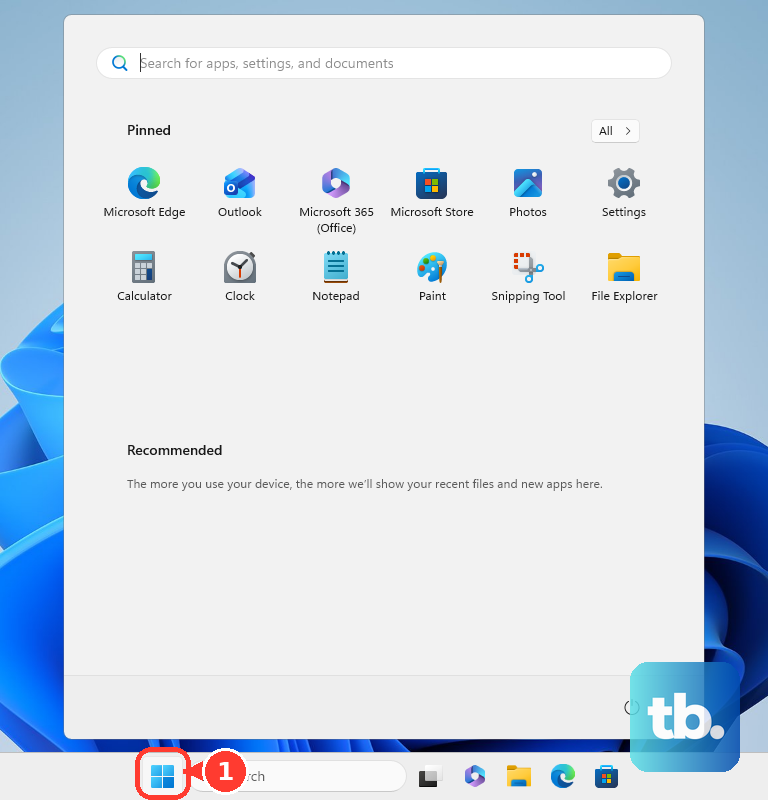
To restart, click the Start button, select the power icon, and choose Restart. Give it a minute to fully boot back up before trying to connect your Bluetooth device again.
Remove and Re-Pair the Device
Go to Settings > Bluetooth & devices. Under "Devices," find the problematic mouse, keyboard, or headphones and click the three-dot menu next to it. Select Remove device and confirm.
Now, put your Bluetooth accessory into pairing mode. The method varies, but it often involves holding a pairing button. Back in Settings, click Add device > Bluetooth and select your device from the list to create a fresh, clean pairing.
Run the Built-in Bluetooth Troubleshooter
Windows includes a tool that can automatically find and fix common configuration problems. Go to Settings > System > Troubleshoot > Other troubleshooters. Find "Bluetooth" in the list and click the Run button next to it.
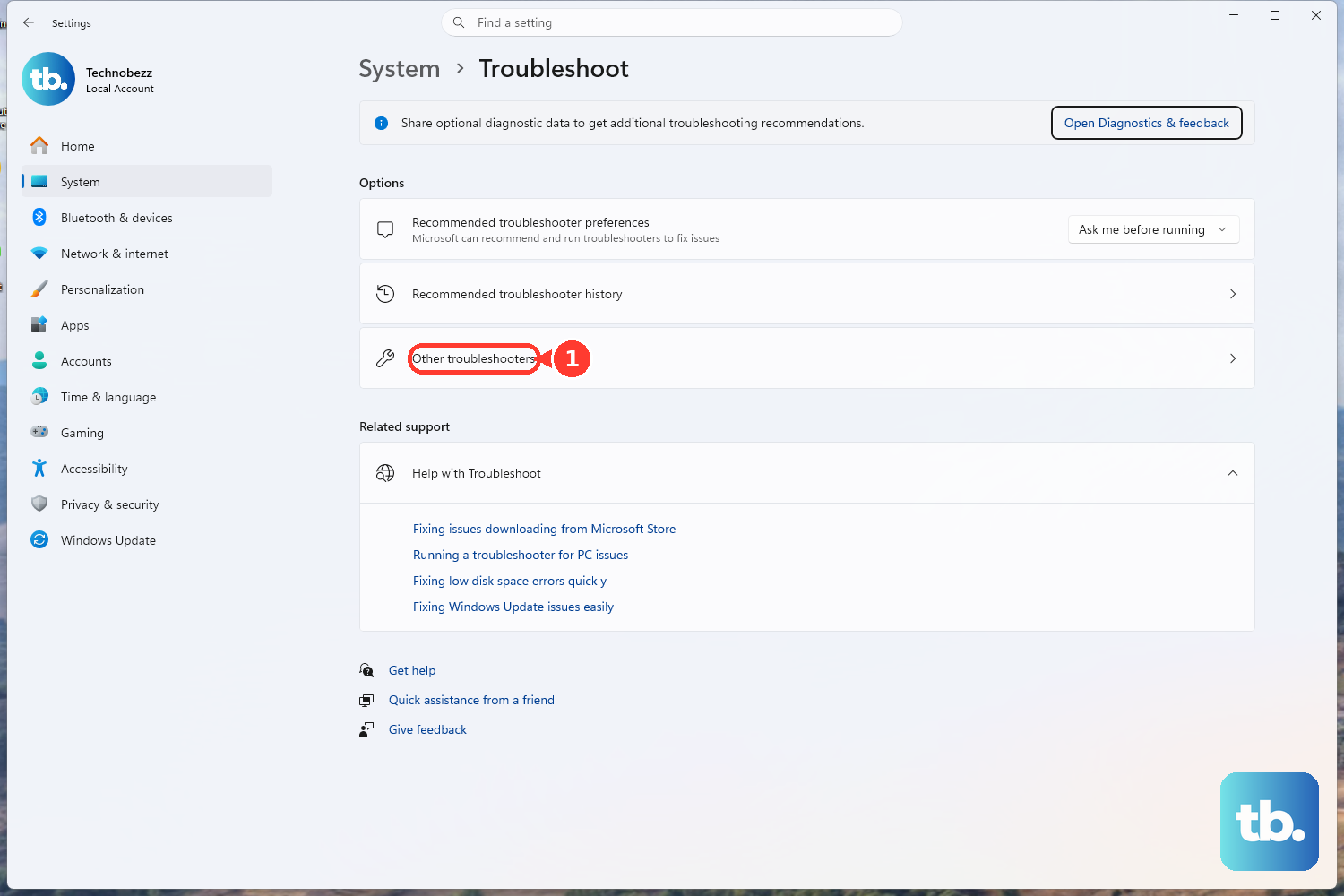
Follow any prompts the troubleshooter provides. It might reset your Bluetooth radio or services, which can get things working again in under a minute.
Update Your Bluetooth Drivers
Outdated or corrupted drivers are a frequent cause of connection problems. Press the Windows key + X and select Device Manager from the menu. Expand the "Bluetooth" section, right-click on your Bluetooth adapter (it might be listed as a Qualcomm or Microsoft device), and select Update driver.
Choose Search automatically for drivers. If Windows finds an update, let it install. For a Surface, you can also check for driver packs through Windows Update or the official Microsoft Surface support site.
Use the Surface Diagnostic Toolkit
Microsoft provides a dedicated tool for diagnosing hardware issues on Surface devices, including problems with wireless radios. You can download the Surface Diagnostic Toolkit from the Microsoft Store. Run the tool and follow the instructions for hardware tests.
It will check the health of your Bluetooth hardware and can sometimes apply fixes automatically. I've found this to be a reliable way to rule out a deeper system issue.
Restart the Bluetooth Support Service
Sometimes the background service that manages Bluetooth stops responding. Press Windows key + R, type services.msc, and press Enter. Scroll down in the Services window until you find Bluetooth Support Service.
Right-click on it and select Restart. Also, double-check that the "Startup type" is set to Automatic. If this service isn't running, Windows won't be able to see or use any Bluetooth devices.
Check for Physical and Wireless Interference
Bluetooth uses the 2.4 GHz radio band, which it shares with Wi-Fi and many other household devices. If your Surface is in a crowded area with lots of wireless signals, try moving it and the Bluetooth device closer together, away from routers or microwaves.
Also, if you're using a USB 3.0 device in a port near the Surface's antennas, it can cause radio interference. Try unplugging any USB hubs or external drives temporarily to see if the Bluetooth connection stabilizes.
Install All Windows Updates
Microsoft regularly releases updates that include fixes for driver and connectivity issues. Go to Settings > Windows Update and click Check for updates. Install any available feature or quality updates.
After the updates install, you'll likely need to restart your Surface. Running the latest version of Windows 11 ensures you have all the known stability patches for your system's hardware.
Reinstall the Bluetooth Adapter
If nothing else has worked, you can try a clean reinstall of the Bluetooth hardware. Open Device Manager again, expand "Bluetooth," right-click your Bluetooth adapter, and select Uninstall device. If a checkbox appears asking to delete the driver software, check it.
Once uninstalled, restart your Surface Pro 11. Windows will automatically detect the missing Bluetooth hardware on startup and reinstall the default drivers. You'll then need to re-pair your devices from scratch.