
When your MacBook Pro 14-inch M5 Pro's battery seems to vanish in a few hours, it can feel like you're tethered to the charger. The good news is, there are several straightforward checks and settings that can often get you back to a full day's work.
Check Battery Health and Cycle Count
Start by clicking the Apple menu > System Settings > Battery. Look for the Battery Health section. If it says "Service Recommended," the battery's capacity has degraded significantly and may need replacement by Apple.
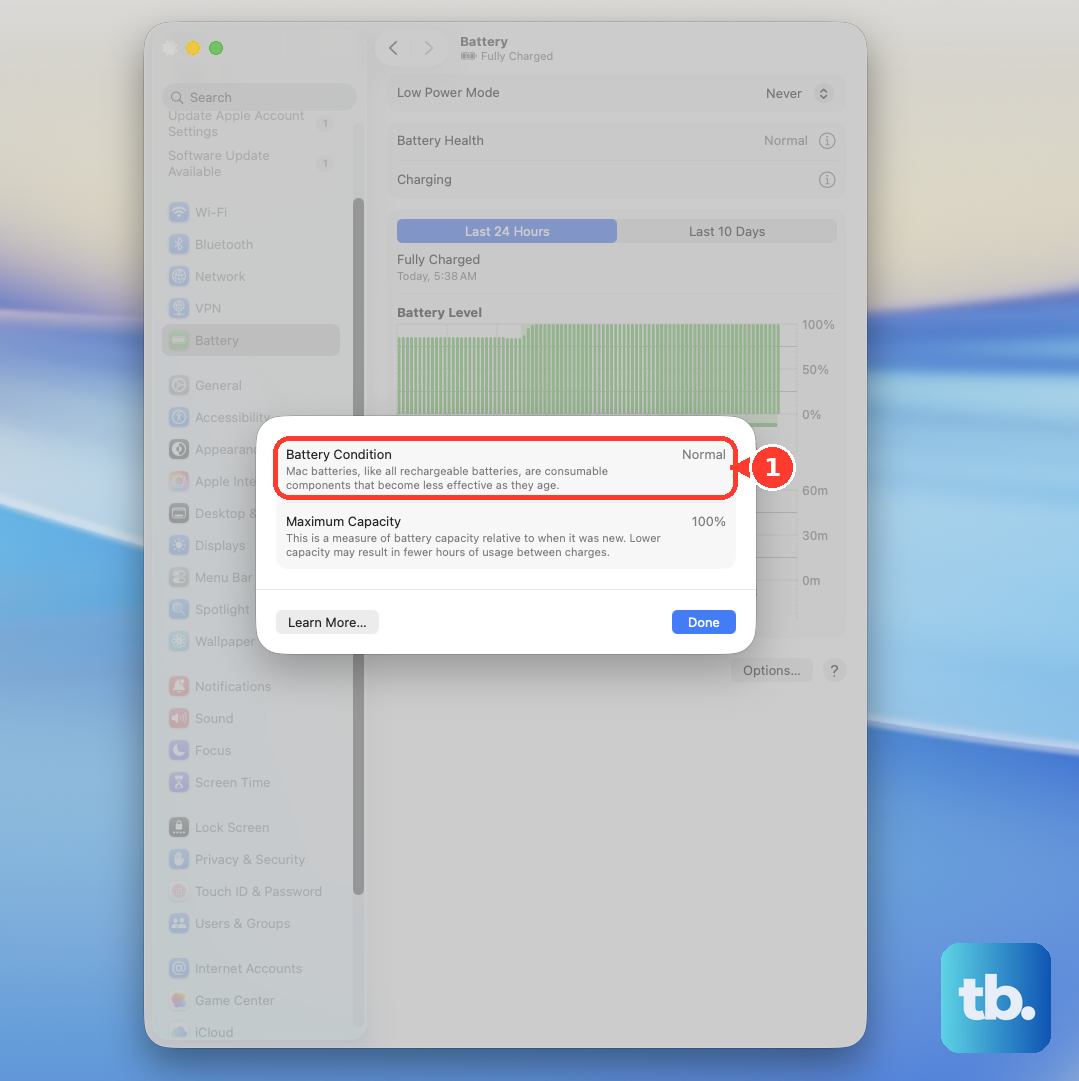
For more detail, go to Apple menu > About This Mac > More Info > System Report > Power. Here you can see the cycle count. The M5 Pro's battery is designed to retain up to 80% of its original capacity at 1000 cycles, so a high count can explain reduced runtime.
Use Activity Monitor to Find Energy Hogs
Open Activity Monitor from your Utilities folder and click the Energy tab. Sort the list by "Energy Impact" to see which apps are using the most power right now.
Pay special attention to the "Preventing Sleep" column. Any app with a "Yes" here is actively keeping your Mac awake, which is a major drain. I'd quit any apps you don't immediately need, especially if they're from the Intel era and not optimized for Apple silicon.
Adjust Display and Keyboard Settings
The mini-LED display is stunning but power-hungry. Lowering the brightness even a little with the keyboard keys makes a big difference. In System Settings > Displays, make sure "Automatically adjust brightness" is on so the ambient sensor can help.
Also, consider shortening the time before the display sleeps. You can find this in System Settings > Lock Screen. Turning off "Hey Siri" in System Settings > Apple Intelligence & Siri can save a bit of background listening power, too.
Manage Background Processes and Login Items
Head to System Settings > General > Login Items & Extensions. Review the list of apps that launch when you start your Mac. Remove anything that doesn't need to run constantly in the background.
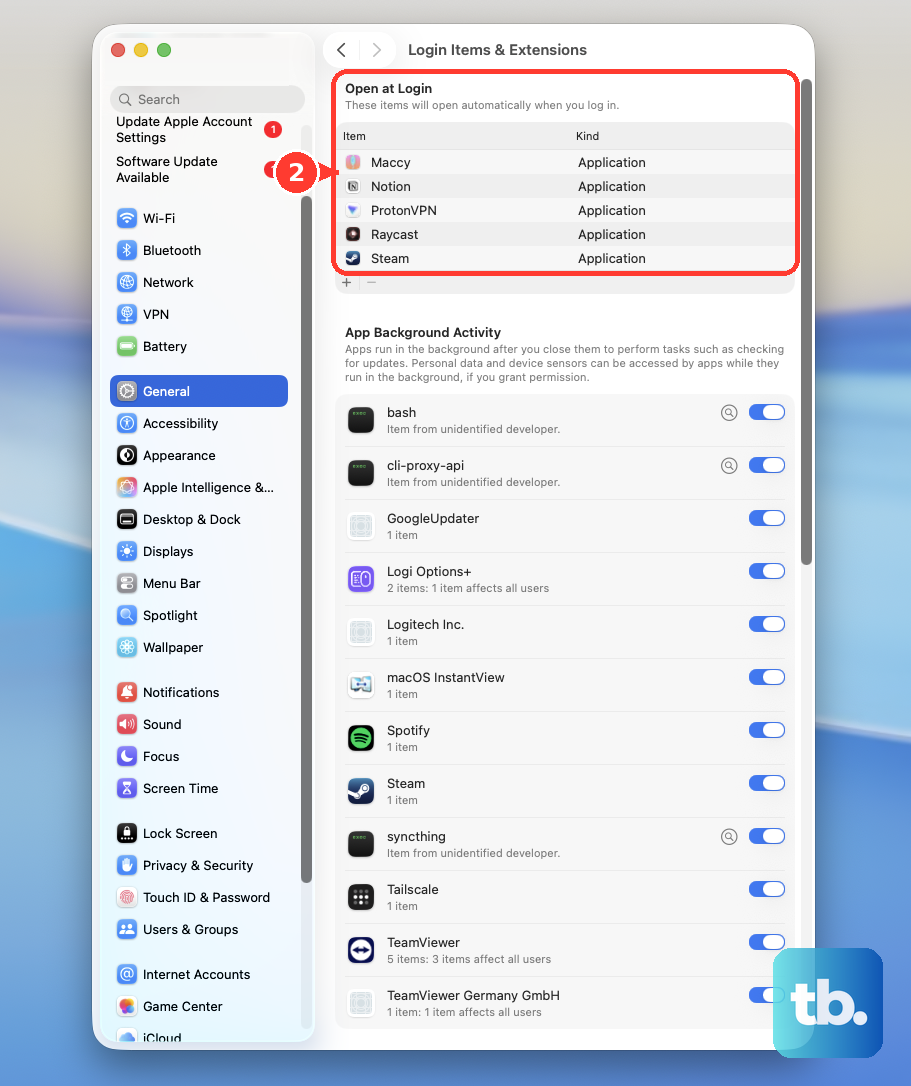
Cloud storage apps, menu bar utilities, and automatic updaters are common culprits. For pro apps, check their preferences for background rendering or auto-save features that might be working when you're not actively using the software.
Enable Low Power Mode
Your M5 Pro MacBook Pro has a built-in Low Power Mode. Go to System Settings > Battery and you can turn it on. You can set it to activate only when on battery power or always.
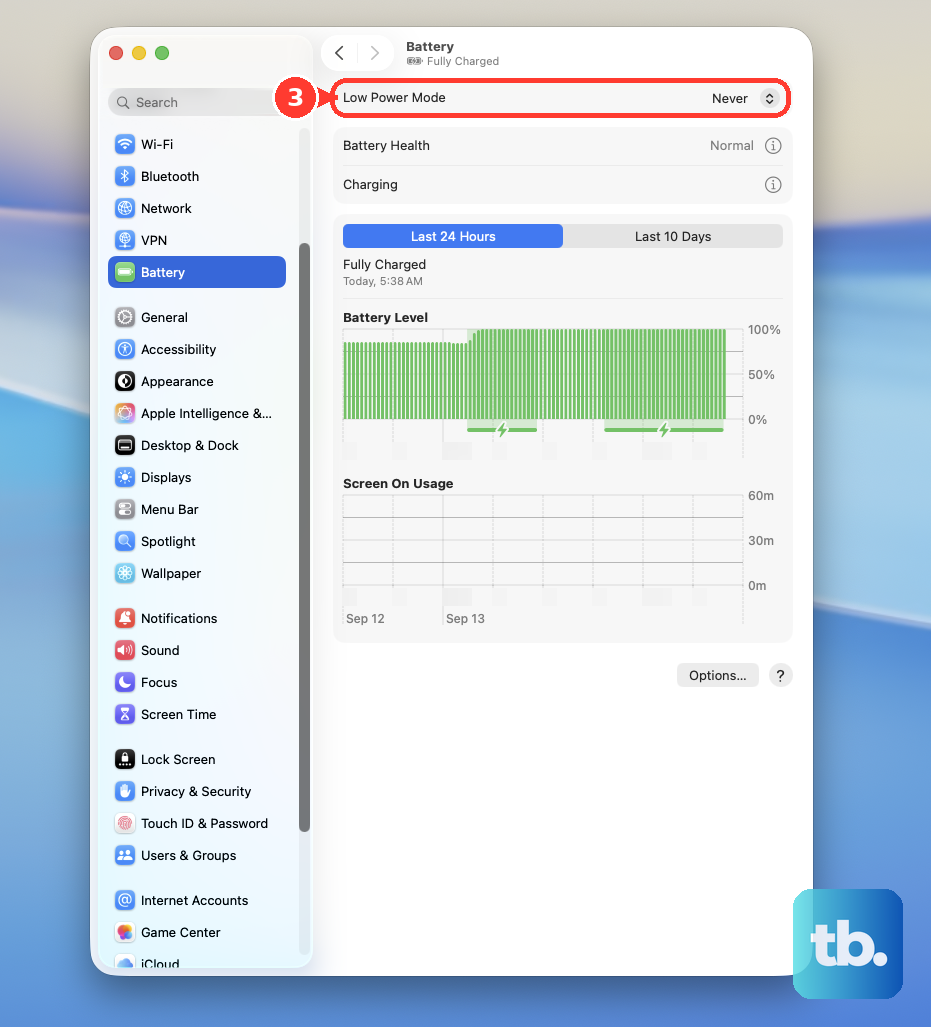
This mode subtly reduces CPU performance, lowers display brightness further, and minimizes background activity. It's perfect for times when you need maximum runtime and aren't doing intensive tasks.
Update to the Latest macOS
Apple is constantly refining power management. Go to System Settings > General > Software Update to install any available updates. macOS updates often include fixes for bugs that cause excessive battery drain.
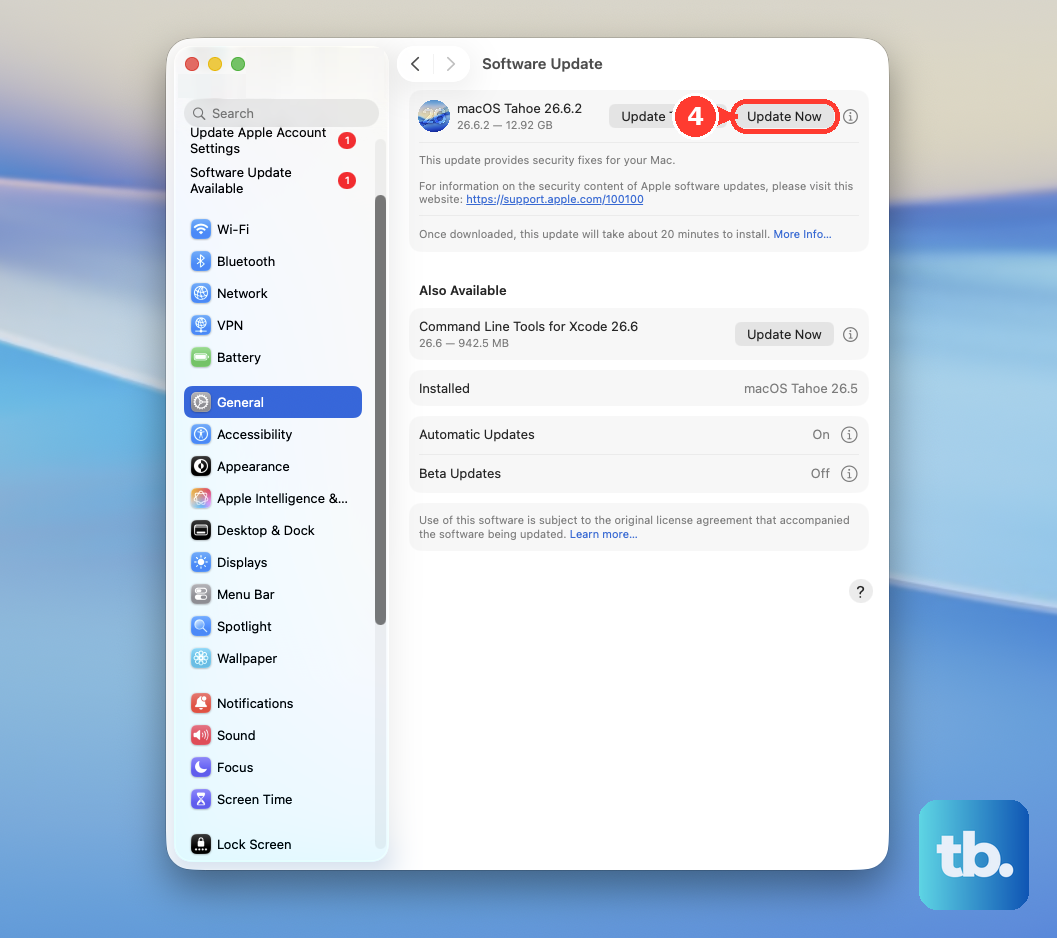
After a major update, it's normal for the system to run warmer and use more battery for a day or two as Spotlight reindexes and caches are rebuilt. Give it a little time to settle down.
Be Mindful of Connected Peripherals and Displays
If you're using your MacBook Pro with its lid closed in clamshell mode, driving multiple external displays, it will use more power. The M5 Pro chip is efficient, but pushing pixels to several high-resolution monitors is demanding work.
Also, some Thunderbolt 5 docks and HDMI 2.1 monitors have had compatibility quirks that can cause higher-than-expected power draw. Try disconnecting peripherals and see if battery life improves, then reconnect them one by one.
Reset Your Mac's Management Controller
If battery percentage readings are jumping around or your Mac isn't sleeping correctly, a management controller reset can help. Since you have an Apple silicon Mac, this is simple.
Just shut down your MacBook Pro. Wait about 30 seconds, then press and hold the power button for a full 10 seconds. Release the button, then press it again normally to turn your Mac back on. This clears any temporary power management glitches.
Run Apple Diagnostics
If you've tried everything and battery life is still poor, it's worth running Apple Diagnostics to check for hardware issues. Shut down your Mac, then turn it on while immediately pressing and holding the power button.
Keep holding until you see the startup options window. Press and hold Command (⌘) + D on your keyboard. This will test the battery and other components and report any problems it finds.