
When your MacBook Neo goes silent, it's a jarring experience, especially on a device designed for both work and media. The good news is that a complete lack of audio is almost always a software or settings hiccup you can fix yourself.
Let's start with the quickest check. Press the volume up key on your keyboard and look at the sound icon in your menu bar. If you see a slash through the speaker, your Mac is muted. Click the icon and drag the slider up.
Also, check the volume within the specific app you're using, whether it's a Mac app or an iPad app running through compatibility mode. Some apps, like media players or video conferencing software, have their own independent volume controls.
Verify the Correct Audio Output
Head to System Settings > Sound > Output. The MacBook Neo can output sound to its built-in speakers, any connected Bluetooth headphones, or external displays via USB-C. Make sure "MacBook Neo Speakers" is selected.
If you recently unplugged headphones or disconnected from a monitor, the system might still be trying to send audio to that now-missing device. Simply selecting the internal speakers here should reroute the sound immediately.
Restart the Core Audio Process
If the output is correct but you still hear nothing, the Core Audio daemon might have stalled. You can restart it without rebooting your entire system. Open the Terminal app from your Utilities folder.
Type the command sudo killall coreaudiod and press Return. You'll be prompted for your administrator password. Type it (you won't see characters as you type) and press Return again. The audio should cut out and come back within a few seconds.
Perform a Full Restart
For a more thorough refresh, restart your MacBook Neo. Click the Apple menu > Restart. This clears the audio framework from memory and reloads it fresh, which fixes most transient glitches, especially those that occur after waking from sleep.
If the system is unresponsive, you can force a restart. Press and hold the Power button for about 10 seconds until the screen goes black, then release it and press the Power button again normally to turn it back on.
Check for macOS Updates
The MacBook Neo requires macOS 26.3 or later for full compatibility, and audio drivers are frequently updated. Go to System Settings > General > Software Update to check for and install any available updates.
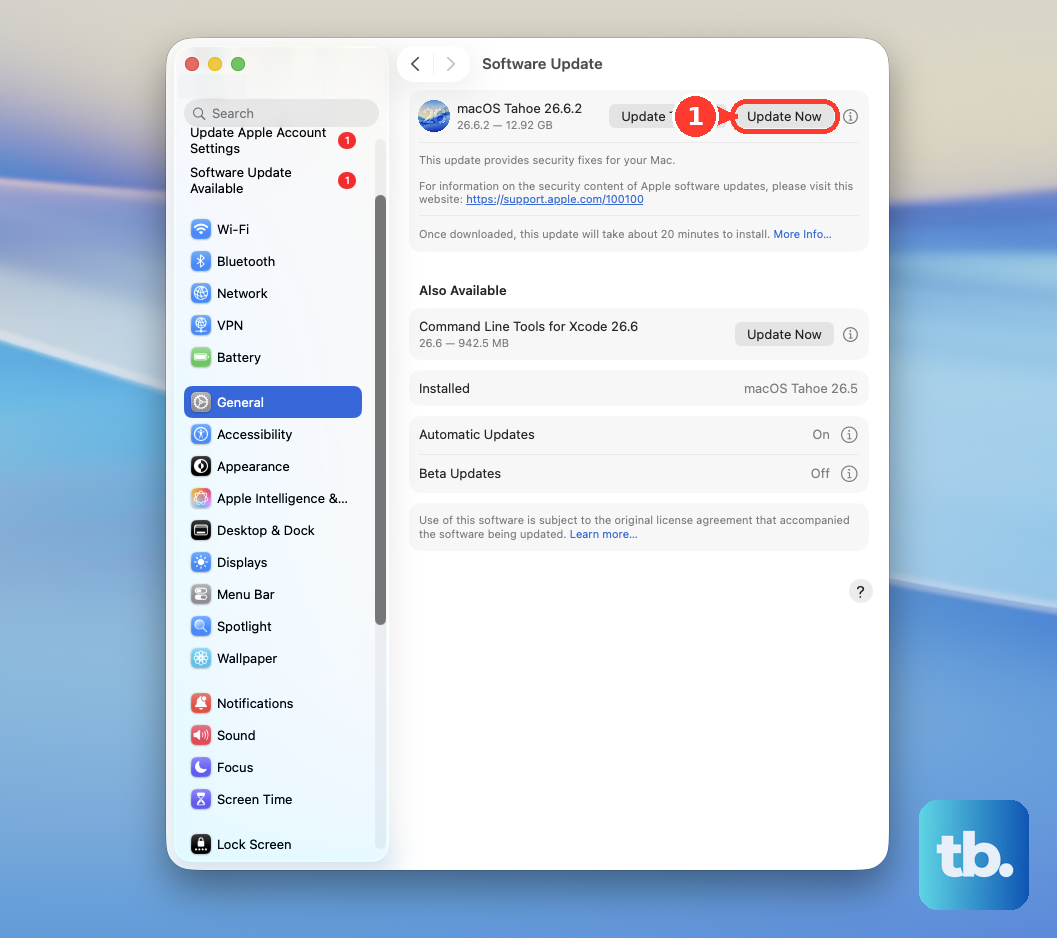
I've seen updates resolve obscure audio conflicts, particularly with the new A18 Pro chip architecture that handles both Mac and iPad app environments. Keeping your system current is one of the best preventative steps.
Disconnect Bluetooth Audio Devices
Sometimes, audio is being correctly played, but to a Bluetooth speaker or headphones that are out of range or turned off. Go to System Settings > Bluetooth.
Look under "My Devices" for any audio accessories like headphones or speakers. Click the "Disconnect" button next to them, or turn Bluetooth off temporarily to see if sound returns to your laptop's speakers.
Run Apple Diagnostics
If you've tried all the software steps and there's still no sound, you can use the built-in diagnostics tool to check for hardware issues. Shut down your MacBook Neo completely.
Turn it on and immediately press and hold the Power button. Keep holding until you see the startup options window, then release. Press Command (⌘) + D on your keyboard to start Apple Diagnostics. Follow the on-screen instructions; it will test the speakers and audio hardware and report any problems it finds.
Review Sound Input Settings
While it seems unrelated, some settings can affect output. Go to System Settings > Sound > Input. Ensure the correct microphone is selected if you're using an app that monitors input, like communication software. Incorrect settings here can sometimes cause system-wide audio routing confusion.
Also, check the "Alert volume" slider in the Sound settings. If it's all the way down, you won't hear system notification sounds, which can make it seem like audio is broken when only media playback is affected.