
When your Mac Studio M4 Max won't connect to WiFi, drops the connection during a heavy render, or shows a connection with no internet, it can bring a pro workflow to a halt. Here's how to get it back online.
Toggle WiFi Off and On
Click the WiFi icon in your menu bar and choose "Turn Wi-Fi Off." Wait about ten seconds, then turn it back on. This simple refresh of the wireless adapter can clear up temporary glitches, especially if the issue just started.
I'd start with this one, as it's the quickest and often works for sudden dropouts.
Restart Your Mac Studio
Go to the Apple menu > Restart. For the Mac Studio, a full restart reloads all network drivers and clears out any system caches that might be interfering. Given the M4 Max's high power consumption under load, a process related to your video editing or 3D app could be affecting network stability.
Forget and Rejoin Your Network
Open System Settings > Wi-Fi. Click the i icon next to the network giving you trouble and select "Forget This Network." Confirm, then rejoin the network by selecting it from the list and entering the password again.
This creates a brand new connection profile, which can resolve authentication errors or corrupted settings that cause repeated disconnects.
Renew Your DHCP Lease
In System Settings > Wi-Fi, click the i next to your connected network. Go to the TCP/IP tab and click "Renew DHCP Lease." This asks your router for a fresh IP address.
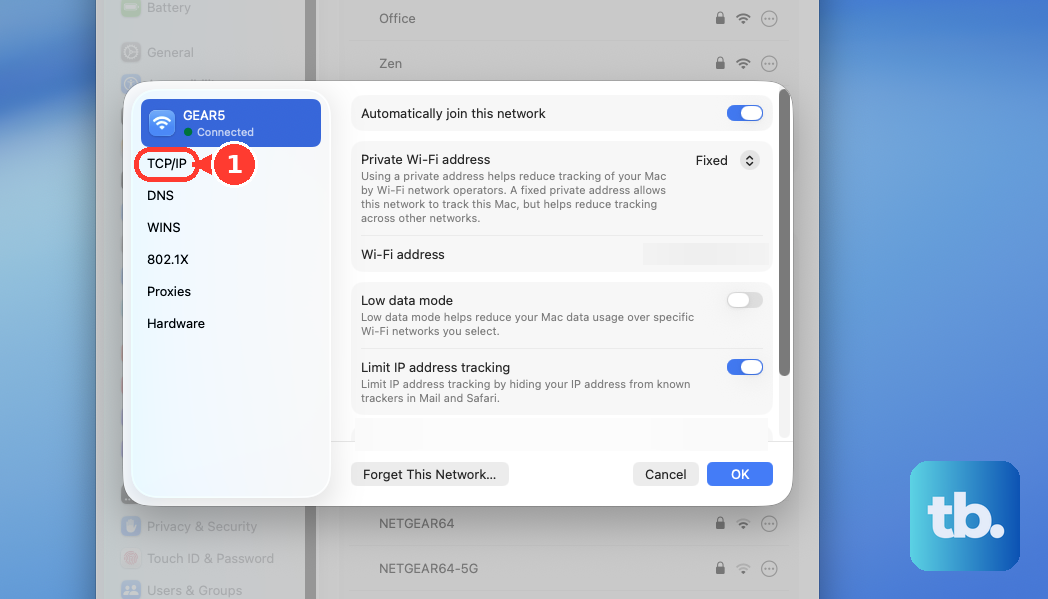
If you're seeing "Connected, No Internet," this step is very likely to help, as it often resolves IP conflicts on the network.
Change Your DNS Servers
Staying in the network details, go to the DNS tab. Remove any existing DNS server addresses listed there. Click the add (+) button and enter 1.1.1.1 (Cloudflare) or 8.8.8.8 (Google).
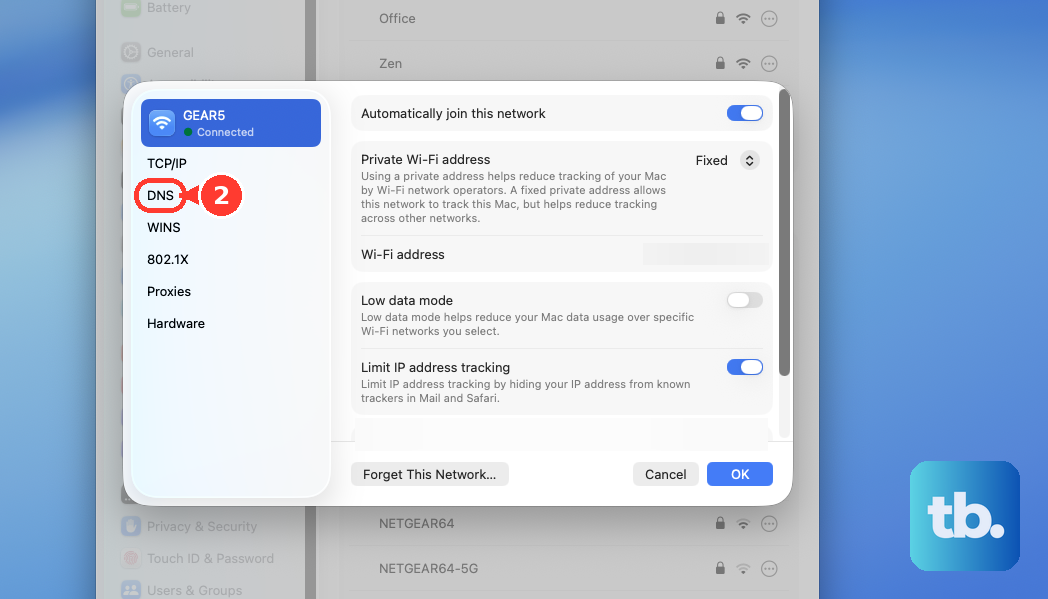
Slow or unresponsive DNS from your internet provider can make websites fail to load, making it seem like WiFi is broken when the connection itself is fine. Using a fast public DNS is a good practice for pro machines.
Create a New Network Location
Go to System Settings > Network. Click the three-dot menu button next to your network services and select Locations > Edit Locations. Click the add (+) button, name it something like "Fresh Start," and click Done.
Select your new location from the menu. This action resets all network interfaces to their default states without deleting any files, which can clear deep-seated configuration conflicts.
Check for macOS Updates
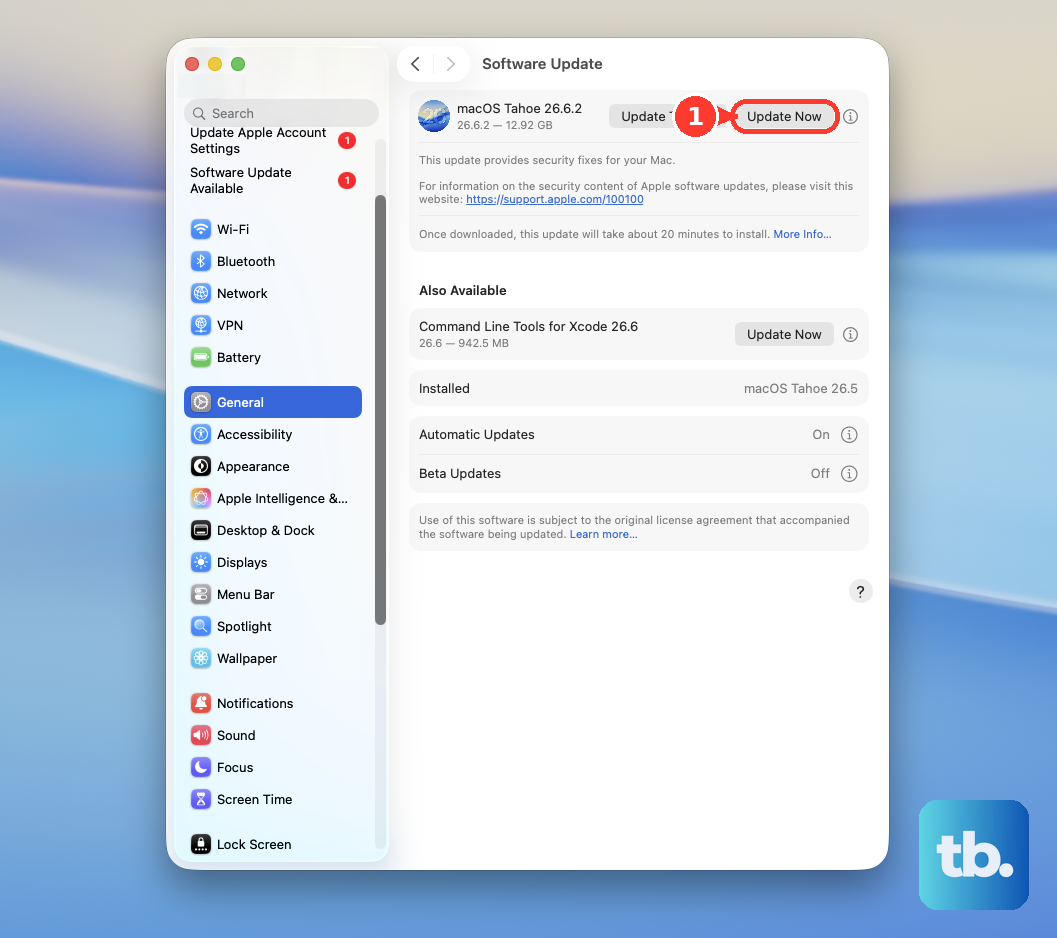
Navigate to System Settings > General > Software Update. Apple frequently includes fixes for wireless connectivity in macOS updates. Ensuring you're on the latest version of macOS Tahoe is crucial, as early builds for a new chipset like the M4 Max can have undiscovered bugs.
Inspect WiFi Signal Details
Hold down the Option key on your keyboard and click the WiFi icon in the menu bar. You'll see a detailed dropdown. Look for the RSSI value, which is your signal strength.
A number closer to 0 is stronger. If you're seeing -70 dBm or lower, your signal is weak. The Mac Studio's metal chassis is great for cooling but can impact signal if it's tucked away. Try moving the Studio or your router, or consider a wired Ethernet connection for maximum stability during critical renders.
Reset Network Configuration Files
If problems persist, you can reset the core network preferences. Open a Finder window, press Command + Shift + G, and type this path: /Library/Preferences/SystemConfiguration/.
Move the files named com.apple.network.identification.plist, com.apple.wifi.message-tracer.plist, NetworkInterfaces.plist, and preferences.plist to your desktop (not Trash, as a safety backup). Restart your Mac Studio.
macOS will generate fresh, default versions of these files when it boots up. You will need to rejoin your WiFi networks afterward.
Perform a Power Cycle
If you're experiencing a complete network lockup, a full power cycle can help. Shut down your Mac Studio from the Apple menu. Once it's off, unplug the power cord from the back of the unit and from the wall outlet.
Wait for a full minute. This allows all components, including the networking hardware, to fully discharge. Plug everything back in and turn the Mac Studio on. This is different from a restart and can clear hardware-level states.