
When Bluetooth stops working on your Mac Studio M4 Max, your entire pro workflow can grind to a halt. Your wireless keyboard, mouse, AirPods, and audio interface all rely on that connection. Whether a device won't pair or connections are dropping during a render, these steps will get you back on track.
Toggle Bluetooth Off and On
Start with the simplest fix. Click the Bluetooth icon in your menu bar and choose "Turn Bluetooth Off." Wait about ten seconds, then turn it back on. If you don't see the menu bar icon, you can find the toggle in System Settings > Bluetooth.
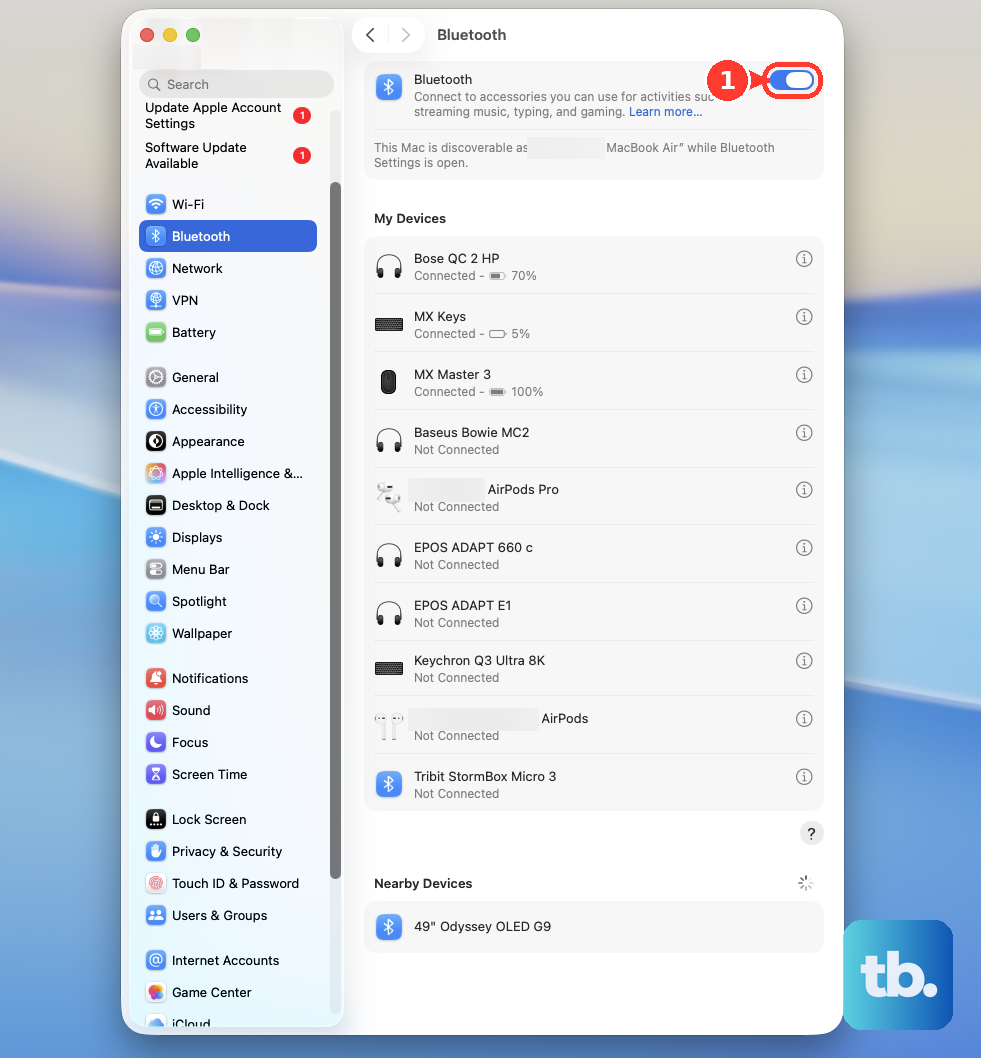
This quick cycle can clear out a temporary glitch in the connection. I'd try this first, especially if the issue just started.
Restart Your Mac Studio
If toggling didn't help, a full restart is your next best move. Click the Apple menu > Restart. This forces the entire Bluetooth stack to reload from scratch, which fixes a huge number of pairing and stability problems.
Given the Mac Studio's power, it's often left running for days or weeks during long projects. A simple restart can clear up accumulated software hiccups.
Remove and Re-Pair the Problem Device
Go to System Settings > Bluetooth. Find the device that won't connect and click the i (info) button next to it. Click Forget This Device and confirm.
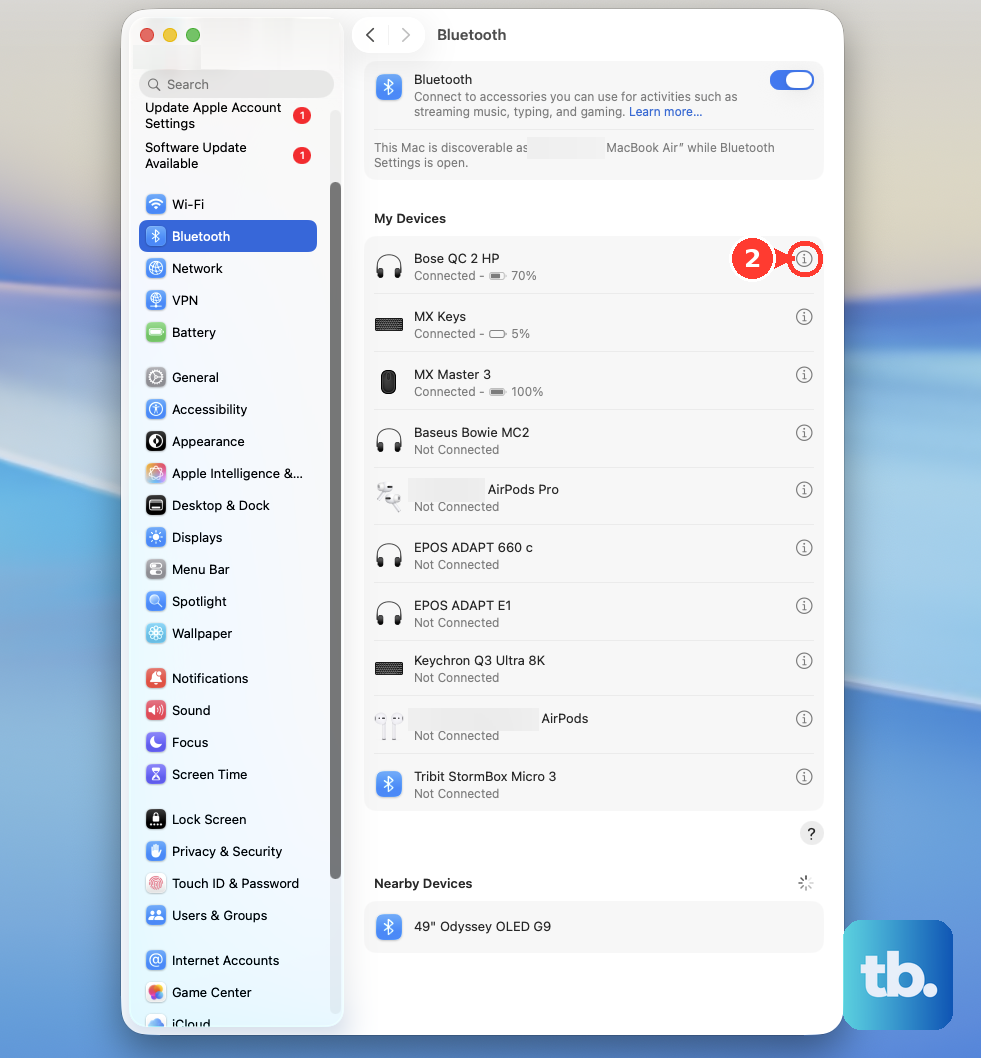
Now, put your accessory back into its discovery or pairing mode. You'll usually need to hold a button on it. Select it from the list on your Mac Studio to pair it fresh. Corrupted pairing data is a very common culprit.
Reset the Bluetooth Module
Your Mac Studio has a hidden debug menu for Bluetooth. Hold down the Shift and Option keys on your keyboard, then click the Bluetooth icon in the menu bar. In the menu that appears, choose Reset the Bluetooth module.
This performs a deeper hardware-level reset than just toggling it off. Your Mac will restart automatically after this action. You won't lose your paired devices, but you may need to reconnect some of them.
Delete Bluetooth Preference Files
Sometimes the system files that store your Bluetooth settings get corrupted. To fix this, open a new Finder window and press Command + Shift + G. Type /Library/Preferences/ and press Go.
In that folder, look for a file named com.apple.Bluetooth.plist. Drag it to your Trash. You'll need to restart your Mac Studio afterward. macOS will generate a brand new, clean preferences file when it boots up.
Be aware, this will remove all your paired devices, so you'll have to re-pair everything from scratch.
Check for Wireless Interference
The Mac Studio's compact design packs a lot of power, and its internal components can sometimes create interference. USB 3.0 hubs and devices are notorious for disrupting the 2.4GHz band that Bluetooth uses.
Try temporarily unplugging any USB 3.0 devices or hubs, especially if they're near the Mac Studio. Also, check for other potential sources like Wi-Fi 6 routers, microwaves, or wireless speakers. Moving your Bluetooth device closer to the Mac Studio can also help.
Update macOS
Apple is constantly refining connectivity with software updates. Go to System Settings > General > Software Update to check for any available updates for macOS 26 Tahoe.
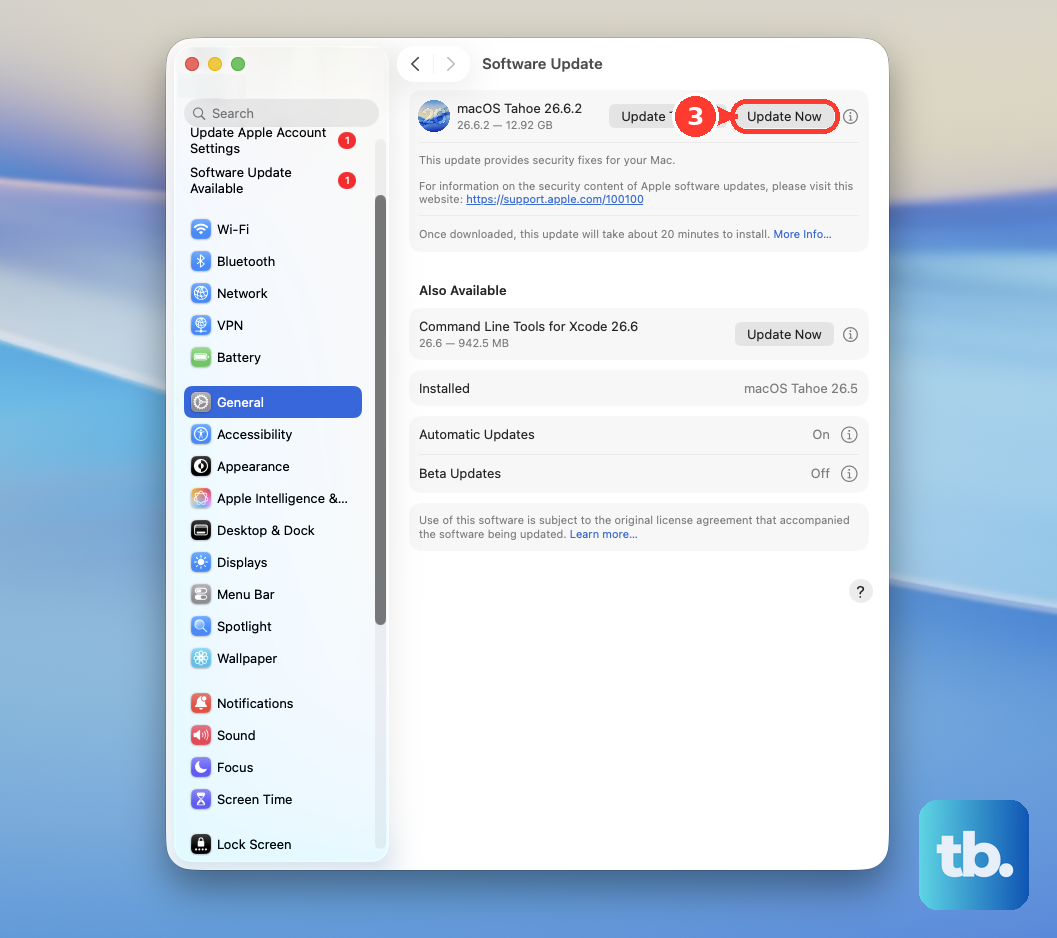
Updates often include driver improvements and fixes for Bluetooth compatibility, particularly for new hardware like the M4 Max chip. Keeping your system current is one of the best preventative measures.
Check Your Accessory's Battery and Power
This seems obvious, but it's easily overlooked during a frustrating troubleshooting session. A wireless mouse or keyboard with a critically low battery will have pairing issues and drop connections.
Check the battery level indicator next to your devices in System Settings > Bluetooth. For accessories that use their own charging dock or dongle, make sure they're powered on and charged.
Boot Into Safe Mode
If you're still stuck, you need to see if a third-party app is causing the conflict. Shut down your Mac Studio. Press and hold the power button on the back until you see "Loading startup options." Select your main drive, then press and hold the Shift key and click "Continue in Safe Mode."
Safe Mode loads only essential Apple software. Test your Bluetooth device here. If it works perfectly, then an app, login item, or kernel extension you installed is likely the problem. You'll need to isolate it by checking recently installed software.