A slow Mac Pro M2 Ultra feels particularly frustrating given the power you paid for. When a machine with this much raw horsepower starts to lag, it's almost always a software or configuration issue, not the hardware itself. Let's get it running like the workstation it's meant to be.
Restart Your Mac Pro
It sounds simple, but it's the most effective first step. If your Mac Pro has been running for weeks, memory leaks and stuck background processes can bog down even the M2 Ultra. Click the Apple menu > Restart to give it a fresh start. For a full force restart, press and hold the power button on top of the case for about 10 seconds until it shuts off, then press it again to turn it back on.
Check Activity Monitor for Resource Hogs
Open Activity Monitor from your Applications > Utilities folder. Click the CPU tab and sort by "% CPU" to see what's consuming processor time. Do the same in the Memory tab. With an M2 Ultra, you have massive resources, but a single runaway process can still cause stutters. If you see an app using an abnormal amount, select it and click the stop (X) button to quit it.
Free Up Startup Disk Space
macOS needs breathing room on your startup drive to manage memory and temporary files efficiently. Go to Apple menu > About This Mac > Storage to see what's using space. I'd start by clearing out old downloads, caches, and local Time Machine snapshots. For a machine like this, aim to keep at least 50-100GB free on your main drive.
Manage Your Login Items
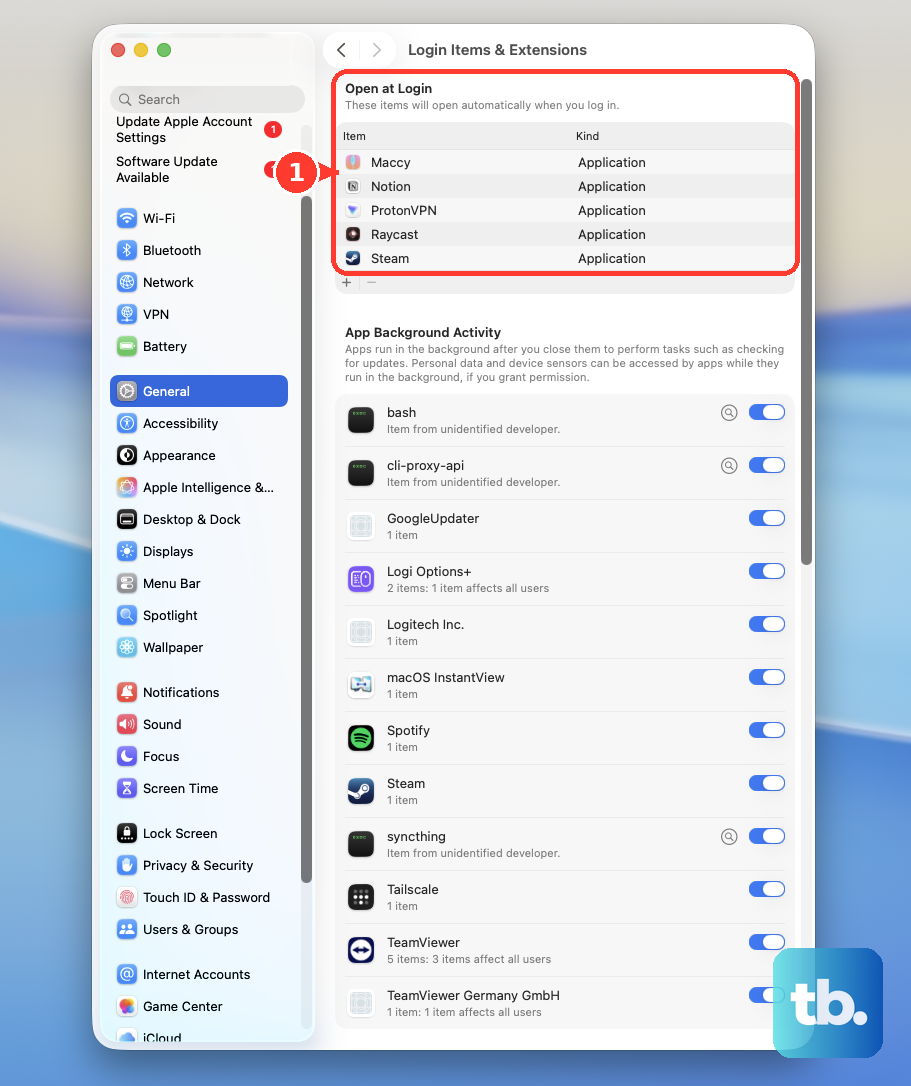
Too many apps launching at startup can slow down your boot and steal resources in the background. Head to System Settings > General > Login Items & Extensions. Review the list under "Open at Login" and remove anything that isn't absolutely essential for your daily workflow. Each one you disable is one less thing competing for your CPU and memory right away.
Install the Latest macOS Updates
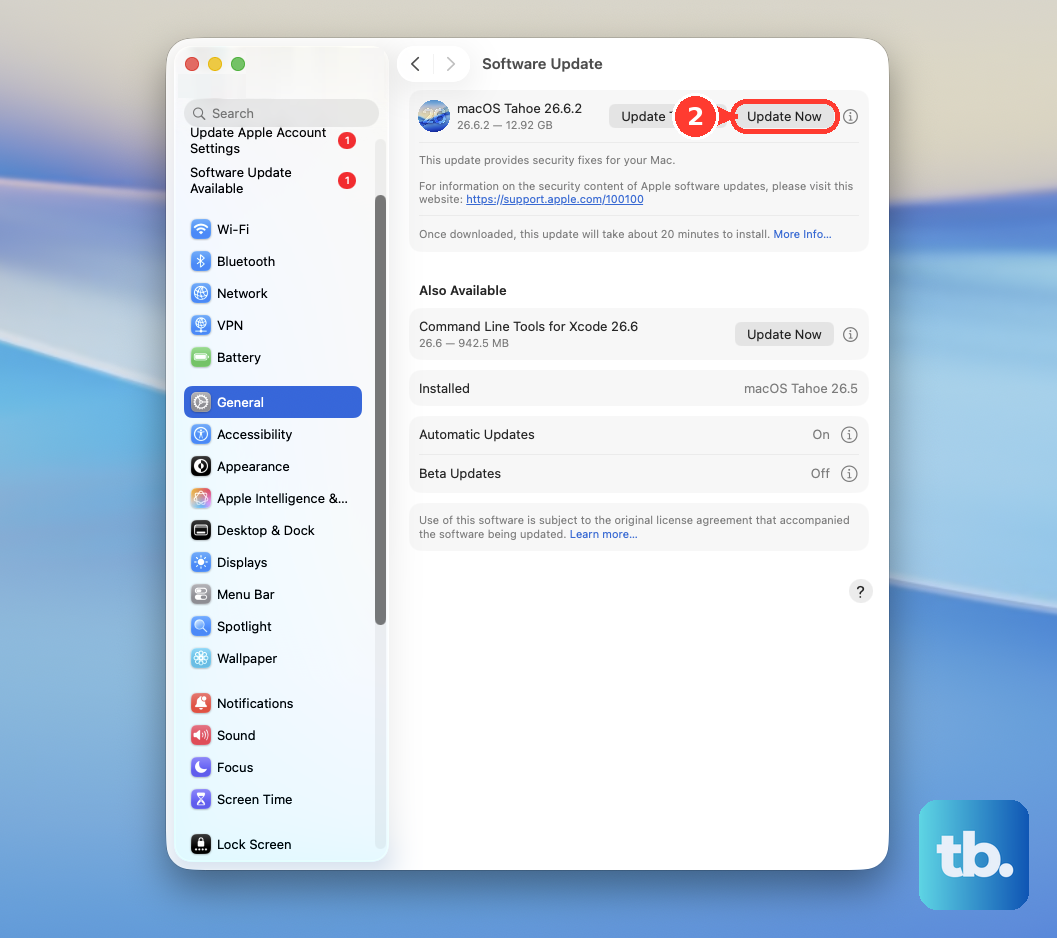
Apple continuously releases performance tweaks and bug fixes. Make sure you're running the most current version of macOS 26 Tahoe. Go to System Settings > General > Software Update and install any available updates. This is especially important after a major OS upgrade, as it can resolve early performance hiccups.
Review PCIe Expansion Cards
This is a Mac Pro-specific tip. If you've installed third-party PCIe cards, they could be a source of slowdowns or instability. The M2 Ultra Mac Pro has limitations on supported card types. Check Apple's support documentation to ensure your cards are compatible. Try removing non-essential cards one by one to see if performance improves.
Reset the NVRAM
While Apple Silicon Macs handle much of this automatically, resetting the NVRAM can still fix settings related to display resolution, startup disk selection, and kernel panics that might cause slowness. Shut down your Mac Pro, then turn it on and immediately press and hold the power button on top until you see the startup options window. Release the button, then click Options and continue to boot.
Run Apple Diagnostics
To rule out a hardware issue, you can run Apple Diagnostics. Shut down your Mac Pro, then turn it on and immediately press and hold the power button. Keep holding until you see the startup options window, then press and hold Command (⌘) + D. This will test your hardware and report any problems.
Check for Spotlight Indexing
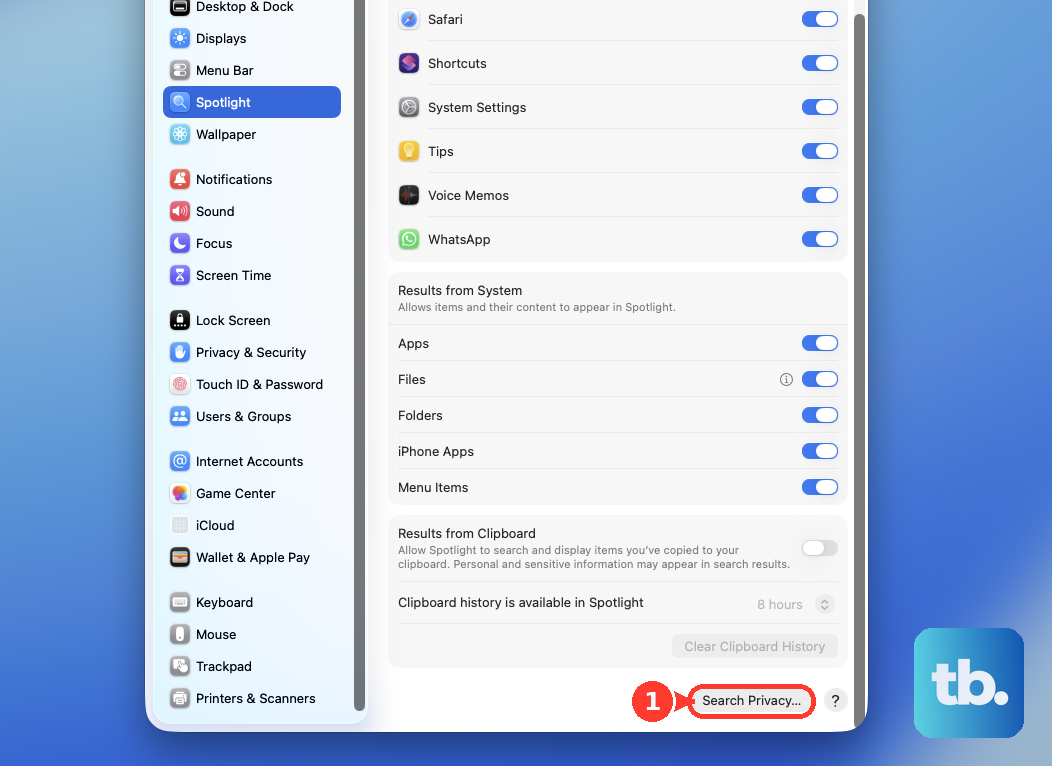
After a major update or adding a new drive, Spotlight will re-index your files, which is a CPU-intensive task. You'll see "mds" or "mdworker" processes in Activity Monitor. It's best to let this finish, but if you need to pause it, you can add large volumes to the privacy list in System Settings > Spotlight > Privacy temporarily.
Optimize Your Workflow and Displays
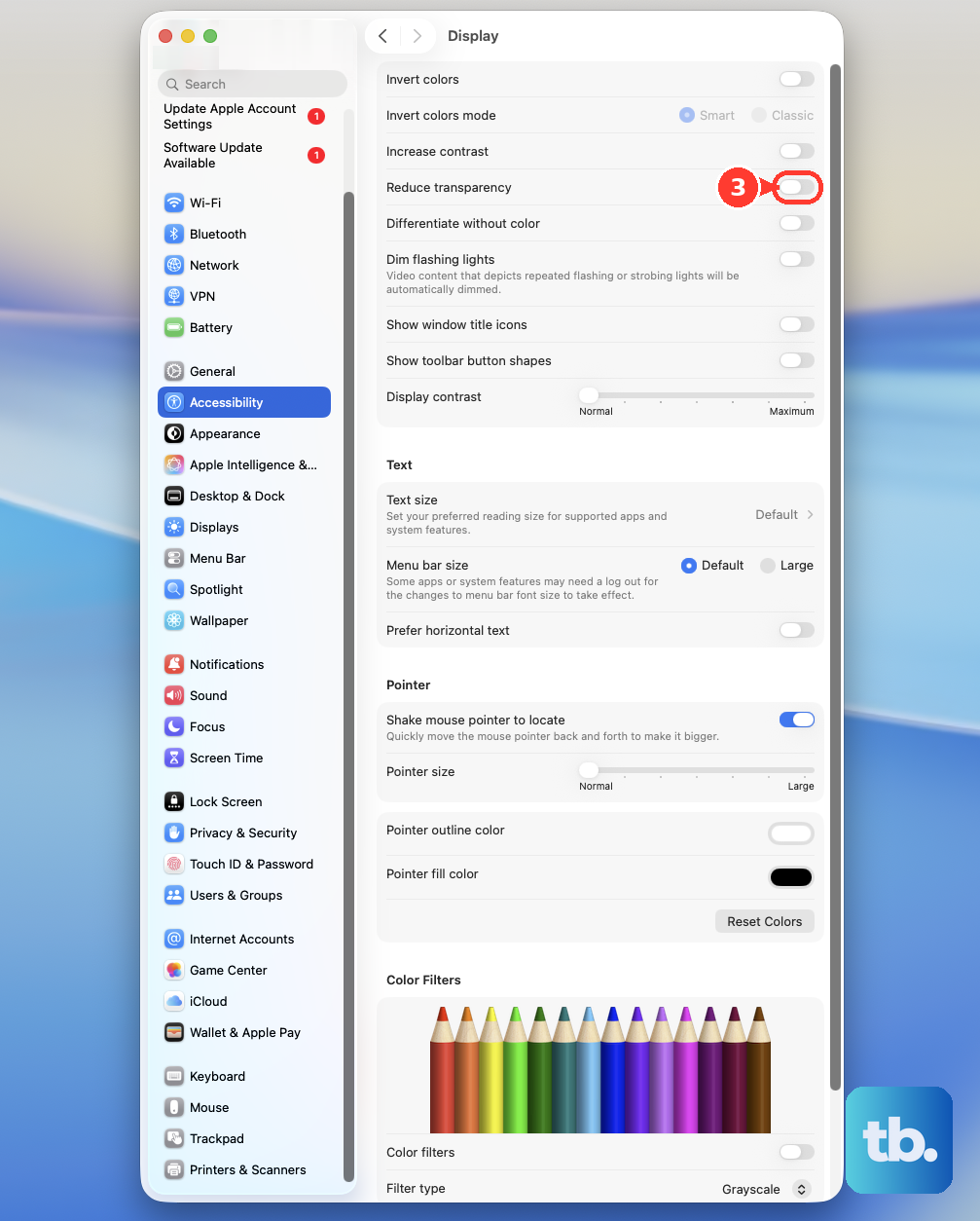
The Mac Pro M2 Ultra supports up to six external displays, but driving that many pixels takes GPU power. If you're experiencing graphical lag, try disconnecting a display or two to see if it helps. Also, consider reducing visual effects in System Settings > Accessibility > Display by turning on "Reduce motion" and "Reduce transparency."