
When your Mac Mini M4 Pro goes silent, it's almost always a quick settings fix or a software hiccup. The internal speaker isn't the most powerful, so sometimes it's easy to miss that the volume is just turned way down. Let's get your sound back.
To separate hardware from software, open a online speaker test and play the channel tones. What you hear, or do not hear, tells you which fixes below matter most.
Check the Volume and Mute
First, press the volume up key on your keyboard a few times. Look at the sound icon in your menu bar. If you see a little slash through the speaker icon, your Mac is muted. Just click the icon and drag the slider up.
I'd also check the Sound settings directly. Go to System Settings > Sound and make sure the output volume slider there is up. Sometimes a system alert or an app can adjust this independently.
Select the Correct Output Device
Head to System Settings > Sound > Output. You'll see a list of all available audio devices. Make sure "Mac Mini M4 Pro Speakers" is selected and highlighted.
If you've recently unplugged a monitor, headphones, or a Thunderbolt 5 dock, macOS might still be trying to send audio to that device. Simply clicking on the internal speakers in this list will switch the audio back.
Restart Your Mac Mini
This is the classic fix for a reason. Click the Apple menu > Restart. A full reboot reloads the Core Audio framework and clears out any temporary glitches that can cause the speakers to stop working.
If the sound cut out after the Mac woke from sleep or after connecting a new peripheral, a restart will almost certainly resolve it. It takes about a minute with the M4 Pro's fast SSD.
Reset the Core Audio Process
You can restart just the audio system without rebooting your whole computer. Open Terminal from your Applications folder or via Spotlight search.
Type the command sudo killall coreaudiod and press Return. You'll be prompted for your administrator password. Type it (you won't see characters as you type) and press Return again. The sound should come back within 10 seconds.
Check for App-Specific Audio Issues
The problem might be isolated to one app. Try playing audio from a different source, like a YouTube video in Safari versus a song in Apple Music. If sound works in one app but not another, check that app's own audio or output settings.
Also, look in System Settings > Sound > Output while the quiet app is playing. You might see a separate volume slider for that specific app you can adjust.
Manage Bluetooth and External Audio
If you have any Bluetooth headphones or speakers paired, your Mac might be connected to them silently. Go to System Settings > Bluetooth and look for connected audio devices. Click the "Disconnect" button next to them.
Since the Mac Mini M4 Pro has all Thunderbolt 5 ports on the back, also check if a connected dock or monitor is claiming audio priority. Disconnect all external displays and docks to see if the internal speakers kick back in.
Update macOS
Audio driver bugs are common fixes in system updates. Go to System Settings > General > Software Update and install any available updates for macOS 26 Tahoe.
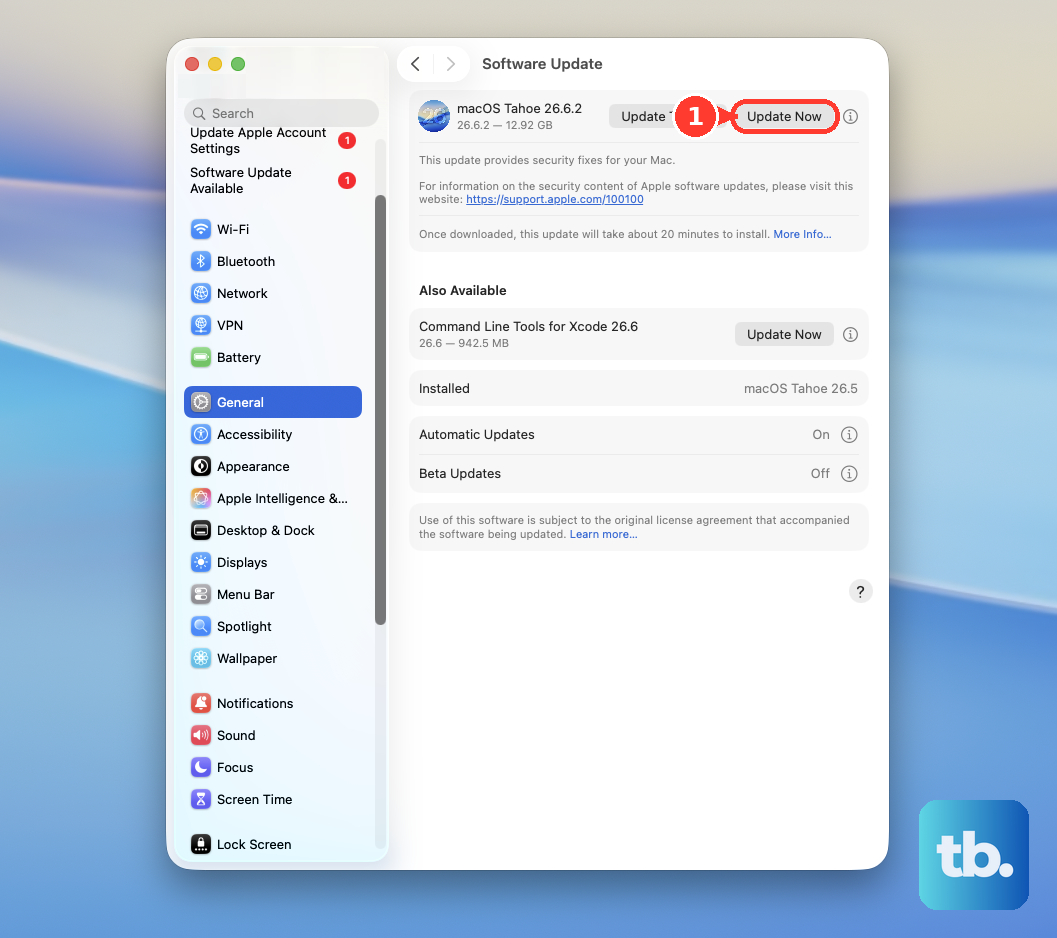
Keeping your system updated is especially important for the M4 Pro model, as Apple is continuously optimizing for its different thermal profile and Thunderbolt 5 compatibility.
Try a Force Restart
If the system is unresponsive or the audio issue is particularly stubborn, a force restart can clear deeper system caches. The power button is on the bottom of the Mac Mini M4 Pro.
Press and hold that power button for a full 10 seconds, then release. Wait a moment, then press it again briefly to turn your Mac back on. This is a clean boot that can resolve odd hardware communication issues.
Check Sound Settings in Safe Mode
Booting into Safe Mode loads only essential system software and can bypass third-party audio drivers or utilities causing conflicts. Shut down your Mac, then turn it on and immediately press and hold the power button until you see "Loading startup options."
Select your startup disk, hold the Shift key, and click "Continue in Safe Mode." If your speakers work normally here, the cause is likely a login item or kernel extension you've installed.