
When Bluetooth stops working on your Mac Mini M4, your wireless keyboard, mouse, and speakers become useless. Whether devices won't connect, keep dropping, or Bluetooth seems completely dead, here are the steps to get it working again.
Toggle Bluetooth Off and On
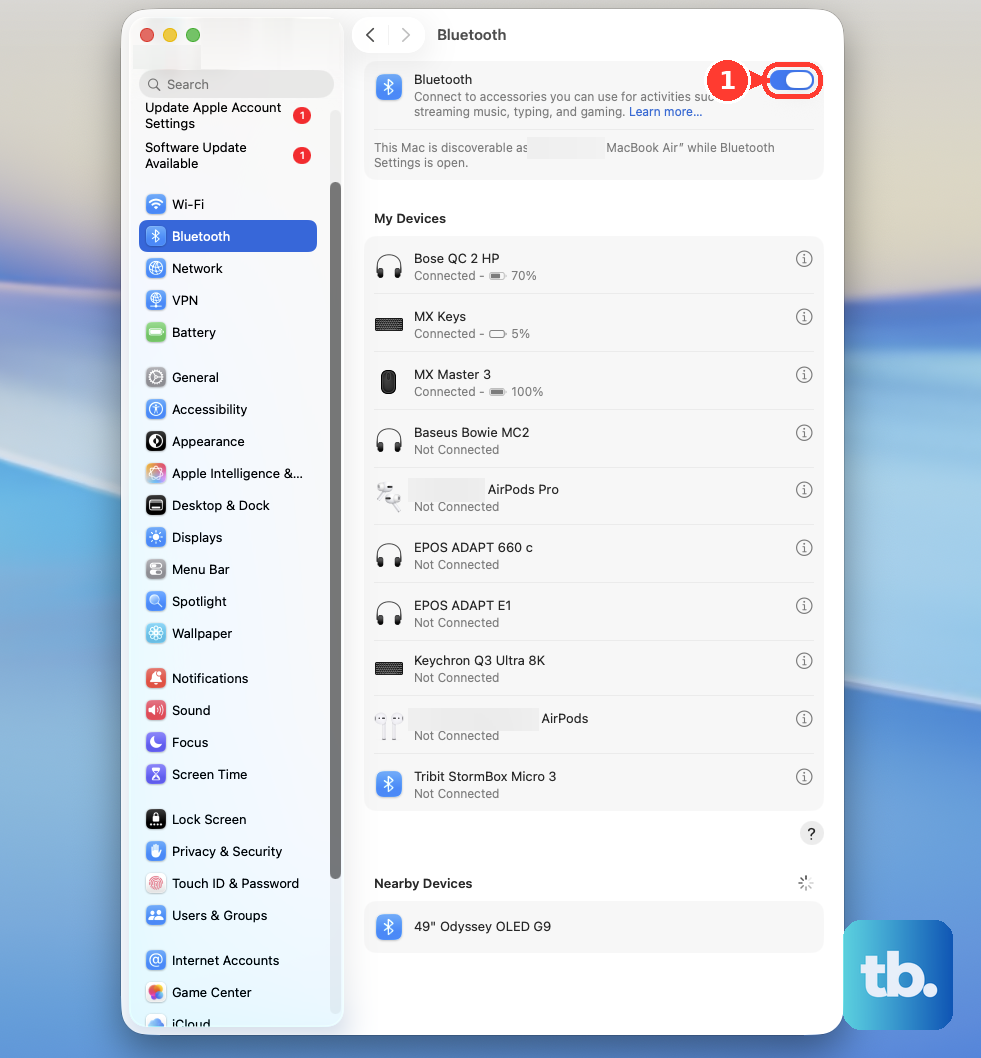
Start with the simplest fix. Click the Bluetooth icon in your menu bar and choose "Turn Bluetooth Off." Wait about ten seconds, then turn it back on.
If you don't see the menu bar icon, you can do this from System Settings > Bluetooth. This quick toggle can often clear up a temporary glitch in the connection.
Restart Your Mac Mini
Click the Apple menu > Restart. A full restart reloads the Bluetooth software and hardware drivers, which fixes a lot of random issues.
Since the Mac Mini has no battery to pull, a restart is the equivalent of a power cycle. It's a step I'd always try before moving to more involved solutions.
Forget and Re-Pair Your Device
Go to System Settings > Bluetooth. Find the problematic device in your list, click the information (i) button next to it, and choose Forget This Device.
Put your keyboard, mouse, or headphones back into pairing mode, then select it from the list on your Mac to pair again. This replaces a potentially corrupted connection profile with a fresh one.
Reset the Bluetooth Module
Hold down the Shift and Option keys on your keyboard, then click the Bluetooth icon in the menu bar. A new debug menu will appear.
Select Reset the Bluetooth module from that menu. This performs a deeper reset of the Bluetooth controller. Your Mac will restart automatically after this process.
Check for Physical Interference
The Mac Mini M4's all-aluminum enclosure can slightly reduce Bluetooth range compared to older models. Make sure your devices are within a clear line of sight, ideally within 10-15 feet.
Also, USB 3.0 devices can cause radio interference. If you have a USB 3 hub or hard drive plugged into one of the front ports, try unplugging it temporarily to see if your Bluetooth connection improves.
Update macOS
Apple frequently releases updates that include fixes for wireless connectivity. Go to System Settings > General > Software Update to check for and install any available updates for macOS 26 Tahoe.
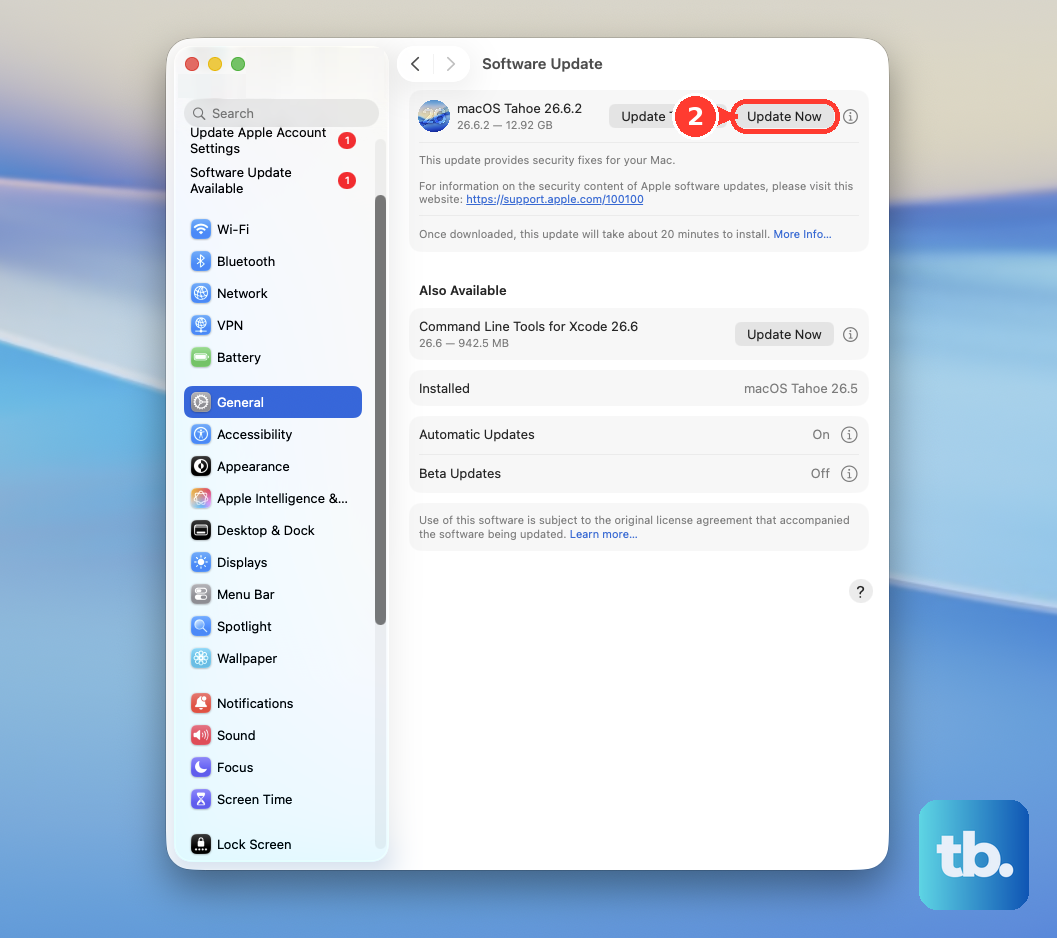
These updates often contain driver improvements specifically for Apple Silicon Macs like the M4, so staying current is important.
Delete Bluetooth Preference Files
If problems persist, corrupted system files might be the cause. Open a Finder window, press Command + Shift + G, and type /Library/Preferences/ into the box that appears.
Look for a file named com.apple.Bluetooth.plist and move it to the Trash. You will need to restart your Mac Mini afterward, and you will have to re-pair all your Bluetooth devices, as this resets the module to factory settings.
Boot Into Safe Mode
Shut down your Mac Mini. Press and hold the physical power button on the bottom of the unit until you see "Loading startup options" appear on your display.
Select your main drive, then press and hold the Shift key