
Screen flickering on your Lenovo Yoga 9i 14 is incredibly distracting, turning a premium laptop into a frustrating experience. The display might flash, show horizontal lines, or have intermittent blackouts. Let's get it fixed.
To narrow down whether the screen or the signal is at fault, open a screen test and step through its patterns. A clean result shifts suspicion to the cable or source device.
Update Your Display Drivers
Outdated or corrupted graphics drivers are the most common cause of screen flickering. For your Yoga 9i 14, you should get drivers directly from Lenovo's support site or the GPU manufacturer. Open the Lenovo Vantage app, go to Device > System Update, and check for new display driver packages.
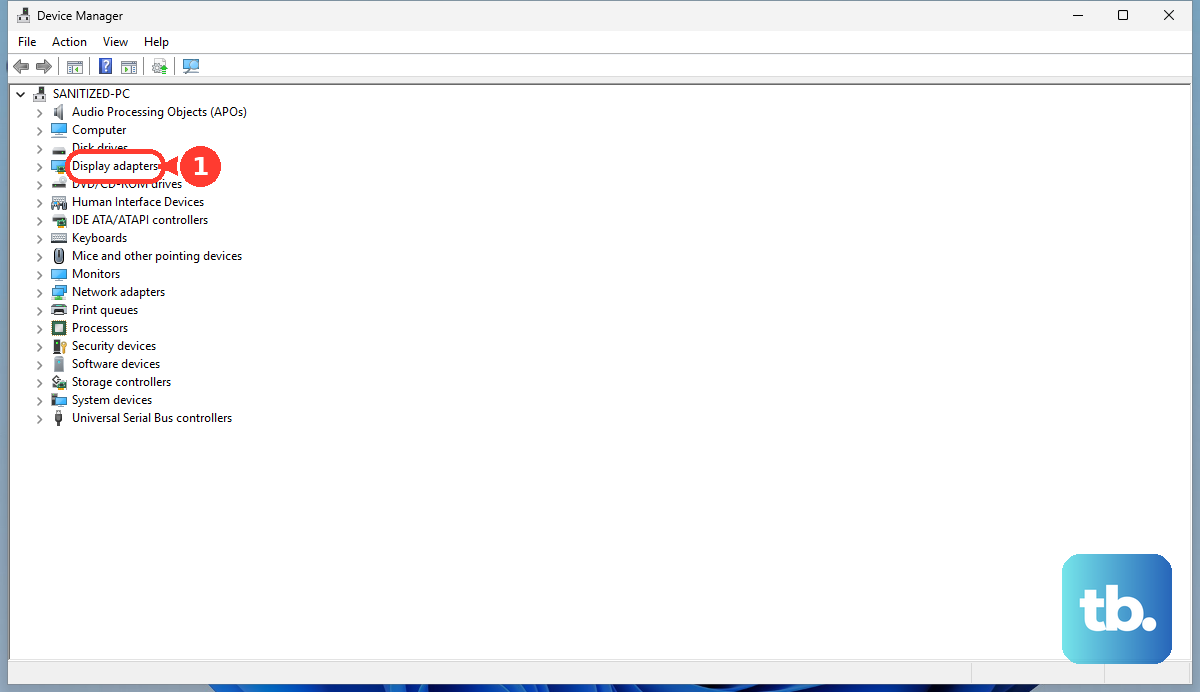
You can also update them manually. Press the Windows key + X and select Device Manager. Expand Display adapters, right-click on your Intel Iris Xe graphics (or dedicated NVIDIA GPU if equipped), and choose Update driver. Select Search automatically for drivers.
Check the Task Manager Trick
This quick test tells you if the problem is system-wide or app-specific. Press Ctrl + Shift + Esc to open Task Manager. Watch it closely. If Task Manager itself flickers, the issue is with your graphics driver or Windows.
If Task Manager stays perfectly stable but your desktop and other windows flicker, a third-party application is likely causing the conflict. I'd start by looking at recently installed software, especially security suites or system utilities.
Adjust Your Display Refresh Rate
Your Yoga 9i 14's high-refresh-rate display can sometimes have compatibility hiccups. Right-click your desktop and select Display settings. Scroll down and click Advanced display.
Look for the Refresh rate dropdown. If it's set to 90Hz or 120Hz, try switching it to 60Hz to see if the flickering stops. If it does, you know the panel or driver is struggling with the higher rate, and a driver update is your next step.
Disable Hardware Acceleration in Apps
Many apps, like web browsers and video players, use your GPU to render content. A conflict here can cause flickering. In Google Chrome, go to Settings > System and turn off Use hardware acceleration when available.
Restart Chrome and see if the issue persists. Do the same for any other app where you notice the flickering, like Discord or Spotify, as they often have similar settings buried in their options.
Boot Into Safe Mode
If the flickering is constant and makes it hard to navigate, booting into Safe Mode loads Windows with only essential drivers. This will tell you if a startup program or driver is the culprit. Hold the Shift key while clicking Restart from the Windows power menu.
After restarting, go to Troubleshoot > Advanced options > Startup Settings > Restart. Press 4 or F4 to enable Safe Mode. If the screen is stable here, you'll need to clean-boot or uninstall recent software/drivers.
Roll Back a Problematic Driver
If the flickering started right after a driver update, rolling it back is a fast fix. Go back into Device Manager under Display adapters. Right-click your graphics driver and select Properties.
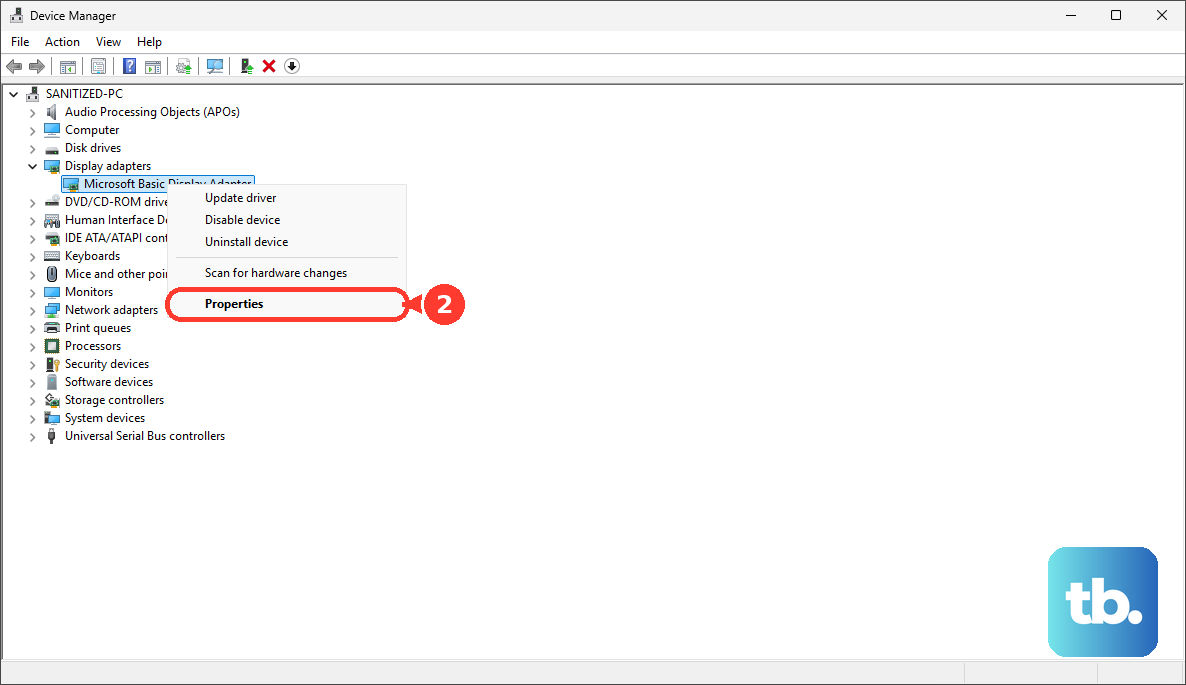
Go to the Driver tab. If the Roll Back Driver button is clickable, select it and follow the prompts. This will revert to the previous driver version that was working correctly on your system.
Run All Windows and Lenovo Updates
Don't just check for driver updates. Go to Settings > Windows Update and install every available update. Microsoft frequently pushes system fixes that resolve display issues. After that, open Lenovo Vantage again and run a full scan.
Lenovo Vantage is crucial for this laptop, as it provides firmware and BIOS updates tailored for the Yoga 9i 14's hardware, including the hinge and soundbar, which can sometimes influence system stability.
Check for a Loose Internal Cable
This is a less common but possible hardware cause, especially on a 2-in-1. If the flickering gets worse when you move the hinge or rotate the screen into tablet mode, the internal display cable might be slightly loose. This connection can wear over time with frequent hinge movement.
This isn't a simple DIY fix due to the compact design. If all software steps fail and the flickering is tied to physical movement, it would require a technician to open the chassis and reseat the display cable.