
When Bluetooth stops working on your Lenovo Yoga 9i 14, it can leave your wireless mouse, headphones, or speaker disconnected. The issue might be a missing Bluetooth toggle, a device that won't pair, or a connection that keeps dropping. Here are the steps to get everything talking again.
Toggle Bluetooth On and Off
First, check the quick action center. Click the network, sound, and battery icon in the taskbar and make sure the Bluetooth tile is lit up. If it's off, click it to turn it on. If the tile is missing, you can also go to Settings > Bluetooth & devices and flip the main Bluetooth switch there.
Restart Your Yoga 9i
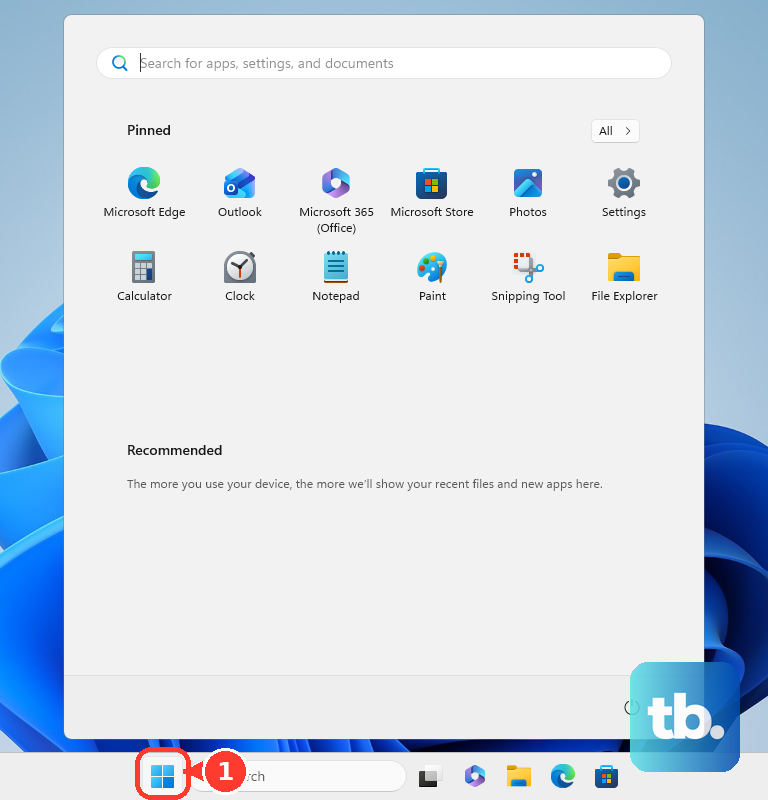
A simple restart is often the quickest fix. It reloads the Bluetooth drivers and services, which can clear up temporary glitches that happen after the laptop wakes from sleep or hibernation. Just click Start, select Power, and choose Restart.
Forget and Re-Pair Your Device
Go to Settings > Bluetooth & devices > Devices. Find the problematic device in the list and click the three dots next to it, then select Remove device. Put your Bluetooth accessory into pairing mode, then click Add device on your laptop to set it up fresh. This clears out any corrupted pairing data.
For the Yoga 9i's included stylus, if it stops responding after the battery drains, you'll need to re-pair it specifically through the Lenovo Pen Settings app after recharging it.
Run the Windows Bluetooth Troubleshooter
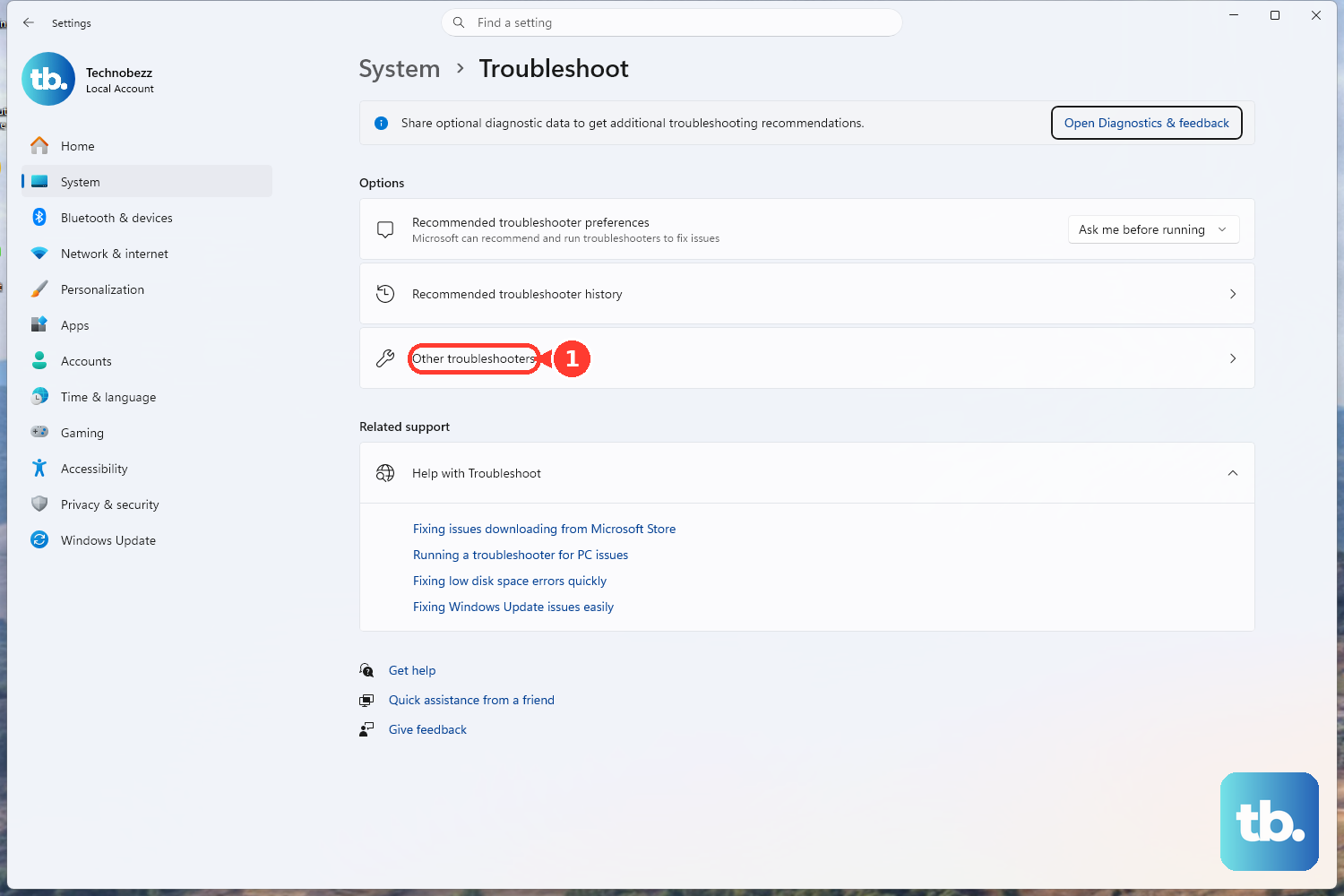
Windows has a built-in tool for this. Go to Settings > System > Troubleshoot > Other troubleshooters. Find the Bluetooth troubleshooter in the list and click the Run button next to it. It will scan for common problems and try to apply fixes automatically.
Update Your Bluetooth Drivers
Outdated or corrupted drivers are a frequent culprit. Press the Windows key + X and select Device Manager. Expand the Bluetooth section, right-click on your Bluetooth adapter (it might be listed as Intel or Realtek), and choose Update driver. Select Search automatically for drivers.
For the most reliable drivers, I'd also check Lenovo Vantage. Open the Vantage app, go to the System Update section, and let it scan. It pulls drivers directly from Lenovo that are certified for your specific model.
Restart the Bluetooth Support Service
Press Windows key + R, type services.msc, and hit Enter. In the Services window, scroll down and find Bluetooth Support Service. Right-click on it and select Restart. Also, double-click it to open its properties and ensure the Startup type is set to Automatic.
Check for Physical and Wireless Interference
Bluetooth uses the 2.4GHz band, which it shares with Wi-Fi and other devices. If your connection is choppy or drops, try moving the Bluetooth device closer to your laptop. Also, unplug any devices from your USB ports, especially USB 3.0 drives or hubs, as they can sometimes cause signal interference.
For audio issues with the built-in rotating soundbar, the audio quality can sometimes vary based on the hinge angle. Try adjusting the laptop's position to see if it improves the Bluetooth audio stream.
Install All Windows Updates
Microsoft regularly releases patches that fix connectivity issues. Go to Settings > Windows Update and click Check for updates. Install any available feature or quality updates, then restart your laptop when prompted. This ensures your system has the latest Bluetooth stack from Microsoft.
Reinstall the Bluetooth Adapter
If updates don't help, a clean driver reinstall might. Go back to Device Manager, find your Bluetooth adapter under the Bluetooth section, right-click it, and select Uninstall device. Check the box that says Attempt to remove the driver for this device if it appears. After uninstalling, restart your Yoga 9i. Windows will automatically detect the hardware and install a fresh driver on startup.
Use the Novo Button for Advanced Recovery
If you're still facing major system or driver issues, the Novo button can help. Make sure the laptop is completely shut down. Locate the tiny Novo button pinhole on the side of the chassis. Straighten a paperclip and gently press it in.
This will boot you to a recovery menu. From here, you can select BIOS Setup (which you can also access by pressing F2 at startup) to check settings, or choose System Recovery to restore Windows while keeping your files, which can resolve deep-seated driver conflicts.