
A Lenovo Yoga 7 14 that's dragging its feet can turn a productive day into a frustrating slog. When your 2-in-1 feels more like a 0.5-in-1, it's usually a sign that some software housekeeping is overdue. The good news is you can almost always restore its snappiness with a few targeted tweaks.
Restart Your Yoga 7
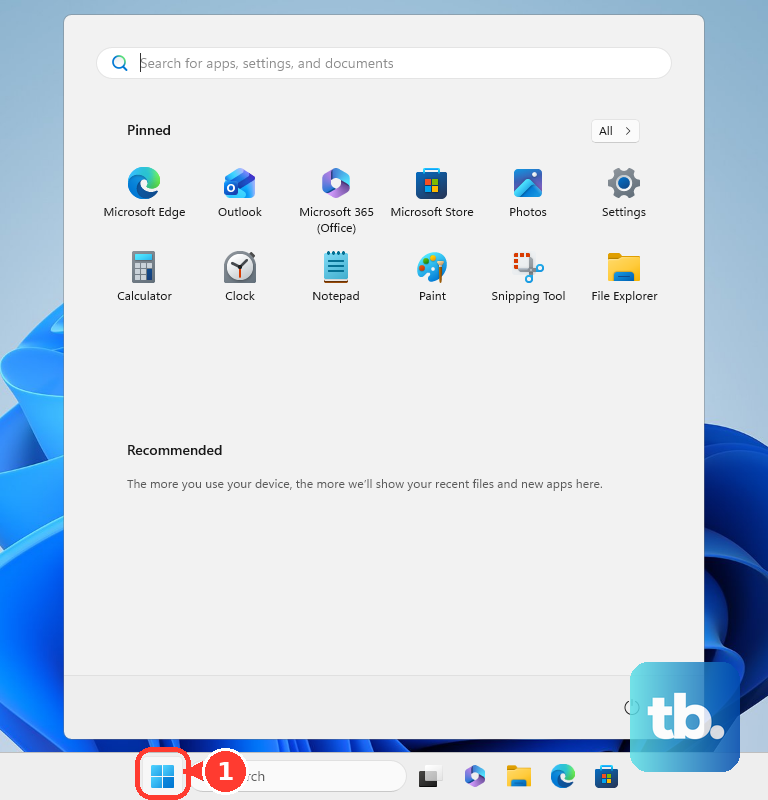
If you're in the habit of just closing the lid, your laptop accumulates background tasks and memory clutter over weeks. Click Start > Power > Restart. Don't just choose Shut down, as Windows' fast startup feature doesn't fully clear the system state. A fresh boot can work wonders.
Use Task Manager to Find the Culprit
Press Ctrl + Shift + Esc to open Task Manager. Click the CPU, Memory, or Disk column headers to sort by what's being used the most. Look for any single process hogging a huge percentage. Right-click on non-essential resource hogs and select End task.
Stop Apps from Launching at Startup
Still in Task Manager, switch to the Startup apps tab. You'll likely see apps like Spotify, Steam, or OneDrive set to launch automatically. Right-click and disable anything you don't need immediately upon booting. Each one you disable shaves time off your startup and frees up RAM.
Free Up Space on Your SSD
A solid-state drive performs best when it's not crammed full. Go to Settings > System > Storage. Turn on Storage Sense to let Windows automatically clean temporary files. You can also click Temporary files to manually clear out update leftovers and your recycle bin. Try to keep at least 20% of your drive free.
Run a Full Malware Scan
Open Windows Security from the Start menu. Navigate to Virus & threat protection and click Scan options. Choose Full scan and let it run. Background malware is a classic, sneaky cause of sudden slowdowns, and this built-in tool is very effective.
Update Everything with Lenovo Vantage
This is a key step for your Yoga. Open the Lenovo Vantage app. Go to the Device section and click Check for updates. Let it scan for system, BIOS, and driver updates. I'd use Vantage for this over Windows Update, as it ensures you get the drivers Lenovo has tested specifically for your model, which helps avoid conflicts.
Switch to High Performance Mode
Your laptop might be trying too hard to save power. Click the battery icon in your system tray and drag the power mode slider all the way to Best performance. For a more permanent setting, go to Settings > System > Power & battery and set the Power mode to Best performance, especially when plugged in.
Turn Down Windows Visual Effects
Search for "Adjust the appearance and performance of Windows" in the Start menu. In the Visual Effects tab, you can select Adjust for best performance to turn everything off. If that's too stark, manually uncheck the most demanding options like animations, shadows, and transparency effects.
Manage Your Power Plan for Fan Noise
If you've noticed the fans ramping up and performance dipping, it could be a thermal or power setting. In Lenovo Vantage, look for Intelligent Cooling or performance mode settings. Sometimes, setting a more balanced mode can reduce aggressive fan noise in quiet environments without a huge performance hit.
Consider a Clean Windows Refresh
If the slowness persists after all else, a reset can clear out accumulated software bloat. Go to Settings > System > Recovery and click Reset PC. Choose Keep my files to reinstall Windows while preserving your personal data. You'll have to reinstall your applications, but it often returns the system to like-new speed.