
When your ThinkPad X1 Carbon won't connect to WiFi, it can stop your work in its tracks. Whether you see no networks, get a "Can't connect to this network" error, or have a connection that keeps dropping, these steps will help you get back online.
Run the Windows Network Troubleshooter
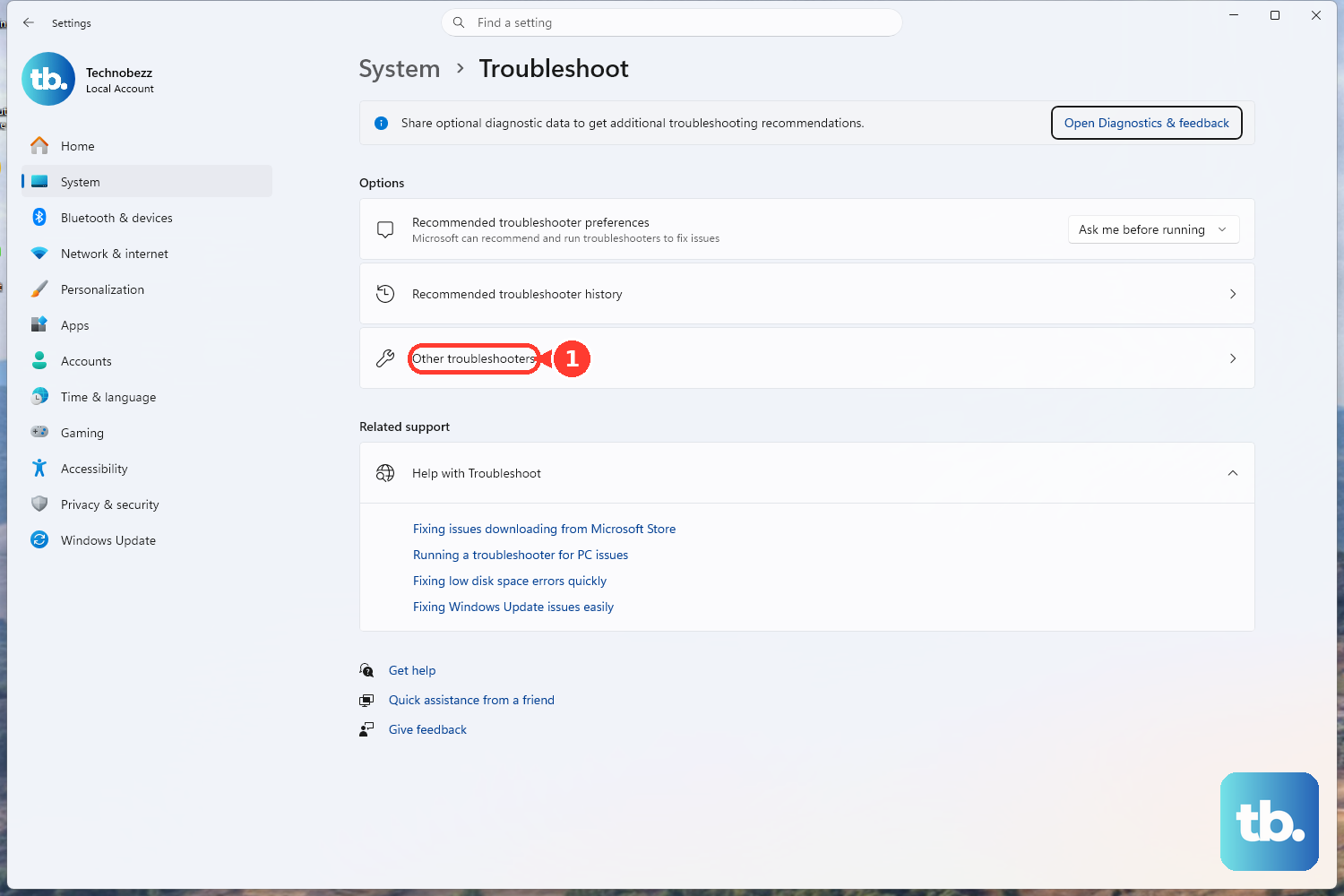
This is a great place to start. Right-click the WiFi icon in your system tray and select Troubleshoot problems. Windows will automatically scan for common issues like adapter problems or IP configuration errors and try to fix them. You can also find it by going to Settings > System > Troubleshoot > Other troubleshooters and running the Network and Internet troubleshooter.
Toggle the WiFi Radio On and Off
Click the network icon in the taskbar and use the toggle to turn WiFi off. Wait about ten seconds, then turn it back on. This simple action refreshes your wireless adapter. You can also press F8 (or Fn + F8 if your function keys are locked) to toggle the wireless radios, which includes WiFi and Bluetooth.
Perform a Full Restart
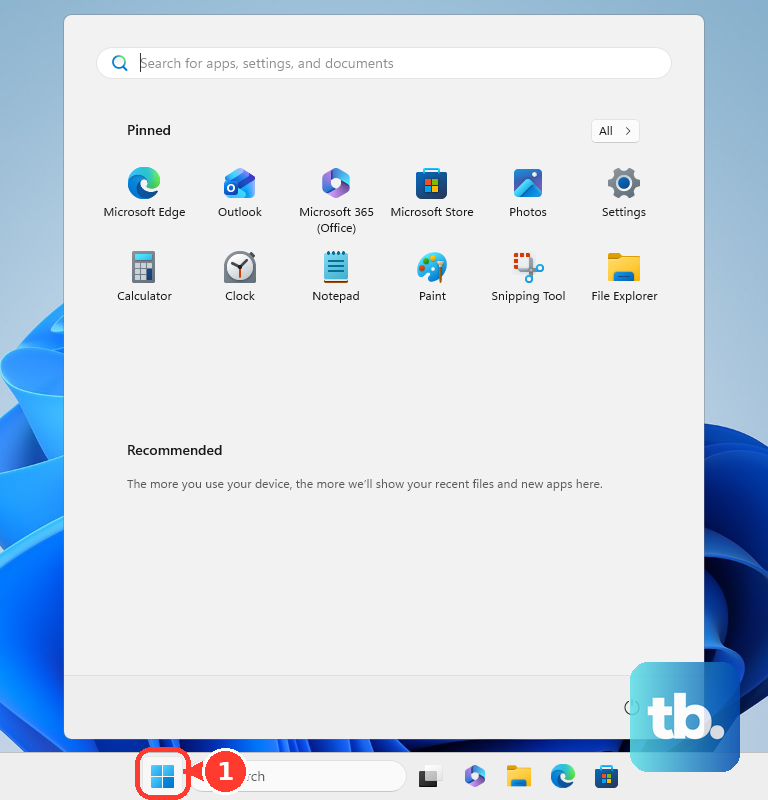
Don't just put the laptop to sleep. Click Start > Power > Restart. A full reboot clears out the network stack and reloads all drivers from scratch. I've found this resolves a surprising number of transient WiFi glitches on the X1 Carbon, especially if it's been running for days or has recently come out of sleep mode.
Forget and Re-add Your Network
Go to Settings > Network & internet > Wi-Fi > Manage known networks. Click on your problem network and select Forget. Then, scan for networks again, select yours, and re-enter the password. This clears out any corrupted connection profile data that might be preventing a successful handshake.
Update Your Wireless Driver via Lenovo Vantage
Outdated or corrupted drivers are a frequent culprit. The best tool for this on a ThinkPad is Lenovo Vantage. Open it, go to the Device section, and click Check for updates. It will scan for the latest official drivers for your specific model, including the WiFi adapter. Install any available updates and restart.
Disable and Re-enable the Network Adapter
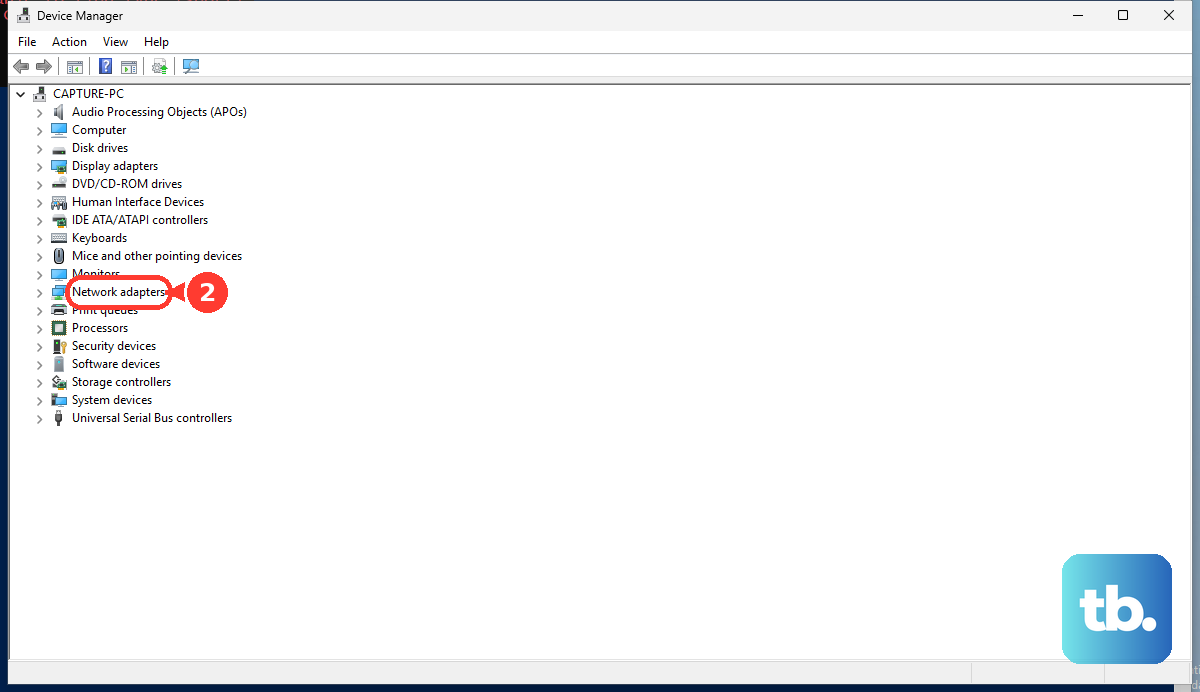
Open Device Manager (press Windows Key + X and select it). Expand Network adapters, right-click your Intel or Realtek Wireless adapter, and choose Disable device. Wait a moment, then right-click it again and select Enable device. This forces a fresh initialization without needing a full system restart.
Reset Your Network Stack
Go to Settings > Network & internet > Advanced network settings > Network reset. Click Reset now. This will remove and reinstall all network adapters and set all networking components back to their default settings. You will need to reconnect to your WiFi networks afterward, so have your passwords handy.
Flush DNS and Reset TCP/IP via Command Prompt
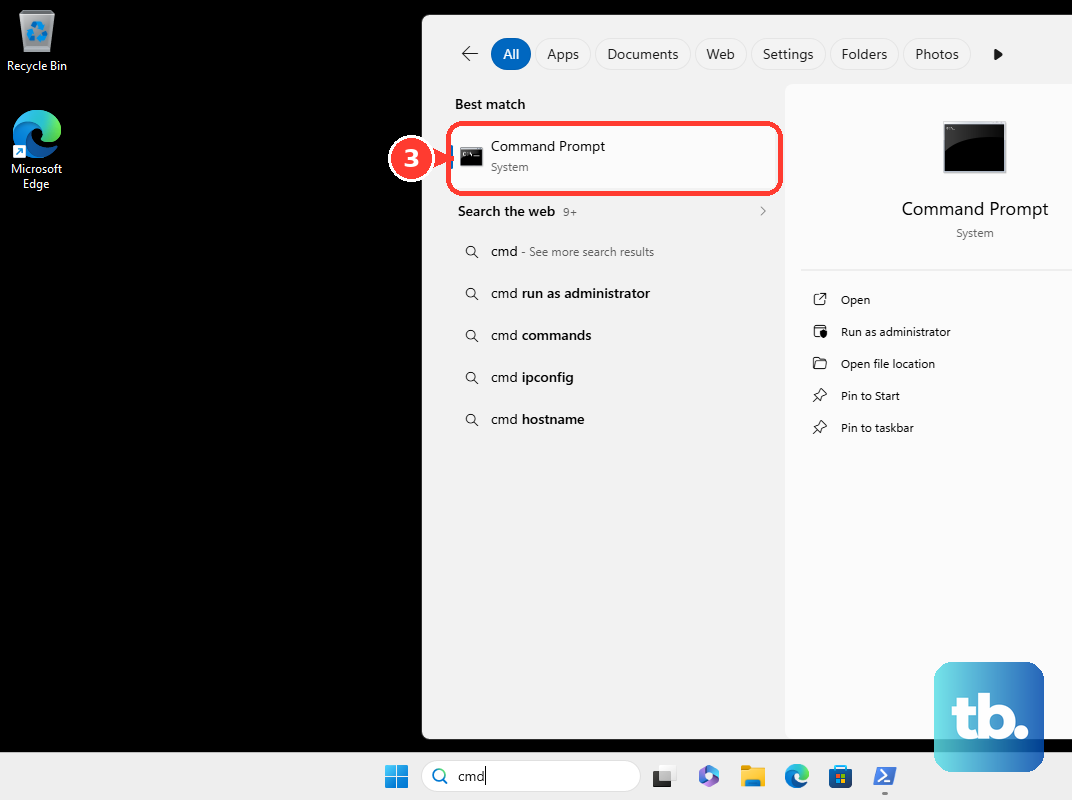
Open Command Prompt as an administrator. Type the following commands one at a time, pressing Enter after each: ipconfig /flushdns, netsh winsock reset, and netsh int ip reset. After running them, restart your laptop. This clears local DNS caches and resets core internet protocols, which can fix "No Internet" errors even when you're connected to WiFi.
Check for Windows Updates and BIOS Updates
Head to Settings > Windows Update and install any pending feature or quality updates. Microsoft often patches network-related bugs. It's also wise to check for a BIOS/UEFI update through Lenovo Vantage or the support website, as these can improve system stability and hardware communication, including with the WiFi module.
Test with a Different Network and Check Your Router
Try connecting your X1 Carbon to a different WiFi source, like your phone's mobile hotspot. If it connects there, the issue is likely with your primary router or its settings. Restart your router by unplugging it for 30 seconds. Also, if you use a Thunderbolt dock, try connecting directly to the router, as some dock firmware can interfere with network connectivity after sleep.