
When you plug in your Lenovo IdeaPad 5 15 and the battery percentage just won't budge, it's a frustrating roadblock. The issue could be with the charger, the port, a software setting, or the battery itself. Let's walk through the most effective fixes to get you back to a full charge.
Inspect Your Charger and Cable
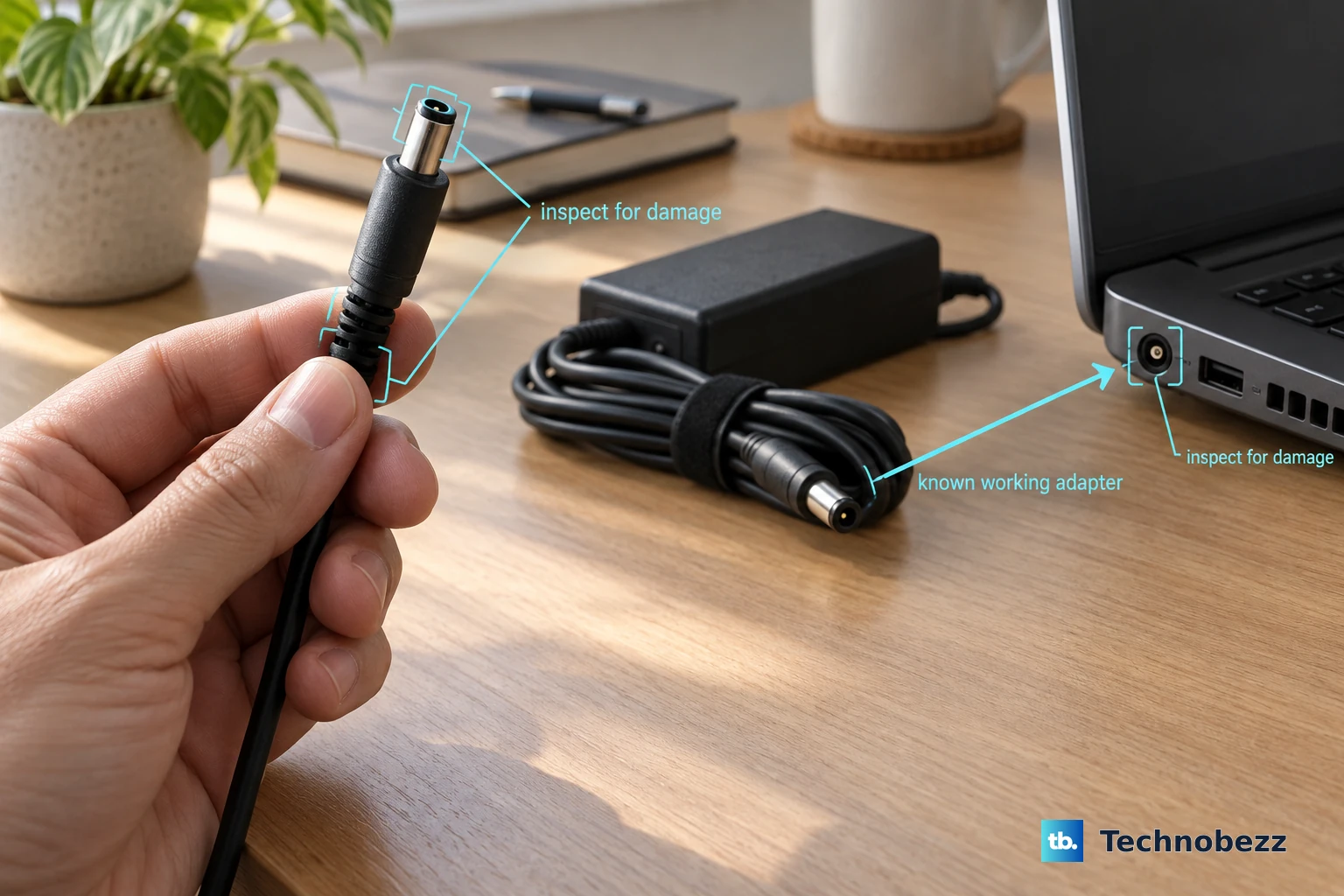
Start with the power source. Check the Lenovo power brick and the cable that runs from it to your laptop for any obvious damage, like fraying or kinks. Make sure the brick is firmly plugged into the wall outlet and try a different outlet to rule out a power strip issue.
The LED light on the power adapter should be on when it's connected to AC power. If it's not lit, that's a strong indicator the problem is with the adapter or the wall connection. I'd start troubleshooting right here.
Perform a Power Reset
This is a quick and often effective first step. Shut down your IdeaPad completely (don't just close the lid to sleep). Unplug the charger from the laptop, then also unplug the power brick from the wall outlet.
Now, press and hold the laptop's power button for a full 60 seconds. This drains any residual power from the system. After that, plug the charger back into the wall, connect it to your laptop, and try turning it on.
Check for Lenovo Vantage Battery Settings
Lenovo includes a feature called Conservation Mode in its Vantage software, which is often pre-installed. This setting is designed to extend your battery's long-term health by stopping the charge at around 60%.
If Conservation Mode is enabled, your laptop will appear to not charge past that point. Open the Lenovo Vantage app, navigate to the Power or Hardware Settings section, and look for this toggle to disable it if you need a full charge.
Update Your Battery Drivers in Windows
Corrupted power management drivers can confuse Windows into thinking the battery is fine when it's not. Press the Windows key + X and select Device Manager. Expand the "Batteries" section.
Right-click on both "Microsoft ACPI-Compliant Control Method Battery" and "AC Adapter" and choose "Uninstall device" for each. Don't restart when prompted. After uninstalling both, go to the Action menu at the top and select "Scan for hardware changes." Windows will reinstall fresh drivers, which often resolves charging detection issues.
Generate a Windows Battery Report
You can get a detailed health check directly from Windows. Open Command Prompt as an administrator and type the command powercfg /batteryreport and press Enter.
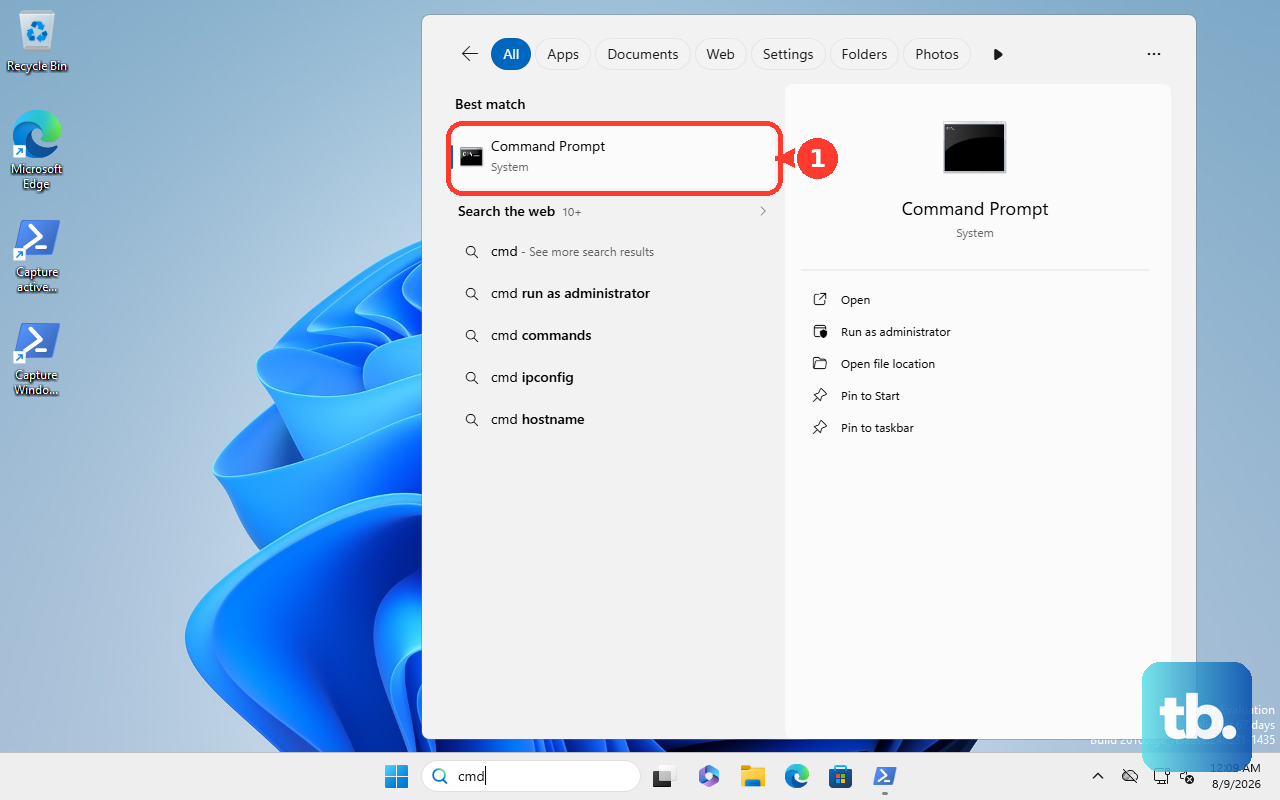
This command saves an HTML file to your user folder. Open that file in your web browser and look for the "Design Capacity" versus "Full Charge Capacity" figures. If your full charge capacity is significantly lower than design, your battery may be worn out and struggling to accept a charge.
Clean the Laptop's Charging Port
Over time, the barrel charging port on your IdeaPad can collect pocket lint and dust, preventing the charger tip from making a solid connection. Power off the laptop and unplug it.
Use a can of compressed air to blow out the port, or very carefully use a wooden toothpick to dislodge any compacted debris. Avoid using metal objects that could damage the internal contacts.
Test with a Different Charger
If you have access to another compatible Lenovo charger, try it. Adapters can fail internally even if they look fine. The IdeaPad 5 15 typically uses a 65W charger, and using one with a lower wattage might only slow-drain the battery or not charge it at all under load.
Make sure any replacement charger has the correct tip size and polarity for your model. Using an incompatible charger is a sure way to see no charging activity.
Use the Novo Button for Recovery Options
Your IdeaPad has a small pinhole button, usually on the left side or next to the main power button, called the Novo button. Turn the laptop completely off, then press this button with a paperclip.
This will boot you into a special menu. From here, you can select "BIOS Setup" to check power settings or "System Recovery" if you suspect a deeper Windows issue is causing the problem. It's a handy tool unique to Lenovo laptops.
Update Your System BIOS
Outdated system firmware can cause various hardware glitches, including power management errors. Visit the official Lenovo support website, enter your IdeaPad 5 15's exact model number, and look for BIOS/UEFI updates in the drivers section.
Follow Lenovo's instructions to the letter for updating the BIOS. Ensure your laptop is plugged in during the entire process, as an interruption can cause serious damage. These updates sometimes include fixes for charging circuitry behavior.